

Before reading this article, please go through the following article.
The GridView Control displays items with the same height and width. This behavior is controlled by ItemsPanel property, that is a WrapGrid by default. If we use it to VariableSizedWrapGrid, we can determine the size of each cell separately.
Reading this article, you can learn how to use VariableSizeWrapGrid Control with Horizontal and Vertical Orientation in Universal Windows apps development, with XAML and Visual C#.
The following important tools are required for developing UWP.
- Windows 10 (Recommended)
- Visual Studio 2015 Community Edition (It is a free software available online).
Now, we can discuss step by step app development.
Step1
Open Visual Studio 2015. Go to Start -> New Project-> Select Universal (under Visual C# -> Windows) -> Blank App -> Give suitable name for your App (UWPVarSizeGr) -> OK.
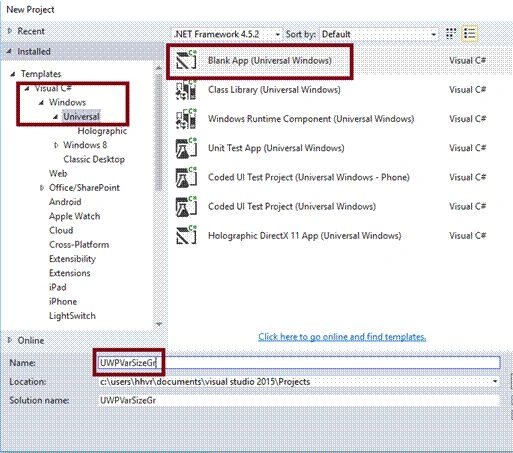
Step 2
Choose the Target and Minimum platform versions that your application will support. After this, the Project creates App.xaml and MainPage.xaml files.
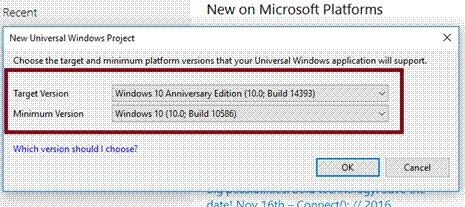
Step 3
Open (double click) the file MainPage.xaml in Solution Explorer and click on the Toolbox tab on the left to open the list of common XAML controls.
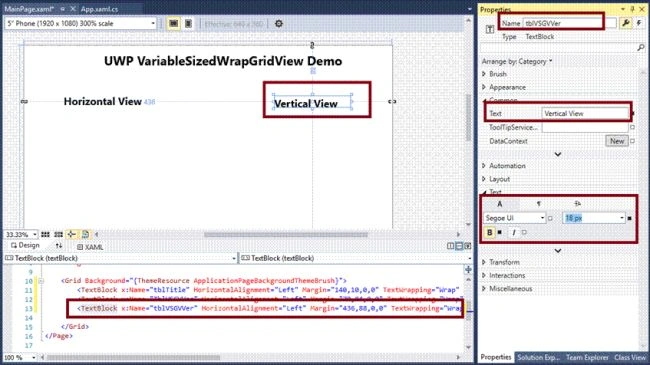
Expand common XAML controls, and drag the required control to the middle of the design canvas. Add TextBlock control and change the Name and Text property for Title.
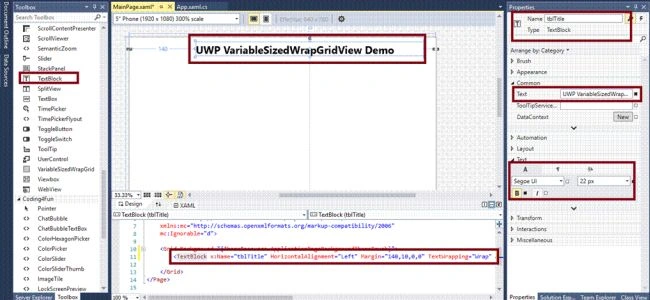
Add TextBlock control and change the name and text property for Title in Horizontal View.
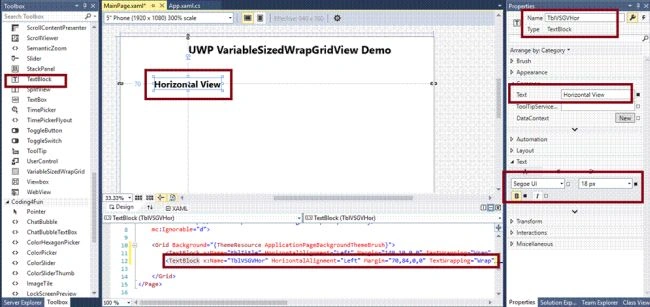
Add TextBlock control and change the name and text property for Title in Vertical View.
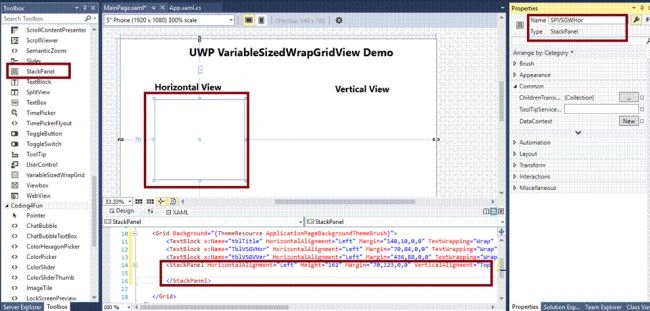
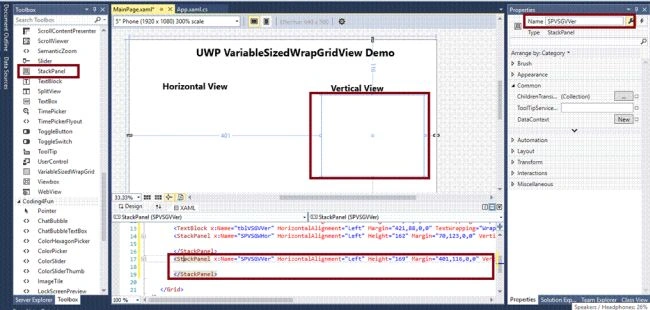
After that, drag and drop the Stack Panel control. You have to change the Name property and add the end Tag </StackPanel> for VariableSizeWrapGrid Horizontal Orientation.
Step 4
Inside the Stack Panel control change the Name property and add the end Tag </VariableSizedWrapGrid> and set the properties of Orientation as Horizontal, MaximumRowsOrColumns, ItemHeight, ItemWidth.
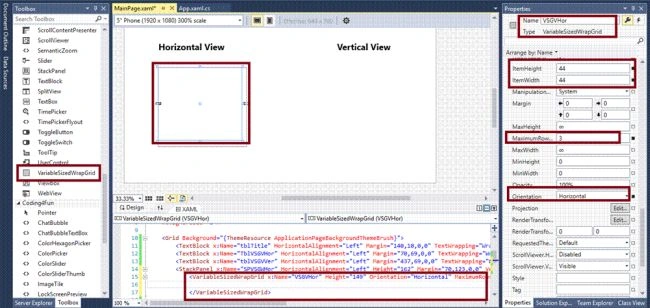
Add the images for the VariableSizeWrapGrid.
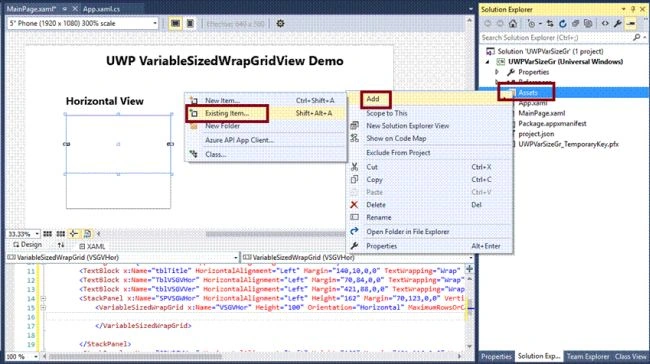
Add the following code used for adding 4 Image controls in VariableSizeWrapGrid.
- <Image Source="Assets/01.jpg" Stretch="Fill" />
- <Image Source="Assets/02.jpg" Stretch="Fill" Width="80" VariableSizedWrapGrid.ColumnSpan="2" />
- <Image Source="Assets/03.jpg" Stretch="Fill" VariableSizedWrapGrid.RowSpan="2" />
- <Image Source="Assets/04.jpg" Stretch="Fill" Height="80" Width="80" VariableSizedWrapGrid.RowSpan="2" VariableSizedWrapGrid.ColumnSpan="2" />
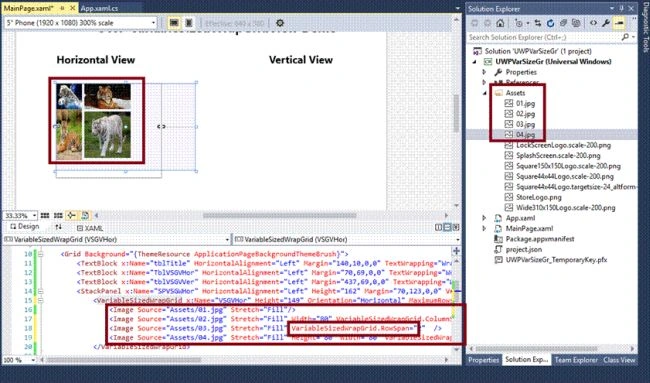
Step 5
Similarly, add another VariableSizeWrapGrid for Vertical orientation inside the Stack Panel control and change the Name property and add the end Tag </VariableSizedWrapGrid> and set the properties Orientation as Vertical, MaximumRowsOrColumns, ItemHeight, ItemWidth
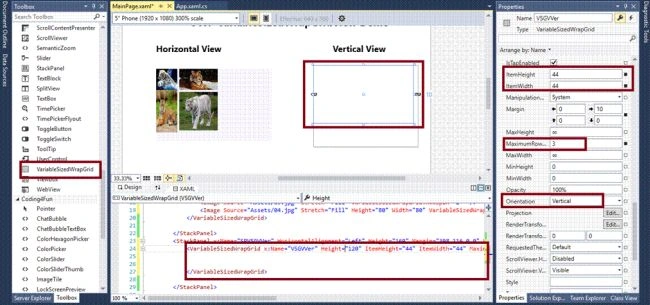
Add the following code used for adding 4 Image controls in VariableSizeWrapGrid
- <Image Source="Assets/01.jpg" Stretch="Fill" />
- <Image Source="Assets/02.jpg" Stretch="Fill" Width="80" VariableSizedWrapGrid.ColumnSpan="2" />
- <Image Source="Assets/03.jpg" Stretch="Fill" VariableSizedWrapGrid.RowSpan="2" />
- <Image Source="Assets/04.jpg" Stretch="Fill" Height="80" Width="80" VariableSizedWrapGrid.RowSpan="2" VariableSizedWrapGrid.ColumnSpan="2" />
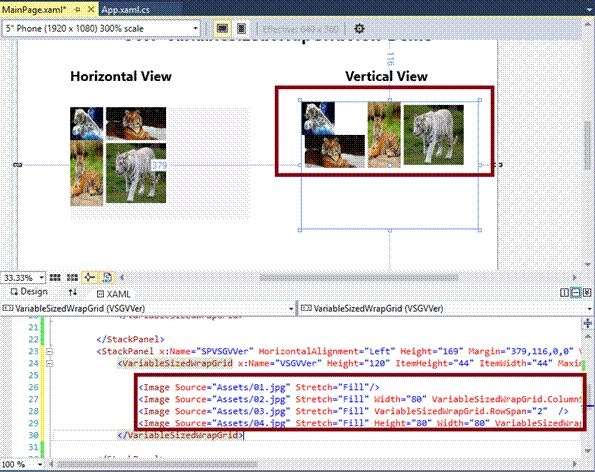
Note Automatically, the following code will be generated in XAML code view, when we are done in the design view.
- <Page x:Class="UWPVarSizeGr.MainPage" xmlns="http://schemas.microsoft.com/winfx/2006/xaml/presentation" xmlns:x="http://schemas.microsoft.com/winfx/2006/xaml" xmlns:local="using:UWPVarSizeGr" xmlns:d="http://schemas.microsoft.com/expression/blend/2008" xmlns:mc="http://schemas.openxmlformats.org/markup-compatibility/2006" mc:Ignorable="d">
- <Grid Background="{ThemeResource ApplicationPageBackgroundThemeBrush}">
- <TextBlock x:Name="tblTitle" HorizontalAlignment="Left" Margin="140,10,0,0" TextWrapping="Wrap" Text="UWP VariableSizedWrapGridView Demo" VerticalAlignment="Top" FontWeight="Bold" FontSize="22" Width="474" />
- <TextBlock x:Name="TblVSGVHor" HorizontalAlignment="Left" Margin="70,69,0,0" TextWrapping="Wrap" Text="Horizontal View" VerticalAlignment="Top" FontSize="18" FontWeight="Bold" />
- <TextBlock x:Name="tblVSGVVer" HorizontalAlignment="Left" Margin="437,69,0,0" TextWrapping="Wrap" Text="Vertical View" VerticalAlignment="Top" Height="20" Width="131" FontWeight="Bold" FontSize="18" />
- <StackPanel x:Name="SPVSGWHor" HorizontalAlignment="Left" Height="162" Margin="70,123,0,0" VerticalAlignment="Top" Width="181" BorderBrush="Black">
- <VariableSizedWrapGrid x:Name="VSGVHor" Height="149" Orientation="Horizontal" MaximumRowsOrColumns="3" ItemHeight="44" HorizontalAlignment="Left" Width="239" ItemWidth="44" Background="#FFF7F5FB" Margin="0,0,-58,0">
- <Image Source="Assets/01.jpg" Stretch="Fill" />
- <Image Source="Assets/02.jpg" Stretch="Fill" Width="80" VariableSizedWrapGrid.ColumnSpan="2" />
- <Image Source="Assets/03.jpg" Stretch="Fill" VariableSizedWrapGrid.RowSpan="2" />
- <Image Source="Assets/04.jpg" Stretch="Fill" Height="80" Width="80" VariableSizedWrapGrid.RowSpan="2" VariableSizedWrapGrid.ColumnSpan="2" />
- </VariableSizedWrapGrid>
- </StackPanel>
- <StackPanel x:Name="SPVSGVVer" HorizontalAlignment="Left" Height="169" Margin="379,116,0,0" VerticalAlignment="Top" Width="235" BorderBrush="Black">
- <VariableSizedWrapGrid x:Name="VSGVVer" Height="120" ItemHeight="44" ItemWidth="44" MaximumRowsOrColumns="3">
- <Image Source="Assets/01.jpg" Stretch="Fill" />
- <Image Source="Assets/02.jpg" Stretch="Fill" Width="80" VariableSizedWrapGrid.ColumnSpan="2" />
- <Image Source="Assets/03.jpg" Stretch="Fill" VariableSizedWrapGrid.RowSpan="2" />
- <Image Source="Assets/04.jpg" Stretch="Fill" Height="80" Width="80" VariableSizedWrapGrid.RowSpan="2" VariableSizedWrapGrid.ColumnSpan="2" />
- </VariableSizedWrapGrid>
- </StackPanel>
- </Grid>
- </Page>
Deploy your app in a Local Machine. The output of the UWPVarSizeGr app is given below.
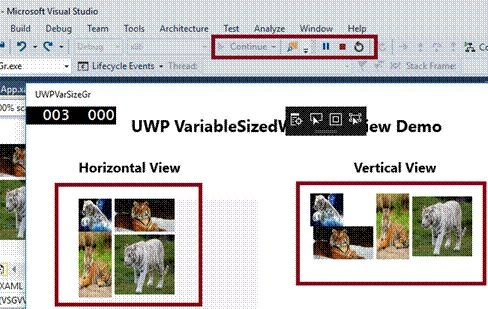
Summary
Thus, you have successfully created and tested VariableSizeWrapGrid Control with images, in Visual C# - UWP environment.
Prasanna MuraliPosted Oct 22, 2016, 11:37 AM
Nice post..
Karthikeyan KPosted Oct 22, 2016, 6:22 AM
Nice share...
Vignesh ManiPosted Oct 21, 2016, 12:31 PM
Good One