

With big improvements in Visual Studio 2010 Application Lifecycle Management (ALM) tools, project tracking can now be a part of development process. Anyone from team member to project managers can now update tasks, check-in code, report bugs etc. In this article, I am going to show step by step process of
- Creating Work Items (User Stories /Tasks )
- Create queries to view the Work Items assigned to you
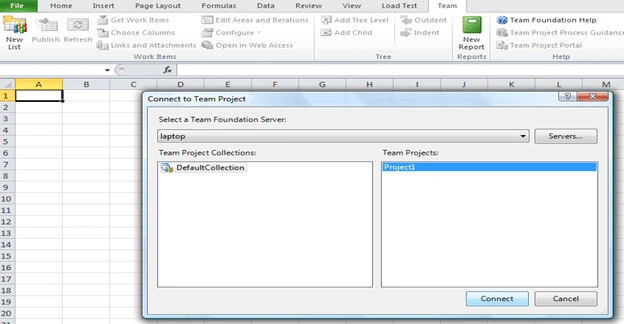
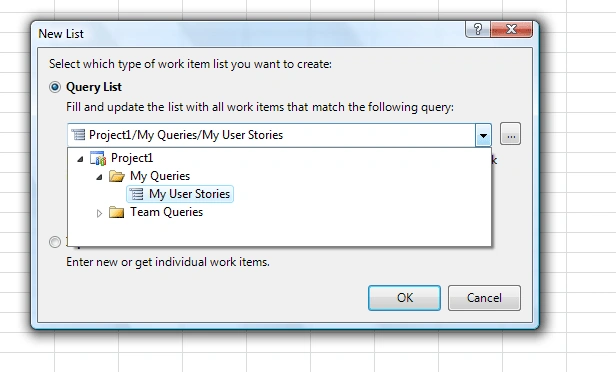
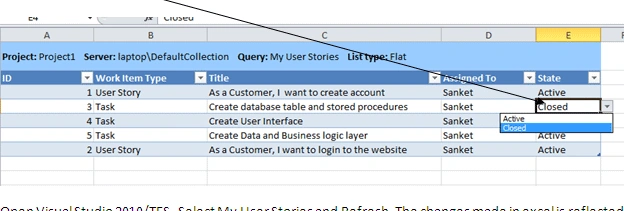
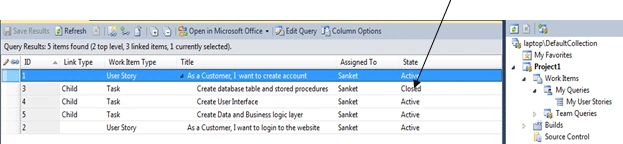
- Managing same Work Items using Microsoft Office Excel.
Combining Visual Studio Premium or Visual Studio Ultimate with Visual Studio Team Foundation Server (TFS), you can apply proven practices to manage your application's lifecycle.
Note: Here I am using AGILE template for demo.
Step 1: Connect to Team Foundation Server (TFS)
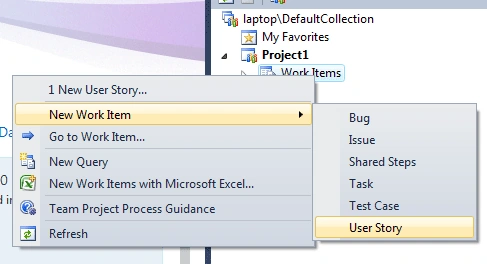
Open Visual Studio 2010 and connect to TFS. Once you are connected to TFS create project under collection. Then right click Work Items and click on "New Work Item ->User Story".
Step 2: Enter data for User Story
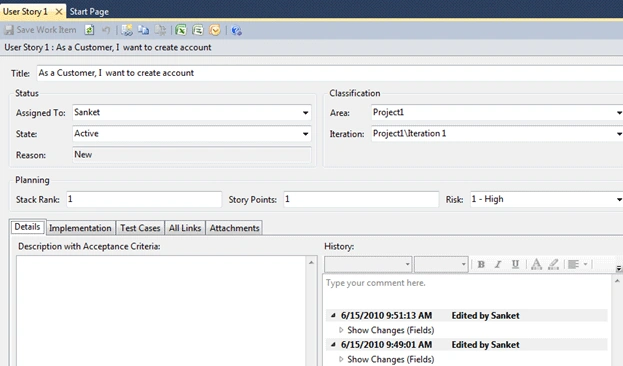
Once you click User story in step 1, a form is opened to enter user story details as shown below.
- Enter title of User Story e.g.
A. "As a Customer, I want to create account"
- By default State is Active when you are creating new User Story.
- Then Click Save Work Item.
Step 3: Select New Query
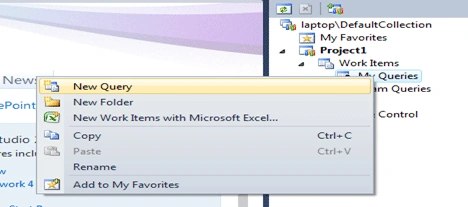
To view work items created in step 2, you will have to create new query. For that right click My Queries and Select New Query as shown below.
Step 4: Create and Save Query
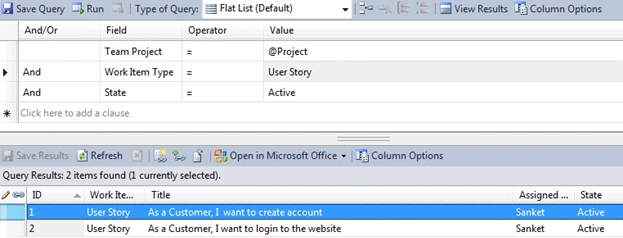
Once you click New Query in step 3, a form will be shown to create query parameters.
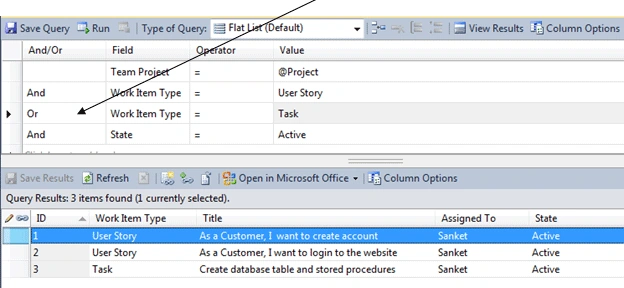
- For Team Project set value @Project. This means current project.
- Then in next row Select "And " and Work Item Type = User story
- Then in next row Select "And " and State = Active
- Click Save Query
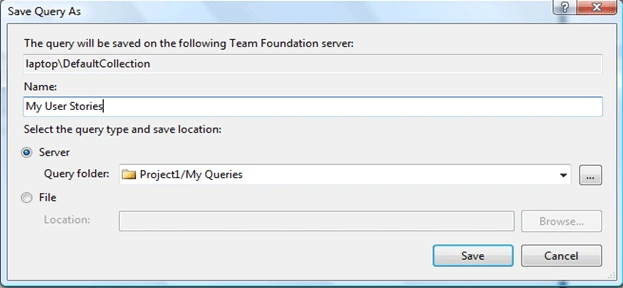
- A window will popup and then enter Name "My User Stories" and select "Server" as save location.
Step 5: View Results (User Stories)
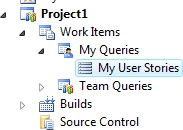
Under My Queries -> My User Stories will be created.
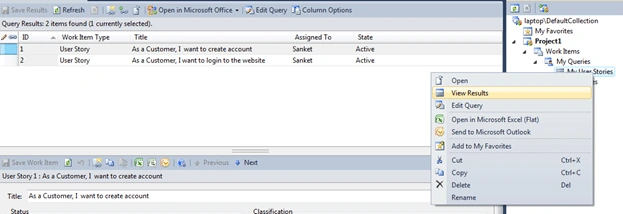
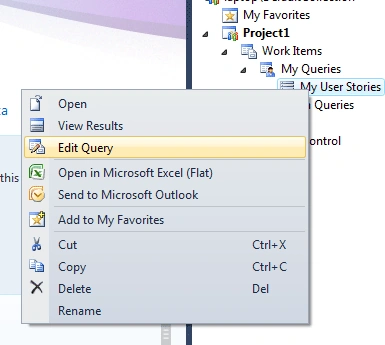
Right Click "My User Stories" and select View Results. On the left it shows all User Stories created by you.
Step 6: Add task and link task to User Story
Select User Story and click on "New Linked Work Item".

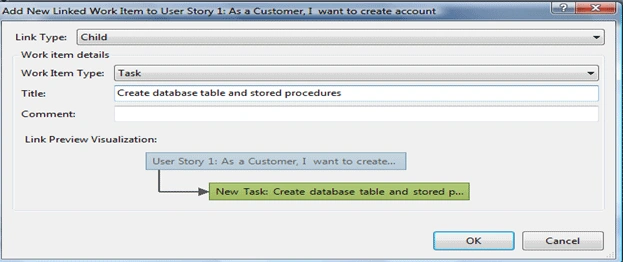
A new window will popup.
- Select Link type = Child
- Work Item Type = Task and enter task details in the Title
- Click OK.

gopi sPosted Nov 24, 2010, 6:57 AM
Nice Article ,Good Job