

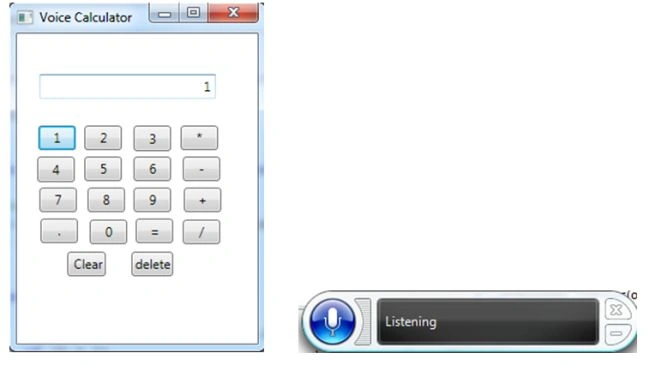
In this article, we will create a voice calculator in WPF. So when we say "One" the focus will move to the Button One and the digit "1" will be shown in the TextBox. This will help for the basic calculation of a calculator, using speech recognition. Now we create a Basic Voice calculator. For this use the following procedure.
Step 1
First we click on the New Project and add a WPF Application (Voice calculator).
Step 2
First we add a reference for the "Speech Recognition". To do that, first click on "Project" and then "Add Reference", the following window will be shown. Here we can select the "System.Speech" Component like this: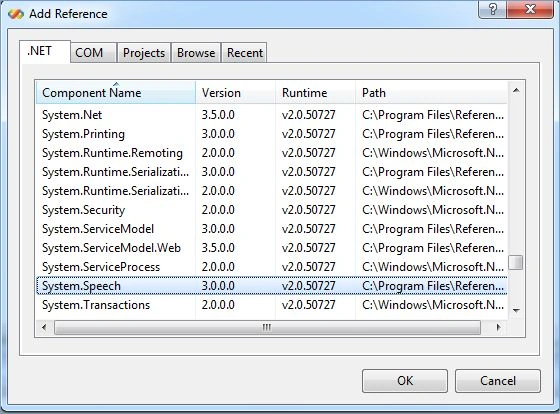
Now we write the following NameSpaces in the .cs file:
using System;
using System.Collections.Generic;
using System.Linq;
using System.Text;
using System.Windows;
using System.Windows.Controls;
using System.Windows.Data;
using System.Windows.Documents;
using System.Windows.Input;
using System.Windows.Media;
using System.Windows.Media.Imaging;
using System.Windows.Navigation;
using System.Windows.Shapes;
using System.Speech;
using System.Speech.Recognition;
using System.Speech.Recognition.SrgsGrammar;
using System.Xml;
Step 3
After that we write the following code:
protected SpeechRecognizer SPVC;
The Speechrecognizer Class is used to listen and fetch the Spoken Text from the system and convert it into text, or we can use these as Text Commands like we use in our program.
public string value;
public string op;
public string voice;
protected SpeechRecognizer SPVC;
public Window1()
{
InitializeComponent();
InitializeVC();
textBox1.Focus();
}
private void InitializeVC()
{
SPVC = new SpeechRecognizer();
SPVC.Enabled = true;
SPVC.SpeechRecognized +=
new EventHandler<SpeechRecognizedEventArgs>(SPVC_SpeechRecognized);
}
void SPVC_SpeechRecognized(object sender, SpeechRecognizedEventArgs e)
{
textBox1.Text = e.Result.Text;
voice = e.Result.Text;
}
Here we take a TextBox (textBox1) to fetch the spoken data. In this program, we set its visibility to collapsed like this:
<TextBox Margin="12,12,345,267" Name="textBox1" Background="{x:Null}" AutoWordSelection="True" TextWrapping="Wrap" IsHitTestVisible="False" TextChanged="textBox1_TextChanged" Grid.ColumnSpan="2" Visibility="Collapsed" />
Step 4
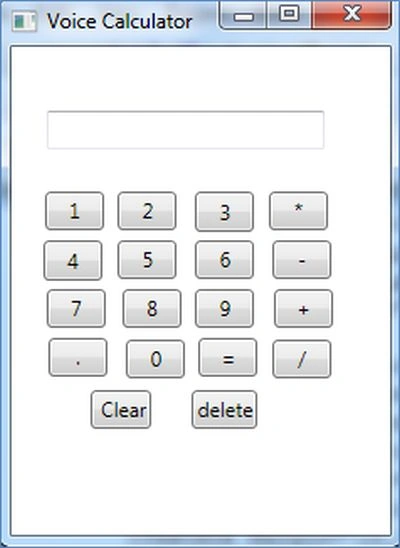
Now we create Buttons for digits and Operators and a TextBox to show the result like this:
<TextBox Height="23" HorizontalAlignment="Left" Margin="21,38,0,0" Name="txtShow" VerticalAlignment="Top" Width="165" TextAlignment="Right" Grid.ColumnSpan="2" />
<Button Content="1" Height="23" HorizontalAlignment="Left" Margin="20,86,0,0" Name="btnOne" VerticalAlignment="Top" Width="35" GotFocus="btnOne_GotFocus" />
<Button Content="3" HorizontalAlignment="Left" Margin="50,86,0,180" Name="btnThree" Width="35" GotFocus="btnThree_GotFocus" Grid.Column="1" />
<Button Content="+" Height="23" HorizontalAlignment="Right" Margin="0,144,253,0" Name="btnPlus" VerticalAlignment="Top" Width="35" GotFocus="btnPlus_GotFocus" Grid.Column="1" />
<Button Content="=" Height="23" HorizontalAlignment="Left" Margin="52,173,0,0" Name="btnEqual" VerticalAlignment="Top" Width="35" GotFocus="btnEqual_GotFocus" Grid.Column="1" />
<Button Content="2" Height="23" HorizontalAlignment="Left" Margin="4,86,0,0" Name="btnTwo" VerticalAlignment="Top" Width="35" GotFocus="btnTwo_GotFocus" Grid.Column="1" />
<Button Content="4" HorizontalAlignment="Left" Margin="19,115,0,151" Name="btnFour" Width="35" GotFocus="btnFour_GotFocus" />
<Button Content="5" Height="23" HorizontalAlignment="Left" Margin="4,115,0,0" Name="btnfive" VerticalAlignment="Top" Width="35" GotFocus="btnfive_GotFocus" Grid.Column="1" />
<Button Content="6" Height="23" HorizontalAlignment="Left" Margin="50,115,0,0" Name="btnSix" VerticalAlignment="Top" Width="35" GotFocus="btnSix_GotFocus" Grid.Column="1" />
<Button Content="7" Height="23" HorizontalAlignment="Left" Margin="21,144,0,0" Name="btnSeven" VerticalAlignment="Top" Width="35" GotFocus="btnSeven_GotFocus" />
<Button Content="8" Height="23" HorizontalAlignment="Right" Margin="0,144,343,0" Name="btnEight" VerticalAlignment="Top" Width="35" GotFocus="btnEight_GotFocus" Grid.Column="1" />
<Button Content="9" Height="23" HorizontalAlignment="Left" Margin="50,144,0,0" Name="btnNine" VerticalAlignment="Top" Width="35" GotFocus="btnNine_GotFocus" Grid.Column="1" />
<Button Content="0" Height="23" HorizontalAlignment="Left" Margin="9,0,0,93" Name="btnZero" VerticalAlignment="Bottom" Width="35" GotFocus="btnZero_GotFocus" Grid.Column="1" />
David NultyPosted Apr 24, 2013, 4:15 AM
Hi Mahak, Nice article although it could do with some explanation of the code. Like why do you use a hidden textbox to store text instead of a string ?. There is one major 'fault' with the code, if you say a number twice, only one is stored.( if I say 1,0,0 it displays 10 ) The same happens when you click the same digit twice in a row. So far I have not found a solution to this problem. Have you any idea of how to fix this ? Thanks for sharing your code. David