

This tutorial will discuss how to create an ASP.Net Web application and use this web API in power app using a custom connector.
- Create a new ASP .Net Web application project using Visual Studio
- Build, Deploy & Secure a Web API in Azure
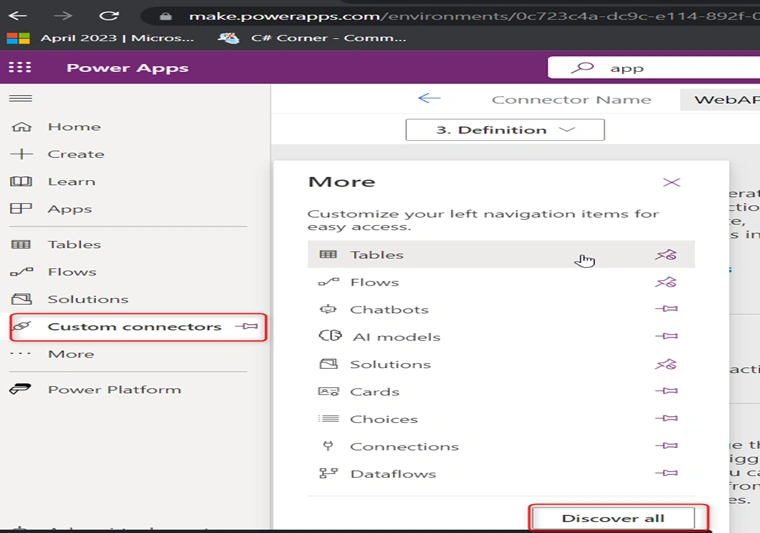
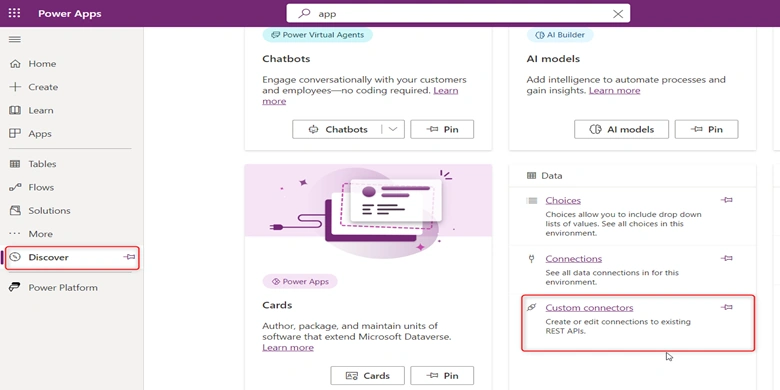
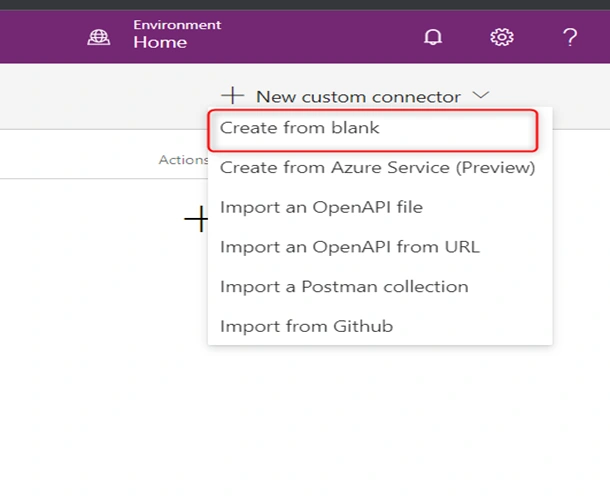
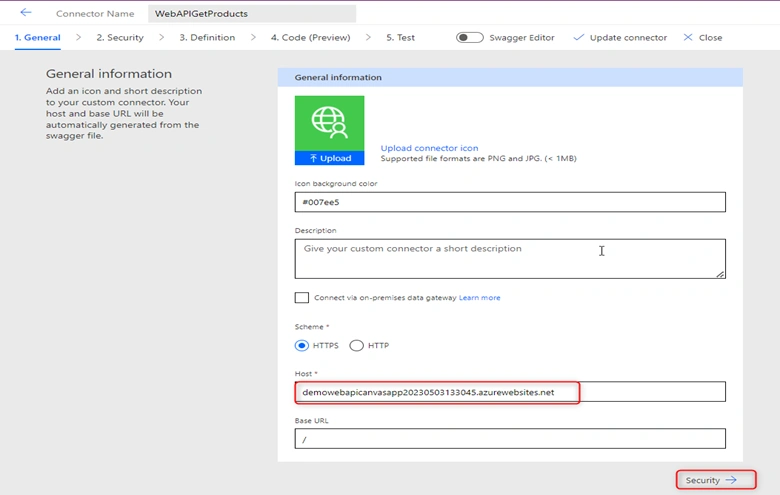
- Connect API To Power Apps Using Custom Connector
1. Create a new ASP .Net Web application project using Visual Studio
Open visual studio 2019, select ASP.NET web application (.Net Framework), give the project name, and click Create.
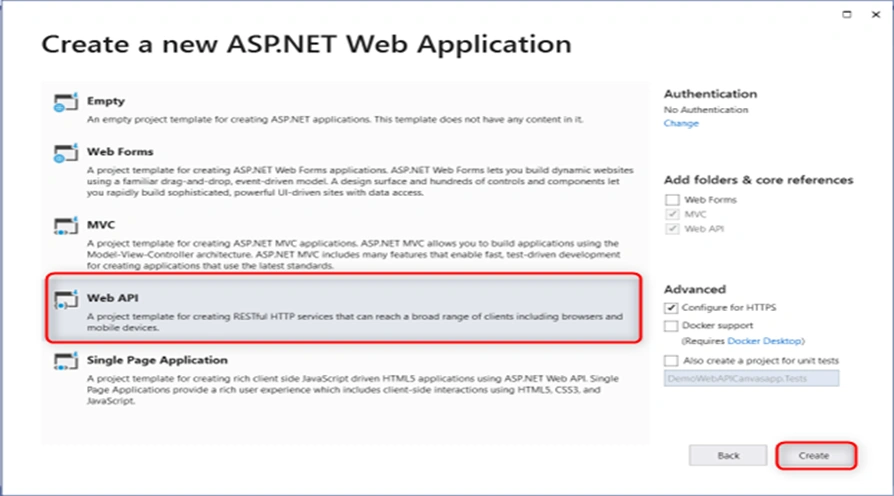
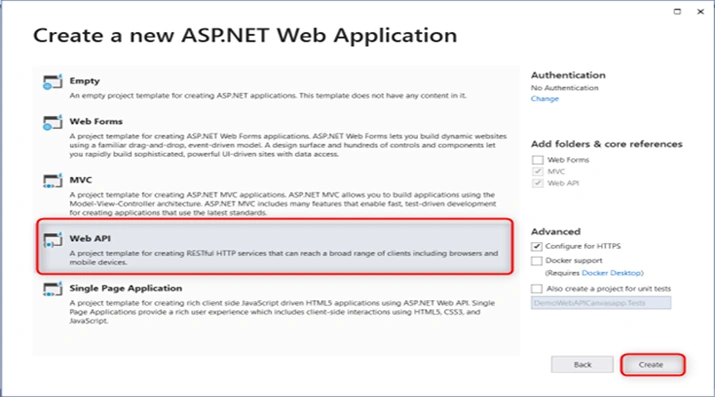
On the next screen, as shown below, select Web API and click on Create.
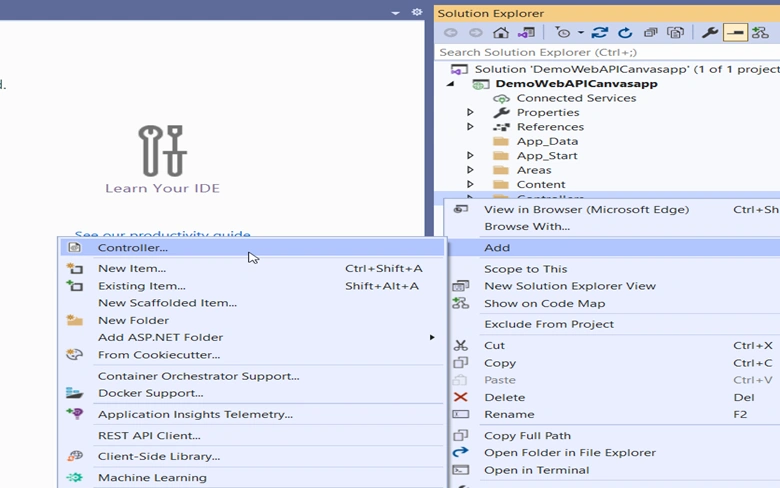
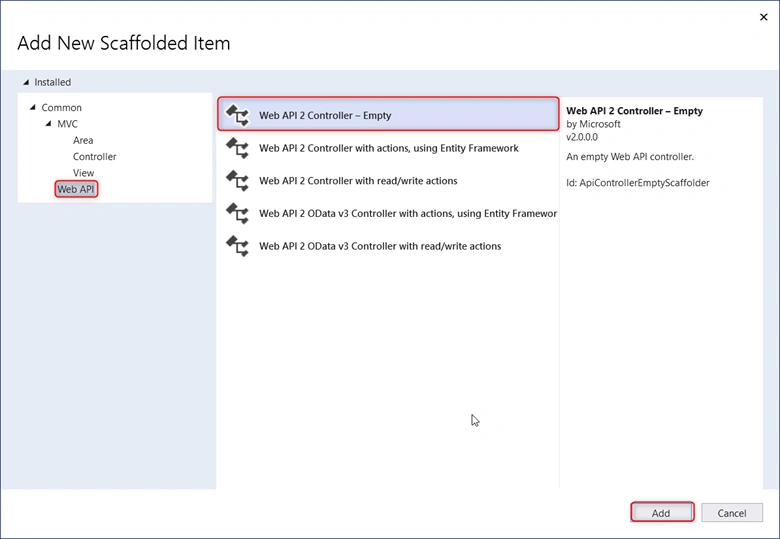
Add a new empty controller to the project. Right click on the “Controllers” folder & select Add -> Controller -> Web API 2 Controller -Empty. Name this "ProductsController" as shown in the below screen shorts.
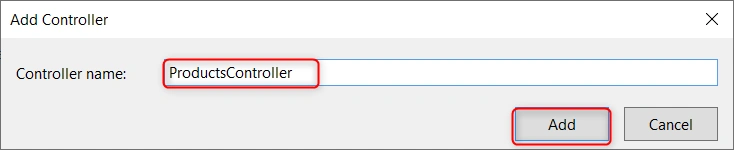
The Project structure looks like below format.
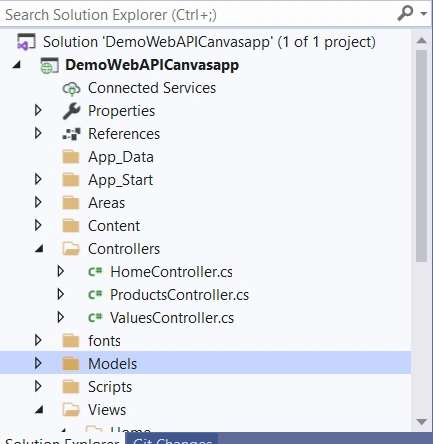
Next step, right click on the “Models” folder & select Add -> cs file-> and name it “ProductsControllers.cs”.
Add a new empty controller to the project. Right click on the “Controllers” folder & select Add -> Controller -> Web API 2 Controller -Empty. Name this "ProductsController"
using System;
using System.Collections.Generic;
using System.Linq;
using System.Net;
using System.Net.Http;
using System.Web.Http;
using static DemoWebAPICanvasapp.Models.ProductsControllers;
namespace DemoWebAPICanvasapp.Controllers
{
    public class ProductsController : ApiController
    {
        Product[] products = new Product[]
        {
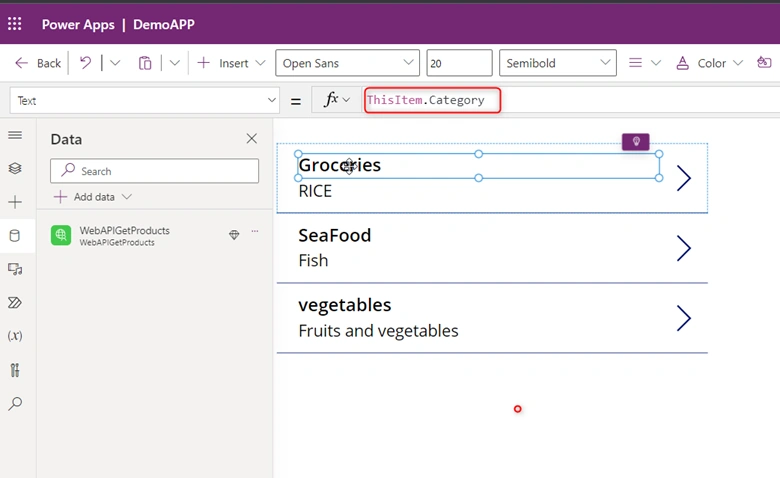
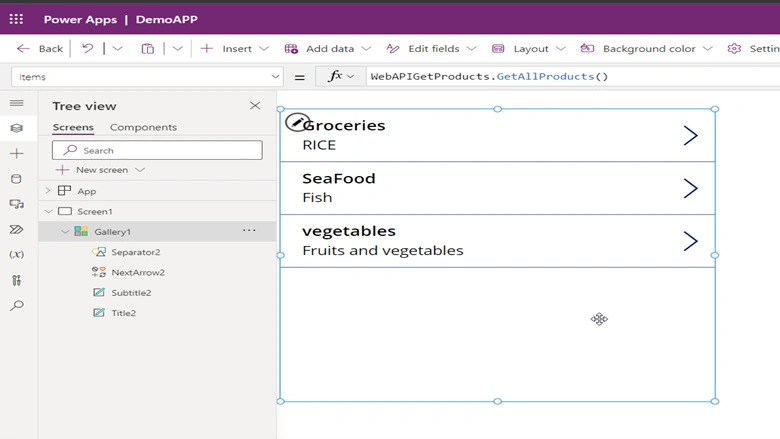
            new Product { Id = 1, Name = "RICE", Category = "Groceries", Price = 1500 },
            new Product { Id = 2, Name = "Fish", Category = "SeaFood", Price = 500 },
            new Product { Id = 3, Name = "Fruits and vegetables", Category = "vegetables", Price = 100 }
        };
        public IEnumerable<Product> GetAllProducts()
        {
            return products;
        }
        public IHttpActionResult GetProduct(int id)
        {
            var product = products.FirstOrDefault((p) => p.Id == id);
            if (product == null)
            {
                return NotFound();
            }
            return Ok(product);
        }
    }
}
Our API returns will return the response as XML. We will modify the code such that the API returns the response as JSON. In the "WebApiConfig.cs" add a new class as shown below.
public class BrowserJsonFormatter : JsonMediaTypeFormatter
{
    public BrowserJsonFormatter()
    {
        this.SupportedMediaTypes.Add(new MediaTypeHeaderValue("text/html"));
        this.SerializerSettings.Formatting = (Newtonsoft.Json.Formatting)Formatting.Indented;
    }
    public override void SetDefaultContentHeaders(Type type, HttpContentHeaders headers, MediaTypeHeaderValue mediaType)
    {
        base.SetDefaultContentHeaders(type, headers, mediaType);
        headers.ContentType = new MediaTypeHeaderValue("application/json");
    }
}
Resolve the reference errors by adding the following namespaces.
using System.Net.Http.Formatting;
using System.Net.Http.Headers;
using System.Web.Http;
using System.Xml;
In the "Register" function of the "WebApiConfig" class, add the newly created Formatter
config.Formatters.Add(new BrowserJsonFormatter());
Build and Run the app – Browse to the URL – http://localhost: {portnumber}/api/products. You should observe the response being returned as JSON
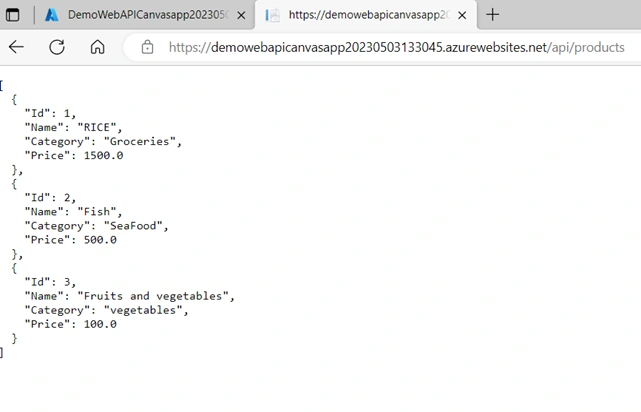
2. Build, Deploy & Secure a Web API in Azure
Now Let’s publish the app to Azure. Right click on the project and select "Publish".
Select Azure and Click on "Next". Click on Next and choose "Azure App Service" as you publish target and click Next from the Azure App service window. Select "Create New". Also, choose "Create Profile" to modify the app service details.
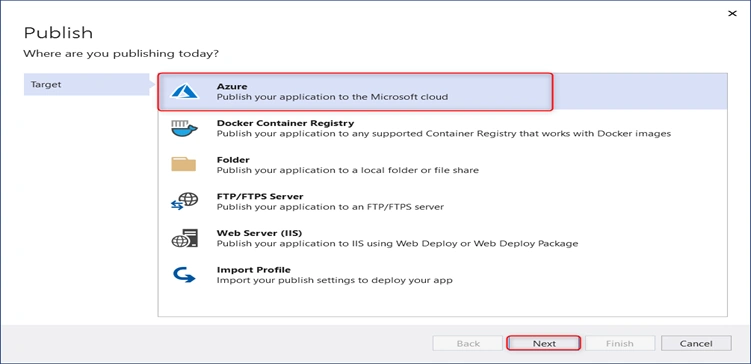
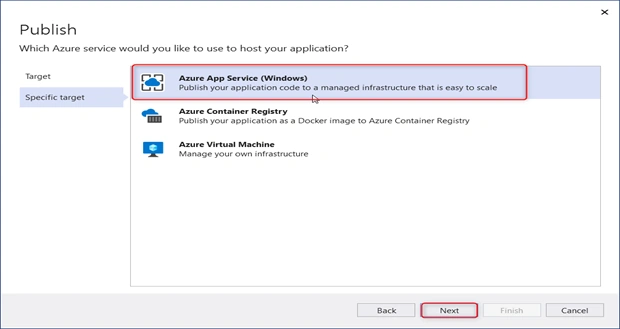
On the next screen, choose the “Azure App Service(Windows)" and click next.
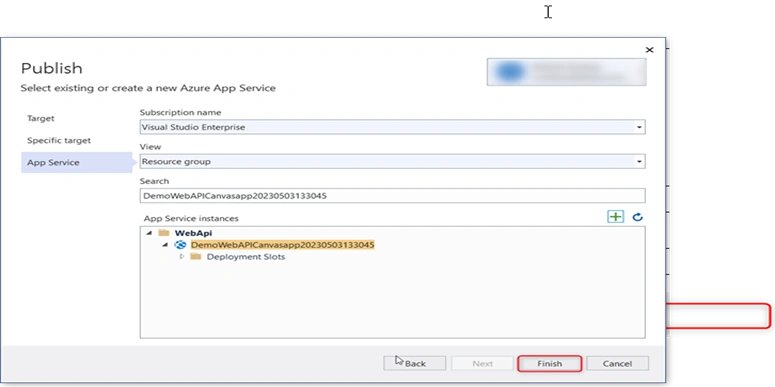
We need to select the subscription name, Resource group, and app service instance from Azure; if you don’t have an app service instance please create new app service instance by clicking “+” as shown in below screen; after filling in all information click on finish and click on publish.
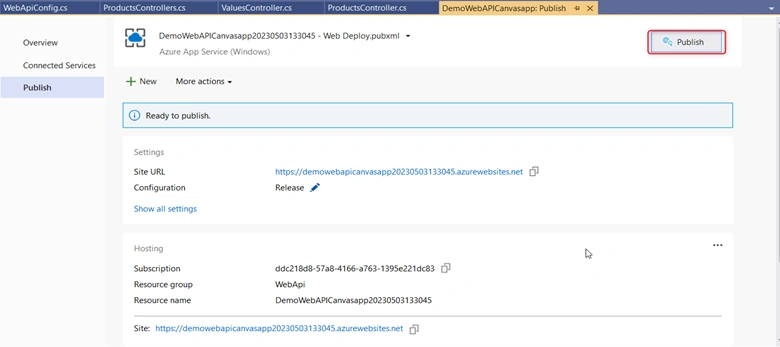
Currently, we are having the API has anonymous access. We will now secure the API with Azure AD Authentication.
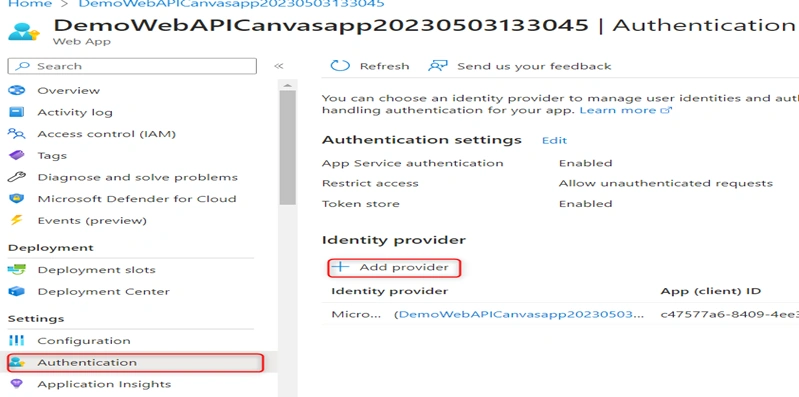
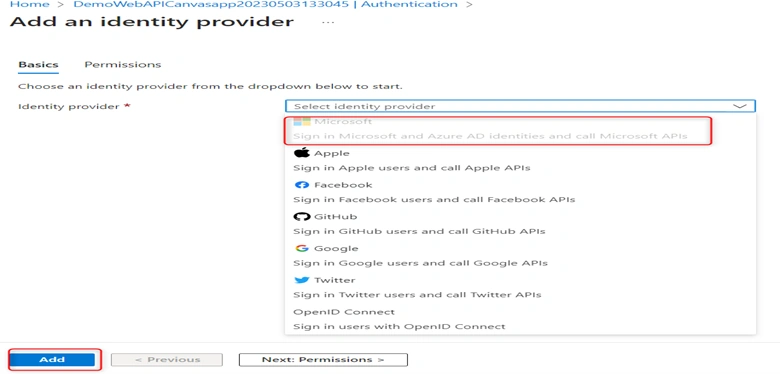
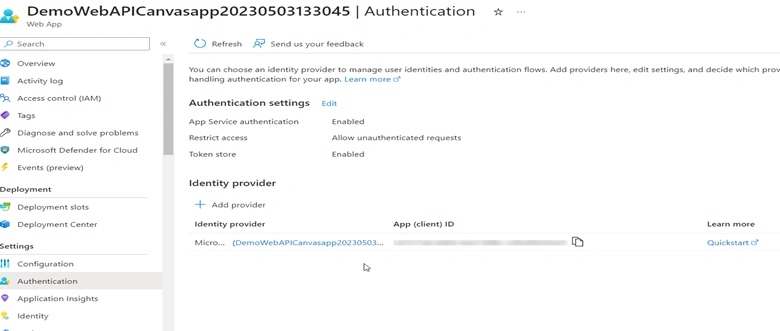
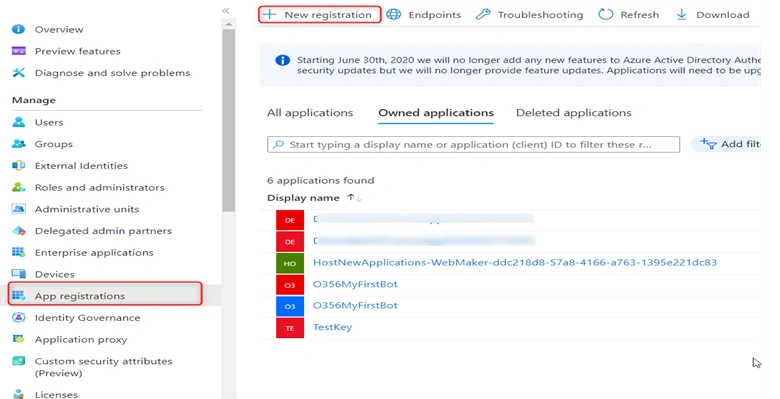
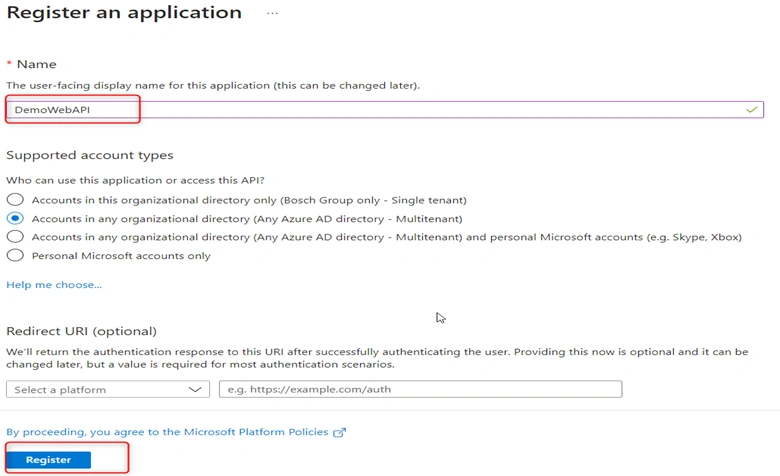
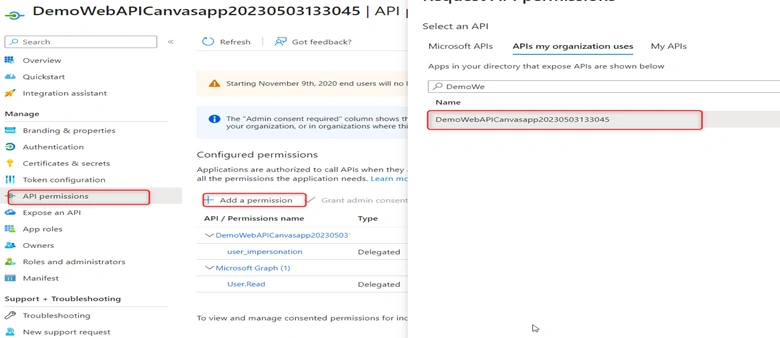
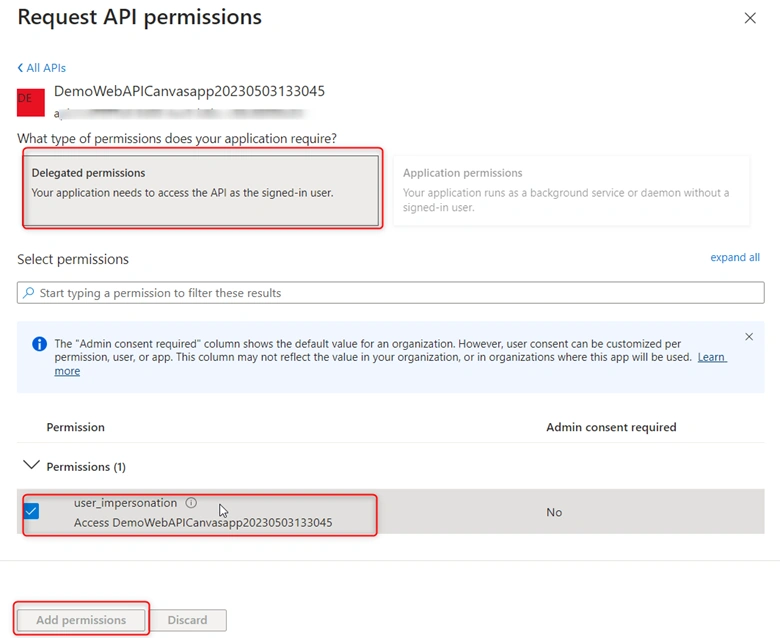
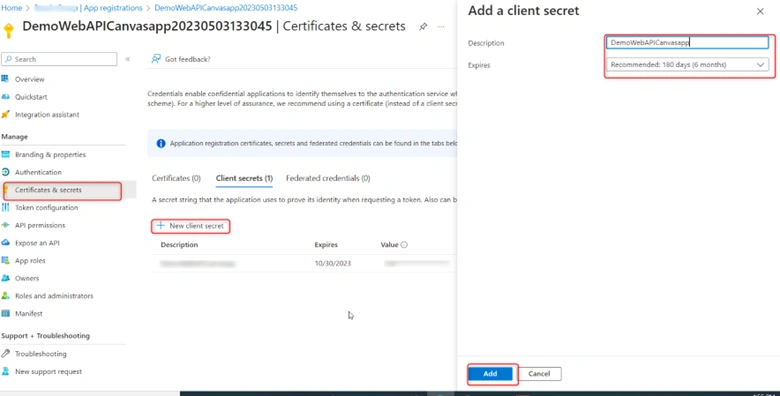
Log in to the Azure Portal. Under "App Services", select the App service that we just provisioned above. Select "Authentication" and click on Add provider and in Identity provider as “sign in Microsoft and Azure AD identities and call Microsoft API’s” as shown in the below screenshot.
Join the conversation! Your thoughts help the community grow.