

Requirements
- Windows Azure account
Follow the below steps now,
Step 1 - Go here and login with your azure credentials,
Step 2
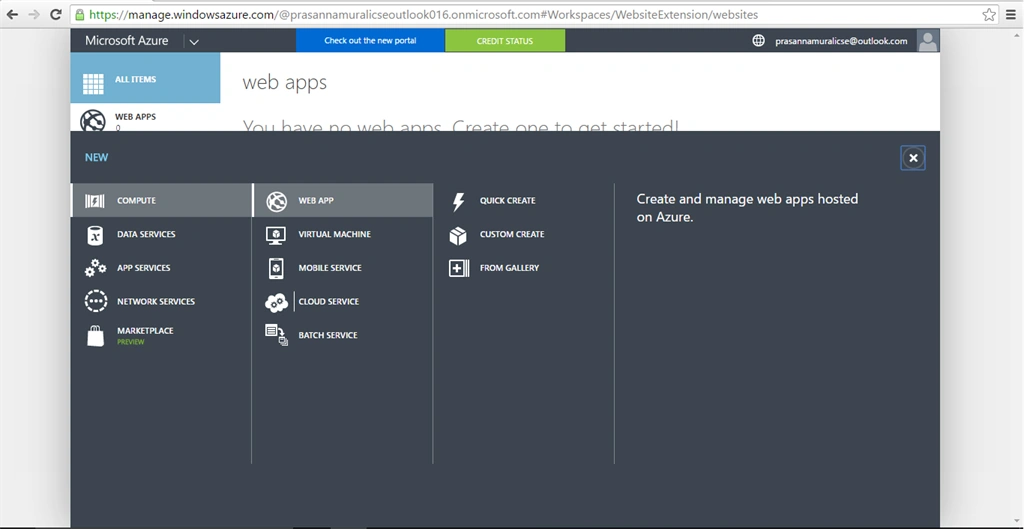
Now on the home screen of Azure management portal select New, compute, Web App, then select From Gallery. And the window shown below appears.
Step 3
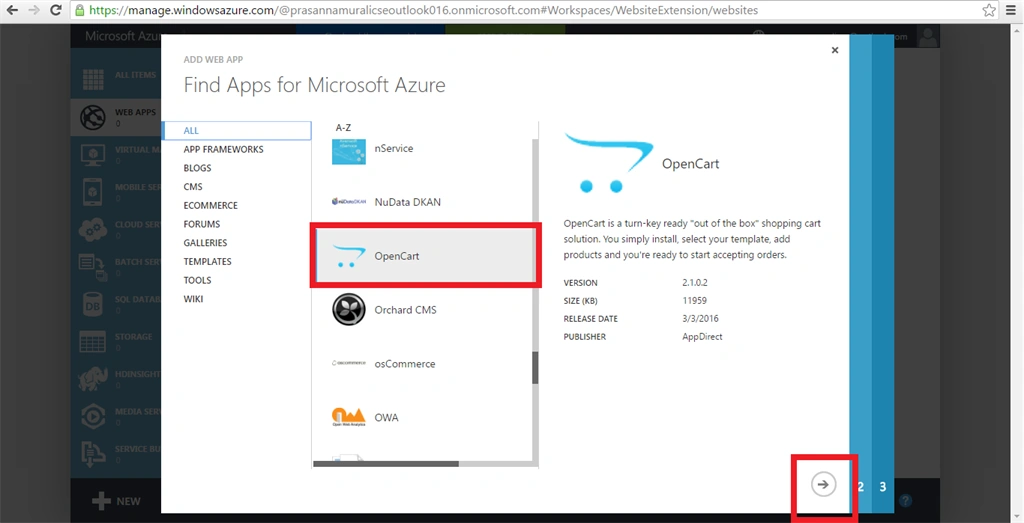
Now find the Web Apps from the gallery that is shown below. On that scroll down and find OpenCart and choose OpenCart and click next.
Step 4
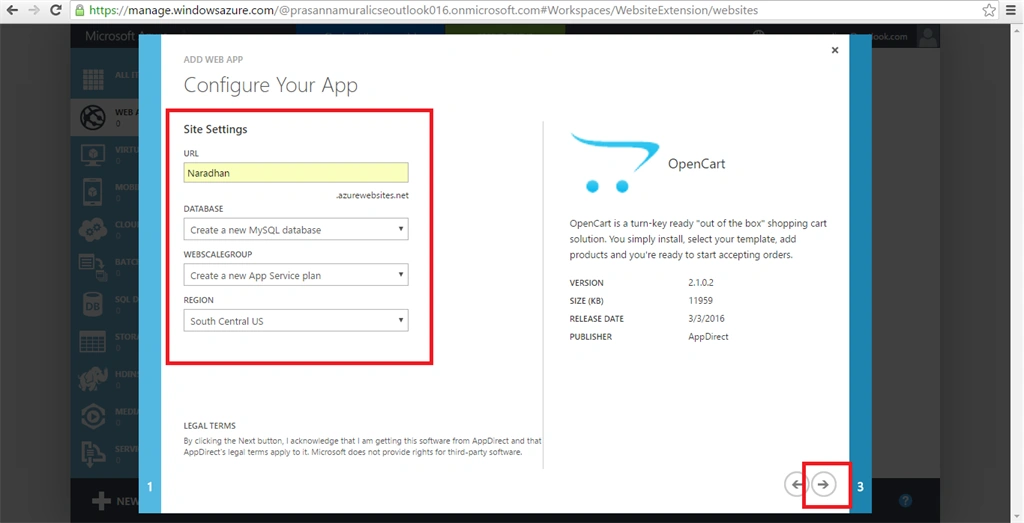
Now configure your web app as shown below in the screenshot. By giving the URL, Database, Webscale group and Region in site settings option.
Step 5
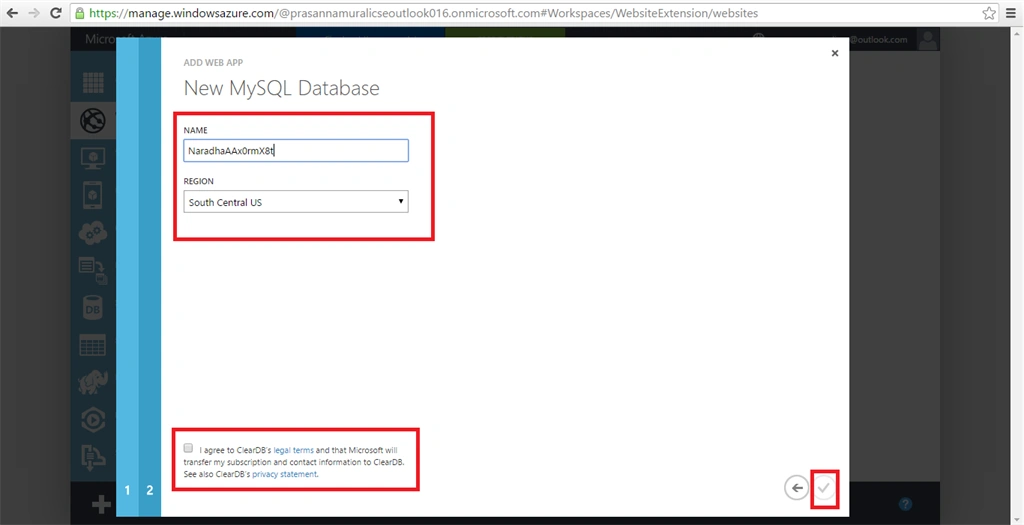
After that configure your New MySql database by name and Region. And tick the License agreement in the bottom of the page then click next.
Step 6
It takes some time and then click the URL that is available in your management portal.
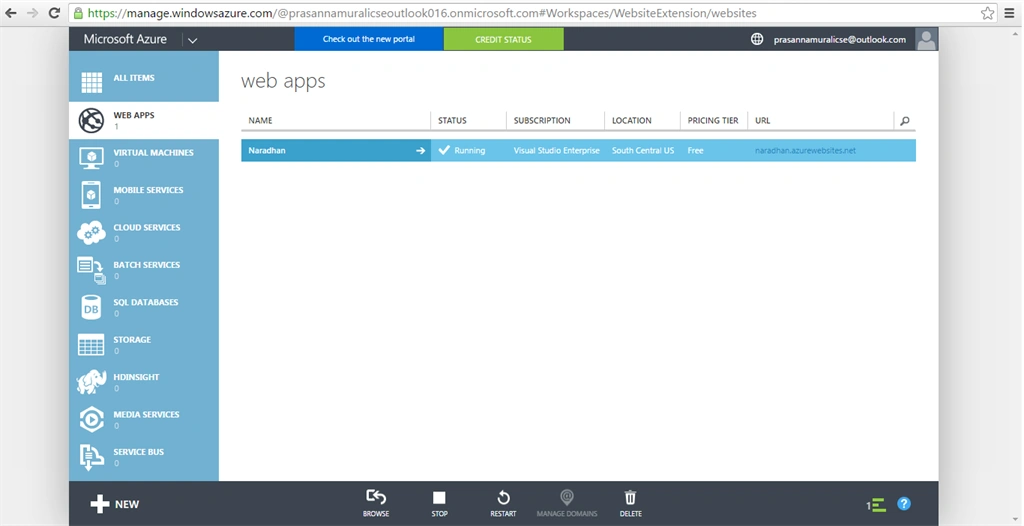
Step 7
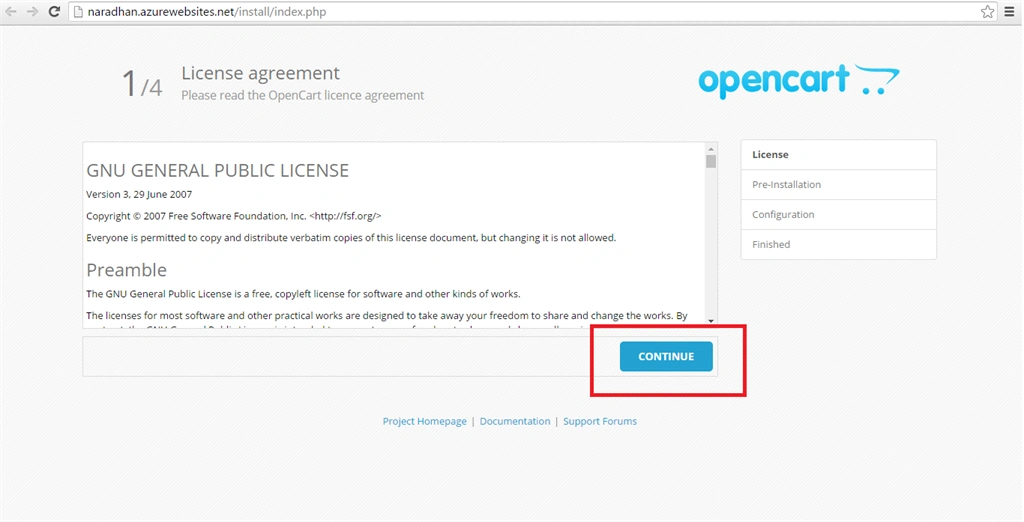
It will open in some web browser and configure the Website that is loaded in web browser by credentials.
Prasanna MuraliPosted May 18, 2016, 8:02 AM
Thank you sir
Kuppurasu NagarajPosted May 17, 2016, 11:30 AM
Nice sharing..
Prasanna MuraliPosted May 17, 2016, 10:27 AM
Thank you
Pradeep SahooPosted May 16, 2016, 11:32 PM
Good share ...
Sonu ChaudharyPosted May 16, 2016, 3:31 PM
good one...
Debasis SahaPosted May 16, 2016, 12:53 AM
Nice one..
Neeraj KumarPosted May 14, 2016, 3:52 PM
Good