

Microsoft has introduced a new development model in SharePoint i.e SharePoint Framework. By using this framework, we can do client-side development and easy integration with SharePoint data in both, On Premises as well as Office 365.
In this article, we will see a step by step process of how to create our first web part.
Before creating a web part, we need to run some commands to create a project in SharePoint Framework. You can use command prompt (cmd) or Windows PowerShell. Here, I am using PowerShell to create project.
- Open PowerShell.
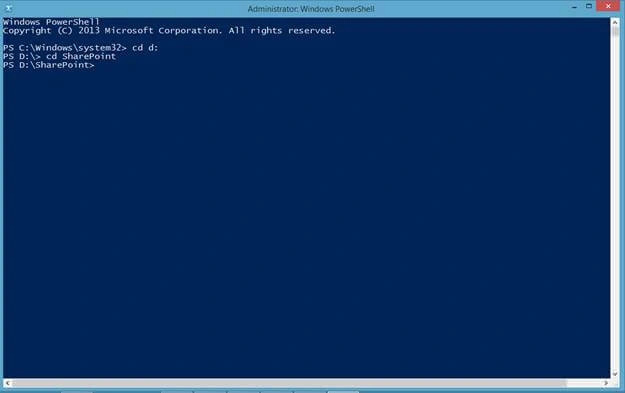
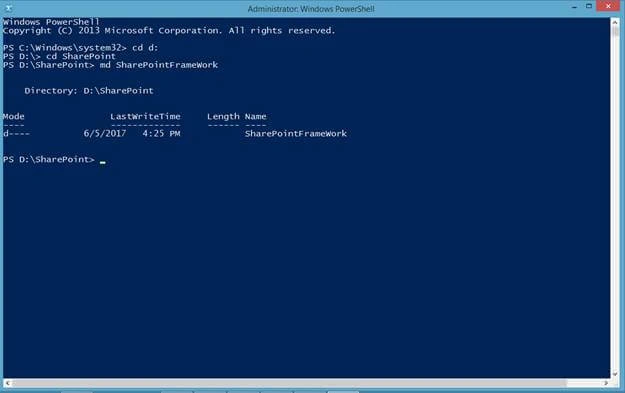
- Create a folder under SharePoint called SharePointFramework or you can create your own folder.
- md SharePointFramework
- To create a SharePoint Framework project, run theYeoman Generator. Yeoman is an open source client development tool. Enter the below command to create a project.
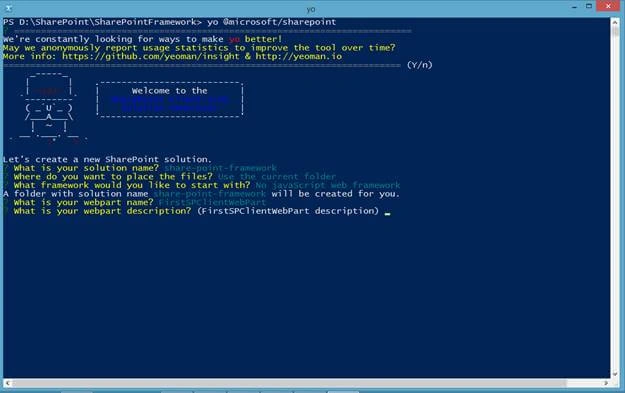
- yo @microsoft/sharepoint
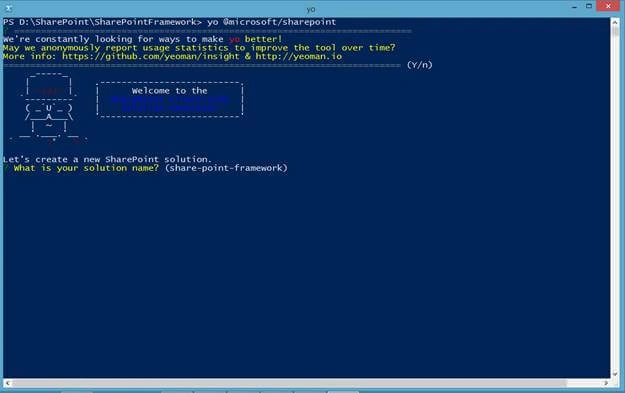
- Provide the below details when prompted.
- Solution name
- Where do you want to place the files
- What framework would you like to start with
- Web part name
- Web part description
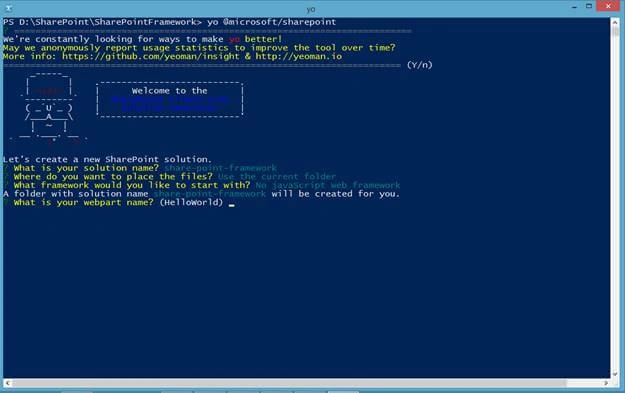
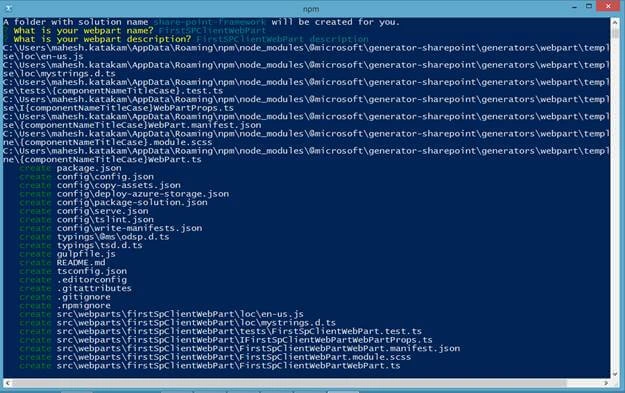
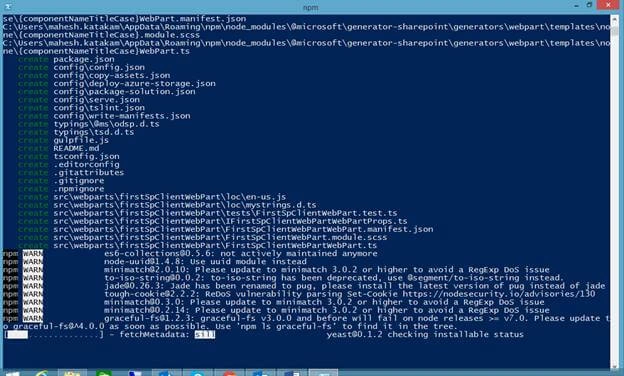
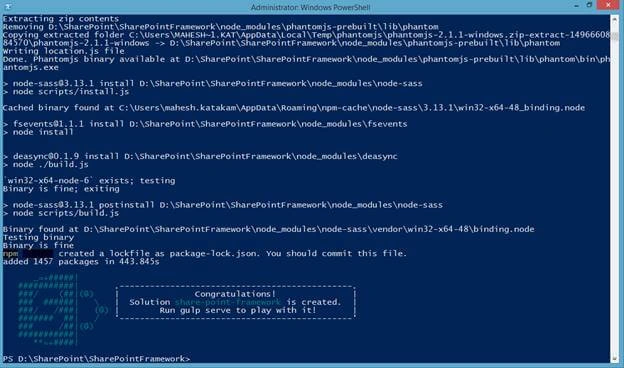
- Our solution has got created with the name share-point-Framework.
- If you want to open the Solution in Visaul Studio Code, use the below command to open.
Code
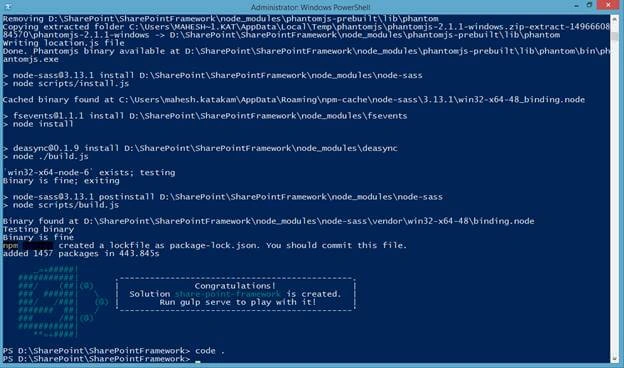
- It will open the project folder in Visual Studio Code.
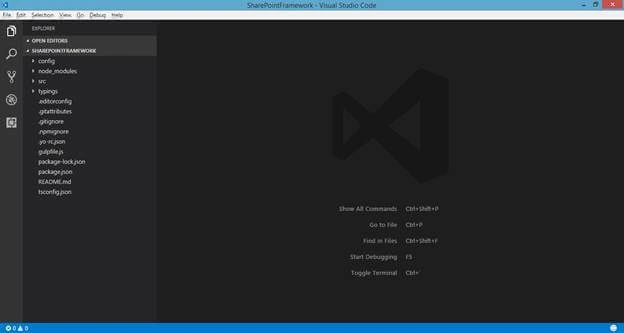
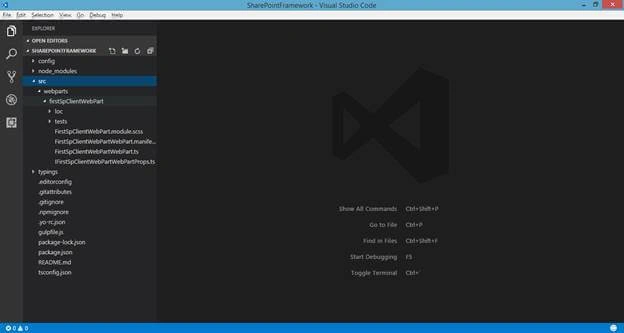
- You can now see the webpart named FirstSPClientWebpart
To run the project, enter the below command and given some screenshots while deploying the project.
gulp serve
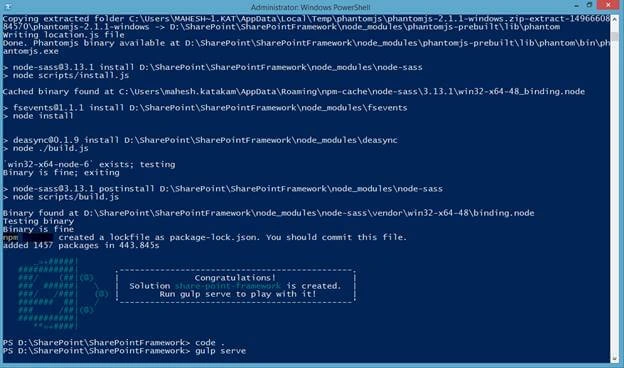
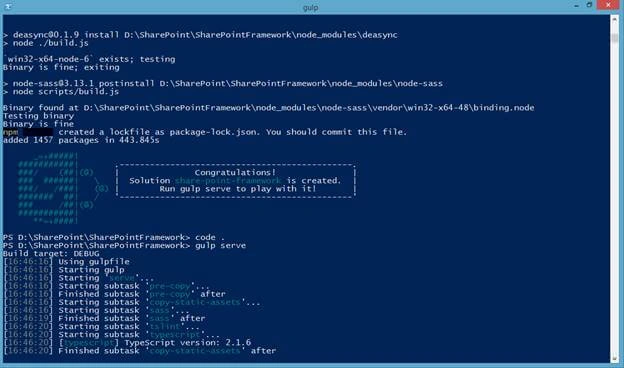
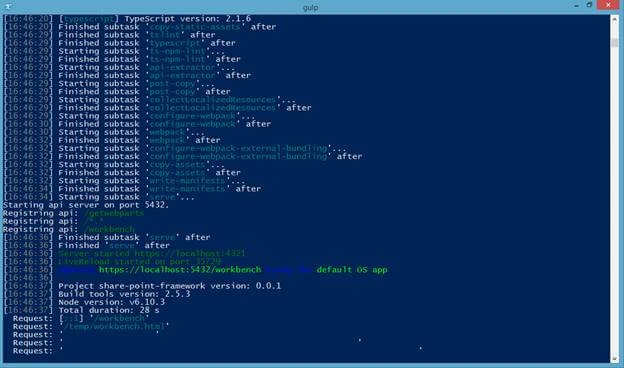
- It will open the project in our local browser which is similar to Office 365, but in reality is a local offline testing environment that replicates SharePoint. Developers can test the web parts before moving to the production environment.
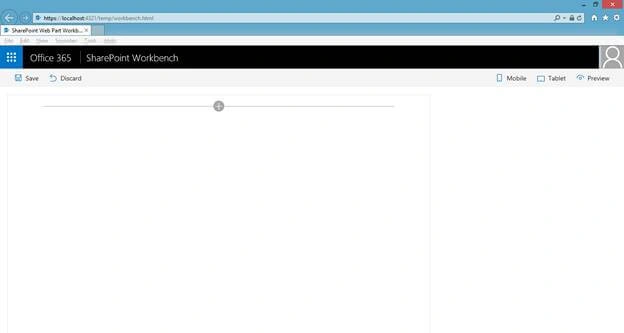
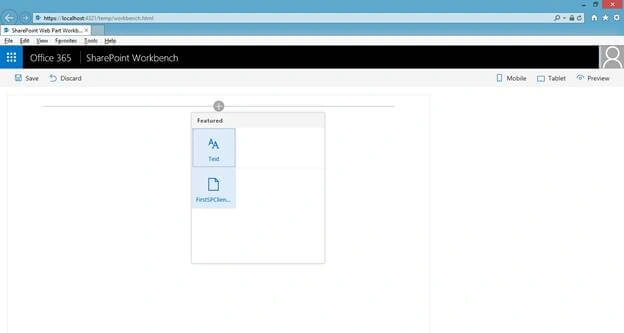
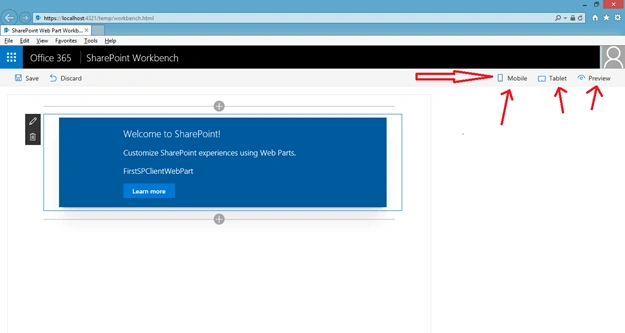
- Add your web part FirstSPClientWebpart to the page like below.
- Once you add, you can see your web part on the page. Here, you can edit or delete the web part. Use options like Mobile View, Tablet View and Preview of the page.
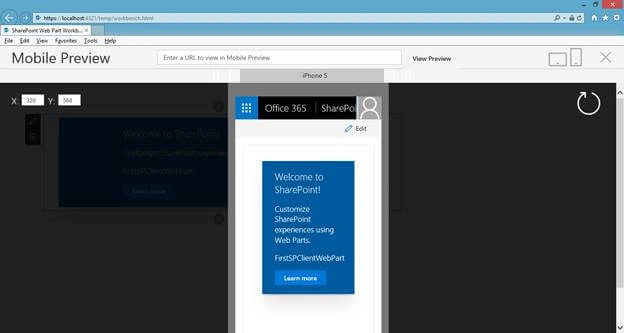
- Mobile View
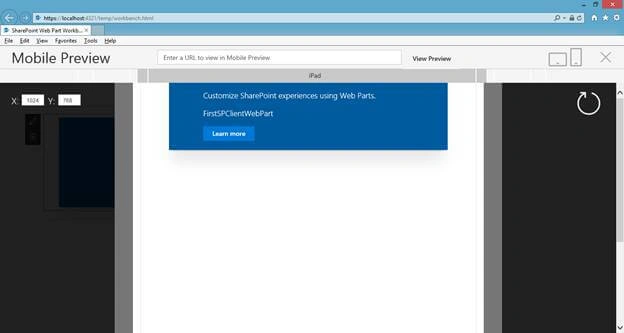
- Tablet View
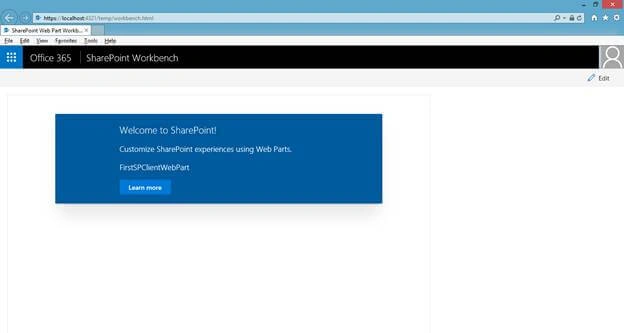
- Preview
Now, try to build your own first web part using the new SharePoint Framework. If you find any difficulties, please let me know.
Mohammad KhalidPosted Feb 16, 2019, 4:12 AM
Nice article. Very simple and easy to understand .
Sumit DeshmukhPosted Jun 7, 2017, 2:47 AM
Nice one..Thanks for sharing:-)