

Every developer who has tried implementing WebRTC peer-to-peer video calls knows the struggle — signaling, permissions, media streams, connection states… it gets messy.
You start with PeerJS add STUN servers do signaling and all those messed up stuff..
What starts as "just a feature" quickly becomes an entire subsystem.
That's exactly why I created Plugin.Maui.PeerVideoCall .
This is a package that wraps a modified system WebView with extended functions into a simple easy to use Content View that you can add any where in your xaml. The WebView loads an html which does all the work PeerJS Connections, STUN management, etc. and exposes the main functions that you actually need making life easier..
With just 3–4 lines of implementation code, you can add fully functional peer-to-peer video calling to your .NET MAUI app.
Clean. Minimal. Powerful.
Let's get straight into this!
FIRST STEPS:
First things first, open Visual Studio 2026 and create a new project.
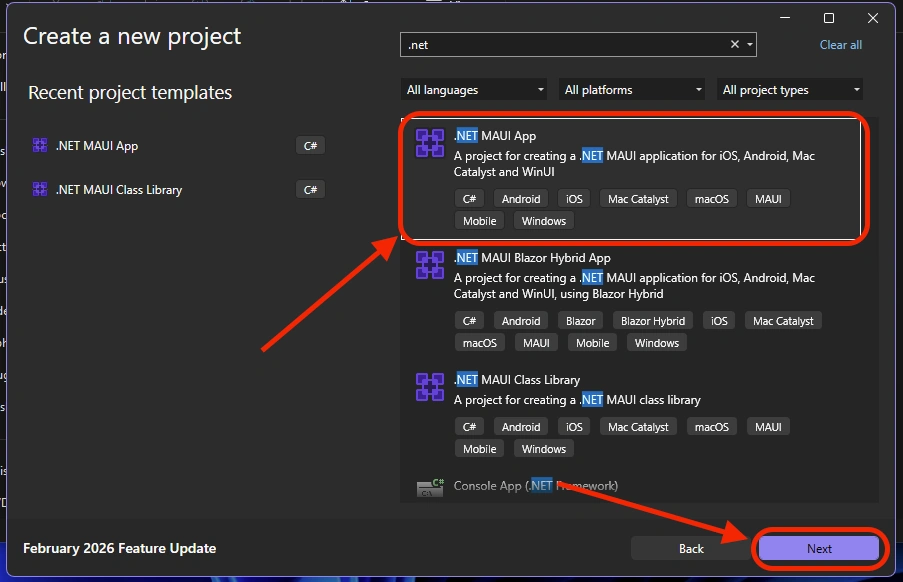
Let's just give it a name, call it "VideoCall".
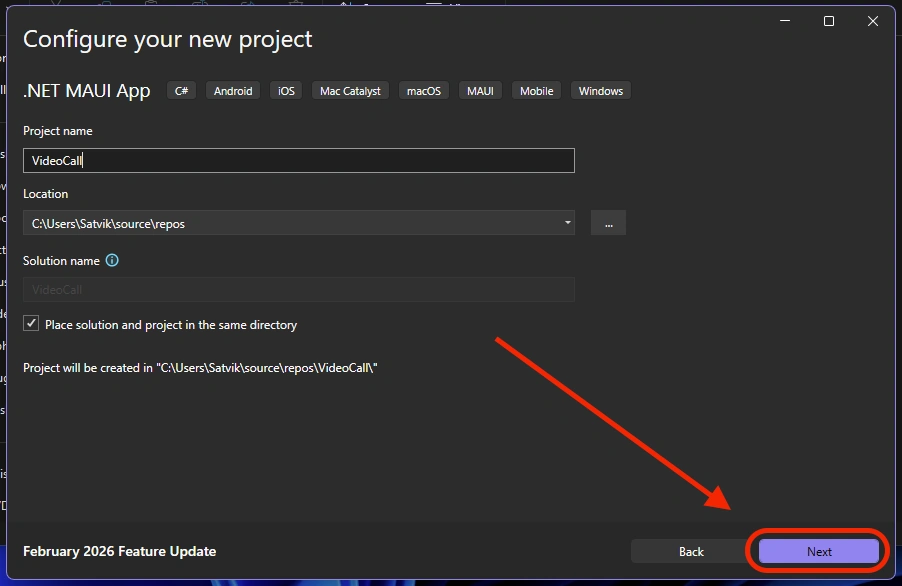
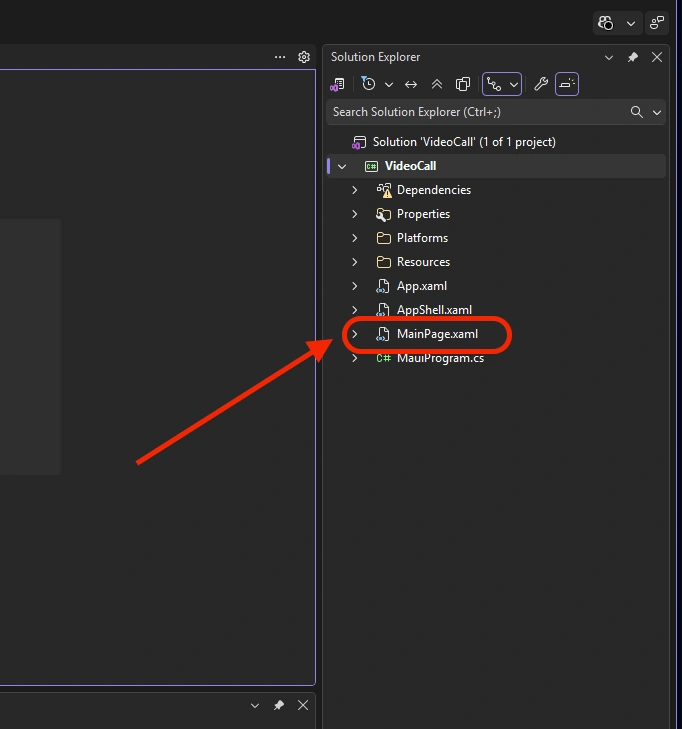
Now Open MainPage.xaml. And clear all the default code in it.
We'll now do the basic stuff like checking camera and mic permissions and then allowing the user to make video calls.
For that, add the following code to a Layout in MainPage.xaml
<Button x:Name="Chk_Permit" Text="Check Permissions" Clicked="Chk_Permit_Clicked"/>
<Label x:Name="Status_Label" TextColor="Red" FontAttributes="Bold" FontSize="Header" />
<Button x:Name="Caller_Btn" Text="Video Call" Clicked="Caller_Btn_Clicked" IsEnabled="False"/>
Chk_Permit -> This button will Check if cam and mic permissions already exists, if not it asks for permission
Status_Label -> We use this to inform the user about the permissions.
Caller_Btn -> This Button takes us to the actual call page once all the permissions have been verified.
Now, we'll need to open the code behind and add functions to these buttons.
Add the following code to MainPage.xaml.cs
private async void Chk_Permit_Clicked(object sender, EventArgs e)
{
    var camstatus = await Permissions.CheckStatusAsync<Permissions.Camera>();
    var micstatus = await Permissions.CheckStatusAsync<Permissions.Microphone>();

    if (camstatus != PermissionStatus.Granted || micstatus != PermissionStatus.Granted)
    {
        await Permissions.RequestAsync<Permissions.Camera>();
        await Permissions.RequestAsync<Permissions.Microphone>();

        var newcamstatus = await Permissions.CheckStatusAsync<Permissions.Camera>();
        var newmicstatus = await Permissions.CheckStatusAsync<Permissions.Microphone>();

        if (newcamstatus != PermissionStatus.Granted || newmicstatus != PermissionStatus.Granted)
        {
            Status_Label.Text = "Permissions not granted...";
        }
        else
        {
            Status_Label.Text = "Permissions granted...";
            Caller_Btn.IsEnabled = true;
        }
    }
    else
    {
        Status_Label.Text = "Permissions already granted...";
        Caller_Btn.IsEnabled = true;
    }
}

private void Caller_Btn_Clicked(object sender, EventArgs e)
{
    Navigation.PushAsync(new CallPage());
}
Now we've configured our app to let users check if the app has got permissions to access camera and microphone on the device.
Now, we'll go ahead and setup the permissions for each platform.
PERMISSIONS SETUP
ANDROID:
Let's start by opening AndroidManifest.xml
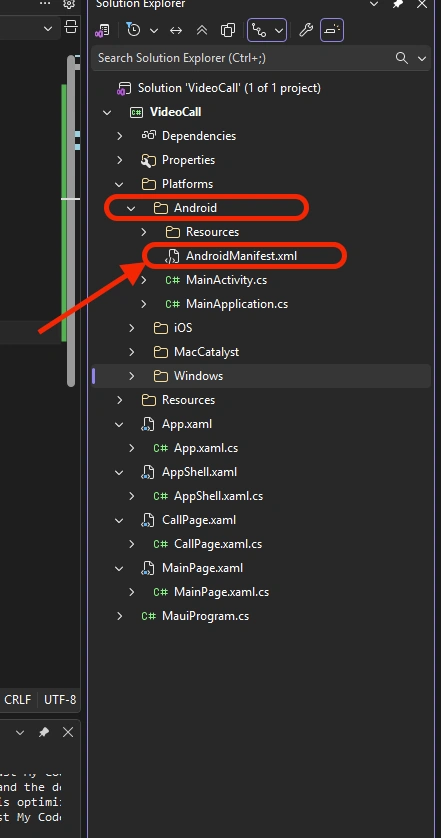
Add the following lines to <manifest>
<uses-feature android:name="android.hardware.camera"/>
<uses-feature android:name="android.hardware.camera.autofocus"/>

<uses-permission android:name="android.permission.CAMERA" />
<uses-permission android:name="android.permission.RECORD_AUDIO" />
<uses-permission android:name="android.permission.MODIFY_AUDIO_SETTINGS" />
<uses-permission android:name="android.permission.INTERNET" />
<uses-permission android:name="android.permission.ACCESS_NETWORK_STATE" />
<uses-permission android:name="android.permission.READ_MEDIA_IMAGES" />
iOS:
Open Info.plist
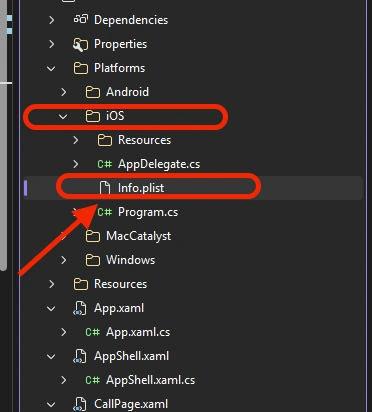
Add the following lines under <dict>
<key>NSCameraUsageDescription</key>
<string>This app needs access to the camera for calling.</string>
<key>NSMicrophoneUsageDescription</key>
<string>This app needs access to the microphone for calling.</string>
WINDOWS:
Usually permissions are not required but still it's our duty :-)
Open Package.appxmanifest
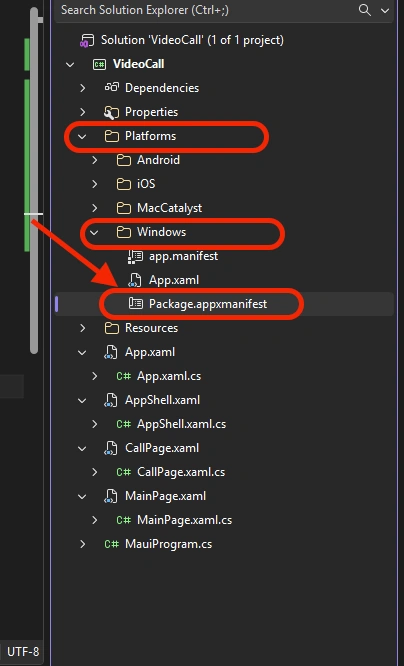
Now add webcam and microphone permissions under capabilities section.
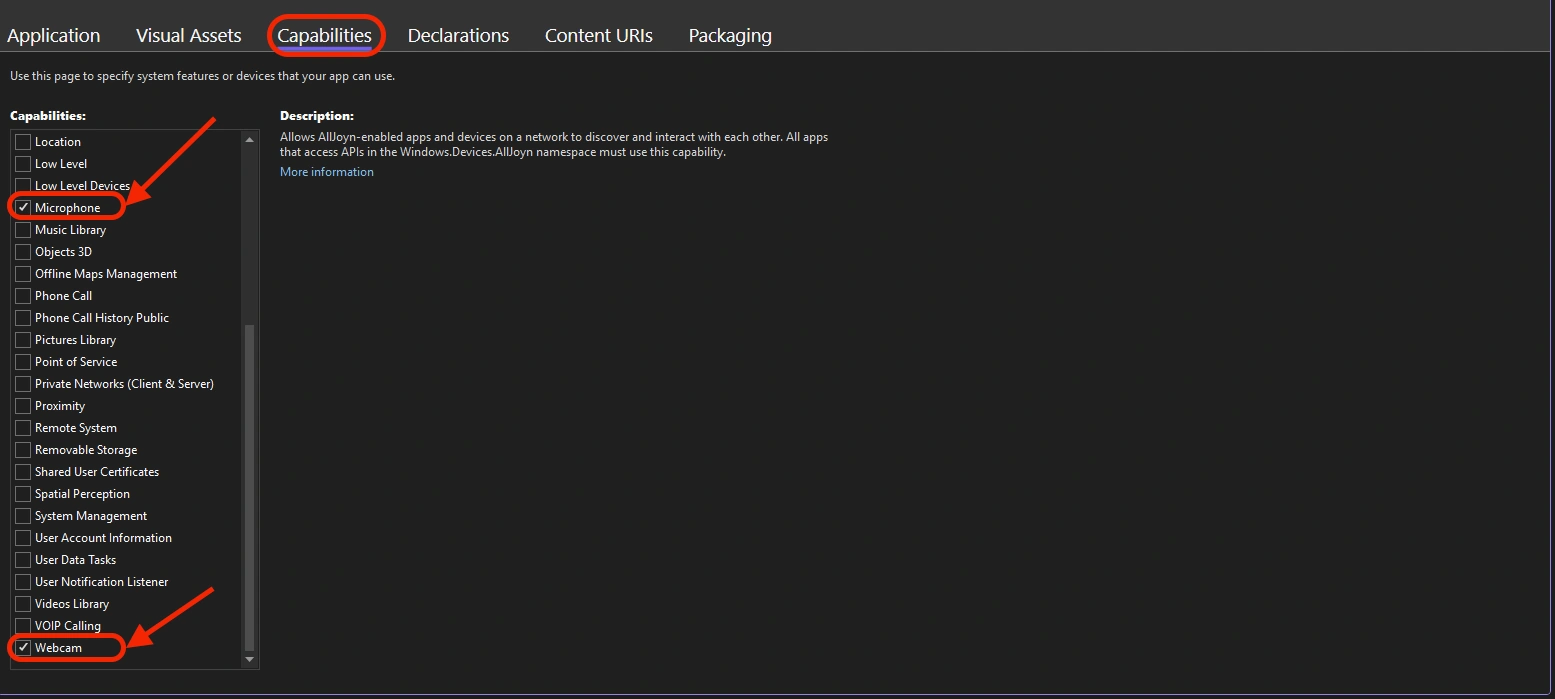
NOTE: Visual Studio is a bit mad at times, it doesn't copy the manifest to the bin/debug/net10.0-windows10.0.19041.0 or for the release directory so it's better if you'd copy paste the Package.appxmanifest into the output directory and rename it as AppxManifest.xml the app needs this file which VS doesn't copy by itself, at least for me.
Okay, now this is done let's install our nuget package now.
INSTALLING PACKAGE
Right click your project and click on manage nuget packages.
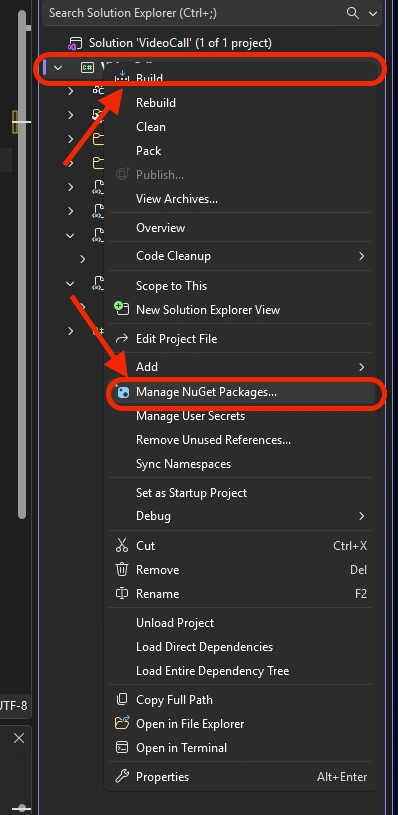
Now add the package Plugin.Maui.PeerVideoCall. Make sure it's version 2.0.0
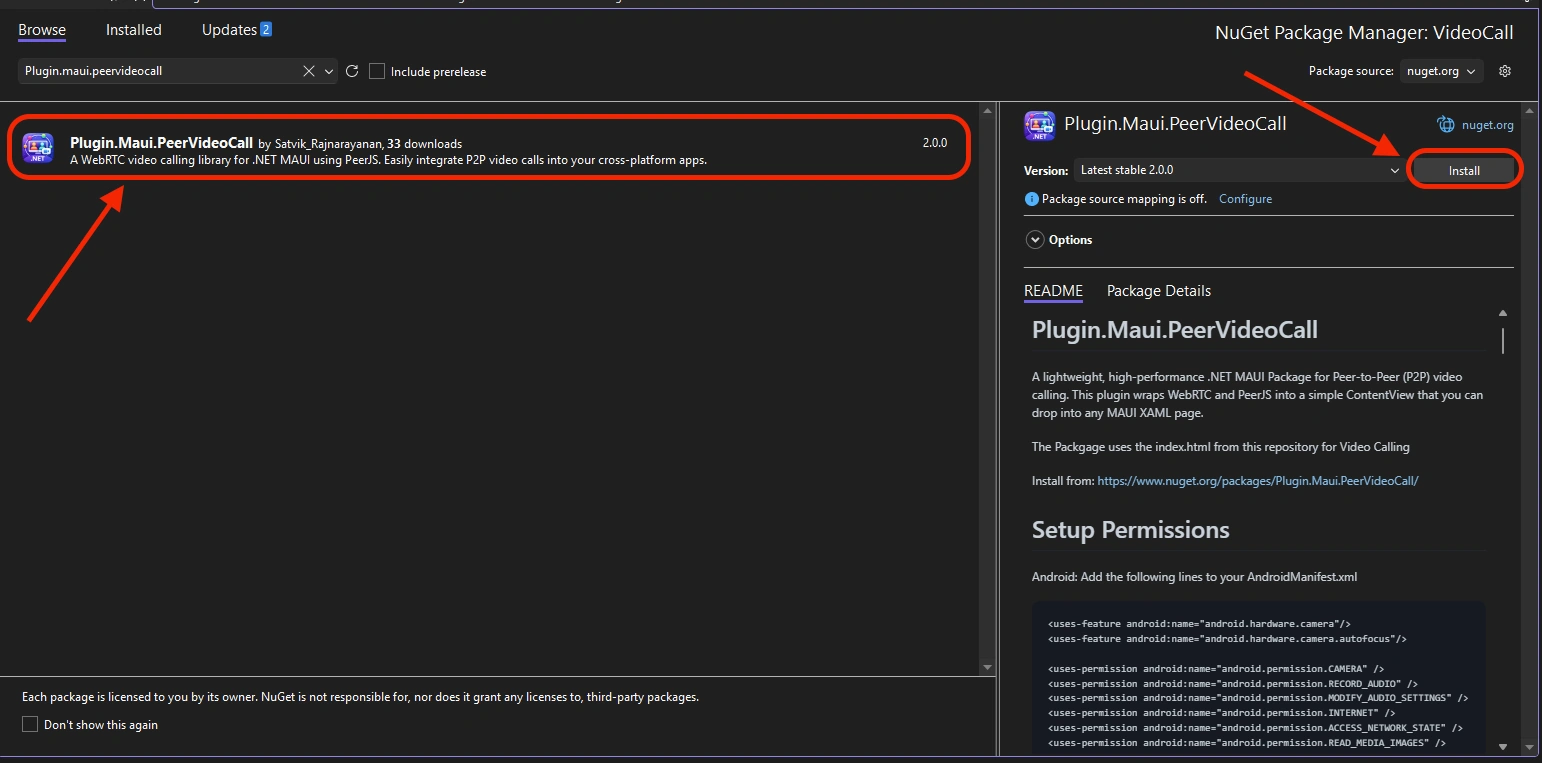
That's all now we've got all the stuff ready to finally make our calling page.
CALLING PAGE
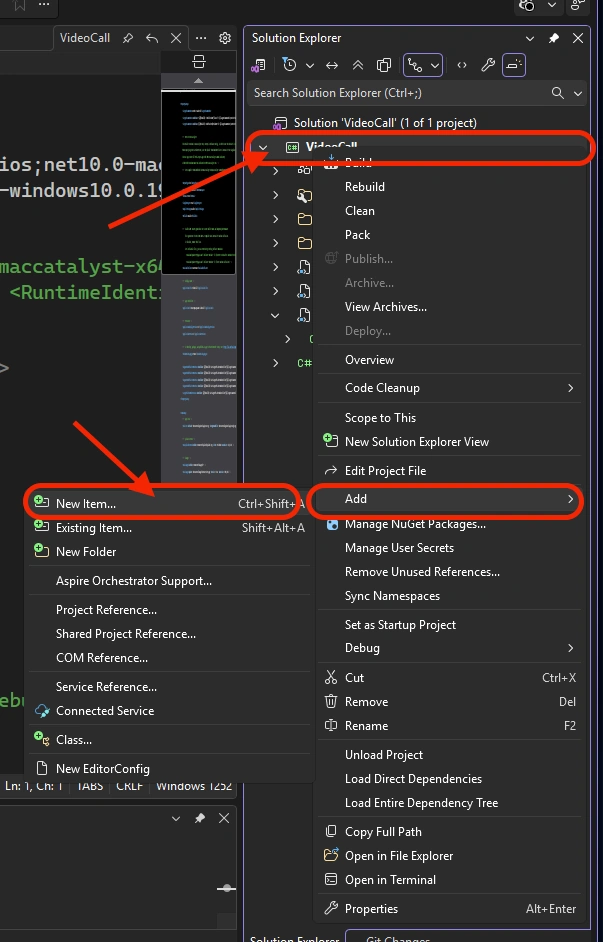
Now, right click your project and Add a new item. We'll need to do this to add our second Page.
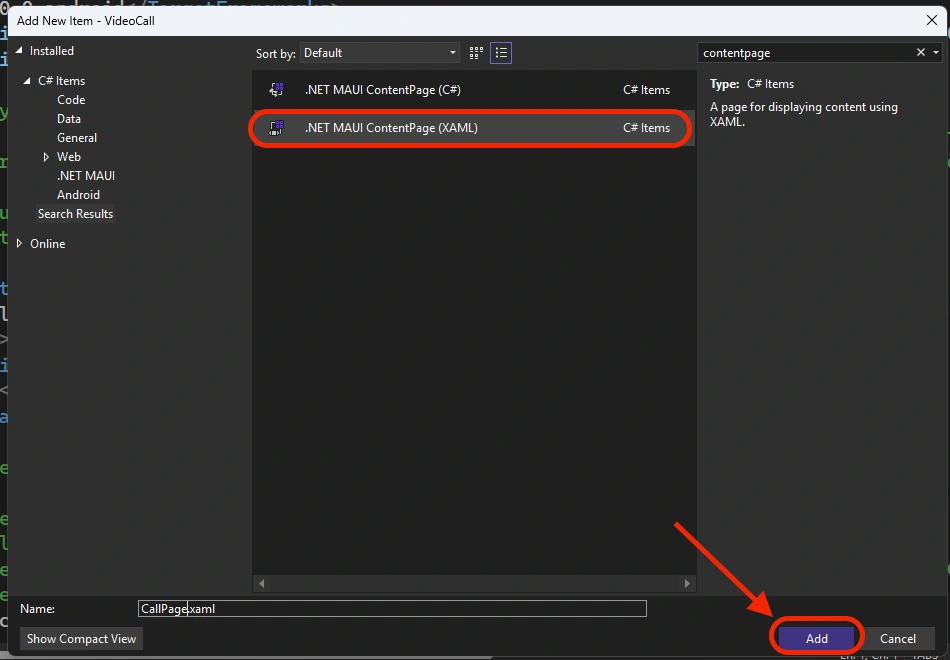
Make sure you add an xaml Content Page. Let's name it CallPage
Alright Now open CallPage.xaml and add the following lines to your namespace so that we can use the content views from our package.
<ContentPage xmlns="http://schemas.microsoft.com/dotnet/2021/maui"
             xmlns:x="http://schemas.microsoft.com/winfx/2009/xaml"
             x:Class="VideoCall.CallPage"
             xmlns:rtc="clr-namespace:Plugin.Maui.PeerVideoCall;assembly=Plugin.Maui.PeerVideoCall"  <!-- Add this -->
             Title="CallPage">
Now add the following lines to your page.
<ScrollView>
    <VerticalStackLayout>
        <Grid VerticalOptions="Fill" HorizontalOptions="Fill">
            <rtc:PeerVideoCallView x:Name="VideoCallView"  HeightRequest="500"/>
        </Grid>

        <Button x:Name="Initialize_Btn" Text="Initialize" Clicked="Initialize_Btn_Clicked" />

        <Label Text="My Peer ID: " x:Name="MyID_Label" FontAttributes="Bold" FontSize="Medium" TextColor="Red"/>
        <Button x:Name="GetID_Btn" Text="Get My ID" Clicked="GetID_Btn_Clicked" />

        <Label Text="Enter Other Peer ID Below." FontAttributes="Bold" FontSize="Header" TextColor="Red"/>
        <Entry x:Name="PeerID_Entry" />

        <Button x:Name="AddPeer_Btn" Text="Add Peer" Clicked="AddPeer_Btn_Clicked" />
    </VerticalStackLayout>
</ScrollView>
VideoCallView -> The content view that comes from our package.
Initialize_Btn -> Initializes preliminary PeerJS Server connections.
MyID_Label -> Use this to show the users their Connection ID
GetID_Btn -> We update the above label upon clicking this button
PeerID_Entry -> This is the Text entry for our users to enter their other Peer's ID
AddPeer_Btn -> The user first enters the other peer ID in the entry above and click this button to actually start a real time peer-to-peer connection with the other peer.
Now let's open the code behind and add the functions to these components.
private void Initialize_Btn_Clicked(object sender, EventArgs e)
{
    VideoCallView.Initialise();
}

private void AddPeer_Btn_Clicked(object sender, EventArgs e)
{
    VideoCallView.AddConnectionIDToCall(PeerID_Entry.Text.Trim());
}

private async void GetID_Btn_Clicked(object sender, EventArgs e)
{
    string ID = await VideoCallView.GetConnectionID();
    MyID_Label.Text = $"My Peer ID: {ID}";
}
That's literally all we need to make a real time peer to peer video call.
All you need to do is save all the files and run the project!
Your App Is Ready!
I have launched this app on my Mac (Mac-Catalyst) and copied the Connection ID to clip board of each device.
Now for real world implementation you will need to host your own private PeerJS server, STUN servers and configure the package to use your servers, use firebase cloud messaging or signalr to transport the connection id of peers, etc.
Please refer to the Readme in the GitHub Repo of this package for more info on using the Package for private PeerJS servers, CSS and JS customization and more!
The source code of this app we just made is also attached for your reference.
Join the conversation! Your thoughts help the community grow.