

The Recovery Scenario Wizard leads you step-by-step through the process of creating a recovery scenario. The Recovery Scenario Wizard contains five main steps; they are:
- Defining the trigger event that interrupts the run session.
- Specifying the recovery operations required to continue.
- Choosing a post recovery test run operation.
- Specifying a name and description for the recovery scenario.
- Specifying whether to associate the recovery scenario to the current test and new tests.
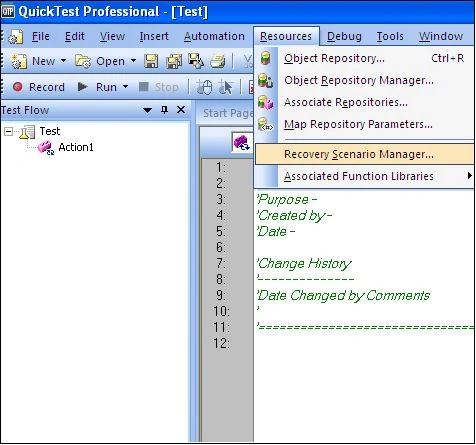
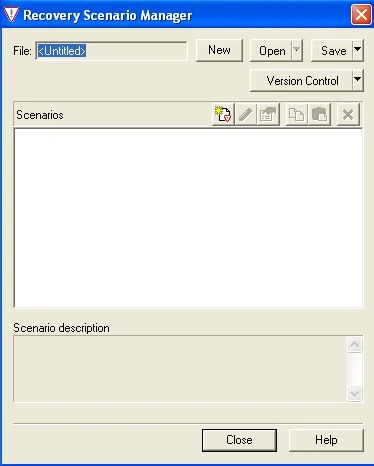
You open the Recovery Scenario Wizard by clicking the New Scenario button in the Recovery Scenario Manager dialog box (Resources > Recovery Scenario Manager), as in:
The Recovery Scenario Manager dialog box opens.
Welcome to the Recovery Scenario Wizard Screen
The Welcome to the Recovery Scenario Wizard screen provides general information about the various options in the Recovery Scenario Wizard and provides an overview of the stages involved in defining a recovery scenario.
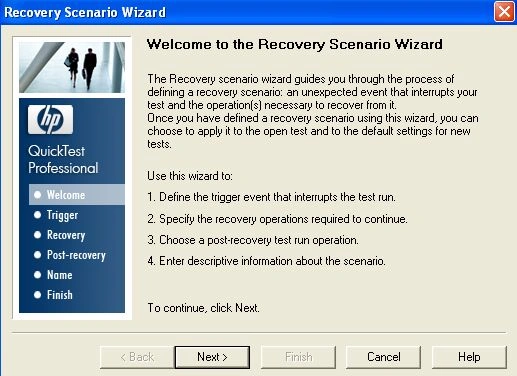
Click Next to continue
Select Trigger Event Screen
The select trigger event screen enables you to define the event type that triggers the recovery scenario and the way in which Quick Test recognizes the event.
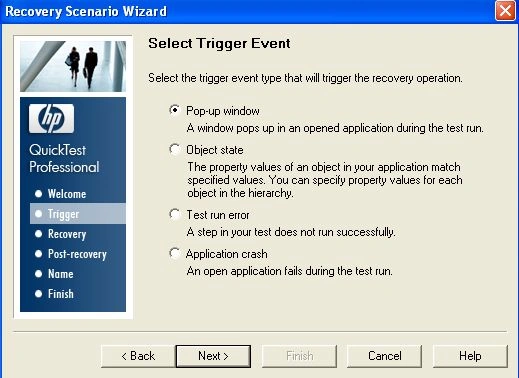
If you choose a Pop up window trigger in the Select Trigger Event Screen, the specify pop up window conditions screen opens.
Perform one of the following to specify the popup window's title and test and then enter the text used to identify the pop up window. You can use a regular expression in the window title or textual content by selecting the relevant regular expression.
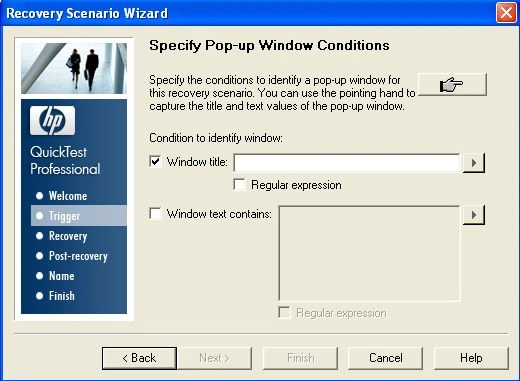
Click the pointing hand and then click the pop up window to capture the window title and textual content of the window.
Join the conversation! Your thoughts help the community grow.