

Introduction
In this article, we are going to explain what happened to Solitaire and Minesweeper in Windows 8. The Desktop version of Solitaire and Minesweeper are gone in Windows 8, replaced with Xbox-integrated full-screen versions. While the classic Desktop versions are missing in action, there's a way to get them back.
How to play the new Solitaire and Minesweeper in Windows 8?
Step 1
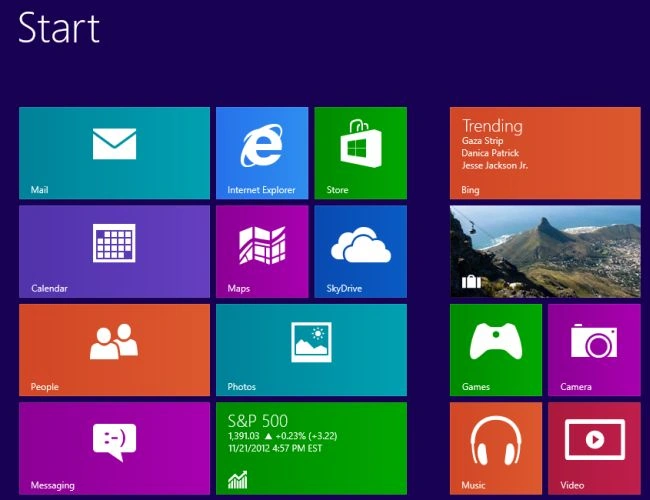
First of all, we have to move to the Start screen window of Windows 8.
Step 2
Then move the cursor to the bottom-right of the window screen and click the search box which is helpful to search in Windows 8.

Step 3
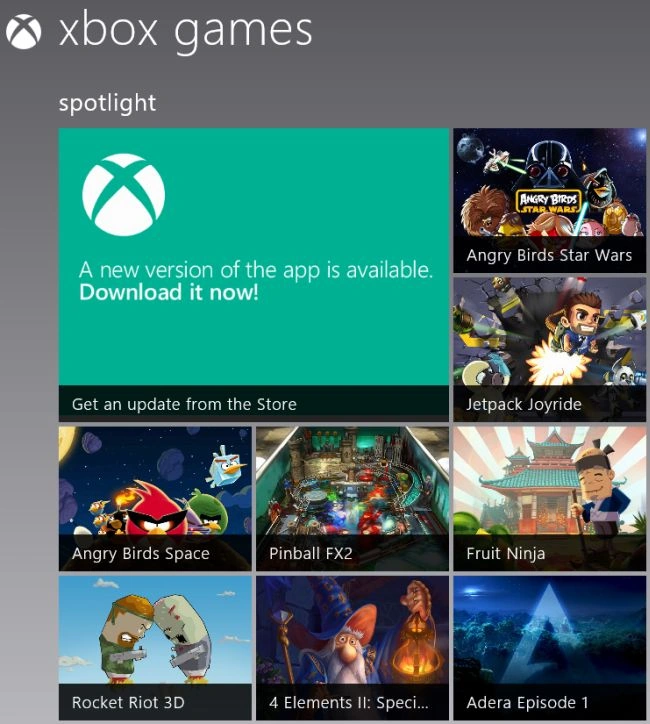
In the search box, type "game" and open the Xbox app, where we can choose to install Solitaire and Minesweeper.
Step 4
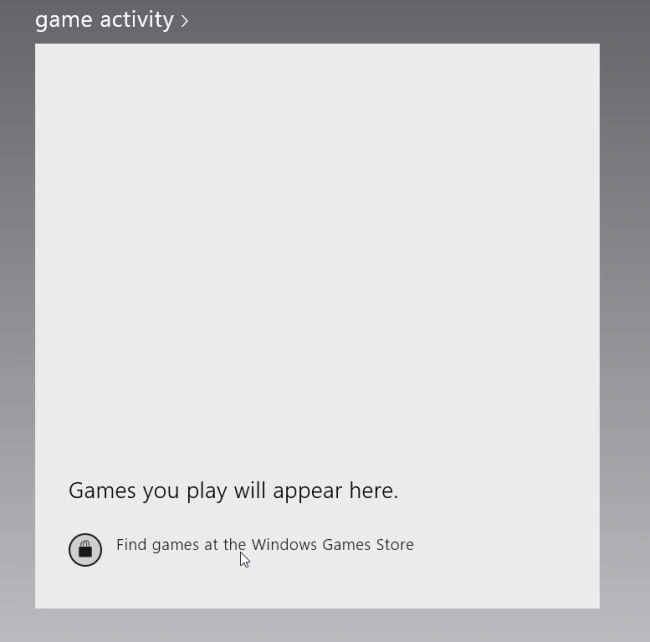
Click to find the game at the Windows game store.
Step 5
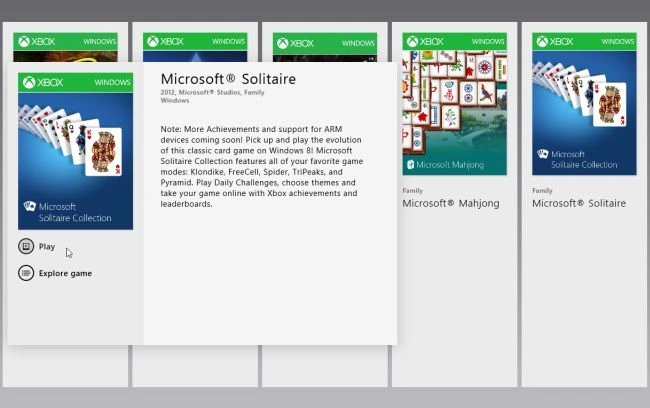
To play one of the games, click its title and click the Play button.
Step 6
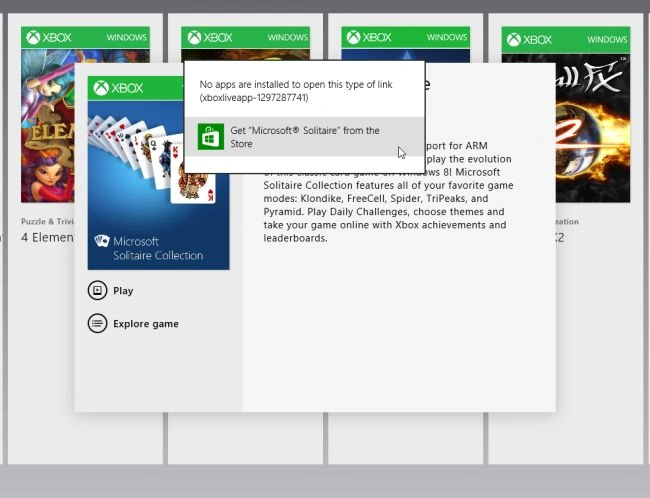
We'll be prompted to install the game from the Windows Store.
Step 7
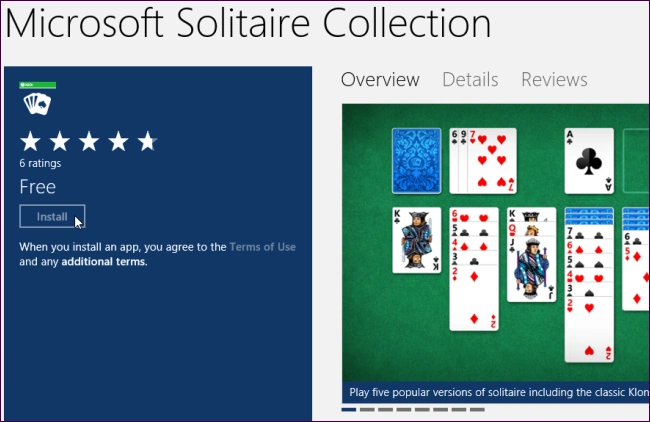
Click the Install button on the game's store page to install your game of choice.
Step 8
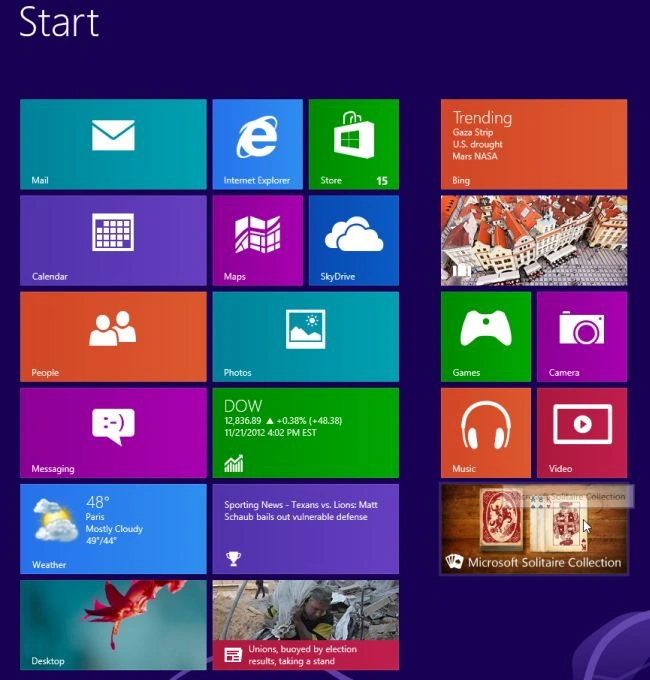
Then we see tiles for games, to install will appear on the start screen. We click one of the tiles to play a game.
Step 9
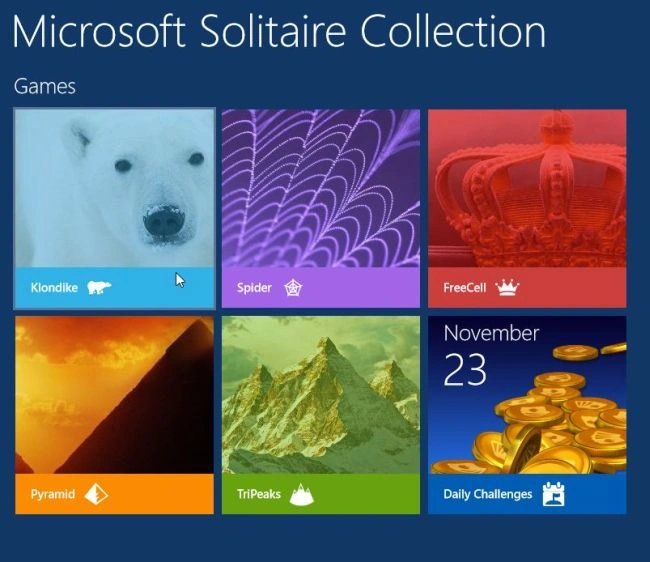
The Microsoft Solitaire collection game allows you to choose among various modes. If we want to play classic Solitaire, Klondike is likely the mode you're most familiar with.
Step 10
Both Solitaire and Minesweeper include Xbox achievements, as silly as that may seem.
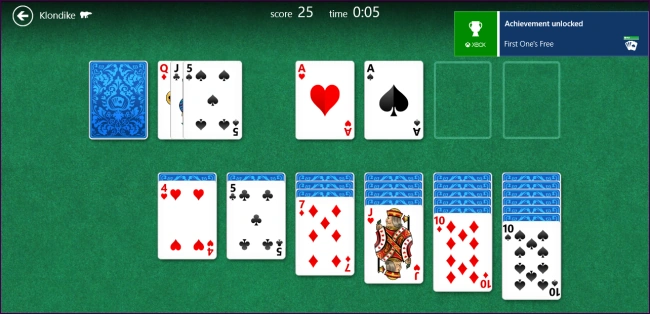
Step 11
There's even an achievement for losing in Minesweeper – "Happens to Everybody."
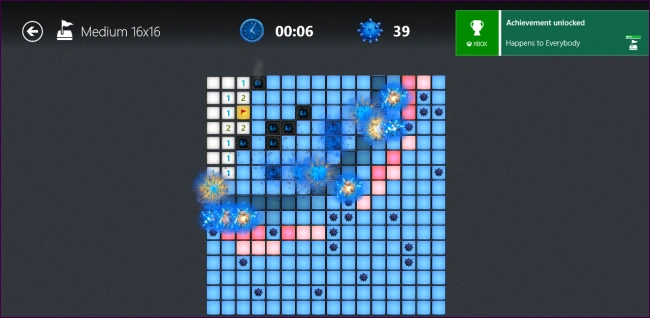
Summary
In this article, we learned about What Happened to Solitaire and Minesweeper in Windows 8.
Join the conversation! Your thoughts help the community grow.