

In this article, we will learn what ASP.NET Core is and what are the advantages of using ASP.NET Core. We will also see how to set up the ASP.NET Core Environment for beginners and professionals in a step-by-step manner.

Introduction
ASP.NET Core is an open-source, cross-platform, and high-performance web framework to build web applications, which can be run on Windows, Mac, or Linux operating systems.
- A developer can build modern, cloud-optimized, IoT, Mobile backend applications using the ASP.NET Core framework.
- We can develop and run ASP.NET Core applications on Windows, Mac, and Linux operating systems.
- We can also deploy our application on the cloud or run on-premises.
- ASP.NET Core runs on .NET Core framework or .NET Standard framework.
- ASP.NET Core framework is a combination of MVC and Web API in a single web framework.
Prerequisites
- Basic knowledge of C#
- Visual Studio
- Object Oriented Programming concepts
Advantages of ASP.NET Core
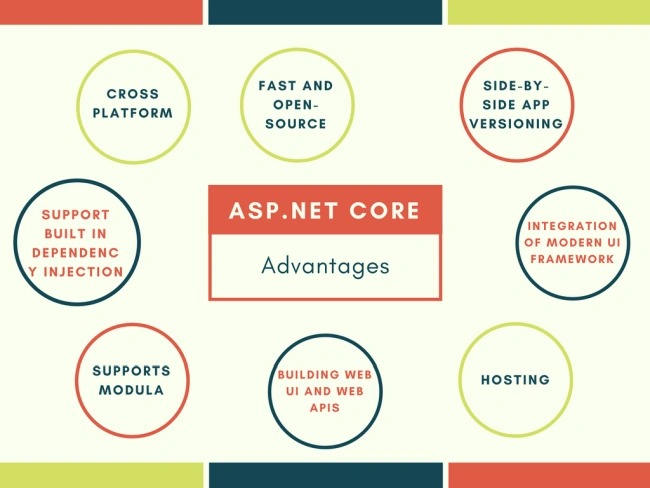
- Fast: It is a lightweight, high-performance web framework.
- Integration of Modern UI Framework: ASP.NET Core supports modern, a Client-side framework like AngularJs, ReactJs, and React with Redux, etc. ASP.NET framework supports client-side framework templates like AngularJs, ReactJs and React with Redux etc.
- Hosting: It has the ability to host on IIS, Apache, Docker, or Self-hosting.
- Cross Platform: ASP.NET Core web application can run on Windows, Mac, and Linux development tools.
- Support Built: In Dependency Injection - It supports built-in Dependency Injection.
- Supports Modular: It supports modular HTTP requests.
- Open-Source: It is an open-source and community-focused web framework.
- Side-by-side app versioning: ASP.NET Core runs on .NET Core which supports the simultaneous running of multiple versions of applications.
- A unified story for building web UI and web APIs.
ASP.NET Core Environment Set up
To develop an ASP.NET Core web application, you need to install it on your system using the process defined below.
- NET Core SDK
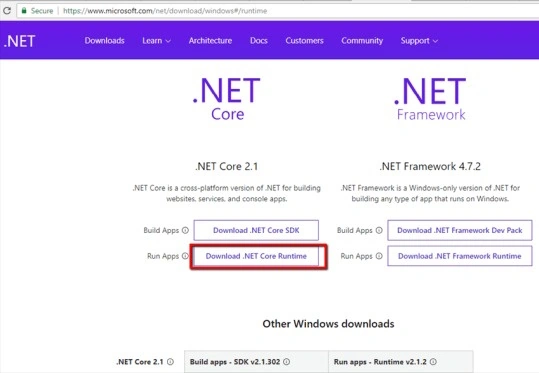
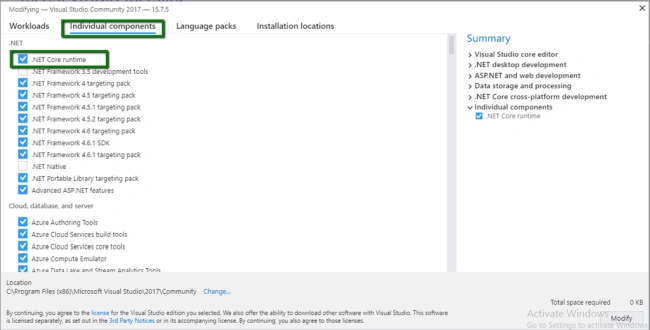
- NET Core Runtime
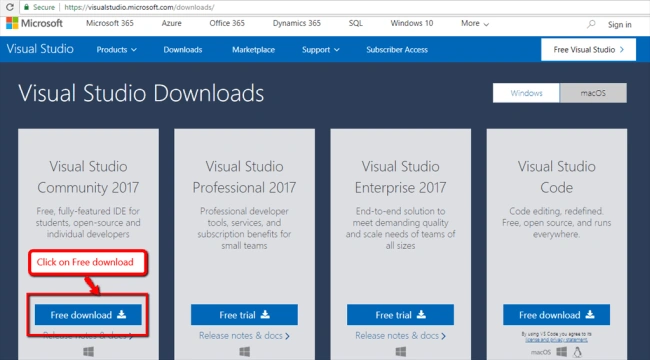
- Integrated Development Environment (IDE)
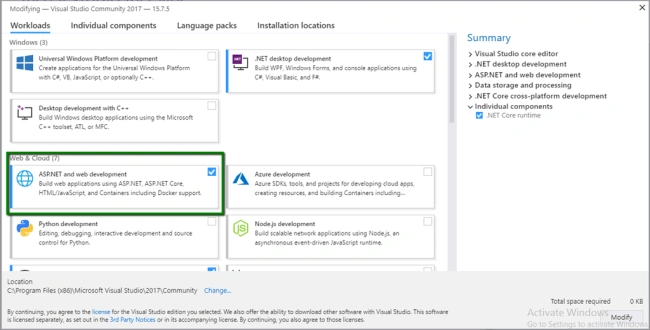
ASP.NET core is part of .NET Core SDK. You need to install .NET Core SDK in your system.
If you work with Visual Studio 2015 then you can download .NET Core 1.0 and the Same of .NET Core Runtime 1.0 version to support VS 2015. For the different versions of .NET Core SDK and .NET Core, Runtime click here to Download different versions of .NET Core SDK
Shailendra MishraPosted Mar 22, 2019, 4:58 AM
Very helpful article.. Thank you.
Tanaji PatilPosted Sep 10, 2018, 4:16 AM
Thanks for sharing........
Jitendra WaghalePosted Aug 15, 2018, 2:11 PM
Nice Article!!
Jignesh KumarPosted Jul 28, 2018, 5:30 AM
Nice one...