

Let's say you have a windows virtual machine running and you need to add an extension or you want to download and execute scripts on your Windows virtual machine. There is an easy way to do this on your virtual machine. You can use a custom script extension tool to download and execute script extension on Azure. This can be used for deploying any custom configuration or any software installation on your Windows virtual machine.
These custom scripts are a set of instructions that gets executed and these files can be stored in an Azure storage account or you can host these files on Github. Microsoft Azure executes these scripts for 90 minutes so we can say that the maximum time duration given for the script is 90 minutes to execute. if the script doesn't finish executions in 90 minutes then that means a failed extension provision.
it is important to note that these scripts shouldn't have reboot commands because if the virtual machine rebooted during executions of the script then it will be a failed execution. The extension will not continue to run after the reboot takes place. So if you think you have this kind of requirement then it is not advisable to use custom script extension and use some other tools.
Benefits
- No need for RDP or SSH to machine to install the software.
- No need for RDP or SSH to execute custom scripts on virtual machines.
How to use Custom Script Extension
Go to Azure Portal and go to the virtual machine and select your Windows virtual machine. if you don't have a virtual machine then you can create the virtual machine. You can learn more here about how to create a virtual machine. I would like to suggest creating windows virtual machine to test it out.
So if I go to the Azure virtual machine and take the public IP address of the virtual machine and browse you will see nothing because IIS is not running so what we gonna do is we are going to install IIS on this virtual machine.
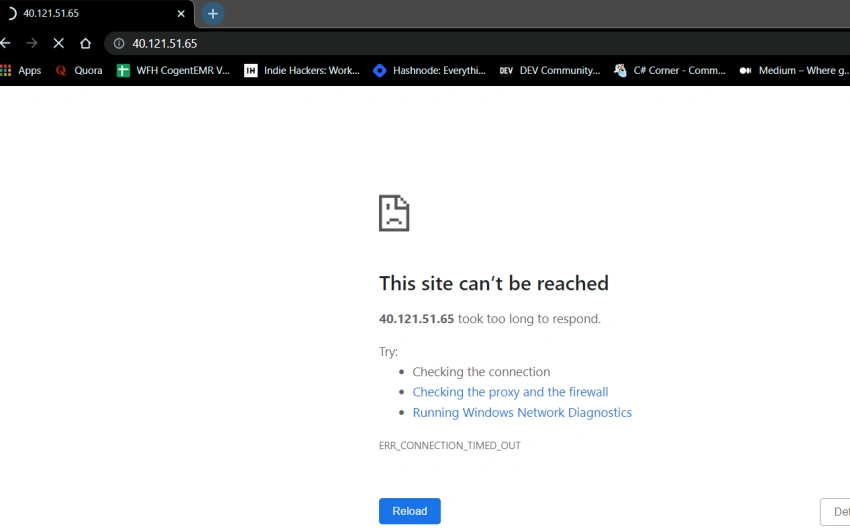
Now let us use custom script extensions to install the IIS service on this virtual machine. So we are going to create a PowerShell script file and here we are importing the model of server manager and adding the windows feature of the webserver on this virtual machine. This will allows us to install IIS on this virtual machine. Below are the commands we are going to use.
import-module servermanager
add-windowsfeature web-server -includeallsubfeature
As discussed, we can use Github or Azure Storage for storing this file. So let us use a storage account for storing this file and executing the script. The virtual machine will pick up the script file from the storage account and execute the script.
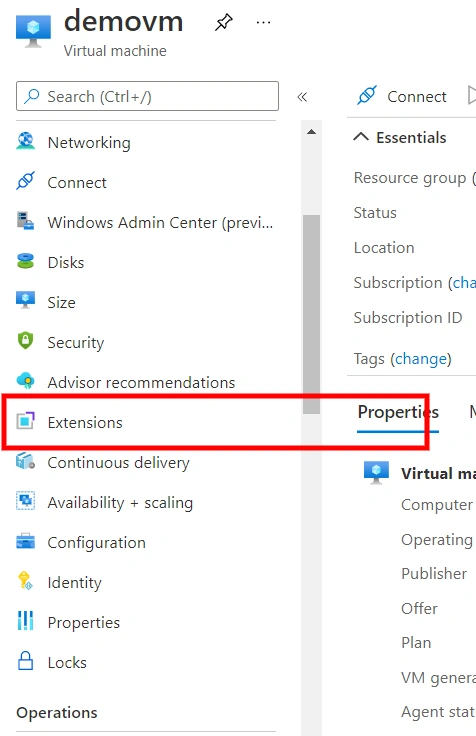
Now go to your virtual machine and go to Extensions and click on add an extension.
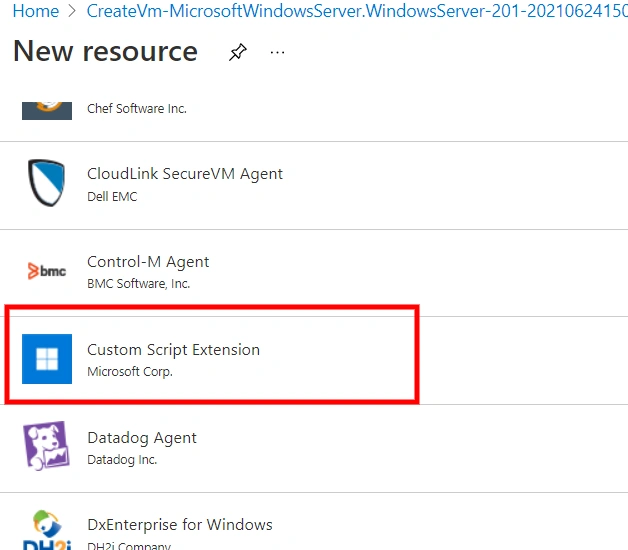
Now find Custom Script Extension and click on it.
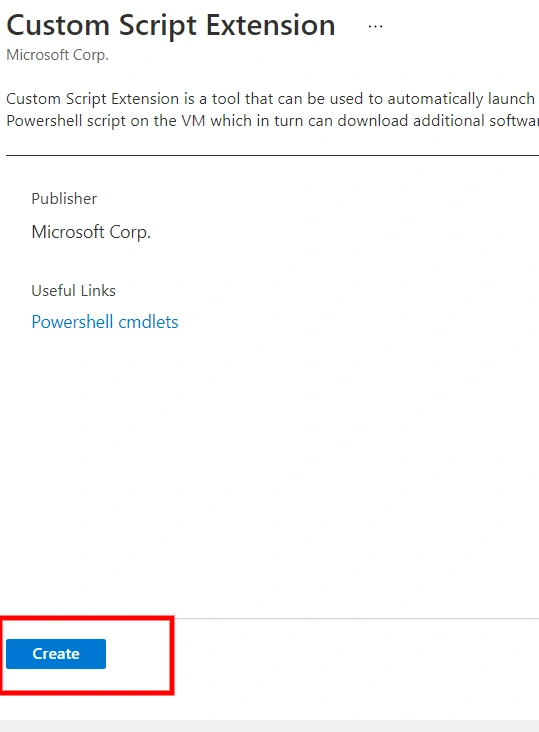
Now click on create and select script file.
Now click on browse and if you have an existing storage account then you can upload your file. If you have one then you can browse here otherwise, click on add enter the details.
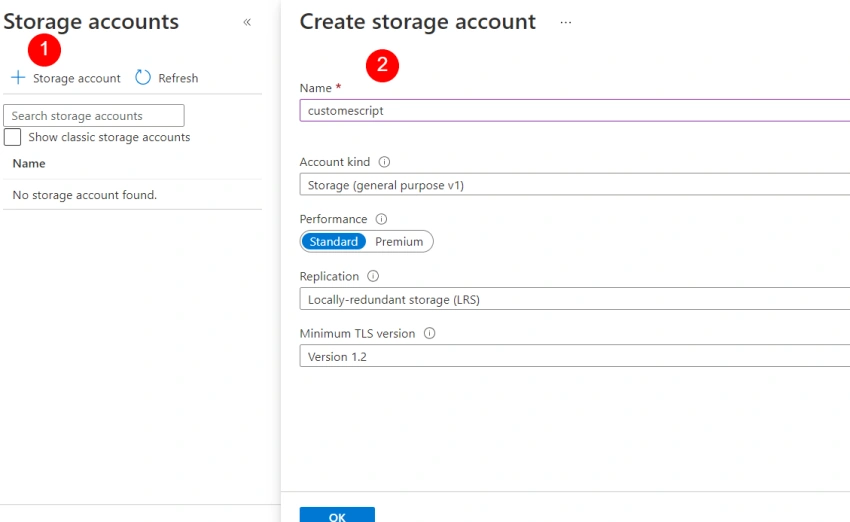
Give it some time and you will see your newly created storage account and click on it.
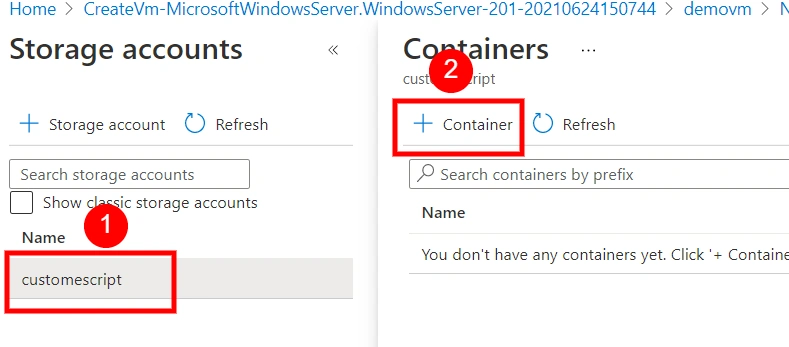
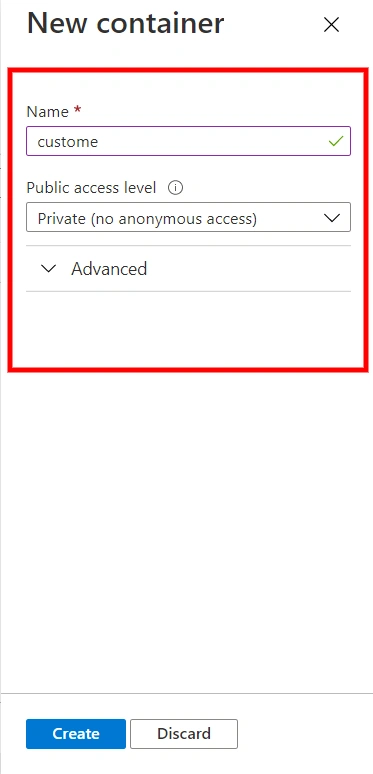
Now you need to create a container in your storage account. Click on add container and enter the details.
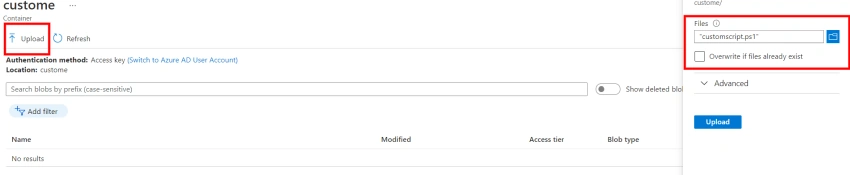
Now click on the container and click on upload and upload your .ps1 file. once everything is complete then give it some time to complete the deployment.
Once the provisioning is complete then you can see that one custom script in the list and the status is Provisioning Succeeded.

Once the provisioning is complete you can go to the public IP of the virtual machine and you can see that IIS on this virtual machine is running. So this is the one way to execute the scripts on your virtual machines.

You can access the script file here, so in this article, we learned about what is custom script extension and how to use it. Thanks for reading and stay safe.
Gurpreet AroraPosted Jun 30, 2021, 1:35 PM
Nice article