Part 1 of 2 · Part 2: Build Your First .NET MAUI App Step by Step
Introduction
If you know C#, you are one framework away from shipping an app to Android, iPhone, Mac and Windows. That framework is .NET MAUI.
Most getting-started guides stop at dotnet new maui and a screenshot of a working app. Real setups don't go that smoothly. When I prepared my .NET Conf 2026 session, I set up .NET MAUI from scratch on a Mac with VS Code, and I hit error after error on the way: missing Android tools, a Java version that was too new, NuGet permission problems, VS Code that couldn't find dotnet, and iCloud quietly breaking Apple's code signing. This article covers every setup error, with the exact message you'll see and the fix that worked. Part 2 does the same for the errors you hit while writing the code.
Who this is for: C# and .NET developers (and students) who have never built a mobile app, plus Xamarin developers wondering what changed.
What you'll have at the end:
A clear mental model of what .NET MAUI is, how it differs from Xamarin and Blazor, and whether it's worth learning in 2026
VS Code set up for MAUI on macOS or Windows, with Android and (on a Mac) iPhone and Mac desktop targets
A first app running on an Android emulator and as a Mac desktop app
A troubleshooting table you can come back to whenever a build fails
In Part 2, we use this setup to build a complete to-do app step by step, from click handlers to MVVM, navigation and native phone features.
TL;DR: .NET MAUI is Microsoft's framework for building native apps for Android, iOS, macOS and Windows from one C# project. It is the official successor to Xamarin.Forms, it moved to the same CoreCLR runtime as ASP.NET Core in .NET 11, and you can develop with nothing more than VS Code.
What is .NET MAUI?
.NET MAUI (.NET Multi-platform App UI) is Microsoft's framework for building native apps for Android, iOS, macOS and Windows from one C# project. It's pronounced like the Hawaiian island, "MOW-ee".
A framework, not a library
The difference matters, and it's the quickest way to understand what MAUI does for you:
| Library | Framework |
|---|
Who's in charge | You call it when you need it | It calls you: it runs the app and plugs your code in |
Example | CommunityToolkit.Mvvm: you use its attributes
| MAUI starts the app, calls your MauiProgram, shows your pages, delivers the taps |
Analogy | A tool you pick up | The frame of a house you build your rooms into |
MAUI owns the app's lifecycle. When the app starts, the platform hands control to MAUI, which calls your MauiProgram, creates your App and AppShell, and shows your first page. You fill in the pieces; MAUI decides when they run. Inside that framework you still use ordinary libraries from NuGet.
How it works: handlers
Think of a film that's dubbed into many languages. The script is written once. In each country, local voice actors perform it in the local language, and viewers watch something that feels made for them.
MAUI works the same way. You write the script once: your C# and XAML. MAUI's handlers are the local voice actors. A MAUI Button becomes Android's own button on Android, UIButton on iPhone and Mac, and a WinUI button on Windows. Nothing runs in a web view; your users get real native controls.
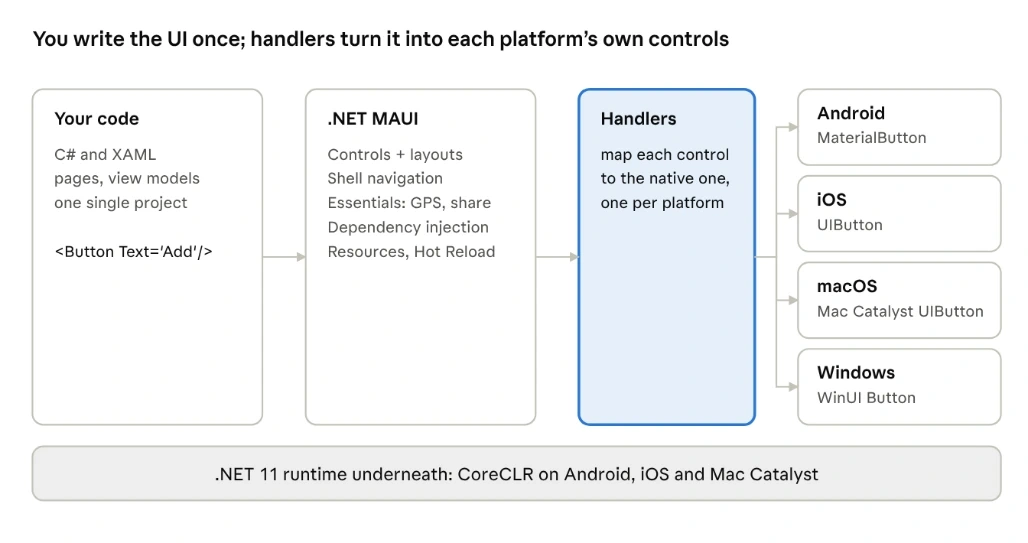
Everything in the middle is shared. The only platform-specific files in a MAUI project are a small Platforms folder with each platform's manifest and entry point.
What's inside MAUI
Part | What it gives you |
|---|
Controls and layouts | Button, Entry, CollectionView, Grid… one API for every platform
|
Handlers | The mapping from each control to the native one; customisable when you need a platform tweak |
Essentials | Device features with one C# call each: geolocation, share, haptics, camera, preferences, secure storage |
Shell | Navigation by routes, tabs, flyout menus |
App hosting | MauiProgram: dependency injection, configuration and logging, the same Generic Host as ASP.NET Core
|
Single project | One project and one SVG icon; every platform's app and icon sizes are generated from it |
Tooling | The maui workload, VS Code and Visual Studio support, Hot Reload |
What MAUI is not
Not a web view. Unlike Cordova or Ionic, the screen is made of real native controls.
Not a game engine. Unlike Unity, it's built for apps made of forms, lists and screens.
Not Blazor. More on that below.
.NET MAUI vs Xamarin, and .NET MAUI vs Blazor
These are the two questions I was asked most after the talk.
Is MAUI just Xamarin renamed?
No. MAUI grew out of Xamarin.Forms, but it was rebuilt and moved into .NET itself. Xamarin support ended on 1 May 2024, so existing Xamarin apps have to be migrated; the .NET Upgrade Assistant helps with that.
| Xamarin.Forms | .NET MAUI |
|---|
Projects | One per platform plus a shared one | One single project |
UI architecture | Renderers | Handlers: lighter and easier to customise |
Runtime | Mono | .NET; CoreCLR on mobile since .NET 11 |
Device APIs | Separate Xamarin.Essentials package | Built in |
Startup | App class
| MauiProgram with dependency injection (Generic Host)
|
Support | Ended 1 May 2024 | Ships with every .NET release |
Good news for Xamarin developers: your XAML, C# and MVVM skills carry over almost unchanged. What's new is the plumbing.
Is MAUI the same as Blazor?
No. Both use C#, but they build different things:
| Blazor | .NET MAUI |
|---|
What you build | Websites and web apps | Installable apps for Android, iOS, macOS and Windows |
Where it runs | In a browser, or on a server that updates the browser | Directly on the device |
UI language | Razor components: HTML, CSS and C# | XAML or C# |
What draws the screen | The browser draws HTML | The device draws its own native controls |
How users get it | Visit a URL | Install from Google Play, the App Store or the Microsoft Store |
Device features | What the browser allows | Full access: GPS, camera, vibration, files, notifications |
They can also work together. MAUI has a BlazorWebView control that hosts Blazor components inside a native app. This is called Blazor Hybrid: you get an installable app with full device access, with screens written in Razor. Teams use it to share UI between their website and their mobile app.
In one sentence: Blazor for the web, MAUI for devices, and Blazor Hybrid when you want both from one set of components.
Is .NET MAUI still worth learning in 2026–2028?
Every year someone asks whether MAUI is dead. Here are the facts, and the honest trade-offs.
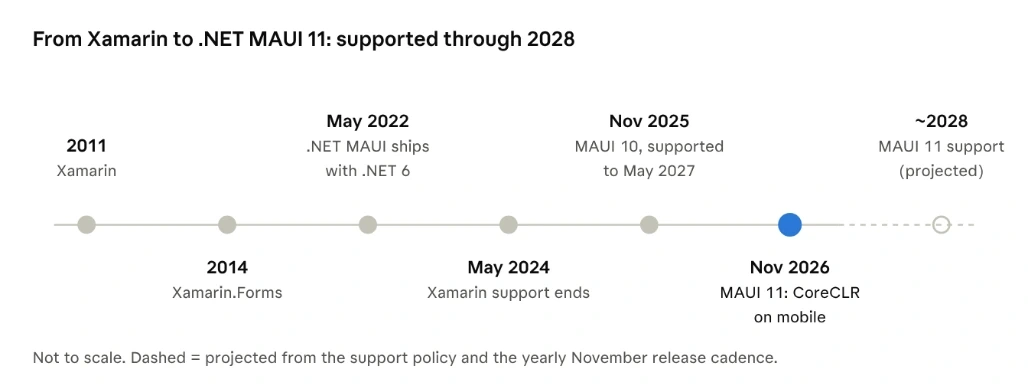
The facts
It's the official path. Xamarin support ended on 1 May 2024, and .NET MAUI is its successor.
Support is predictable. Each MAUI major version is supported for at least six months after the next one ships. MAUI 10 shipped on 11 November 2025 and is supported until 11 May 2027. If the yearly November cadence holds, MAUI 11 is covered until around May 2028, which takes you comfortably through the 2026–2028 window.
It changed engines in .NET 11. Android, iOS and Mac Catalyst apps now run on CoreCLR by default, the same runtime as ASP.NET Core and your cloud services, instead of Mono.
The inner loop improved. dotnet watch Hot Reload works on Android emulators and devices, and on physical iPhones.
Its reach is growing. Avalonia previewed a MAUI backend for Linux and WebAssembly, and .NET 11 adds extension points for third-party platform backends.
The honest trade-offs
Flutter and React Native have bigger mobile communities and more third-party packages.
MAUI ships a major version every year. Budget time for that upgrade.
Some upgrades between versions have had rough edges. Test them early.
When to choose MAUI, and when not to
Choose MAUI when… | Look elsewhere when… |
|---|
Your team already writes C# | Your team is already strong in Dart or TypeScript |
You build business apps on .NET or Azure back ends | You build a heavily animated, brand-first consumer app |
You're migrating from Xamarin | You can't budget for a yearly upgrade |
You want mobile and desktop from one project | |
You're a student who knows C# and wants an app on your phone this month | |
Verdict: MAUI isn't dead; it changed engines. For .NET developers it is a supported, safe bet through 2028.
Setting up VS Code for .NET MAUI: the overview
You don't need Visual Studio. VS Code works on Windows, macOS and Linux. You install five things once per machine, then every new project takes two commands.
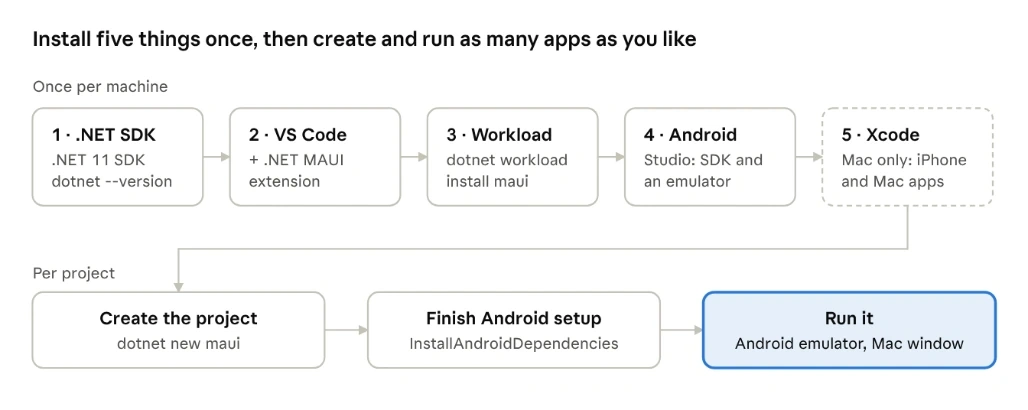
Install | Why | Platforms |
|---|
.NET 11 SDK | The compiler and the dotnet command | All |
VS Code + .NET MAUI extension | Editing, IntelliSense, debugging, F5 | All |
The maui workload | Adds the Android, iOS and Mac build tools to the SDK | All (Linux: Android only) |
Android Studio | The easiest way to get the Android SDK and an emulator | All |
Xcode | Apple only lets apps for its devices be built with Xcode | Mac only |
Budget 2–3 hours the first time. Most of it is downloads: Android Studio, emulator images and Xcode are several gigabytes each.
Mac users, one rule before you start: keep your code projects outside iCloud-synced folders. If Desktop & Documents sync with iCloud Drive, Apple's code signing fails later (error 9 in the troubleshooting table). Create a folder such as ~/Projects and work there.
Step-by-step setup
Each step ends with a check, so a problem never hides until later, and with the errors you may hit at that step. The error numbers refer to the troubleshooting table near the end.
Step 1: Install the .NET 11 SDK
Go to dotnet.microsoft.com/download and download the .NET 11 SDK. Pick the SDK, not just the Runtime.
Run the installer with the default options.
Open a new terminal and check:
dotnet --version
dotnet --list-sdks
Check: dotnet --version prints 11.0.xxx. Note that this command only checks the version; installing is the download above.
Errors you may hit: dotnet: command not found in the terminal means the PATH hasn't refreshed yet. Close and reopen the terminal, or restart the machine (error 1).
Step 2: Install VS Code and the .NET MAUI extension
Install VS Code from code.visualstudio.com.
Open Extensions (Cmd+Shift+X on macOS, Ctrl+Shift+X on Windows), search for .NET MAUI and click Install.
This one extension also installs C# Dev Kit and C#, which give you IntelliSense, the Solution Explorer and debugging. If C# Dev Kit asks you to sign in with a Microsoft account, do it; it's free for individuals.
Check: the Extensions list shows .NET MAUI, C# Dev Kit and C#.
Errors you may hit: pop-ups saying .NET MAUI SDK: not found and dotnet: command not found inside VS Code, even though the terminal works. VS Code can't see where dotnet lives. Don't click Install .NET MAUI SDK; fix the path instead (error 3).
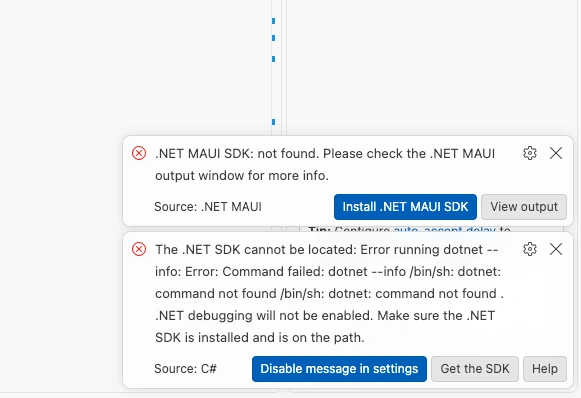
Step 3: Install the MAUI workload
The SDK on its own builds web APIs and console apps. A workload is an add-on pack: the maui workload adds the Android, iOS and Mac build tools and the dotnet new maui template.
# macOS (needs your password)
sudo dotnet workload install maui

# Windows: run in a terminal opened as Administrator, no sudo
dotnet workload install maui

# Linux: Android only
dotnet workload install maui-android
Check:
dotnet workload list
You should see a line like maui 11.0.xxx/11.0.100 SDK 11.0.100: the workload name, its version, and which SDK it's installed into.
Errors you may hit:
Workloads belong to one SDK version. If you install a newer SDK later, maui can be missing for it, and dotnet new maui says no template matches. Run the install again (error 2).
Use sudo only for this command. Running dotnet build or dotnet add package with sudo leaves NuGet's folders owned by the admin user, which breaks package installs later (error 8).
Step 4: Install Android Studio for the Android SDK and an emulator
Android apps need the Android SDK (Google's build tools), a JDK (Java, which those tools run on) and an emulator (a virtual phone). Android Studio is the easiest way to get the SDK and the emulator. You only use it as an installer; you keep writing code in VS Code. The JDK comes later, with one command.
Install Android Studio and open it.
More Actions › SDK Manager. Note the Android SDK Location at the top: usually ~/Library/Android/sdk on macOS and %LOCALAPPDATA%\Android\Sdk on Windows.
SDK Platforms tab: tick one recent version, Android 15 (API 35) or newer.
SDK Tools tab: tick these four, then click Apply:
More Actions › Virtual Device Manager › Create device: pick a Pixel phone, pick the system image for the version you ticked, click Finish, then press ▶ to start it.
The one checkbox that cost me an hour: Android SDK Command-line Tools (latest) is not ticked by default. Without it, the setup command in the next section fails with cmdline-tools not found (error 6).
Check: the emulator boots to an Android home screen.
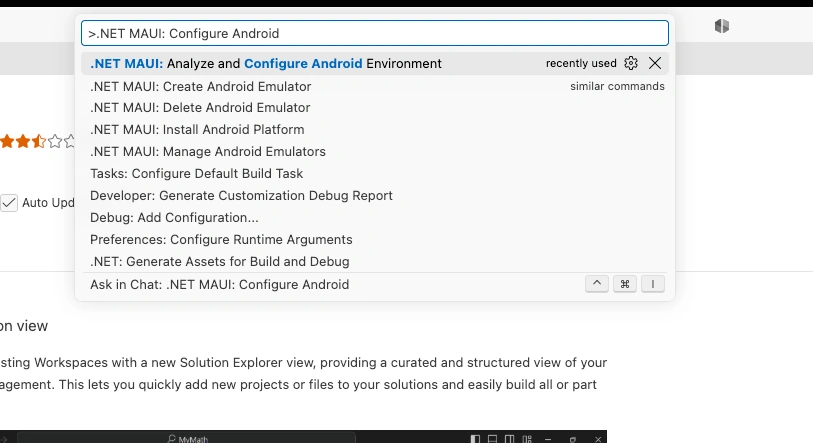
What about the VS Code command ".NET MAUI: Analyze and Configure Android Environment"? You don't need it. It only works once a MAUI project is open, and it often reports in the Output panel instead of on screen, so it can look as if nothing happens (error 4). The command in the next section does the same job reliably.
Step 5 (Mac only): Install Xcode
Apple only allows apps for iPhone and Mac to be built with Xcode, which only runs on macOS. You need it for the Mac desktop app (Mac Catalyst) and the iPhone simulator. Android doesn't need it, and on Windows you skip this step.
Install Xcode from the Mac App Store. It's a large download, so start it early.
Open it once, accept the licence, and let it install its extra components.
For the iPhone simulator: Xcode › Settings › Components (called Platforms in some versions) › download iOS.
Point the command-line tools at Xcode and finish its first-launch setup:
sudo xcode-select --switch /Applications/Xcode.app
sudo xcodebuild -runFirstLaunch
xcodebuild -version
Check: xcodebuild -version prints an Xcode version. Use the Xcode version that matches your MAUI release; the MAUI team lists it on the Release Versions wiki page.
Run it on… | Needs Xcode? | Extra |
|---|
Android emulator | No | Android Studio (step 4) |
Mac desktop | Yes | Nothing else |
iPhone simulator | Yes | The iOS simulator runtime |
A real iPhone | Yes | An Apple ID in Xcode; the paid Apple Developer Program to publish |
Your first .NET MAUI app
1. Create the project and open it
Create it in a folder that iCloud doesn't sync, and open that project folder in VS Code:
mkdir -p ~/Projects && cd ~/Projects
dotnet new maui -n MauiTodo
cd MauiTodo
code .
dotnet new maui creates a project from the MAUI template; -n MauiTodo names the project and its folder.
code . opens the current folder in VS Code. Opening VS Code from the terminal also gives it the terminal's PATH, which avoids the dotnet: command not found pop-ups (error 3). If code itself isn't found, run Shell Command: Install 'code' command in PATH from VS Code's Command Palette.
Prefer clicking? In VS Code, use the Create .NET Project button or Cmd/Ctrl+Shift+P › .NET: New Project… › .NET MAUI App.
Check: the Explorer shows Platforms, Resources, MauiProgram.cs and MainPage.xaml, and after 30–60 seconds the Solution Explorer at the bottom shows MauiTodo.
2. Finish the Android setup (once per machine)
Now that a project exists, one build target installs a compatible JDK, fills any gaps in the Android SDK and accepts Google's licences. Run it inside the project folder, where MauiTodo.csproj is:
# macOS
dotnet build -t:InstallAndroidDependencies -f net11.0-android \
  -p:AndroidSdkDirectory="$HOME/Library/Android/sdk" \
  -p:JavaSdkDirectory="$HOME/Library/Java/jdk" \
  -p:AcceptAndroidSDKLicenses=True
# Windows (PowerShell)
dotnet build -t:InstallAndroidDependencies -f net11.0-android `
  -p:AndroidSdkDirectory="$env:LOCALAPPDATA\Android\Sdk" `
  -p:JavaSdkDirectory="$env:USERPROFILE\.jdk" `
  -p:AcceptAndroidSDKLicenses=True
Check: it ends with Build succeeded.
This is the step where I hit the most errors. Here is what my first attempt looked like:

Three messages, three different causes:
warning XA0033 … returned: openjdk version "27". My Mac's default Java was very new. It's only a warning: ignore it if the build succeeds. If Java does break the build, use JDK 21 for this project only (error 7).
cmdline-tools not found, then error XAIAD7023. The Android SDK Command-line Tools weren't installed. Tick them in Android Studio › SDK Manager › SDK Tools › Apply, and run the command again (error 6). This was the real problem.
warning NU1900 … Access to the path … NuGet/http-cache is denied. An earlier sudo command left NuGet's cache owned by the admin user. Harmless here, but it becomes an error when you add packages (error 8).
If you see MSB1003: Specify a project or solution file, your terminal isn't in the project folder. Run ls: you should see MauiTodo.csproj (error 5).
3. Run it on Android
Start the emulator from Android Studio's Virtual Device Manager, then check it's connected. adb (Android Debug Bridge) is the tool that talks to Android devices:
~/Library/Android/sdk/platform-tools/adb devices
# List of devices attached
# emulator-5554   device
device means ready; offline means it's still booting; an empty list means no emulator is running. Then build and run:
dotnet build -t:Run -f net11.0-android
The first build takes a few minutes. Then the template app opens on the emulator by itself.
From VS Code: click { } in the status bar, pick the emulator, and press F5. That runs the same build with the debugger attached.
4. Run it as a Mac desktop app
dotnet run -f net11.0-maccatalyst
The same code opens as a normal Mac window with its own Dock icon. Look closely at the buttons: they look slightly different from Android's, because each platform draws its own native controls.
Use dotnet run here, not dotnet build -t:Run. On Android, -t:Run builds first; for Mac Catalyst it only tries to open the app. On a clean project it fails in 0.0 seconds:

The build didn't fail; the launch did, because there was no app to open yet (error 10).
The other Mac error I hit was this one, from Apple's code signing:

resource fork, Finder information, or similar detritus not allowed. My project lived in ~/Documents, which syncs with iCloud Drive. iCloud attaches hidden metadata to files, and Apple's code signing refuses an app that carries it. Android doesn't care, which is why the Android build worked from the same folder.
The fix: move the project out of iCloud-synced folders. mv moves the folder with your git history intact:
mkdir -p ~/Projects
mv "$HOME/Documents/<your folder>" ~/Projects/
cd ~/Projects/<your folder>/MauiTodo
rm -rf bin obj
dotnet run -f net11.0-maccatalyst
After the move, VS Code shows your open tabs in red with a strike-through. Nothing is lost: VS Code is still pointing at the old path.

Close those tabs with Don't Save, then open the folder from its new location (code . from the new path, or Cmd+Shift+G in the Open dialog and type ~/Projects). If you can't move the project, see error 9 for two workarounds.
Troubleshooting: every setup error and its fix
Bookmark this table. Each row is an error I hit, or one your audience is likely to hit, with the fix that worked.
# | What you see | Cause | Fix |
|---|
1 | dotnet: command not found in the terminal
| The PATH hasn't refreshed after installing the SDK | Close and reopen the terminal, or restart the machine |
2 | No templates or subcommands found matching: 'maui', or NETSDK1147
| The maui workload isn't installed for this SDK version | sudo dotnet workload install maui (Windows: admin terminal, no sudo), then dotnet workload list
|
3 | VS Code pop-ups: .NET MAUI SDK: not found and dotnet: command not found | VS Code was started without dotnet on its PATH, often when opened from the Dock or Finder | Don't install anything. Close the window and reopen it from a terminal with code .. If it persists on macOS: echo /usr/local/share/dotnet | sudo tee /etc/paths.d/dotnet, then restart VS Code |
4 | .NET MAUI: Analyze and Configure Android Environment does nothing | No MAUI project is open, or the results went to the Output panel | Not needed: use the InstallAndroidDependencies command instead |
5 | MSB1003: Specify a project or solution file
| The terminal isn't in the project folder | cd into the folder that contains MauiTodo.csproj; check with ls or dir
|
6 | cmdline-tools not found, XAIAD7023
| Android SDK Command-line Tools aren't installed | Android Studio › SDK Manager › SDK Tools › tick Command-line Tools (latest) › Apply |
7 | warning XA0033: Failed to get the Java SDK version
| The default JDK is very new (e.g. JDK 27) | Ignore it if the build succeeds. Otherwise install Microsoft OpenJDK 21 and point this project at it with a Directory.Build.props file (below) |
8 | NU1900 or error: Access to the path '…/NuGet/http-cache' is denied
| An earlier sudo command made NuGet's folders owned by admin | sudo chown -R $(whoami) ~/.local/share/NuGet ~/.nuget, and never sudo a build
|
9 | codesign … resource fork, Finder information, or similar detritus not allowed
| The project is in an iCloud-synced folder (Documents or Desktop) | Move it to ~/Projects. Or run xattr -cr . before each Mac build, or redirect bin/obj with Directory.Build.props (below) |
10 | MSB3073: The command "open -a …MauiTodo.app" exited with code 1
| -t:Run on Mac Catalyst only launches; it didn't build first, or the app was left unsigned
| rm -rf bin obj, then dotnet run -f net11.0-maccatalyst
|
11 | XARDF7024: Directory not empty … obj/…/assets
| Two builds at once (F5 and the terminal), or stale build output | Stop the debugger, dotnet build-server shutdown, rm -rf bin obj, build again |
12 | VS Code shows open tabs in red with a strike-through | The project folder was moved | Close the tabs with Don't Save and open the folder from its new location |
13 | No device in the { } list, or the emulator won't boot | The emulator isn't running, or hardware acceleration is off | Start the emulator first and check adb devices; on Windows turn on Windows Hypervisor Platform |
Two Directory.Build.props recipes. This file sits next to MauiTodo.csproj, and MSBuild reads it automatically on every build, from the terminal or F5. Both recipes only apply on a Mac and leave everyone else untouched.
Use JDK 21 for this project only (error 7):
<Project>
  <PropertyGroup Condition="$([MSBuild]::IsOSPlatform('OSX'))">
    <JavaSdkDirectory Condition="'$(JavaSdkDirectory)' == '' And Exists('/Library/Java/JavaVirtualMachines/microsoft-21.jdk/Contents/Home')">/Library/Java/JavaVirtualMachines/microsoft-21.jdk/Contents/Home</JavaSdkDirectory>
  </PropertyGroup>
</Project>
Keep build output out of iCloud (error 9):
<Project>
  <PropertyGroup Condition="$([MSBuild]::IsOSPlatform('OSX'))">
    <BaseOutputPath>$(HOME)/Library/Developer/MauiTodoBuild/bin/</BaseOutputPath>
    <BaseIntermediateOutputPath>$(HOME)/Library/Developer/MauiTodoBuild/obj/</BaseIntermediateOutputPath>
  </PropertyGroup>
</Project>
When in doubt: dotnet build-server shutdown, then rm -rf bin obj, then build again. Deleting the build output fixes a surprising number of strange errors.
Command cheat sheet
Run these from the project folder, except the install commands.
Task | Command |
|---|
Check the SDK | dotnet --version
|
Install / check the workload | sudo dotnet workload install maui · dotnet workload list
|
Create and open a project | dotnet new maui -n MauiTodo · cd MauiTodo · code .
|
Finish the Android setup (once) | dotnet build -t:InstallAndroidDependencies -f net11.0-android -p:AcceptAndroidSDKLicenses=True
|
Is the emulator connected? | adb devices
|
Run on Android | dotnet build -t:Run -f net11.0-android
|
Run as a Mac app | dotnet run -f net11.0-maccatalyst
|
Run on the iPhone simulator | dotnet run -f net11.0-ios
|
Hot Reload while it runs | dotnet watch -f net11.0-android
|
Add a NuGet package | dotnet add package CommunityToolkit.Mvvm
|
Clean up stale builds | dotnet build-server shutdown · rm -rf bin obj
|
Wrapping up
You now have three things:
A clear mental model. .NET MAUI is a framework, not a library. You write one C# and XAML app, and handlers turn each control into the real native control on Android, iOS, macOS and Windows.
A good reason to learn it now. Xamarin is gone, MAUI 10 is supported until May 2027 and MAUI 11 should be supported until around May 2028. The CoreCLR move makes mobile .NET the same runtime you already use on the server.
A working setup. VS Code, the .NET SDK, the maui workload, the extension, the Android SDK and emulator, and optionally Xcode. You also have a new app that runs on Android and on your Mac, plus a table of every error you might hit on the way.
The setup is the hardest part of learning MAUI. If you got the purple Hello, World! screen running, the rest is just C#.
Coming next: Part 2
In Part 2: Build Your First .NET MAUI App Step by Step, we turn this blank template into a to-do app in four small steps. Each step works on its own and has copy-paste code:
Hello MAUI. Make sense of the template files.
A real UI. A model, an Entry, a CollectionView and click handlers.
MVVM. The CommunityToolkit, data binding, commands and dependency injection.
Navigation and native features. A detail page, Shell routes, swipe to delete, sharing and haptic feedback.
As in this article, every code error I hit is covered with its fix, including CS0234, CS0246, a .xml file that should have been .xaml, and an unsaved file that broke the build.
If this saved you an hour of setup pain, share it with someone who is about to start, and leave a comment with any error that isn't in the table. I'll add it.
Sources


Join the conversation! Your thoughts help the community grow.