


Introduction
Power Apps is a powerful tool that enables users to create custom applications with minimal coding. One of the essential features of Power Apps is the Collect function, which allows you to gather and store data in collections. This functionality can significantly enhance the way you manage and manipulate data within your apps. In this article, we will explore the Collect function in detail, covering its features, advantages, disadvantages, and practical steps to use it effectively.
Features of the Collect Function
- Data Storage: Collect creates a temporary in-memory table that stores data for use within your app.
- Dynamic Updates: You can dynamically add new data to the collection at any point during the app's lifecycle.
- Multiple Data Types: Collections can hold various data types, including numbers, text, dates, and even complex records.
- Local Accessibility: Data in a collection is accessible throughout the app, allowing for easy manipulation and display.
Advantages
- Performance: Since collections are stored in memory, accessing data from collections is often faster than querying a database repeatedly.
- Flexibility: You can easily modify collections, adding or removing data as needed.
- User Experience: By using collections, you can create a more responsive app, as data is readily available without needing constant server requests.
Disadvantages
- Temporary Nature: Collections are temporary and exist only while the app is running. Once the app is closed, the data is lost unless saved externally.
- Memory Usage: Storing large datasets in memory can lead to performance issues or app crashes.
- Limited Data Capacity: Collections have limits on the amount of data they can hold, which may not be sufficient for large applications.
Steps to Use the Collect Function
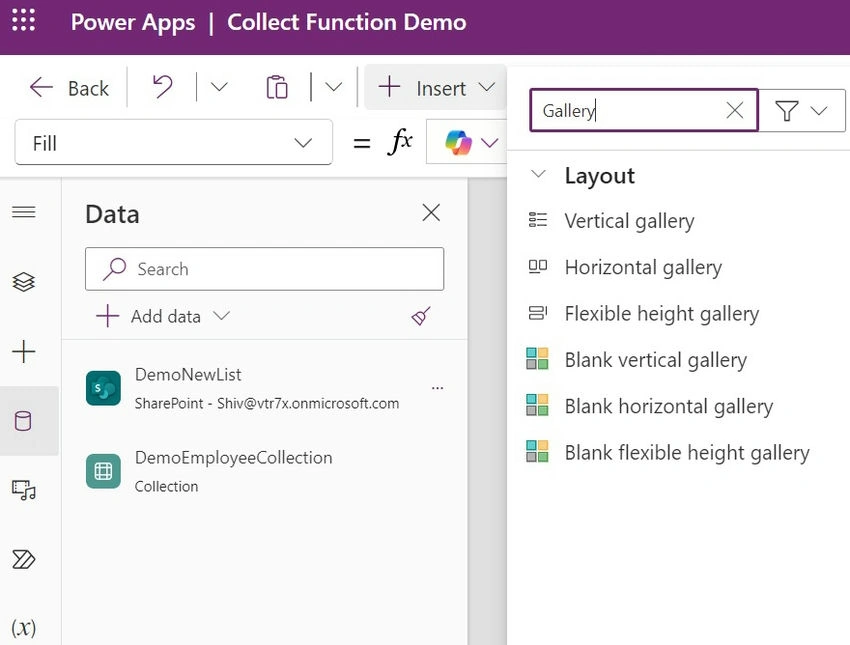
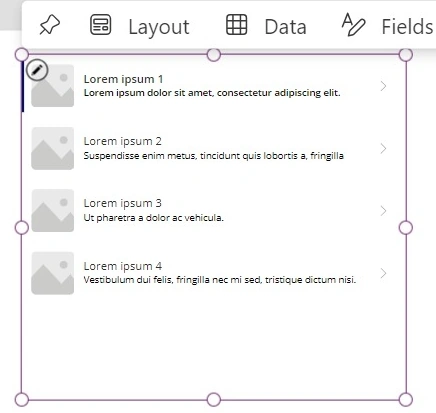
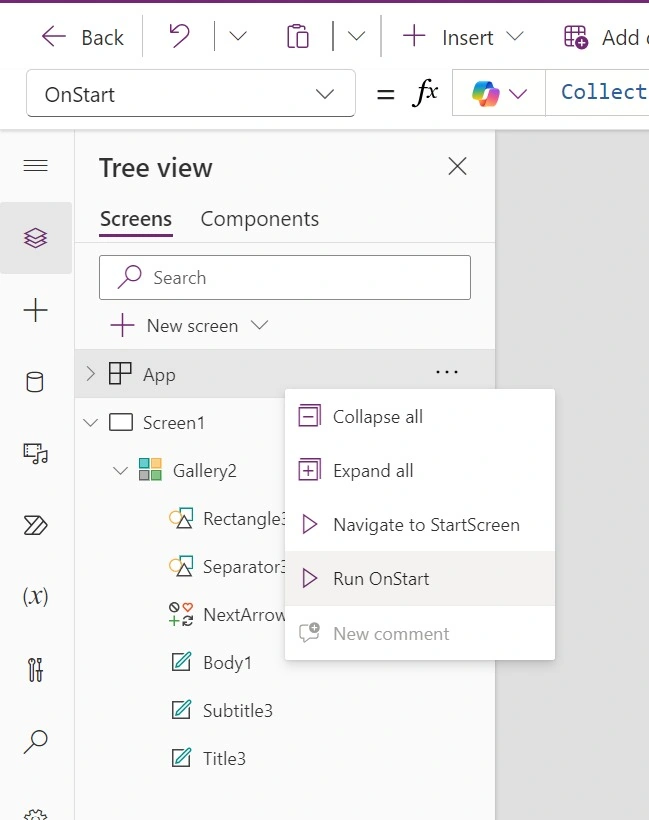
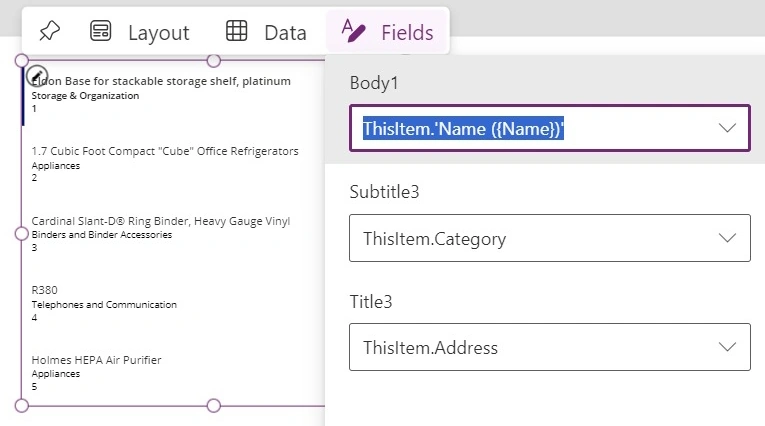
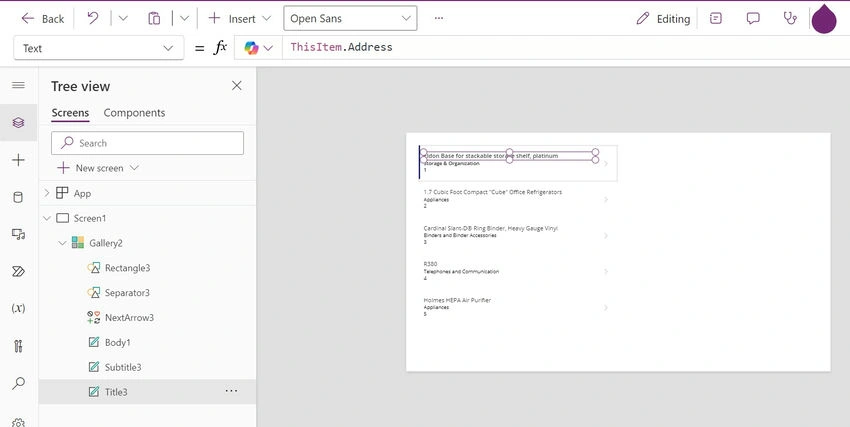
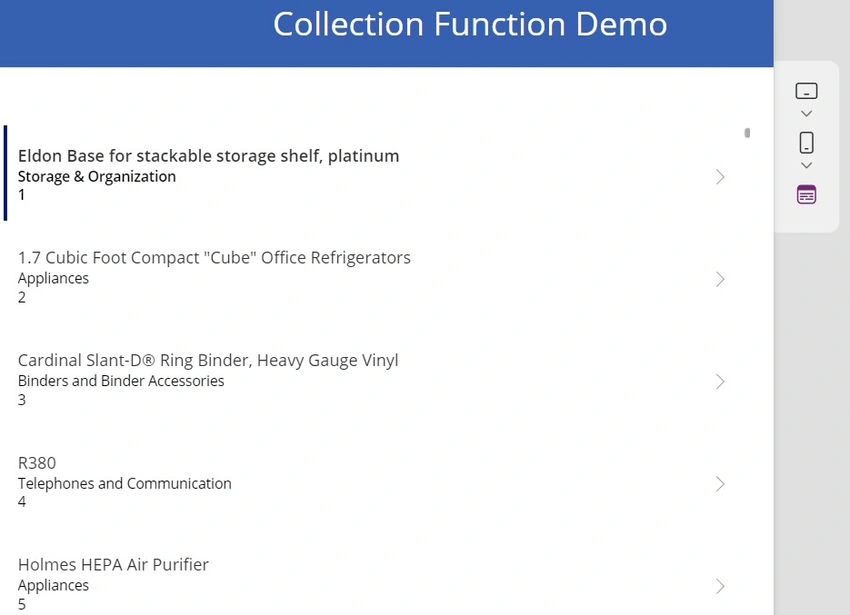
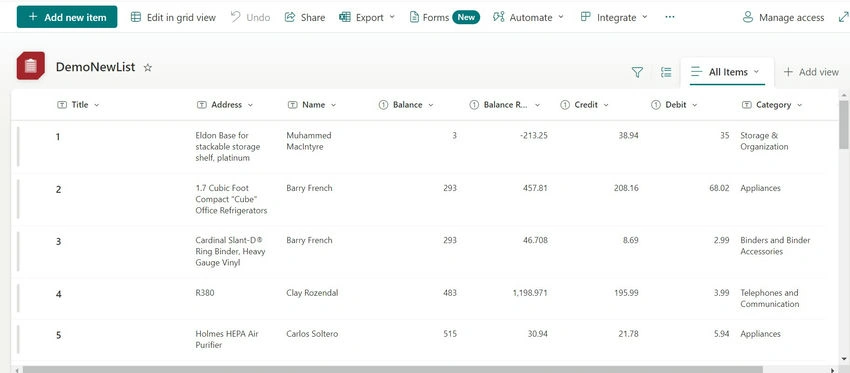
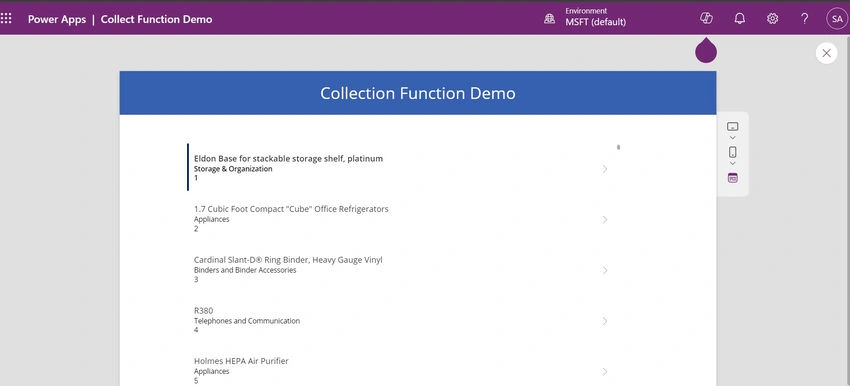
To illustrate the use of the Collect function, let’s walk through an example using Power Apps with SharePoint as a data source. We will create a gallery that displays data collected from a SharePoint list.
Step 1. Log in to SharePoint.
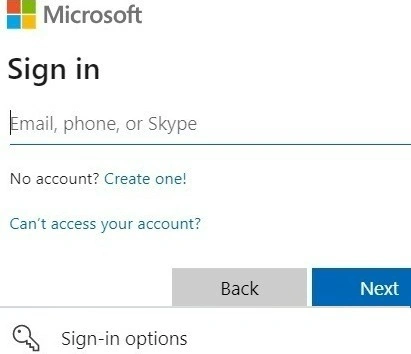
- Open your web browser and navigate to your SharePoint site.
- Log in with your credentials.
Step 2. Open Site Content.
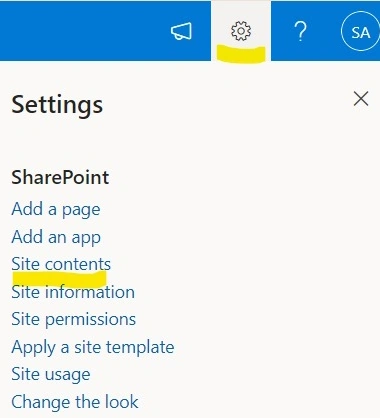
- In your SharePoint site, click on Site Contents in the left-hand menu.
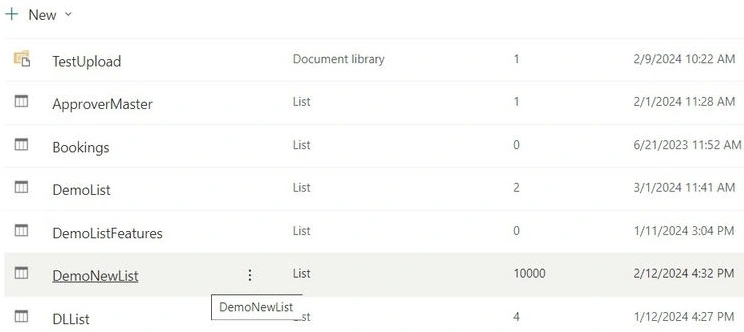
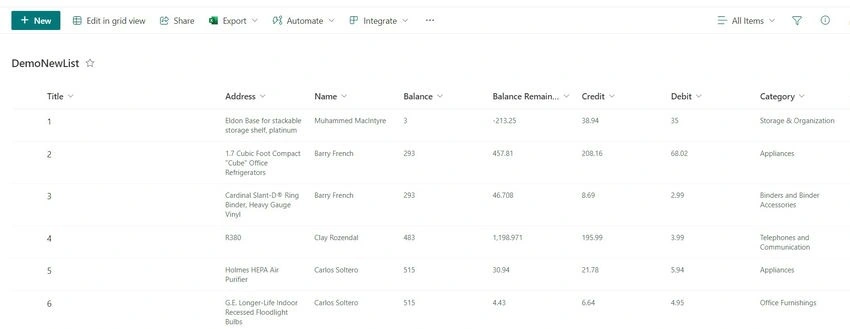
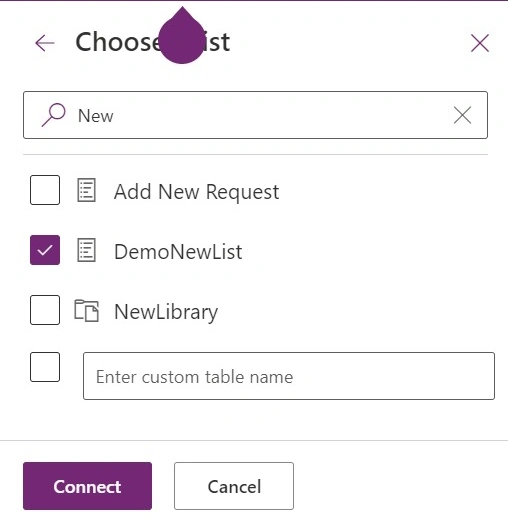
- Locate and select the list you want to use as a data source.
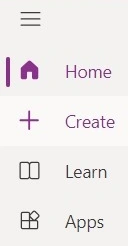
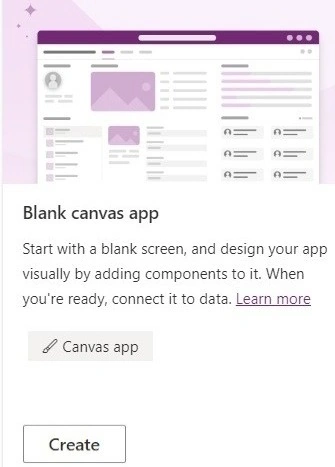
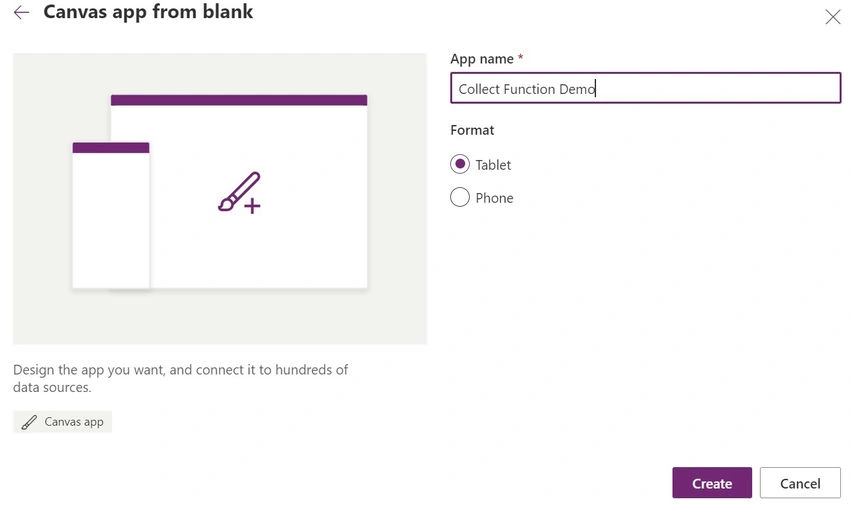
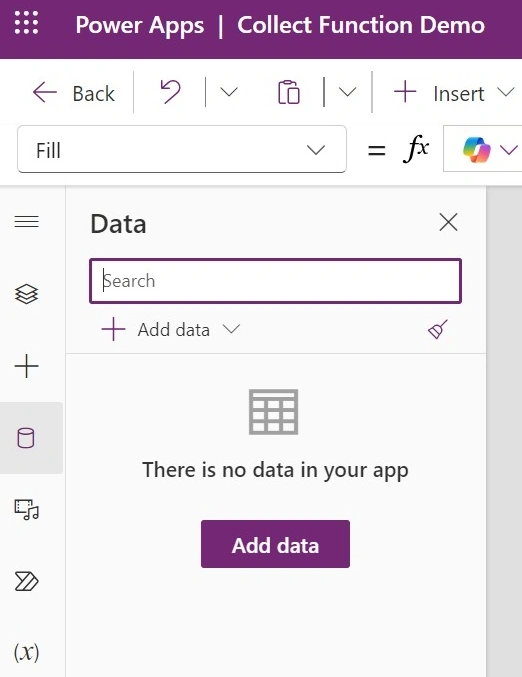
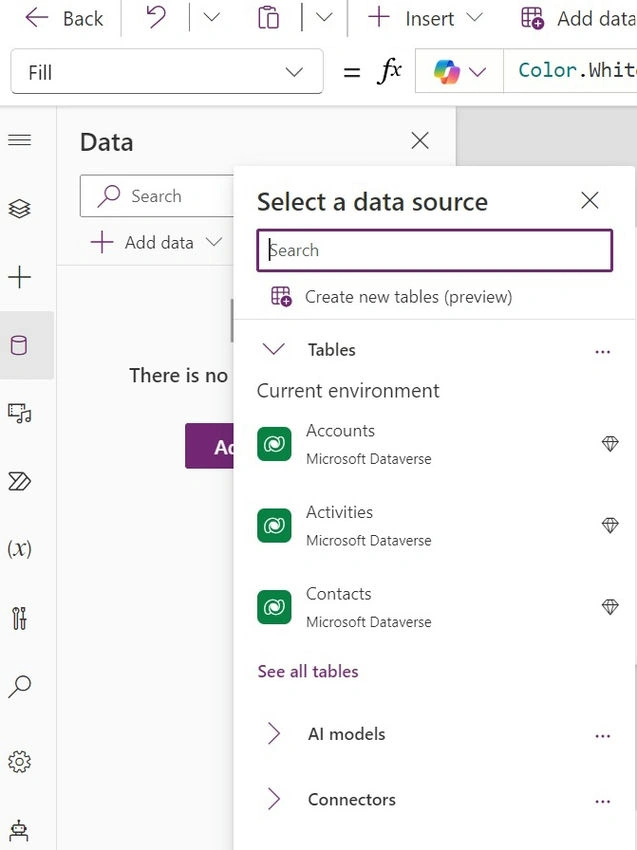
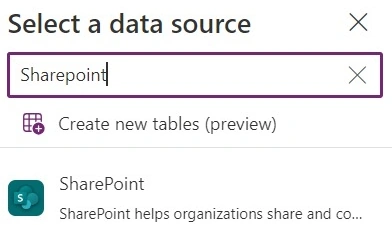
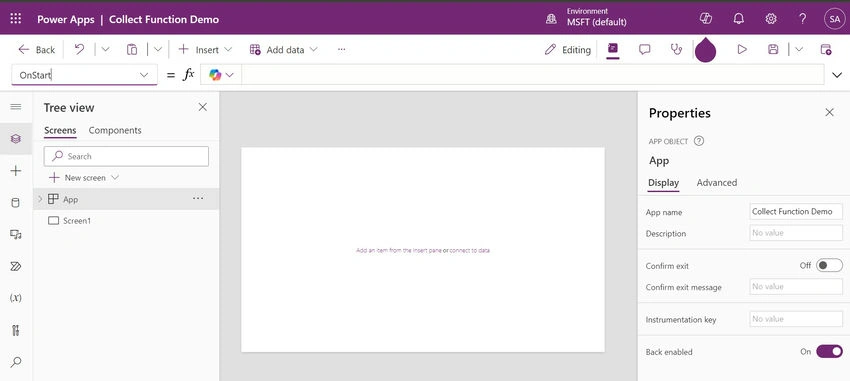
Step 3. Create a New App in Power Apps.


Join the conversation! Your thoughts help the community grow.