

Windows Sandbox
Windows Sandbox is a feature available in Windows 10 Pro and Enterprise editions that allows users to run applications in an isolated environment. It provides a secure and disposable desktop environment where users can safely run untrusted software without affecting the host operating system. When the Windows Sandbox is closed, all the software, files, and state are permanently deleted, providing a clean slate for each usage. This helps to enhance security and avoid potential risks associated with running untrusted applications on the main operating system.
Windows Sandbox requirements
- ARM64 (for Windows 11, version 22H2 and later) or AMD64 architecture
- Virtualization capabilities enabled in BIOS
- At least 4 GB of RAM (8 GB recommended)
- At least 1 GB of free disk space (SSD recommended)
- At least two CPU cores (four cores with hyper-threading recommended)
Features of Windows Sandbox
- Integral part of Windows: All necessary components are included in Windows 10 Pro and Enterprise, eliminating the need to download additional VHD files.
- Immaculate: Upon each run, Windows Sandbox is reset to a pristine state, resembling a freshly installed Windows environment.
- Disposable: No data or changes persist after closure, ensuring a clean slate for each use.
- Secure: Employs hardware-based virtualization for kernel isolation, utilizing the Microsoft hypervisor to separate the Windows Sandbox kernel from the host for enhanced security.
- Efficient: Utilizes integrated kernel scheduling, intelligent memory management, and virtual GPU capabilities for optimized performance.
Limitations of Windows Sandbox
- Inability to test OS updates before rolling them out due to direct interaction with system files on the host OS
- Lack of anonymization for internet browsing, potentially leading to a record of visited sites by the internet provider
- Vulnerability to malware designed to detect and bypass sandbox environments, potentially leading to a false sense of security
Use of Windows Sandbox
- Safely testing and running untrusted or potentially harmful applications without affecting the host operating system
- Providing a secure environment for opening suspicious files or attachments to mitigate the risk of malware infection
- Sandbox environment for developing and testing software without altering the primary system configuration
- Isolating web browsing activities to prevent potentially malicious websites from affecting the main operating system
Install Windows Sandbox
Step 1. Ensure your computer meets the requirements: Windows 10 Pro or Enterprise edition, 64-bit processor with virtualization capabilities, and virtualization enabled in the BIOS.
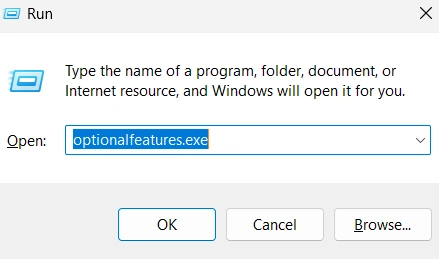
Step 2. Go to the Control Panel and then to Programs. Select "Turn Windows features on or off."
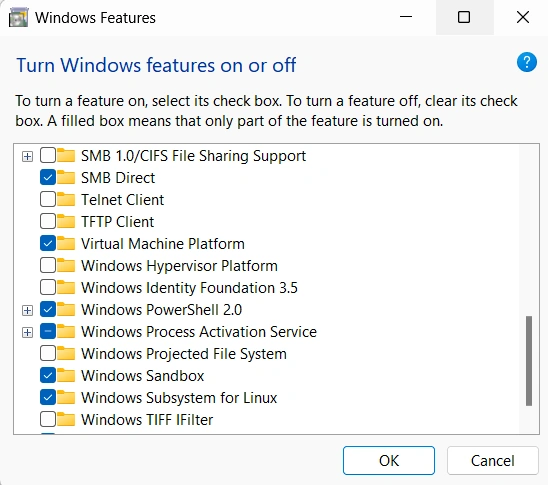
Step 3. In the Windows Features window, scroll down to find "Windows Sandbox" and check the box next to it.
Step 4. Click OK and wait for Windows to enable the feature. You may need to restart your computer after this process.
Step 5. Once your computer has restarted, you can access Windows Sandbox by searching for it in the Start menu.
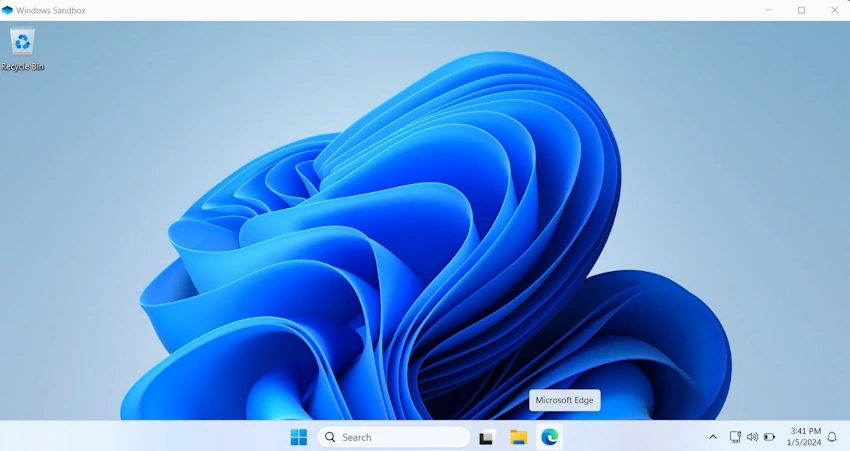
Step 6. Open Windows Sandbox and use it to run applications in an isolated environment.
Conclusion
Windows Sandbox provides a valuable solution for users seeking to test untrusted applications and files in a secure and isolated environment. Its integral integration with Windows 10 Pro and Enterprise, pristine and disposable nature, and employment of hardware-based virtualization make it a promising tool for enhancing system security and mitigating potential risks associated with running unverified software. While it offers numerous advantages, users need to be aware of its limitations, including potential vulnerabilities to new malware and the inability to anonymize internet browsing. Understanding both the benefits and shortcomings of Windows Sandbox is crucial for leveraging this feature effectively to safeguard system integrity and security.
Join the conversation! Your thoughts help the community grow.