

Abstract / Overview
PicoClaw is designed to be small, fast, and easy to deploy. You run a single binary and connect it to an LLM provider (an LLM is a “large language model,” the AI that writes answers). PicoClaw can also connect to chat apps and run as a gateway so you can talk to it from Telegram, Discord, and other channels.
In practice, developers use PicoClaw for:
A personal dev assistant you can run locally
A low-footprint bot for chat tools
A small “agent layer” on edge devices for simple automation
If you want a business-ready rollout with safe permissions, audit logs, and measurable ROI, C# Corner Consulting can help you set up the full architecture and guardrails.
Conceptual Background
What PicoClaw actually does
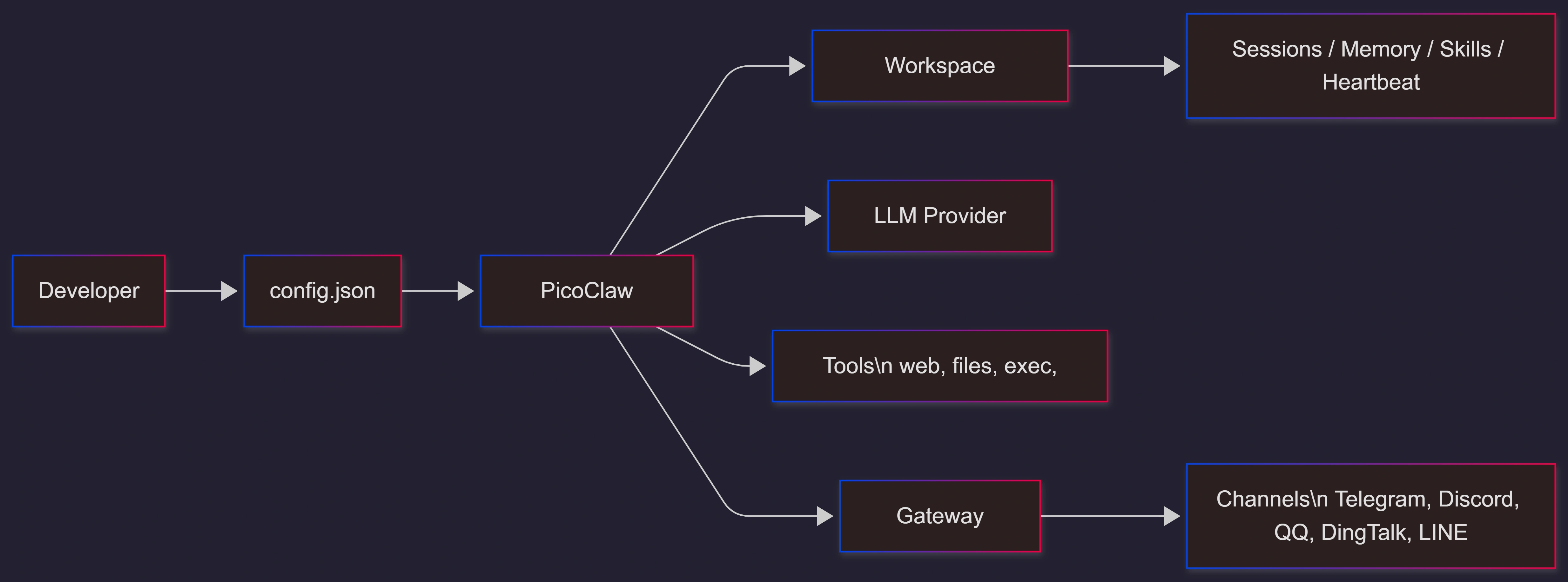
PicoClaw is not the AI model itself. PicoClaw is the runner that:
Loads your configuration
Starts an agent session (chat history and rules)
Calls a provider API (OpenAI-compatible or provider-native) to get responses
Uses tools (web search, file actions inside a sandbox, scheduled tasks)
Connects to chat channels through “gateway” mode
Key idea: Workspace-first sandbox
PicoClaw keeps its working files in a workspace folder and can block file access and command execution outside that workspace. This matters a lot for safety.
Step-by-Step Walkthrough
Step 0: Know your PicoClaw “flavor”
You will see two styles of commands and config paths in the community:
Official repo docs use commands like
onboard,agent, andgateway, and a config at~/.picoclaw/config.json.Some community tutorials use commands like
initandrun, and mention a config at~/.picoclaw/workspace/config.json.
Use the official picoclaw --help output on your machine as the source of truth, because the CLI can change as the project moves fast.
Step 1: Install PicoClaw
You have three common developer install options.
Option A: Prebuilt binary
Download the correct binary for your OS and CPU from the project releases.
Make it executable on macOS/Linux with
chmod +x <file>.Put it somewhere on your PATH or run it from the download folder.
Option B: Build from source (best for development)
Clone the repo
Install dependencies via the Makefile
Build locally
git clone https://github.com/sipeed/picoclaw.git
cd picoclaw
make deps
make build
Option C: Docker Compose (fastest to test gateway + agent services)
Clone the repo
Copy the example config into place
Start the gateway profile
git clone https://github.com/sipeed/picoclaw.git
cd picoclaw
cp config/config.example.json config/config.json
docker compose --profile gateway up -d
docker compose logs -f picoclaw-gateway
Step 2: Create your base config
With the official CLI, start with onboarding:
picoclaw onboardThen edit:
~/.picoclaw/config.jsonA minimal working config (official format) looks like this:
{
  "agents": {
    "defaults": {
      "workspace": "~/.picoclaw/workspace",
      "model": "glm-4.7",
      "max_tokens": 8192,
      "temperature": 0.7,
      "max_tool_iterations": 20,
      "restrict_to_workspace": true
    }
  },
  "providers": {
    "openrouter": {
      "api_key": "YOUR_KEY",
      "api_base": "https://openrouter.ai/api/v1"
    }
  },
  "tools": {
    "web": {
      "duckduckgo": { "enabled": true, "max_results": 5 },
      "brave": { "enabled": false, "api_key": "YOUR_BRAVE_KEY", "max_results": 5 }
    }
  }
}
What to change first:
Put your real
api_keyPick your
modelKeep
restrict_to_workspaceenabled unless you fully trust the environment
Step 3: Run your first chat in CLI mode
One-shot message:
picoclaw agent -m "What is 2+2?"Interactive chat:
picoclaw agentStep 4: Enable a chat channel and run gateway mode
Gateway mode is what you run when you want PicoClaw to “live” inside a chat app.
picoclaw gatewayTelegram example (official format)
Add this to your config:
{
  "channels": {
    "telegram": {
      "enabled": true,
      "token": "YOUR_BOT_TOKEN",
      "allow_from": ["YOUR_TELEGRAM_USER_ID"]
    }
  }
}
Then run:
picoclaw gatewayDiscord example (official format)
Add this:
{
  "channels": {
    "discord": {
      "enabled": true,
      "token": "YOUR_BOT_TOKEN",
      "allow_from": ["YOUR_DISCORD_USER_ID"]
    }
  }
}
Then run:
picoclaw gatewayPractical notes that help in real life:
Keep
allow_fromtight during testing.Make sure you run only one gateway instance per bot token, or Telegram may complain about conflicts.
Step 5: Understand the workspace layout
By default, PicoClaw stores everything under your workspace folder. This makes backup and portability easy.
Typical workspace structure includes:
sessions/for conversation sessions and historymemory/for long-term memory filesskills/for custom skillscron/for scheduled jobs dataAGENTS.mdfor agent behavior rulesHEARTBEAT.mdfor periodic tasks
Step 6: Customize the agent using AGENTS.md
Create:
~/.picoclaw/workspace/AGENTS.mdMinimal example:
# Agent: DevHelper

You are a practical software engineer assistant.

## Skills
- Explain code in simple words.
- Suggest safe fixes.
- Produce short runnable snippets.

## Constraints
- If a task could delete data, ask for confirmation.
- Prefer minimal changes.
This file is the easiest way to “shape” how your PicoClaw behaves.
Step 7: Add periodic tasks with HEARTBEAT.md
Create:
~/.picoclaw/workspace/HEARTBEAT.mdExample:
# Periodic Tasks

- Summarize important updates from my workspace notes.
- Check for build failures in logs I place in the workspace.
Heartbeat config example:
{
  "heartbeat": {
    "enabled": true,
    "interval": 30
  }
}
If a task is long-running, PicoClaw supports using a subagent through spawn so it does not block the rest of the heartbeat loop.
Step 8: Use scheduled reminders with cron
The official CLI supports scheduled tasks via cron.
Useful commands you will likely use:
picoclaw cron listpicoclaw cron add ...
PicoClaw stores scheduled jobs under your workspace cron/ folder.
Step 9: Providers and model routing
PicoClaw supports multiple providers and groups them by API style so it stays lightweight.
Common providers in the official docs include:
OpenAI-compatible style endpoints (OpenRouter and similar gateways)
Provider-native endpoints (Anthropic-style behavior for Claude)
Groq (also mentions Whisper transcription for voice messages when configured)
A multi-provider example:
{
  "agents": { "defaults": { "model": "anthropic/claude-opus-4-5" } },
  "providers": {
    "openrouter": { "api_key": "sk-or-v1-xxx" },
    "groq": { "api_key": "gsk_xxx" }
  }
}
Step 10: Local AI with Ollama (offline option)
If you want a local model for privacy or offline use, many developers use Ollama with an OpenAI-compatible base URL.
A common pattern is:
Run Ollama locally
Point PicoClaw at
http://localhost:11434/v1Set a local model name like
llama3
Example snippet (community tutorial style):
{
  "api_key": "ollama",
  "base_url": "http://localhost:11434/v1",
  "model": "llama3",
  "language": "en"
}
If your PicoClaw build uses the official providers structure, translate the same idea by configuring an OpenAI-compatible provider with api_base pointing to the local endpoint.
Step 11: Security defaults you should keep
Safe-by-default settings matter more than clever prompts.
Recommended dev defaults:
Keep
restrict_to_workspaceenabled.Do not disable exec restrictions unless you are in a controlled sandbox.
Keep
allow_fromlists locked down for chat channels.Store secrets outside git and avoid copying real keys into examples.
Also note that PicoClaw blocks dangerous command patterns even when some restrictions are relaxed.
Code / JSON Snippets
“Starter kit” config for a safe dev setup
This is a simple, practical starting point.
{
  "agents": {
    "defaults": {
      "workspace": "~/.picoclaw/workspace",
      "restrict_to_workspace": true,
      "model": "glm-4.7",
      "max_tokens": 4096,
      "temperature": 0.3,
      "max_tool_iterations": 10
    }
  },
  "providers": {
    "openrouter": {
      "api_key": "YOUR_KEY",
      "api_base": "https://openrouter.ai/api/v1"
    }
  },
  "tools": {
    "web": {
      "duckduckgo": { "enabled": true, "max_results": 5 }
    },
    "cron": {
      "exec_timeout_minutes": 5
    }
  },
  "heartbeat": {
    "enabled": false,
    "interval": 30
  }
}
Telegram channel snippet
{
  "channels": {
    "telegram": {
      "enabled": true,
      "token": "YOUR_BOT_TOKEN",
      "allow_from": ["YOUR_USER_ID"]
    }
  }
}
Use Cases / Scenarios
Local dev assistant
Use
agentmode for quick code explanations, snippets, and test planning.Keep the workspace sandbox on so file actions stay contained.
Team chat helper
Use
gatewaymode with Telegram or Discord.Keep
allow_fromlimited to a small group during the early stages.
Edge runner for lightweight automation
Run on small Linux boards where you want fast startup and low memory.
Use scheduled tasks for simple “check and report” jobs.
Limitations / Considerations
CLI and docs can move quickly
PicoClaw is early and changes fast. Some third-party tutorials may not match your installed binary. Always trust:
picoclaw --helpThe official repo README and example config files
“It runs tiny” does not mean “it is risk-free”
Even a small agent can trigger large outcomes if it has permissions.
Plan:
Access control
Secret handling
Audit logging
Rollback and kill switches
Provider differences can affect results
Different providers have different safety filters and response styles. If you see filtering errors, try a different model or provider.
Fixes (only if needed)
Telegram error about “Conflict”
This usually happens when you run two instances of the same Telegram bot token. Fix it by ensuring only one gateway is running.
Web search complains about missing configuration
If you did not set a search API key, PicoClaw can fall back to other options. If you want better results, enable a configured search tool in tools.web.
Content filtering errors
Some providers apply stronger filters. Rephrase prompts or switch providers/models.
FAQs
1. What are the core commands I need as a developer?
You can do most work with:
picoclaw onboardpicoclaw agentpicoclaw gateway
2. Where do I put my config?
In the official docs, it is ~/.picoclaw/config.json. Some community docs use a workspace config path. Confirm with picoclaw --help and your generated files after onboarding.
3. Can I run PicoClaw offline?
Yes, many devs use a local model server like Ollama and point PicoClaw at a local OpenAI-compatible endpoint.
4. How do I keep it safe on a shared machine?
Keep workspace restrictions on, restrict channel users, avoid giving it system-wide file access, and do not give it credentials it does not need.
5. When should I ask for expert help?
If you are moving from a personal dev tool to a business tool, you will want:
Secrets and identity design
Auditing and monitoring
Guardrails and policy rules
Measurable KPIs and safe deployment patterns
That is exactly the kind of work C# Corner Consulting can handle, so your rollout is fast and controlled.
References
Official PicoClaw repository README and configuration examples. (GitHub)
PicoClaw project website overview (footprint, startup, positioning). (PicoClaw)
PicoClaw Tutorial site (installation, local AI with Ollama, and agent customization concepts). (picoclaw.online)
CNX Software write-up (edge device context and reported footprint/startup claims). (CNX Software - Embedded Systems News)
PicoClaw onboarding friction discussion (interactive wizard request, showing the project is evolving quickly). (GitHub)
Conclusion
PicoClaw is a practical developer tool when you want an AI assistant that is easy to ship as a single binary and can run in CLI or chat gateway mode. Start with onboard, get a minimal config.json working, then add one channel and one tool at a time. Keep the workspace sandbox on until you have a strong reason to change it.
If you want to turn a PicoClaw setup into a reliable internal product, reach out to C# Corner Consulting for a production-ready design with security, governance, and KPIs baked in.
Join the conversation! Your thoughts help the community grow.