

Introduction
The lifecycle of a Universal Windows Platform (UWP).
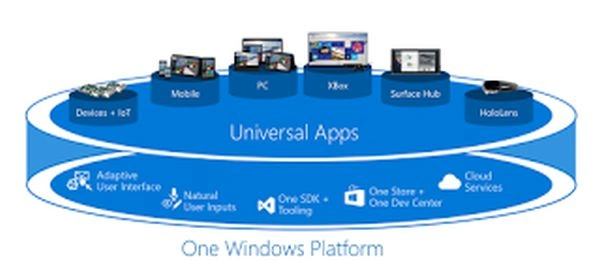
Figure 1:Application Life-cycle
Application Life-cycle
- Windows Store application 3 different states are available. Application is always in any one of the following states:
- Running
- Not Running
- Suspended
- While moving from one state to another "Event" is called.
- When you start an application from the storage device, it activates and comes to the Running state.
- When you launch another application, the system pushes the first application to the background and waits for a few seconds to see whether the user intends to immediately switch back to that application.
- After that time interval, the background application moves to the Suspended state. During the transition process, the developer can store all unsaved information to the disk (which is local data used for future reference).
- Suspend state is considered an app that is going to terminate.
- OS itself has to decide what to do when the OS Memory is full or running less power mode. In this type of situation, the OS sends the termination message to the application.
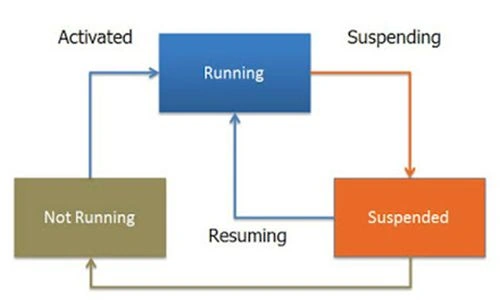 Figure 2: App Life Cycle
 - When the user launches another application, the already running application enters into the background and pushes to the suspended state as mentioned above.
- A similar process goes on until the system encounters low memory. This ensures that the user can quickly load the suspended application from the memory.
- When the system notices a low memory while launching an application, it quickly checks for the unused application which was in the suspended mode for a long time. It terminates that application first and launches the new application in the foreground.
- If the user wants to resume a suspended application, during that time, the running application moves to the suspended state and that app moves out from the suspension to the running state.
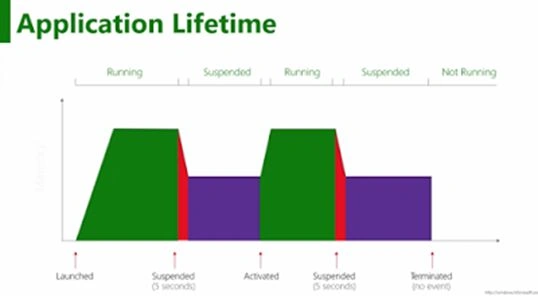
Figure 3: Resources Usage in each stage of the Life Cycle
Application Launch
- Public App()
- {
- this.InatializeComponent();
- this.Suspending += OnSuspending;
- this.Resuming += OnResuming;
- }
Application Suspend
- public async void OnSuspending(object sender, SuspendingEventArgs e)
- {
- var diferral = e.SuspendingOperation.GetDiferral();
- await SaveLocalData();
- //await SaveClodData();...........// Use in ExtendedExecution explained below.
- ShowToas(" App is Suspending....");
- diferral.complete();
- }
- using(var Session = new ExtendedExecutionSession())
- {
- Session.Reason = ExtendedExecutionReason.SavingData; // You can select another reason instead of SavingData
- Session.Description = "Uploading Data "; // Use to inform user
- Session.Revoked += Session_Revoked;
- var result = await.Session.RequestExtensionAsync();
- await SaveLocalData(); // Save Local data i.e. Normal operation first.
- if(result == ExtendedExecutionResult.Allowed)
- {
- await SaveCloudData();
- }
- }
- private void SessionRevoked(ExtendedExecutionSession Sender, ExtendedRevokedEventArgs args)
- {
- // clean our data model
- CloseCloudConnection();
- }
Application Resume
- private void OnResuming(object sender, object e)
- {
- ReadLocalData();
- ShowToast("App is Resuming...");
- }
- protected override async void OnLaunched(LaunchActivatedEventArgs args)
- {
- Frame rootFrame = Window.Current.Content as Frame;
- if(rootFrame == null)
- {
- rootFrame = new Frame();
- //Associate the frame with a SuspensionManager key
- SuspensionManager.RegisterFrame(rootFrame, "AppFrame");
- if(args.PreviousExecutionState == ApplicationExecutionState.Terminated)
- {
- // Restore the saved session state only when appropriate
- try
- {
- await SuspensionManager.RestoreAsync();
- }
- catch(SuspensionManagerException)
- {
- //Something went wrong restoring state.
- //Assume there is no state and continue
- }
- }
- // Place the frame in the current Window
- Window.Current.Content = rootFrame;
- }
- if(rootFrame.Content == null)
- {
- if(!rootFrame.Navigate(typeof (GroupedItemsPage), "AllGroups"))
- {
- throw new Exception("Failed to create initial page");
- }
- }
- // Ensure the current window is active
- Window.Current.Activate();
- }
Summary
In this article, we learned about Windows 10 App LifeCycle.
Kuppurasu NagarajPosted Feb 11, 2016, 12:38 PM
Nice
Nilesh JadavPosted Oct 31, 2015, 11:18 PM
Good Information