Introduction

Certain editions of earlier windows can’t be upgraded directly to Windows 10 Enterprise. Hence, we would need to upgrade it to Windows 10 Professional and then to Windows 10 Enterprise.
For Example: While performing In-place upgrade on Windows 7 Professional SP1, we don’t get options to update to Windows 10 Enterprise directly. By default, it gets upgraded to Windows 10 Professional latest version. If we have valid Windows 10 Enterprise licenses, this Windows 10 Professional can be utilized only for upgrade.
In my previous article, I explained performing an In-place upgrade from Windows 7 Professional SP1 to Windows 10 Professional. Click here for the article.

Upgrade to Windows 10 Enterprise

For testing purposes, I have utilized the Windows 7 Professional SP1 workgroup machine. Hence this Windows 10 Professional is also a workgroup.
Since the Windows 10 Enterprise license that is a part of Microsoft 365 will be utilized for upgrade, this machine must be Azure AD joined.
Windows 10 Professional To Windows 10 Enterprise Upgrade
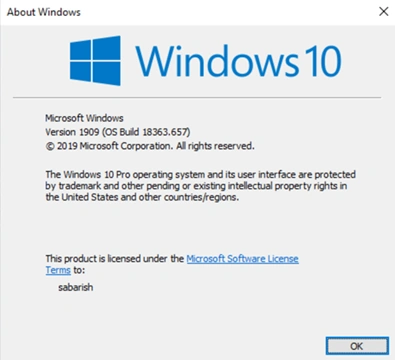
Windows 10 Professional Version:
Windows 10 Professional To Windows 10 Enterprise Upgrade
Logon to Windows 10 Professional PC.
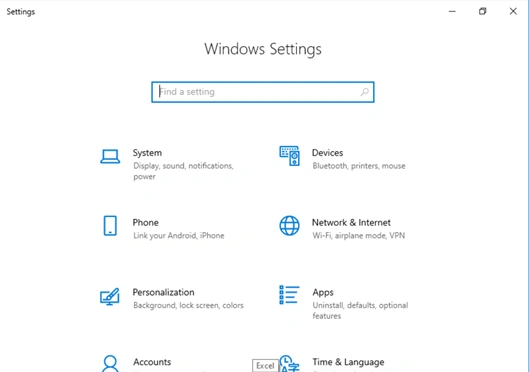
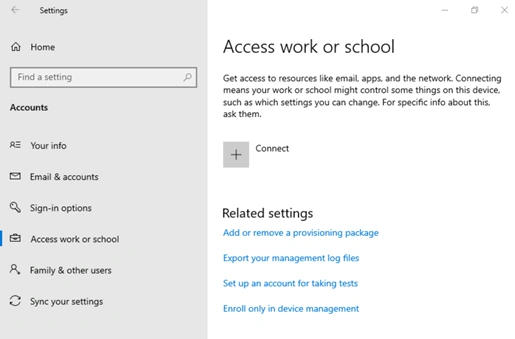
Go to Settings - Accounts
Windows 10 Professional To Windows 10 Enterprise Upgrade
Click on Access work or School.
Click Connect.
Windows 10 Professional To Windows 10 Enterprise Upgrade
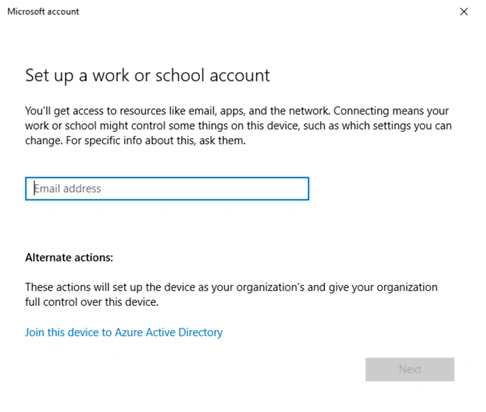
Click on Join this device to Azure Active Directory
Windows 10 Professional To Windows 10 Enterprise Upgrade
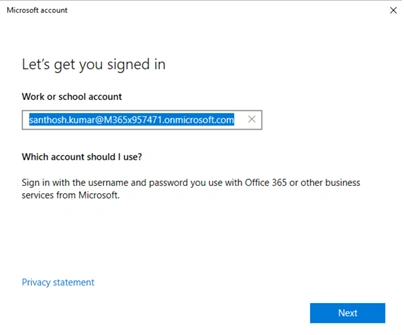
Specify the email address of an account assigned with Microsoft 365 Enterprise Subscription\Windows 10 Enterprise subscription.
Windows 10 Professional To Windows 10 Enterprise Upgrade
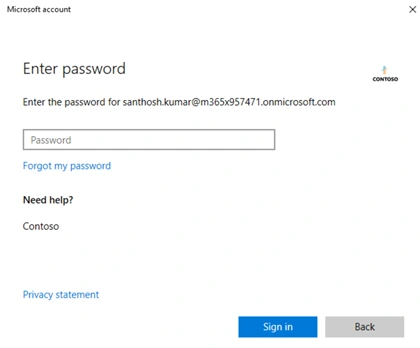
Specify the password and click on Sign in.
Windows 10 Professional To Windows 10 Enterprise Upgrade
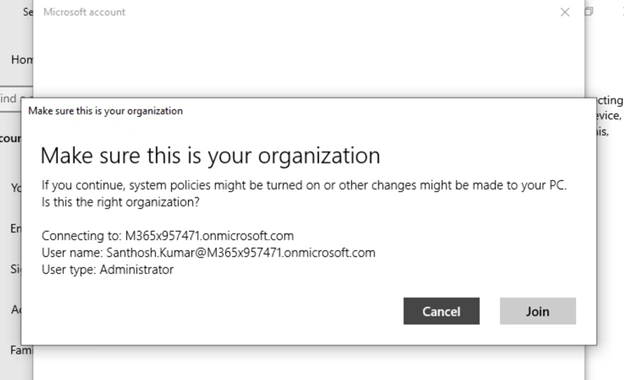
Verify the Organization Details and click Join.
Windows 10 Professional To Windows 10 Enterprise Upgrade
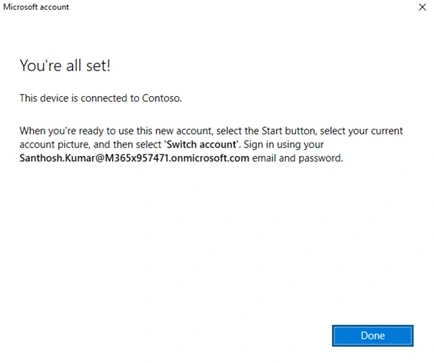
Successfully joined with Azure Active Directory.
Windows 10 Professional To Windows 10 Enterprise Upgrade
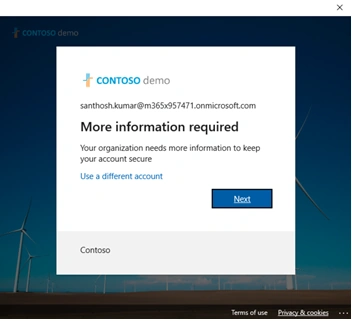
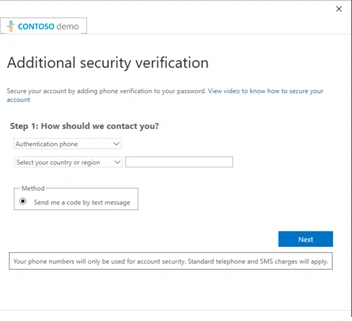
For security reasons, the Microsoft 365 tenant will need more information.
Click on Next.
Windows 10 Professional To Windows 10 Enterprise Upgrade
Select Authentication Method as Phone
Select the Country or Region
Specify the Phone Number
Click Next
Windows 10 Professional To Windows 10 Enterprise Upgrade
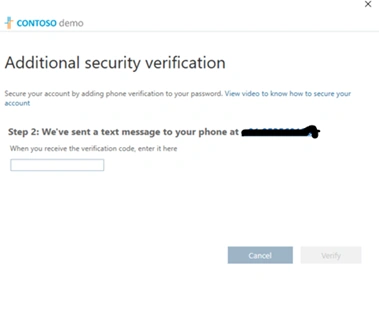
Enter the OTP received on the specified mobile number
Click Verify
Windows 10 Professional To Windows 10 Enterprise Upgrade
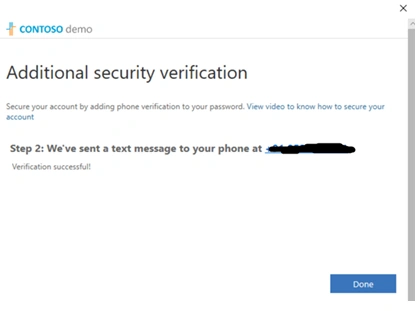
Click Done
Windows 10 Professional To Windows 10 Enterprise Upgrade
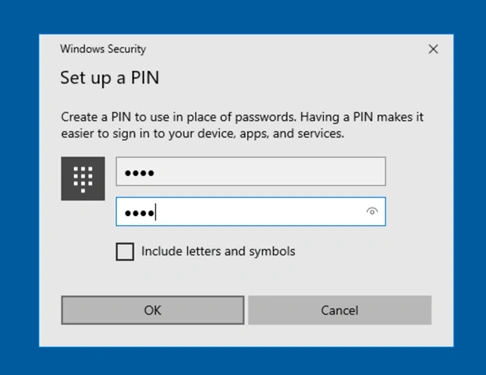
Specify a 6-digit pin
Click OK.
Windows 10 Professional To Windows 10 Enterprise Upgrade
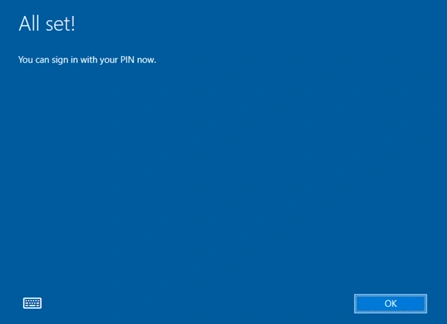
Click OK.
Windows 10 Professional To Windows 10 Enterprise Upgrade
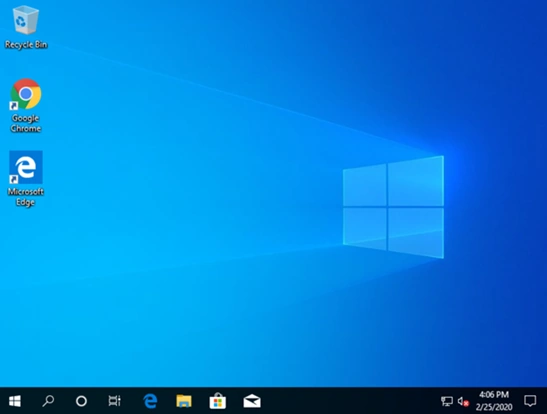
Log-off for the current user profile.
Log-in with the user account used to join Azure Active Directory
Windows 10 Professional To Windows 10 Enterprise Upgrade
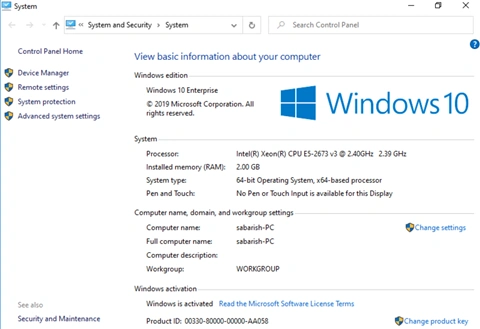
Verify the Windows Edition.
Windows 10 Professional To Windows 10 Enterprise Upgrade
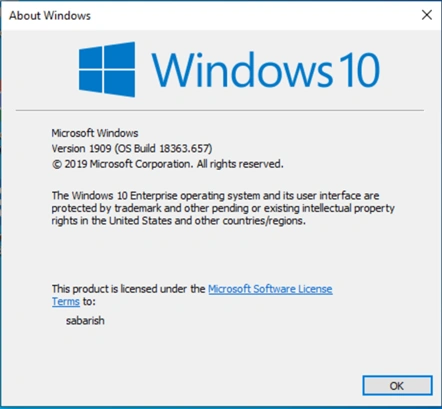
Verify the Windows 10 Version.
Windows 10 Professional To Windows 10 Enterprise Upgrade
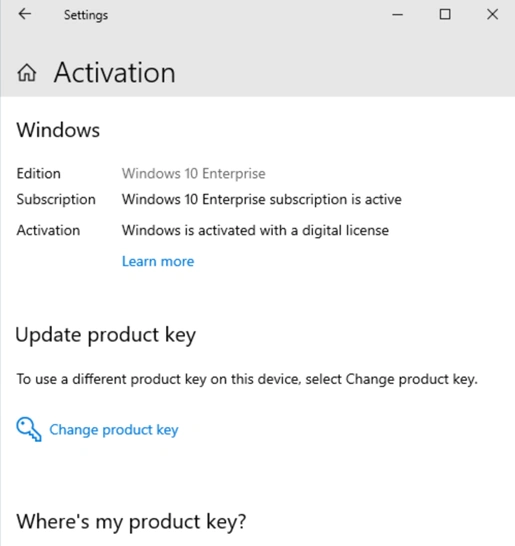
Verity Activation Details
Start - Type & Select Activation