

Introduction
In this article, we explain how to provide Windows 8 a cool new look with a high-contrast mode. In Windows 8, I'll show you how to make it display in High Contrast mode, which looks pretty awesome.
Procedure to change high contrast mode
Step 1
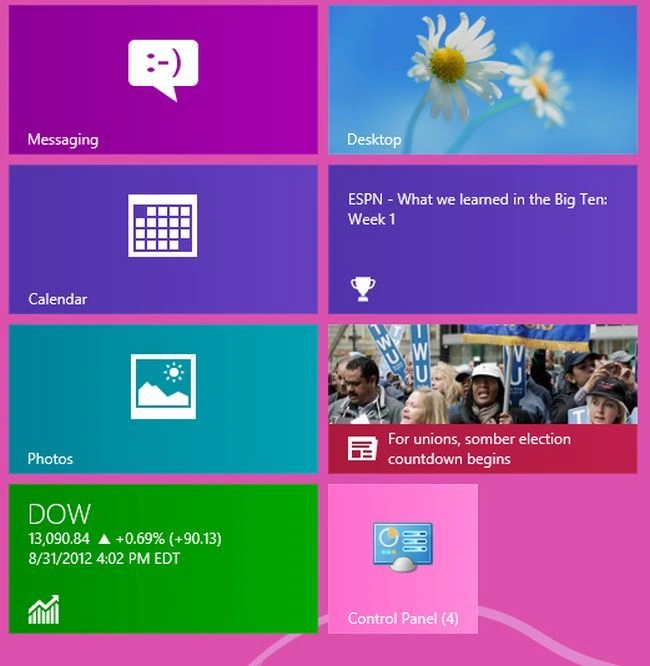
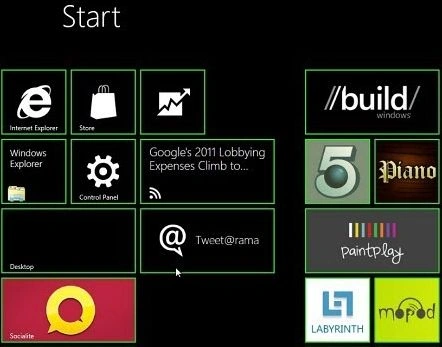
First, we have to move to the Windows 8 Start Screen and then click "Control Panel".
Step 2
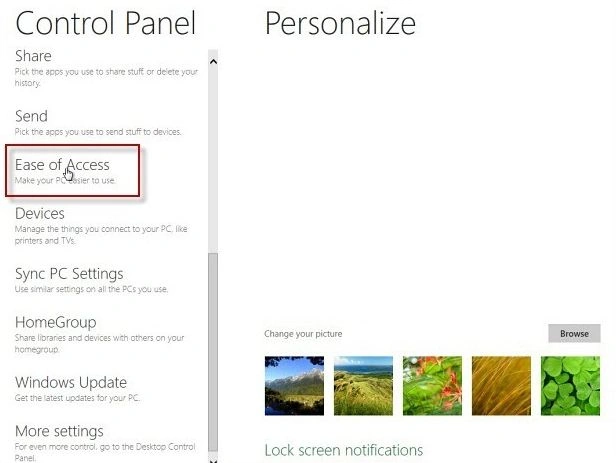
When the Control Panel window opens then scroll down and select "Ease of Access Center".
Step 3
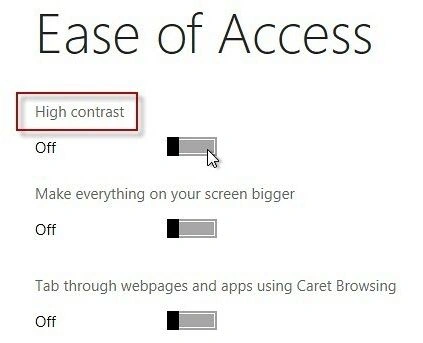
After that, we move the "High Contrast" slider to the "On" position.
Step 4
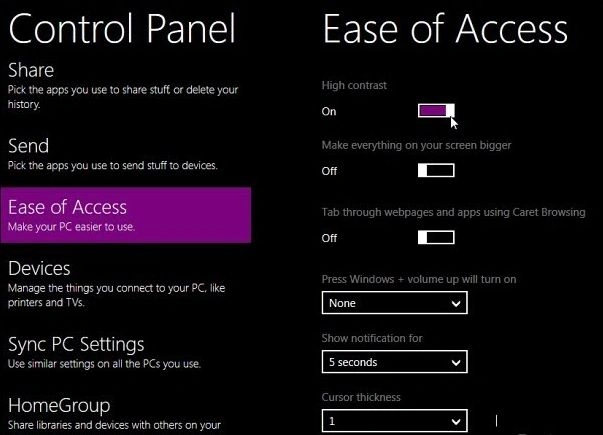
Give your system a few seconds to make the changes. When it's done here is what you'll see.
Step 5
Here are a couple of shots of what the main Metro UI looks like in High Contrast mode.
Summary
In this article, we learned about Windows 8 a New Look With High Contrast Mode.
Join the conversation! Your thoughts help the community grow.