

Introduction:
In this article we are going to see how to customize the operating system on which an Azure application can run using the Windows Azure Management Portal.
Overview:
In our earlier article, we have seen how to create an application in Azure, deploy it and manage it using the different options available in the Azure Management Portal. In this article we will see how to manage a customized operating system for an Azure application to run in that environment. Azure Management Portal is very powerful, we have many management options available with simple button clicks. Let us see step by step how to customize the operating system for an Azure application using the Windows Azure Management Portal.Steps:
Login to the Management Portal using the following link:http://www.microsoft.com/windowsazure/
We will see a screen like below. Select the Sign into Management Portal at the top right corner: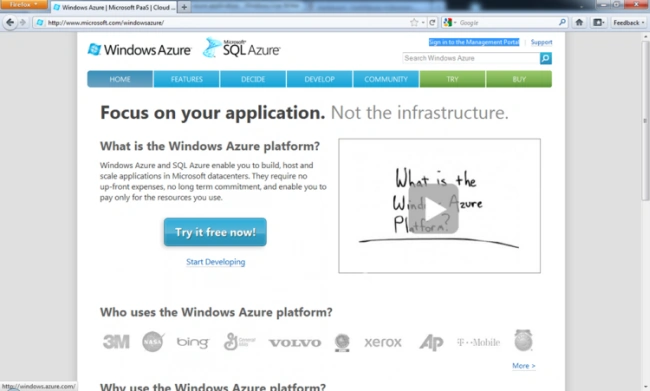
After selecting that sign in to Management Portal you will be asked for the Username and Password to authenticate the process as shown in the following screen: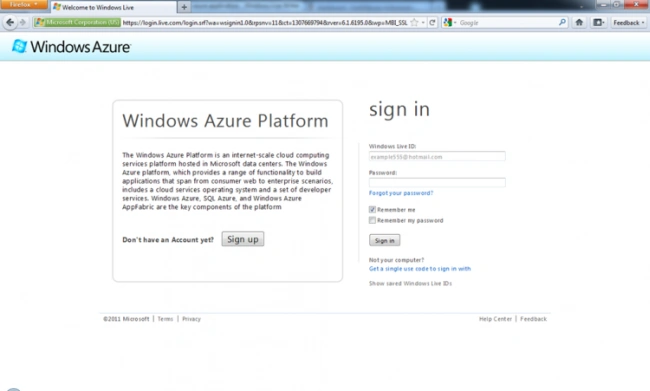
Once we gave the correct credentials and click on the submit button it will navigate to the main screen of the portal as shown in the following screen: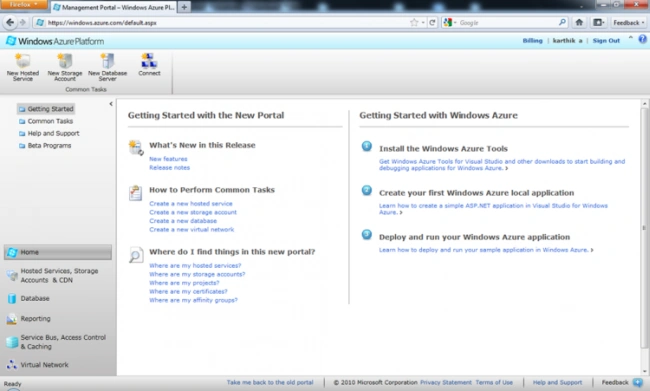
Now click on the Hosted Services, Storage Account and CDN option in the bottom menu and then select the Hosted Services as shown in the screen below.
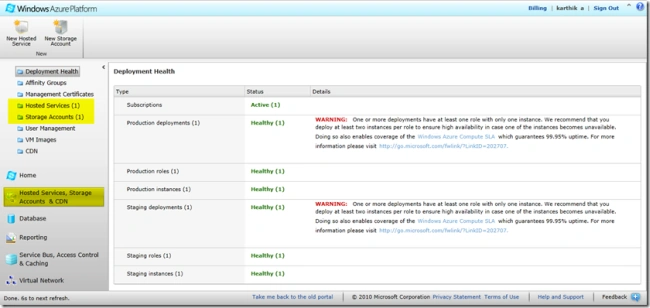
Now select the deployed application (F5 Debug) as shown in the screen below. Here we will see the options like the environment on which it's deployed and the DNS name to access the application etc.
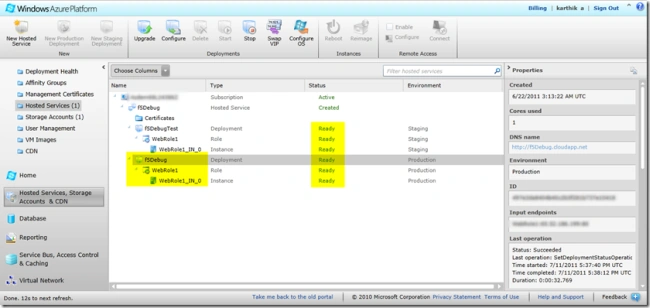
In the top Menu Ribbon we will see a Configure OS option as highlighted in the screen below. We need to use this option to configure the Operating System for the application selected.

Clicking on this Configure OS button will open a window pop up as shown in the screen following with 2 options:


Join the conversation! Your thoughts help the community grow.