
Description:
This application can be used by any user to record their day to day expenses on mobile phone. It's a very handy application which runs on windows mobile 6.1 & 6.5 professional devices.
Features:
- Record daily expenses, as per the type of expense (regular, occasional).
- Search the record entered.
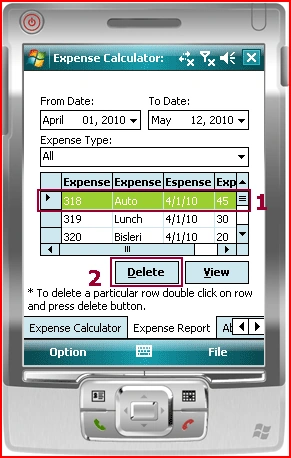
- Delete the unwanted record (one at a time).
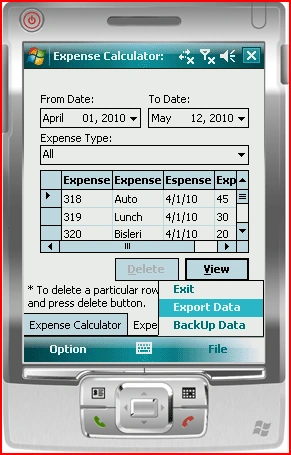
- Export the record to html file, which can be easily viewable on any mobile browser.
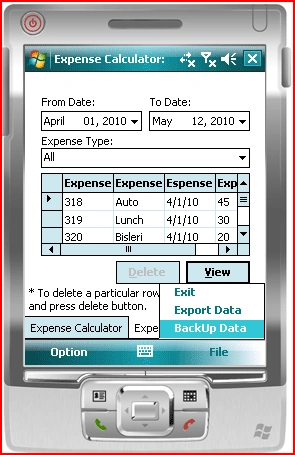
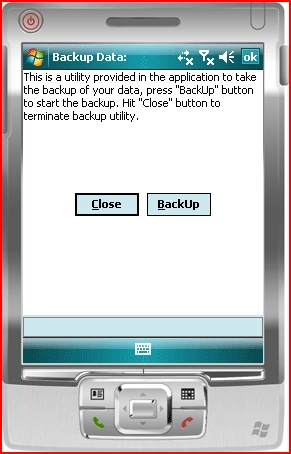
- Backup the data file, by checking the mobile phone battery status.
Installation Guideline:
- Install .net compact framework 3.5 (free download provided at Microsoft website). Below is the URL:
http://www.microsoft.com/downloads/details.aspx?familyid=e3821449-3c6b-42f1-9fd9-0041345b3385&displaylang=en - Install the cabinet file "sql.ppc.wce5.armv4i.CAB" provided in the directory "ExpenseCalculator.Pro". This installation is required for SQL CE.
- Install the cabinet file "ExpenseCalculator.Pro.CAB" provided in the directory "ExpenseCalculator.Pro". This installation is required for Expense Calculator application.
How to use:
1. Initial Screen: Expense Calculator
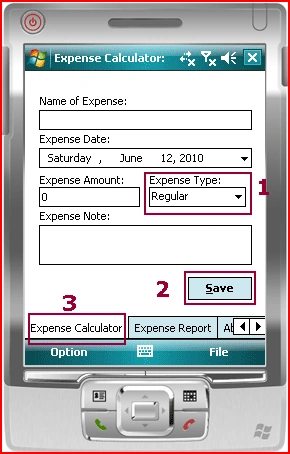
Contents marked on the screen with colored boxes are used for below purpose:
- To select the expense type (regular/occasional).
- To save the record entered by the user.
- Expense Calculator Tab used to navigate through other features of application.
The above screen is the initial screen which is displayed when the application starts. This screen is used to record the day to day expenses. After filling the expenses one has to save it by clicking on the "Save" button as shown in the above figure. When a user click on the save button, at that time first the data entered by the user is validated and if required than a message is prompted to the user to correct the data entered. If not than the data is successfully saved and message appear to the user that "successfully saved".
1. Clear the record:
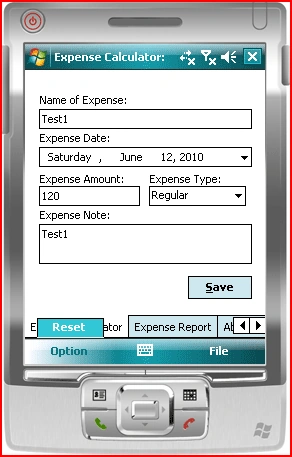
To clear the content entered in "Expense Calculator Tab" (3) as marked in the above figure, user has to click on Option (bottom left corner) navigate to menu item "Reset". Click on "Reset" to clear the content entered in the fields.
Adarsh PatelPosted Apr 16, 2016, 2:51 AM
please give me source code of your app.. this will help me for making project on expense manager ..