

In this article, we will see how to integrate the Text-To-Speech engine with Windows Phone 8.
In Windows Phone 8, it is easy to integrate Text-To-Speech to get the voice for a given input string.
Create a new Windows Phone 8 project and enable the speech recognition capabilities “ID_CAP_SPEECH_RECOGNITION” in the WMAppManifest.xml file as shown below. 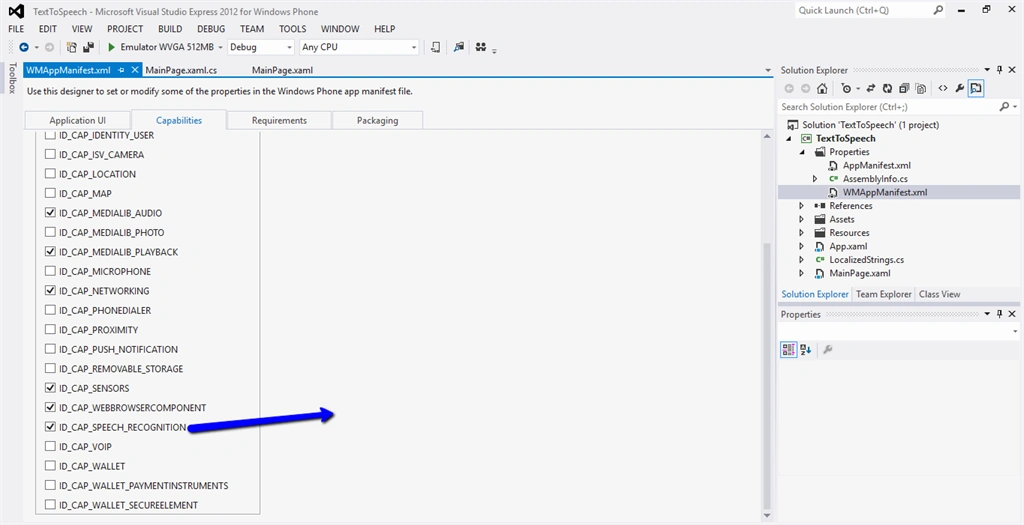
Figure 1: Create one Button and TextBlock to do the Text-To-Speech operation.
XAML Code
- <phone:PhoneApplicationPage
- x:Class="TextToSpeech.MainPage"
- xmlns="http://schemas.microsoft.com/winfx/2006/xaml/presentation"
- xmlns:x="http://schemas.microsoft.com/winfx/2006/xaml"
- xmlns:phone="clr-namespace:Microsoft.Phone.Controls;assembly=Microsoft.Phone"
- xmlns:shell="clr-namespace:Microsoft.Phone.Shell;assembly=Microsoft.Phone"
- xmlns:d="http://schemas.microsoft.com/expression/blend/2008"
- xmlns:mc="http://schemas.openxmlformats.org/markup-compatibility/2006"
- mc:Ignorable="d"
- FontFamily="{StaticResource PhoneFontFamilyNormal}"
- FontSize="{StaticResource PhoneFontSizeNormal}"
- Foreground="{StaticResource PhoneForegroundBrush}"
- SupportedOrientations="Portrait" Orientation="Portrait"
- shell:SystemTray.IsVisible="True">
- <!--LayoutRoot is the root grid where all page content is placed-->
- <Grid x:Name="LayoutRoot" Background="Transparent">
- <Grid.RowDefinitions>
- <RowDefinition Height="Auto"/>
- <RowDefinition Height="*"/>
- </Grid.RowDefinitions>
- <StackPanel x:Name="TitlePanel" Grid.Row="0" Margin="12,17,0,28">
- <TextBlock Text="MY APPLICATION" Style="{StaticResource PhoneTextNormalStyle}" Margin="12,0"/>
- <TextBlock Text="page name" Margin="9,-7,0,0" Style="{StaticResource PhoneTextTitle1Style}"/>
- </StackPanel>
- <!--ContentPanel - place additional content here-->
- <Grid x:Name="ContentPanel" Grid.Row="1" Margin="12,0,12,0">
- <TextBox x:Name="inputStringBox" HorizontalAlignment="Left" Height="72" Margin="30,78,0,0" TextWrapping="Wrap" VerticalAlignment="Top" Width="392"/>
- <Button x:Name="getOutputBtn" Content="Speech" HorizontalAlignment="Left" Margin="142,176,0,0" VerticalAlignment="Top" Click="getOutputBtn_Click"/>
- </Grid>
- </Grid>
- </phone:PhoneApplicationPage>
Write the following code in the Speech button's click event.
C# Code
Add the namespace:
- private async void getOutputBtn_Click(object sender, RoutedEventArgs e)
- {
- var speech = new SpeechSynthesizer();
- await speech.SpeakTextAsync(inputStringBox.Text.ToString());
- }
Now build and run your application. Enter the text into the input box as you wish. Here I write “Welcome to C# corner”. Click the Speech button and listen to the voice.
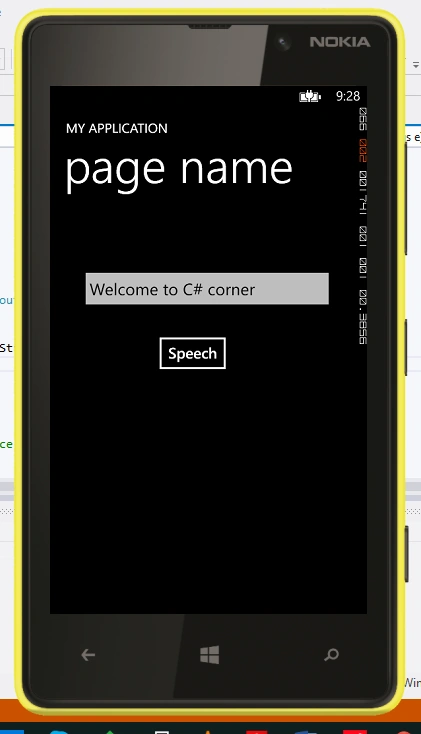
Figure 2: Windows Phone 8
It works depending on your default settings that you set in your phone. You can change the voice format as male or female and the language is as shown in the following screen.
Go to Settings > Speech. Select the voice format.
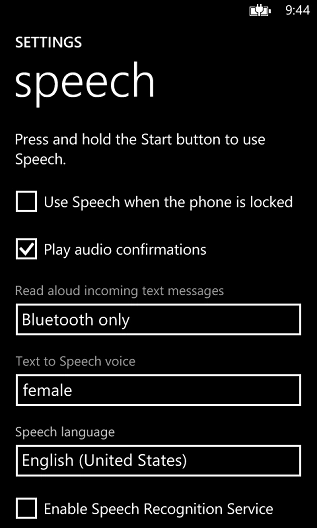
Figure 3: Voice speech in Windows Phone
Neeraj KumarPosted Jun 1, 2015, 4:05 AM
Open Notepad and Write code : "Dim message, sapi <break line> message=InputBox("What shall I say, your name?","I speak for you.")<break line> Set sapi=CreateObject("sapi.spvoice")<break line> sapi.Speak message" save file in .vbs and open it
Santhakumar MunuswamyPosted May 23, 2015, 3:23 PM
Thanks for nice one
NitinPosted May 23, 2015, 8:48 AM
nice