

Before reading this article, I highly recommend reading my previous articles:
Here's Part 3 of setting the start page, setting the apps icon and setting the background image.Setting startup page
Step 1
Start a new project and select Windows Phone application. In the Solution Explorer you can see that by default the starting page is MainPage.xaml. 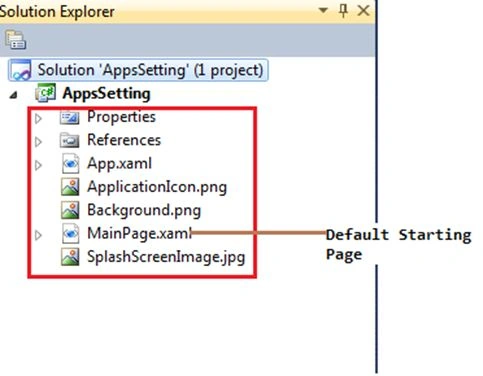
Figure 1
Step 2
Now add one page for setting the startup page. Go to the Solution Explorer and add a new item.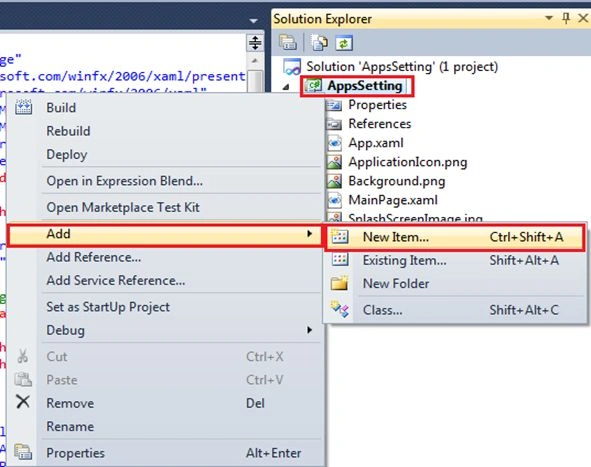
Figure 2
Step 3
Select Windows Phone portrait page and provide the name of your page, then click the Add button.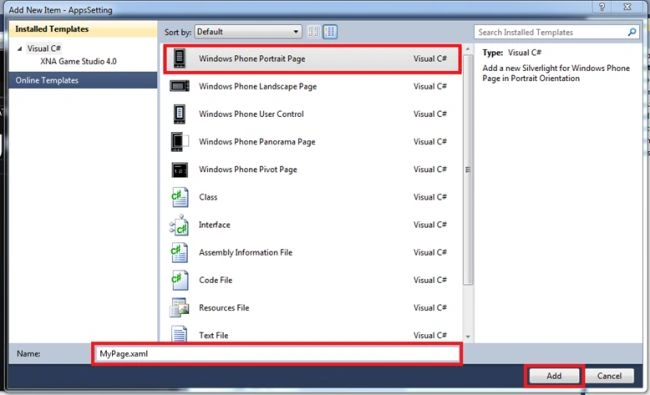
Figure 3
Step 4
Go to Solution Explorer and expand the Properties and open WMAppManifest.xml.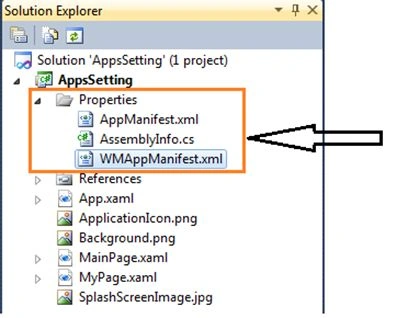
Figure 4
Step 5
In the WMAppManifest.xml file change MainPage.xaml to MyPage.xaml.
Figure 5
Change Apps Icon and Title
First add an icon to your project.
Select project properties from the project menu and select the Application tab then provide the app's title in the TextBox and select the apps icon from the dropdown list.
Figure 6
Now everything is done and run your application.
Figure 7
Sibeesh VenuPosted Jul 24, 2015, 4:14 AM
Nice Share. Thank you
Nipesh JanghelPosted Jul 24, 2015, 2:01 AM
Thanks all :)
Santhakumar MunuswamyPosted Jul 23, 2015, 2:43 PM
Thanks for nice article:)
Nipesh JanghelPosted Jul 23, 2015, 1:11 PM
Thanks Gopi Chand
Gopi ChandPosted Jul 23, 2015, 11:24 AM
Nice
RakeshPosted Jul 23, 2015, 9:42 AM
Nice one sir
Rajeesh MenothPosted Jul 23, 2015, 9:11 AM
Good One
Vipul MalhotraPosted Jul 23, 2015, 6:32 AM
Nice Article
Sibeesh VenuPosted Jul 23, 2015, 5:25 AM
Nice Share.
Nilesh JadavPosted Jul 23, 2015, 5:11 AM
Nice one sir