

Introduction
Sometimes we may need to detect hyperlinks in a given message. For example I have a Listbox that is bound with multiple message items, but here the problem is that when the user sends hyperlinks to the ListboxItems message we need to detect the hyperlinks in the message content and provide an action for the hyperlink to navigate to the linked page. So this article explains how to work with ListboxItems with hyperlinks. At present this article may not be useful for you, but I am sure it will definitely help you in the future. :)
Requirements
This sample is targeted to WindowsPhone7.1 OS.
Description
To detect hyperlinks from ListboxItems in an app we need to use the following procedure.
Step 1
- Open Visual Studio.
- Create a new project, named for example "ListBoxWithHyperLinks".
Step 2
In the DataTemplate of the Listbox, I used a WrapPanel that is great for laying out things in a vertical or horizontal orientation until you reach the edge of the container and then move on to the next column or row. In XAML code, I added a Loaded event for the wrappanel. In the Loaded event I can detect hyperlinks from the bindable message content as well as I can set an action for the hyperlinks by adding a HyperlinkButton to the wrappanel.
To use WrapPanel we need to add Microsoft.Phone.Controls.Toolkit.dll to the references and make sure that the DLL is added to the references as in the following: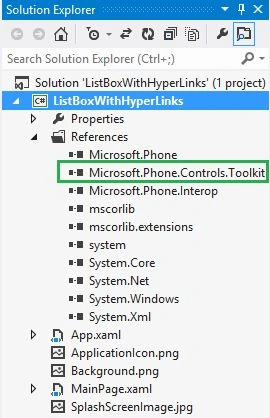
Open MainPage.xaml and add the toolkit namespace in the XAML:
- xmlns:Toolkit="clr-namespace:Microsoft.Phone.Controls;assembly=Microsoft.Phone.Controls.Toolkit"
- <Grid x:Name="LayoutRoot" Background="White">
- <Grid.RowDefinitions>
- <RowDefinition Height="Auto"/>
- <RowDefinition Height="*"/>
- </Grid.RowDefinitions>
- <!--TitlePanel contains the name of the application and page title-->
- <StackPanel x:Name="TitlePanel" Grid.Row="0" Margin="12,17,0,28">
- <TextBlock x:Name="ApplicationTitle" FontSize="25" Text="ListBoxItem with Hyperlinks Demo:" Foreground="#FF0FAEEA" />
- </StackPanel>
- <Grid Grid.Row="1">
- <!--ListBox Content.-->
- <ListBox Foreground="Black" SelectionMode="Multiple" ScrollViewer.VerticalScrollBarVisibility="Auto" Margin="5" Name="ListBoxMessage" BorderBrush="#FFE622E6" BorderThickness="3" >
- <ListBox.ItemTemplate>
- <DataTemplate>
- <Grid Height="auto" Background="White" Width="470" >
- <Grid.RowDefinitions>
- <RowDefinition Height="auto" />
- <RowDefinition Height="auto" />
- </Grid.RowDefinitions>
- <!--WrapPanel for aligning dynamic TextBlock and HyperLinkButton -->
- <Grid Grid.Row="0" MinHeight="45" VerticalAlignment="Center">
- <Toolkit:WrapPanel VerticalAlignment="Center" HorizontalAlignment="Left" Tag="{Binding Message}" Width="450" Loaded="WrapPanel_Loaded"/>
- </Grid>
- <!--ListBox Item Seperator -->
- <Rectangle Grid.Row="1" Margin="0,3,0,0" Width="500" Height="3" Fill="#FF77EEA2" HorizontalAlignment="Left"/>
- </Grid>
- </DataTemplate>
- </ListBox.ItemTemplate>
- </ListBox>
- </Grid>
Step 3
Create a class named "Data".
- public class Data
- {
- public string Message { get; set; }//for storing message content's
- }
- // Constructor
- public MainPage()
- {
- InitializeComponent();
- List<Data> ObjDataList = new List<Data>();//for list of Data items
- //List item with plain text
- ObjDataList.Add(new Data { Message = "SubramanyamRaju WindowsPhone Tutorials is my personal blog ,which is targeted to both beginners and experience" });
- //List item with plain text and hyperlinks
- ObjDataList.Add(new Data { Message = "SubramanyamRaju WindowsPhone Tutorials blog website link : http://bsubramanyamraju.blogspot.com which is dedicated for only windowsphone development." });
- ObjDataList.Add(new Data { Message = "Windows developer blog website link :http://blogs.windows.com/buildingapps/" });
- ObjDataList.Add(new Data { Message = "https://bing.com is a search engine that brings together the best of search and people in your social networks to help you spend less time searching and more time doing." });
- ObjDataList.Add(new Data { Message = "The most popular search engines are https://bing.com and http://google.com" });
- //Bind listitem to our ListBox
- ListBoxMessage.ItemsSource = ObjDataList;
- }
Step 4
In Step 2, I bound the wrappanel Tag property with "Message" and added a Loaded event for wrappanel. We also need to make some changes in the code to make the hyperlink action in the ListBox items. the Loaded event will be fired when the ListBox userinterface begins to load. In this event we can get every wrapapnel Tag message. So the next important step is to detect the hyperlinks from every message. After detecting the hyperlink we need to set that hyperlink to HyperlinkButton and add it to the wrappanel and also add a TextBlock for plaintext. So the entire code is like the following.
- private void WrapPanel_Loaded(object sender, RoutedEventArgs e)
- {
- var objWrapPanel = sender as WrapPanel;
- //Clear wrapanel child items before set content
- objWrapPanel.Children.Clear();
- //Get current listboxitem message with Tag property
- string Value = Convert.ToString(objWrapPanel.Tag);
- //Check if message having http:// or https://
- if (Value.Contains("http://") || Value.Contains("https://"))
- {
- string[] SplitDataSync = Regex.Split(Value, @"(?=http)");//Split message based on http
- for (int i = 0; i < SplitDataSync.Length; i++)
- {
- var normalText = SplitDataSync[i].ToString();
- if (normalText.Contains("http"))
- {
- string navigateLink = "";
- string regUrl = @"http(s)?://([\w-]+\.)+[\w-]+(/[\w- ./?%&=]*)?";
- Regex r = new Regex(regUrl);
- MatchCollection results = r.Matches(normalText);//get collection of hyperlinks from given message list item
- foreach (Match m in results)//Loop all http links from push message
- {
- navigateLink = m.Value.ToString();
- break;
- }
- var plainText = normalText.Replace(navigateLink, "");//remove http or https links from message and get plain text only
- HyperlinkButton hyper = new HyperlinkButton();//for making hyperlinkbutton when link found on message
- hyper.HorizontalAlignment = HorizontalAlignment.Left;
- hyper.FontSize = 18;
- hyper.Foreground = new SolidColorBrush(Colors.Blue);
- hyper.NavigateUri = new Uri(navigateLink);
- hyper.TargetName = "_blank";
- hyper.Margin = new Thickness(-8, 0, 0, 0);
- hyper.Content = navigateLink;//set hyperlink to hyperlinkbutton
- objWrapPanel.Children.Add(hyper); //add http link as HyperlinkButton to wrappanel
- AddTextBlocktoWrapPanel(objWrapPanel, plainText);//add plain text as TextBlock
- }
- else
- {
- AddTextBlocktoWrapPanel(objWrapPanel, normalText);//add plain text as TextBlock
- }
- }
- }
- else
- {
- AddTextBlocktoWrapPanel(objWrapPanel, Value);//add plain text as TextBlock
- }
- }
- //Add plain text as TextBlock to WrapPanel
- private void AddTextBlocktoWrapPanel(WrapPanel objWrapPanel, string Text)
- {
- TextBlock objBlock = new TextBlock();
- objBlock.Text = Text.Trim();
- objBlock.MaxWidth = 420;
- objBlock.Foreground = new SolidColorBrush(Colors.Gray);
- objBlock.TextWrapping = TextWrapping.Wrap;
- objWrapPanel.Children.Add(objBlock);
- }
After running the sample, we will get a screen like this.
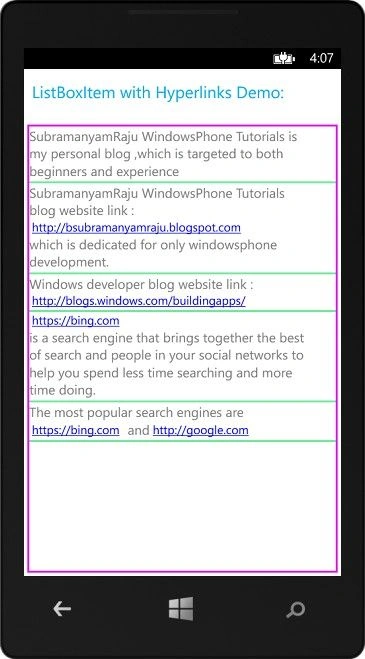
See in the preceding screen when we tap on the Blue hyperlink from the ListboxItem, it will be redirected to the linked page.
This article is also available at my original blog.
Sam HobbsPosted Jan 27, 2015, 3:33 PM
Are you using a WebBrowser control? If not then is that an alternative?