

In this article we can create a simple "hello windows app" Windows Store app using Microsoft Visual Basic C# with the Extensible Application Markup Language (XAML).
Note
This article is basically intended for use with Microsoft Visual Studio 2013 and Windows 8.1. Parts of it will not work with Microsoft Visual Studio 2012 and Windows 8.
Before You Start
To this article we need Windows 8.1 and Visual Studio 2013 and we have a basic knowledge of XAML.
Create a new project in Visual Studio 2013.
Select "File" -> "New" -> "Project...". The New Project dialog appears. Seelct Installed > Templates.
Expand Visual Basic or Visual C# and pick the Store Apps and click Windows Apps Template.
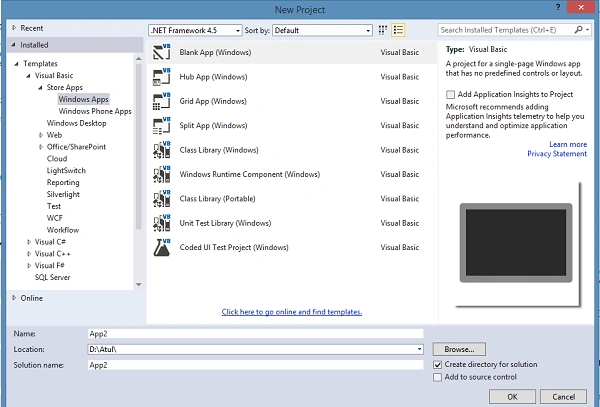
Expand Visual Basic or Visual C# and pick the Store Apps and click Windows Apps Template.
In the center pane, select Blank App (Windows) Template. Enter the name of your project and click the OK button. Visual Studio creates your project and displays it in the Solution Explorer.
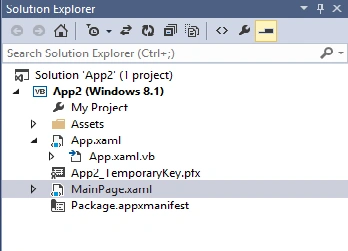
The project includes the following:
- A Package.Appxmainfest file that describes the app (its name, description tile, start page and so on).
- XAML and code files for the app (App.xaml.cs (or .vb for VB)).
- A start page (mainpage.xamal) and an accompanying code file (mainpage.xaml.cs (or .vb for VB)) that runs when your app starts.
- A set of large and small logo images to display in the Start Screen.
These files are essential to all Windows Store apps using Visual Basic or C#. Any Windows Store app project that you create in Visual Studio contains them. Let us see the home windows of a Blank App (Windows). If you double-click on the Main Page you get the following window.
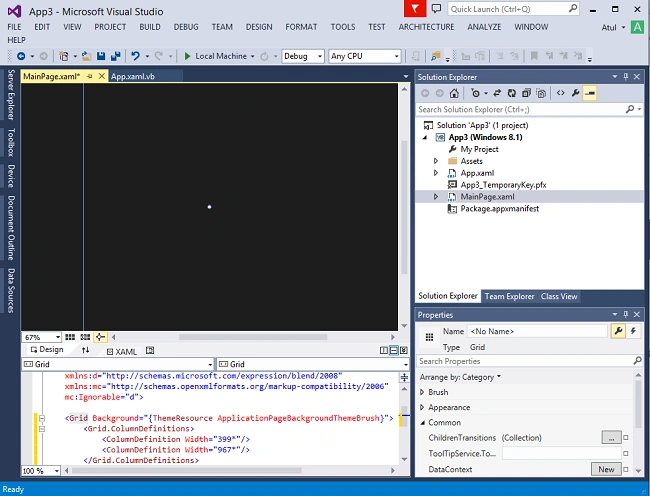
The preceding figure shows the home window of our app. If you do not get the home window then it is highly recommended that you update your Visual Studio 2013.
In this tutorial, you work with just a few of the files listed previously: App.xaml, App.xaml.cs (or App.xaml.vb), MainPage.xaml and MainPage.xaml.cs (or MainPage.xaml.vb).
App.XAML Default Code
App.xaml.cs Default Code
MainPage.XAML:
- <Application
- x:Class="App1.MyApplication"
- xmlns="http://schemas.microsoft.com/winfx/2006/xaml/presentation"
- xmlns:x="http://schemas.microsoft.com/winfx/2006/xaml"
- xmlns:local="using:HelloWorld">
- </Application>
- using System;
- using System.Collections.Generic;
- using System.IO;
- using System.Linq;
- using System.Runtime.InteropServices.WindowsRuntime;
- using Windows.ApplicationModel;
- using Windows.ApplicationModel.Activation;
- using Windows.Foundation;
- using Windows.Foundation.Collections;
- using Windows.UI.Xaml;
- using Windows.UI.Xaml.Controls;
- using Windows.UI.Xaml.Controls.Primitives;
- using Windows.UI.Xaml.Data;
- using Windows.UI.Xaml.Input;
- using Windows.UI.Xaml.Media;
- using Windows.UI.Xaml.Navigation;
- // The Blank Application template is documented at http://go.microsoft.com/fwlink/?LinkId=234227
- namespace App1
- {
- /// <summary>
- /// Provides application-specific behavior to supplement the default Application class.
- /// </summary>
- sealed partial class App : Application
- {
- /// <summary>
- /// Initializes the singleton application object. This is the first line of authored code
- /// executed and as such is the logical equivalent of main() or WinMain().
- /// </summary>
- public App()
- {
- this.InitializeComponent();
- this.Suspending += OnSuspending;
- }
- /// <summary>
- /// Invoked when the application is launched normally by the end user. Other entry points
- /// will be used such as when the application is launched to open a specific file.
- /// </summary>
- /// <param name="e">Details about the launch request and process.</param>
- protected override void OnLaunched(LaunchActivatedEventArgs e)
- {
- #if DEBUG
- if (System.Diagnostics.Debugger.IsAttached)
- {
- this.DebugSettings.EnableFrameRateCounter = true;
- }
- #endif
- Frame rootFrame = Window.Current.Content as Frame;
- // Do not repeat app initialization when the Window already has content,
- // just ensure that the window is active
- if (rootFrame == null)
- {
- // Create a Frame to act as the navigation context and navigate to the first page
- rootFrame = new Frame();
- // Set the default language
- rootFrame.Language = Windows.Globalization.ApplicationLanguages.Languages[0];
- rootFrame.NavigationFailed += OnNavigationFailed;
- if (e.PreviousExecutionState == ApplicationExecutionState.Terminated)
- {
- //TODO: Load state from previously suspended application
- }
- // Place the frame in the current Window
- Window.Current.Content = rootFrame;
- }
- if (rootFrame.Content == null)
- {
- // When the navigation stack isn't restored navigate to the first page,
- // configuring the new page by passing required information as a navigation
- // parameter
- rootFrame.Navigate(typeof(MainPage), e.Arguments);
- }
- // Ensure the current window is active
- Window.Current.Activate();
- }
- /// <summary>
- /// Invoked when Navigation to a certain page fails
- /// </summary>
- /// <param name="sender">The Frame which failed navigation</param>
- /// <param name="e">Details about the navigation failure</param>
- void OnNavigationFailed(object sender, NavigationFailedEventArgs e)
- {
- throw new Exception("Failed to load Page " + e.SourcePageType.FullName);
- }
- /// <summary>
- /// Invoked when application execution is being suspended. Application state is saved
- /// without knowing whether the application will be terminated or resumed with the contents
- /// of memory still intact.
- /// </summary>
- /// <param name="sender">The source of the suspend request.</param>
- /// <param name="e">Details about the suspend request.</param>
- private void OnSuspending(object sender, SuspendingEventArgs e)
- {
- var deferral = e.SuspendingOperation.GetDeferral();
- //TODO: Save application state and stop any background activity
- deferral.Complete();
- }
- }
- }
- <Page
- x:Class="App1.MainPage"
- xmlns="http://schemas.microsoft.com/winfx/2006/xaml/presentation"
- xmlns:x="http://schemas.microsoft.com/winfx/2006/xaml"
- xmlns:local="using:App1"
- xmlns:d="http://schemas.microsoft.com/expression/blend/2008"
- xmlns:mc="http://schemas.openxmlformats.org/markup-compatibility/2006"
- mc:Ignorable="d">
- <Grid Background="Black">
- <Grid.RowDefinitions>
- <RowDefinition Height="100" />
- <RowDefinition Height="100" />
- <RowDefinition Height="100"/>
- <RowDefinition Height="100"/>
- </Grid.RowDefinitions>
- <Grid.ColumnDefinitions>
- <ColumnDefinition Width="100" />
- <ColumnDefinition Width="Auto" />
- <ColumnDefinition Width="50"/>
- <ColumnDefinition Width="Auto"/>
- </Grid.ColumnDefinitions>
- <TextBlock x:Name="tbxFirst" Text="Hello windows app" FontSize="50" Grid.Column="1" Grid.Row="1"/>
- </Grid>
- </Page>
Press F5.

Summary
In this article we have just gone through a very first simple example of a Windows Store app using a Textblock tag in XAML and C#. We will go deeper into Windows Store Apps with more examples in articles to come.
In this article we have just gone through a very first simple example of a Windows Store app using a Textblock tag in XAML and C#. We will go deeper into Windows Store Apps with more examples in articles to come.
Sarva SiddarthaPosted Dec 15, 2015, 1:36 AM
Nice Article, how about a slider for volume. How can we put a slider in order to increase the volume. How the code will be? Could you please show me.
Shridhar SharmaPosted Jan 16, 2015, 1:08 AM
Hello Windows App..!! #nice
Gaurav KumarPosted Jan 16, 2015, 1:06 AM
Very nice article.. Thanks for sharing.. very helpful!!!