


1. Introduction
The purpose of this document is to provide step by step information about how to
use the Word Automation tool and overview of Word Automation Service Application
in SharePoint 2010.
2. Overview and Concepts in Word Automation Services
SharePoint 2010 introduces a new service application called Word Automation
Services. This service application is used for server side conversion of word
documents into other file formats.
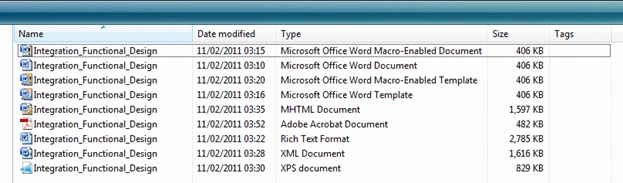
Source files types:
- Open XML File Format documents (.docx, .docm, .dotx, .dotm).
- Word 97-2003 documents (.doc, .dot).
- Rich Text Format files (.rtf).
- Single File Web Pages (.mht, .mhtml).
- Word 2003 XML Documents (.xml).
- Word XML Document (.xml).
Destination files types:
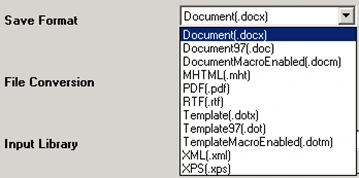
- Portable Document Format (PDF) files.
- XML Paper Specification (XPS) files.
- Open XML File Format documents (.docx, .docm, .dotx, .dotm).
- Word 97-2003 documents (.doc, .dot).
- Rich Text Format files (.rtf).
- Single File Web Pages (.mht, .mhtml).
- Word 2003 XML Documents (.xml).
- Word XML Document (.xml).
Word Automation Service is a part of SharePoint
2010. Word Automation Service is available in the Standard edition and in the
Enterprise edition. It is a feature of SharePoint 2010, so SharePoint 2010
should be purchased and installed to use Word Automation Services.
For Word Automation Services Architecture refer
http://msdn.microsoft.com/en-us/library/ee556832.aspx.
The following concepts are basic for Word Automation Services:
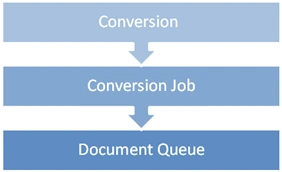
- Conversion
- Conversion Job
- Document Queue
Conversion:
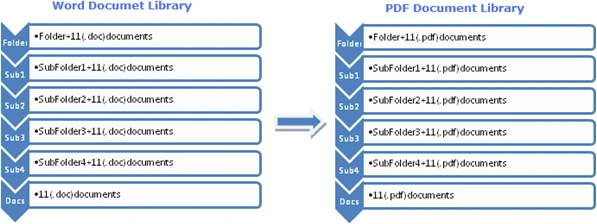
Conversion in Word Automation Services is a process of converting the word
document to other formats. For example converting .doc file format to .pdf
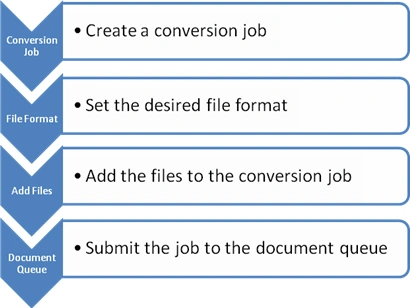
format. It constitutes of the following steps:
-
Create a conversion job
ConversionJob job = new ConversionJob("Word Automation Services"); -
Set the desired output file format
job.Settings.OutputFormat = SaveFormat.PDF; -
Add files to the conversion job
AddFile () method:
Syntax:
job.AddFile(string inputFile, string outputFile)
Example:
job.AddFile("http://serverName:31829/sites/Home/Shared%20Documents/ArticleLinks.docx", "http://serverName:31829/sites/Home/Shared%20Documents/ArticleLinks.pdf")
AddFolder () method:
Syntax:
job.AddFolder(SPFolder
inputFolder, SPFolder outputFolder,
bool recursion);
Example:
job.AddFolder("\Shared
Documents\Word ocuments", "\Shared
Documents\PDF Documents", false);
AddLibrary () method:
Syntax:
job.AddFile(SPList
inputList, SPList outputList)
Example:
job.AddFile("Word Library",
"Document Library");
Submit the job to the document queue
job.Start();
Conversion Job:
Conversion job describes the files to be converted and the operation to perform
on them.
Each file is considered to be a conversion item, and the conversion item will be
mapped to Conversion job. Conversion job contains one or more conversion items.
Document Queue:
Document Queue is a "first in, first out", which is used to start the conversion
and that schedule can be set in the conversion job.
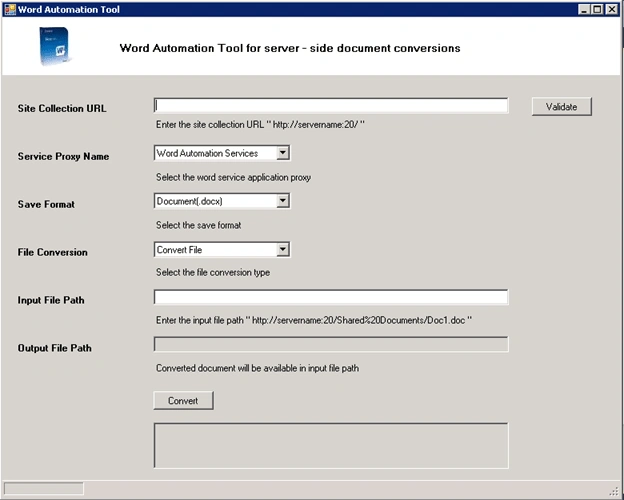
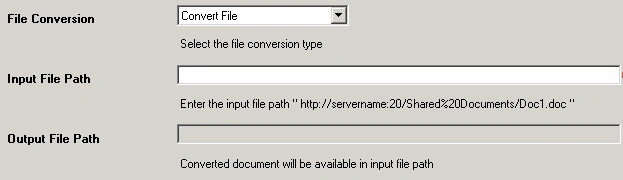
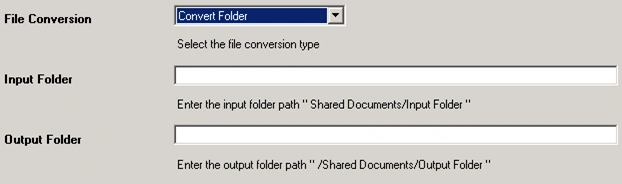
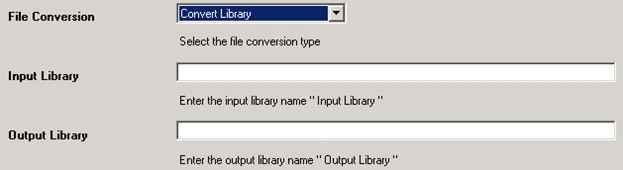
Using API you can convert the word documents into different formats. There are
three main methods that are used for server side document conversions.




Rambabu CHPosted Feb 21, 2011, 2:40 AM
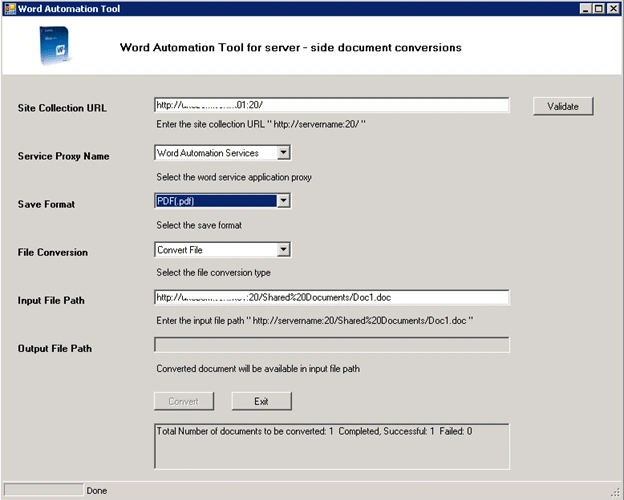
Nice Tool. Where the word automation tool is avaliable ? is it sharepoint built in tool or 3rd party tool?