

Overview
In this article, we will learn how to create default folders automatically when we create a Document Set in SharePoint using SharePoint Designer workflows.
Problem Statement
We have one requirement where we need to create some set of Folder Structures automatically when a user creates the Document Set. Here, in this example, my document set is available in the “Demo Documents” library. When a user creates the document set, the “Project” folder should be created automatically.
So now, let’s get started!
Step 1
Create one SharePoint Document library with the name "Demo Documents" in SharePoint Site.
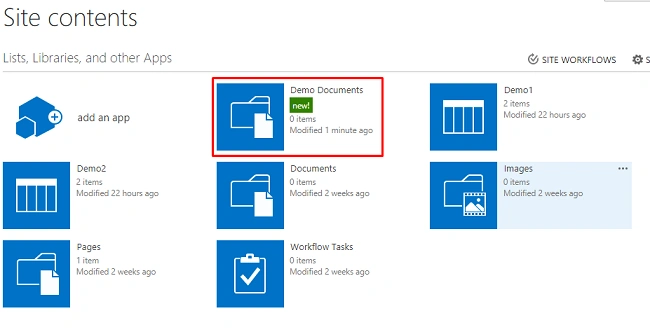
Step 2
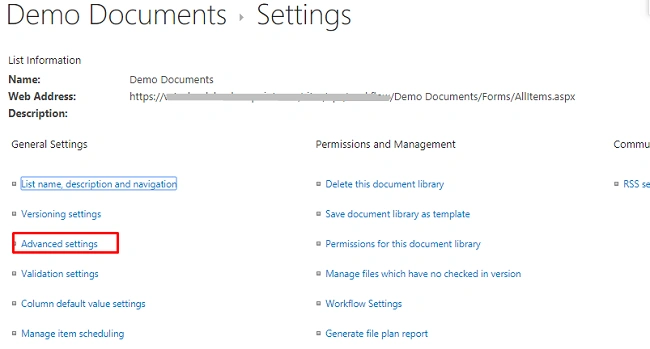
Open the document library and go to "Library Settings".
Go to "Advanced Settings".
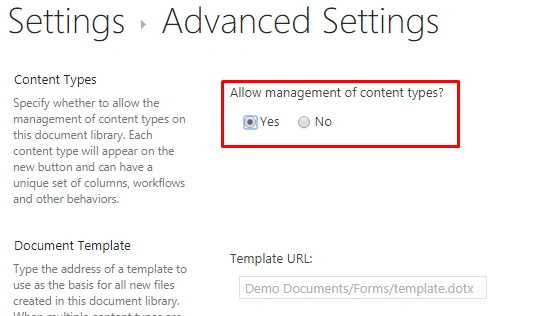
Set "Allow Content types" to "Yes" and save the settings.
Content types will be enabled for the library. Add "Document Set content type" from the site contents.
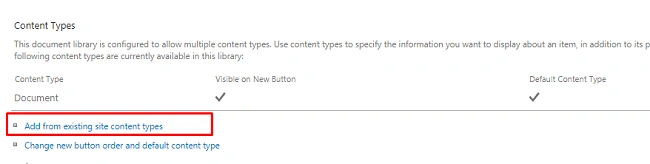
Add Document Set Content type from the Document Set Content Types Group.
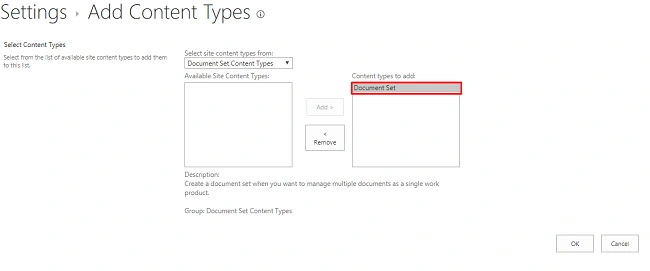
Step 3
Open SharePoint Site in SharePoint Designer.
In Workflows, create a new List Workflow. Select the "Demo Documents" list on which the workflow will be triggered.
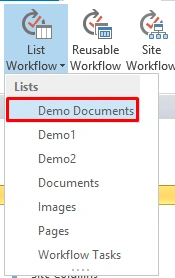
Step 4
Give a name to the Workflow and select "SharePoint 2013 workflow" in the drop-down.
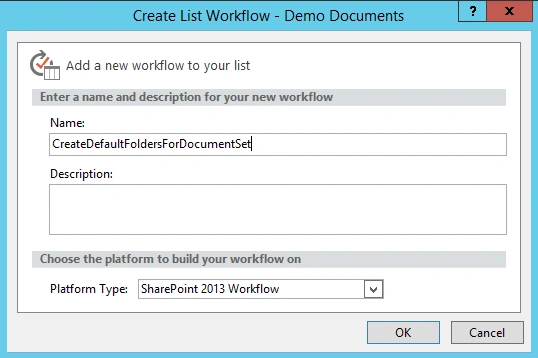
Step 5
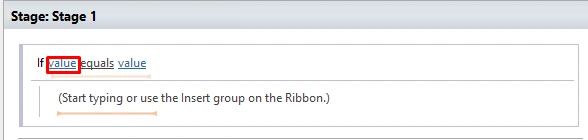
Select the "If any value equals value" from the Conditions ribbon.
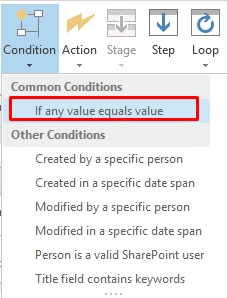
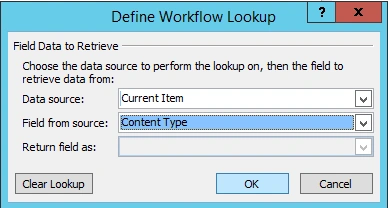
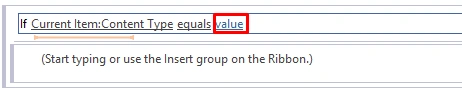
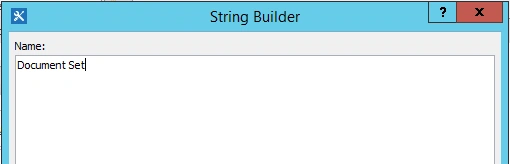
Set the value of the Condition to "Current Item Content type equals Document Type".
Select "Create List Item" from the Action ribbon.
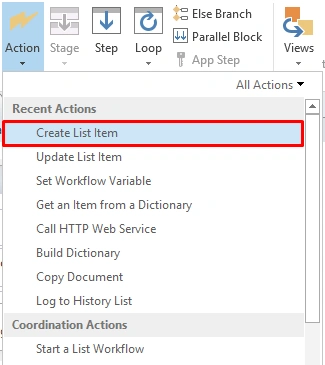
Click "this list".

Select Demo Documents library and modify the Content Type ID property value.
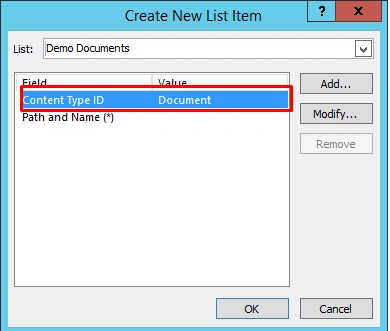
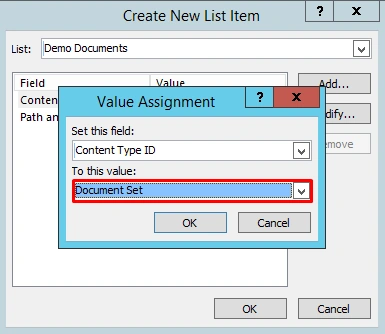
Select "Document Set" in place of Document.
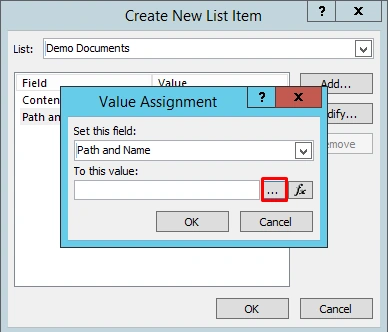
Modify the "Path and Name(*)" value.
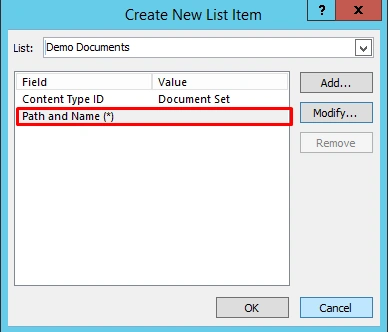
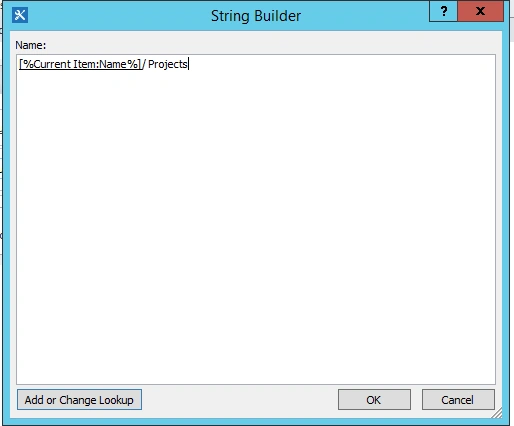
Set Current Item Name/ Folder Name format in the value.
Note
Repeat Step 6 if you want more folders in the Document Set, with different folder names.
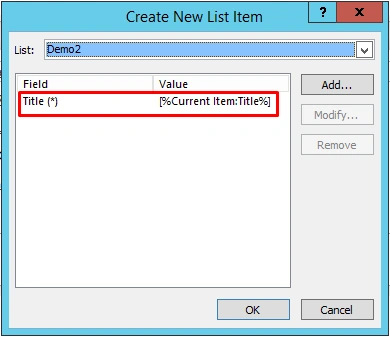
We will get an output GUID of the created item in the "create" variable.

Step 7
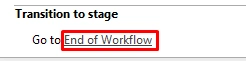
Set the Transition to stage option to "End of Workflow".
Step 8
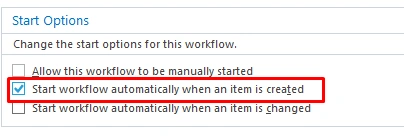
Save the workflow and select "Start workflow automatically when an item is created" from the workflow details then publish the workflow.
Output Action
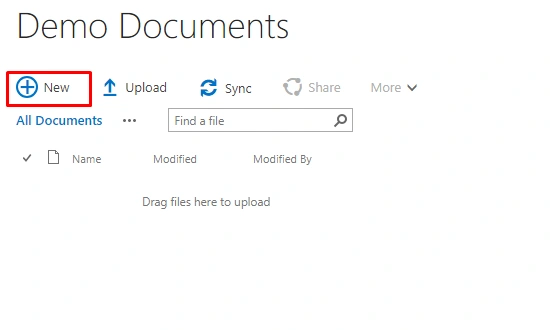
Create a new item in the Demo Documents list.
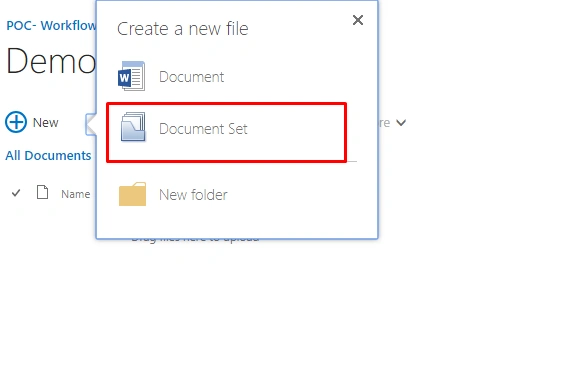
Select "Document Set".
Enter the details of the document set.
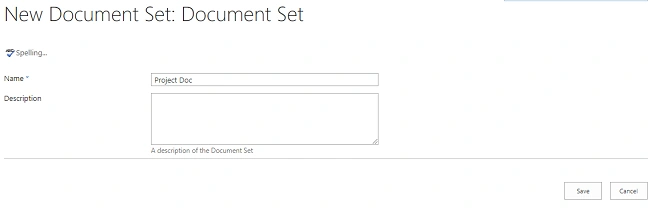
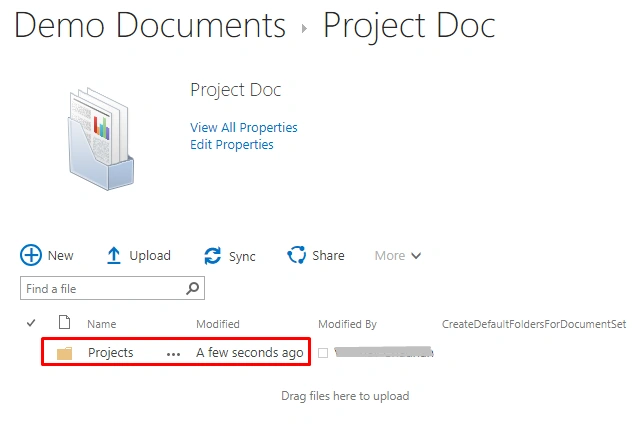
The "Projects" folder will be created automatically using this workflow.
Join the conversation! Your thoughts help the community grow.