

Introduction
Azure log analytics gives you the facility to search and view logged data from various Azure resources. Before this was a separate service in Azure but now it's being incorporated as part of Azure monitor. In this demo we are going to learn how to manage Azure Log Analytics.
Step 1 - Log Analytics
Log into the Azure portal using your account credentials at the following URL. https://portal.azure.com/
On the dashboard, choose to create a resource and type "Log Analytics".
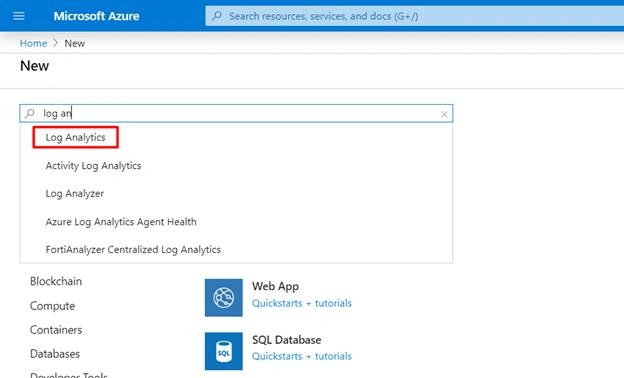
Step 2 - Creating Log Analytics
Click “Create” button to deploy the Log Analytics Service.
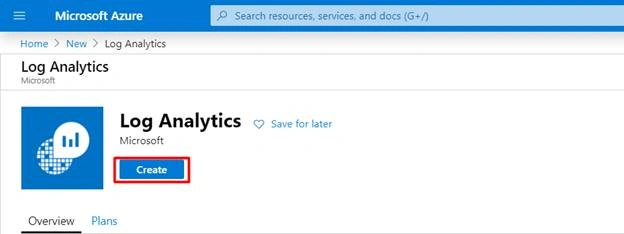
Step 3 - Log Analytics Workspace
Select “Create New” in the Log Analytics. Enter the “Log Analytics Workspace” name, choose the correct “Subscription”. Select the existing resource group, and then select the “Pricing Tier”, after entering the information, click “Ok” button to start the deployment.
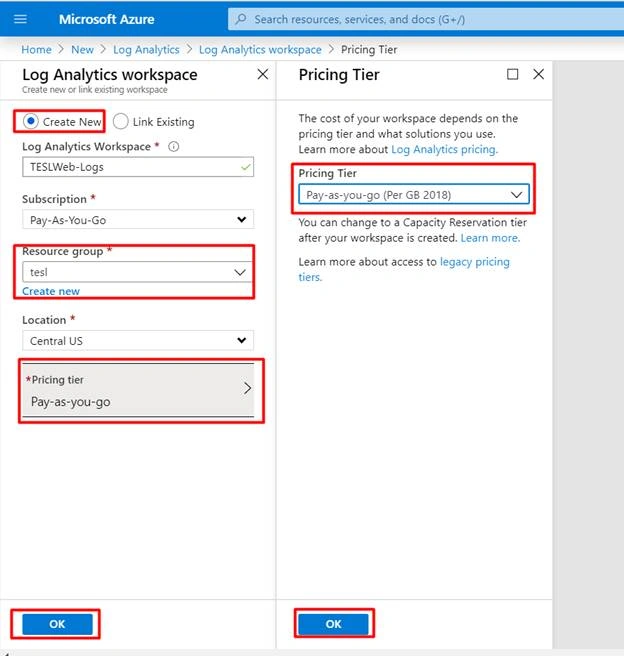
Step 4 - Verifying the Log Analytics Workspace
After successfully deploying the Log Analytics Workspace, we need to verify our Log Analytics Workspace. Go to your Resource Group and verify that our Log Analytics Workspaces are installed correctly. So here our Log Analytics Workspace named “TESLWeb-Logs” is successfully deployed, so click the “TESLWeb-Logs”.
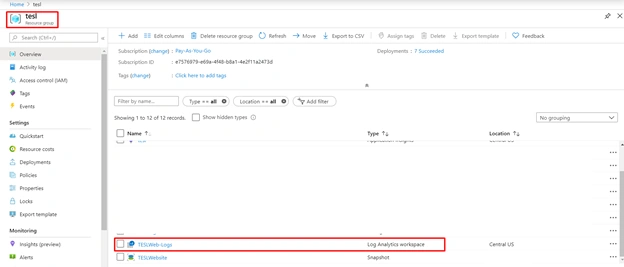
Step 5 - Adding Virtual Machine
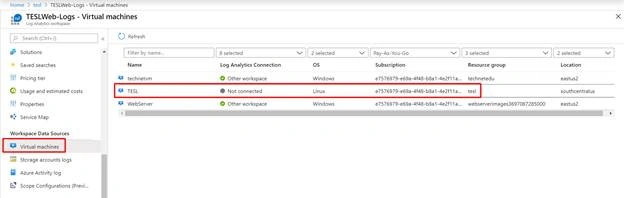
In the Log Analytics Workspace “TESLWeb-Logs” select “Virtual Machines” under the Workspace Data Sources, now we can verify that our Virtual Machine “TESL” is not connected so click the Virtual Machine.
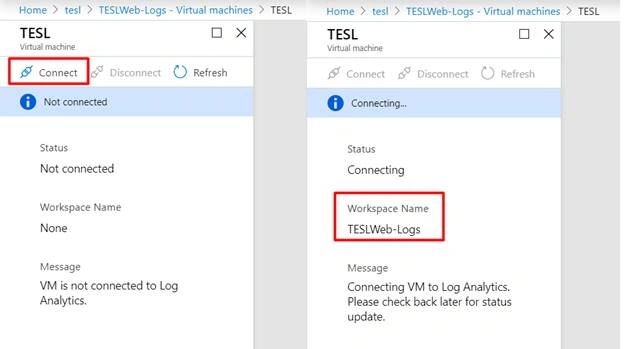
Step 6 - Connecting our Virtual Machine

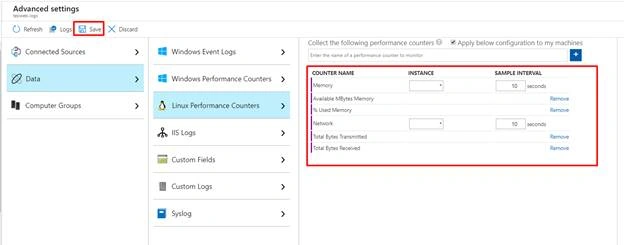
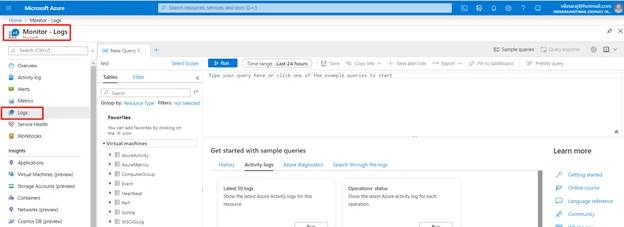
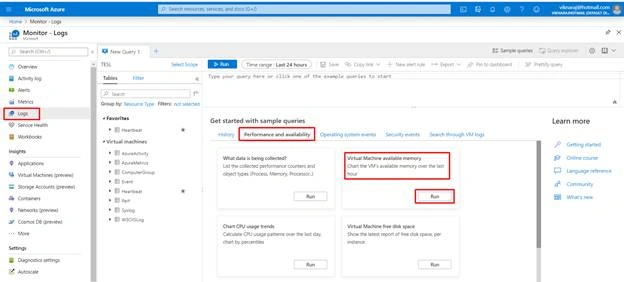
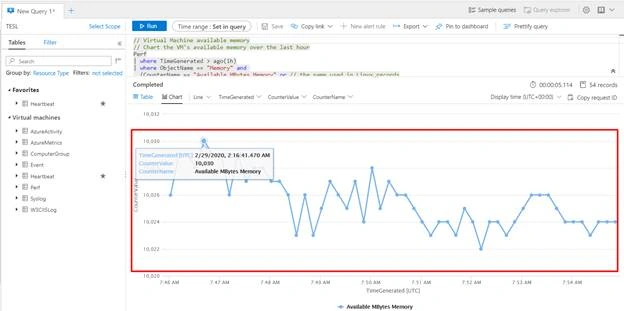
Hadshana KamalanathanPosted Sep 28, 2021, 4:22 AM
Excellent Article.
Indunil AluviharePosted Aug 11, 2021, 7:58 AM
Nice article about Azure Log Analytics
Disne SivalingamPosted Mar 22, 2020, 3:05 AM
Good explanation