
Introduction
This article demonstrates what Azure Web App is, and how to create Azure Web apps with the help of Azure PowerShell.
What is Azure Web App?
A web app is a computing resource in Azure which is fully optimized for hosting web sites or web applications. This is part of App Services which is Platform as Service (PaaS), which is an offering of Microsoft Azure. App Services includes Web and mobile capabilities. It also includes new capabilities to automate business processes and host Cloud APIs.
As mentioned above, the Web app is required to compute resources in Azure, which may be on shared or dedicated VMs, as it depends upon the pricing tier you choose. Your application code deployed in the web app runs in a managed VM, which is isolated from other customers.
There are various benefits of using Azure app Service like
- Support for multiple languages and frameworks.
- DevOps Optimization, where continuous deployment and integration can be performed.
- High availability.
- Scalability.
- Integration with other SaaS Platforms.
- Security and Compliance.
- Application templates.
- Visual Studio Integration.
Pre-requisite
Before starting to work with Azure web app with PowerShell, we need to make sure we have the necessary pre-requisites. You need to install Azure PowerShell on your machine. I have explained in detail in my other article, Creating Azure Resource Group With PowerShell. This article also explains about Resource Group which is a logical group of Azure resources and how it helps to group the resources. Before going to next step in this article, perform the steps given below mentioned in the article shown above.
- Login to Azure account.
- Select the appropriate subscription.
- Create a resource group, if it does not already exist.
Create Azure Web app
Once you have a target resource group, select a resource group, as shown below in a variable.
- $resourceGroup = Get-AzureRmResourceGroup -Name <ResourceGroupName>
You can validate the value of $resourceGroup variable by entering the variable name on the PowerShell Prompt.

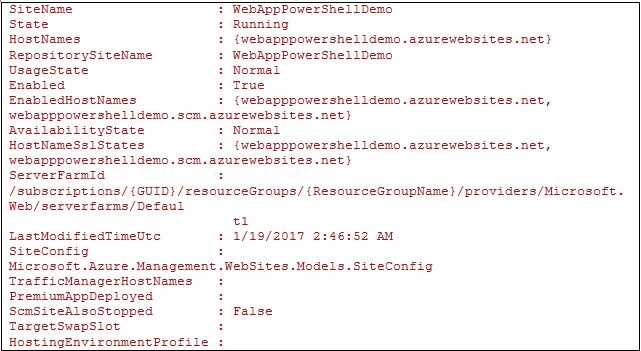
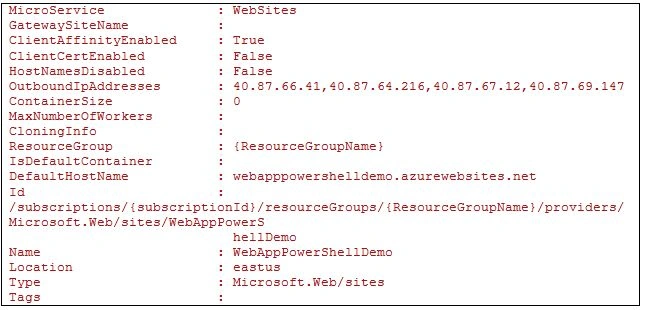
To create a new web app in the selected resource group, use New-AzureRmWebApp cmdlet. This cmdlet takes ResourceGroupName, name and location required parameters. Location attribute decides where the new Web app will geologically reside.
Join the conversation! Your thoughts help the community grow.