

Introduction:
In this article we are going to see how to consume a WCF Service in a Windows
Phone 7 Application Development. For the beginners WCF is a Windows
Communication Foundation is a Microsoft framework to build application in
Service Oriented Architecture. We can use WCF as a service to send data across
the application as a service with the endpoints predefined to communicate. The
service endpoints can be of type which is hosted on to an IIS Server and
available anytime, or it can also be an application oriented service to provide
on demand usage. The data transfer through the messages can be of any particular
format that the sender and receiver can able to understand the communication
over the protocol.
In Windows Phone 7 development we have scenarios where we need to pass and get
the data over the service through some authorized protocols and secured ports
where WCF plays a major role. Let us see the step by step process on how to
consume a WCF Service in a Windows Phone 7 Application taking into consideration
the reader should be familiar with creating a WCF Service and hosting on to IIS.
Refer MSDN article to get some idea on how to create and host the WCF Service
using the link http://msdn.microsoft.com/en-us/library/ms733766.aspx
Steps:
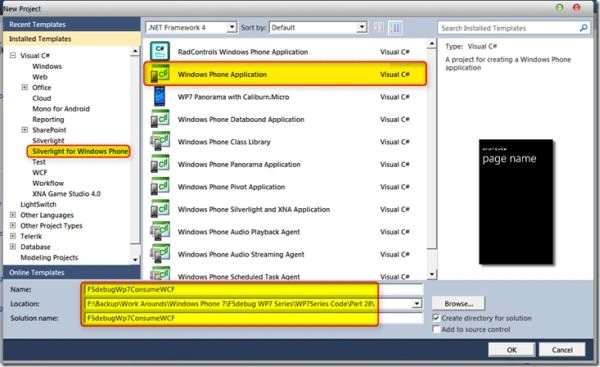
Open Visual Studio 2010 IDE in administrator mode and create a new Silverlight
for Windows Phone 7 Application with a valid project name as shown in the screen
below.
We can see the project is created and the main page is opened with the default
controls. Let us consider that we have a WCF application already created and
hosted on IIS which can be consumed and pass the value (2 numbers) and we will
get the sum of the values passed as the output. So from our Windows phone 7
application we can pass the 2 values and we can make the WCF do the sum and
sends the result back which can be viewed in the application.
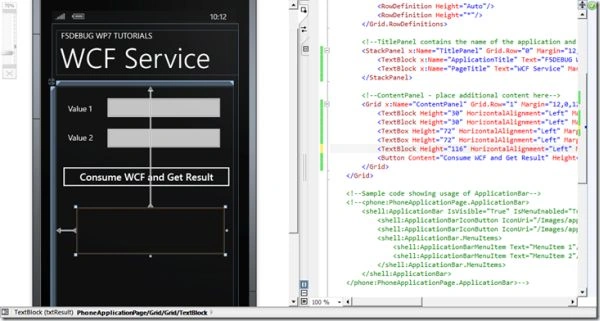
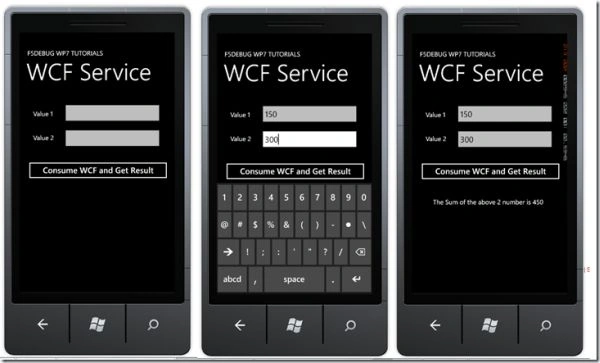
First let us add some controls which gets the user inputs that should be passed
to the WCF Service and to show the results to the end users. Just copy the XAML
provided below to get the same user experience with the design as shown in the
screen below.
XAML Code:
<Grid x:Name="LayoutRoot" Background="Transparent">
<Grid.RowDefinitions>
<RowDefinition Height="Auto"/>
<RowDefinition Height="*"/>
</Grid.RowDefinitions>
<!--<span class="hiddenSpellError" pre="">TitlePanel</span> contains the name of the application and page title-->
<StackPanel x:Name="TitlePanel" Grid.Row="0" Margin="12,17,0,28">
<TextBlock x:Name="ApplicationTitle" Text="F5DEBUG WP7 TUTORIALS" Style="{StaticResource PhoneTextNormalStyle}"/>
<TextBlock x:Name="PageTitle" Text="WCF Service" Margin="9,-7,0,0" Style="{StaticResource PhoneTextTitle1Style}"/>
</StackPanel>
<!--<span class="hiddenSpellError" pre="">ContentPanel</span> - place additional content here-->
<Grid x:Name="ContentPanel" Grid.Row="1" Margin="12,0,12,0">
<TextBlock Height="30" HorizontalAlignment="Left" Margin="30,43,0,0" Name="textBlock1" Text="Value 1" VerticalAlignment="Top" />
<TextBlock Height="30" HorizontalAlignment="Left" Margin="30,117,0,0" Name="textBlock2" Text="Value 2" VerticalAlignment="Top" />
<TextBox Height="72" HorizontalAlignment="Left" Margin="119,19,0,0" Name="textBox1" Text="" VerticalAlignment="Top" Width="313" />
Abhishek DubeyPosted Apr 28, 2012, 6:50 AM
Hi Karthikeyan..Can be possible WCF implement in java lanuage ?