

This article will explain about grid view in ASP.NET Web Forms using DataTable and DataSet. Create an ASP.NET Web Forms application and add some data in a DataTable Class either manually or from the database. Some data added manually in the Datatable example are below.
About.aspx.vb
Private Sub BindGrid()
    ' Create a DataTable to hold the employee data
    Dim dt As New DataTable()
    dt.Columns.Add("EmployeeID", GetType(Integer))
    dt.Columns.Add("Name", GetType(String))
    dt.Columns.Add("Position", GetType(String))
    dt.Columns.Add("Department", GetType(String))
    dt.Columns.Add("Salary", GetType(String))

    ' Add sample data
    dt.Rows.Add(1, "Johdfgn Doe", "Software Engineer", "IT", "$80,000")
    dt.Rows.Add(2, "Jandfgde Smith", "Project Manager", "Operations", "$95,000")
    dt.Rows.Add(3, "fgdf Brown", "Data Analyst", "Marketing", "$70,000")
    dt.Rows.Add(4, "dfgd Brown", "Data Analyst", "Marketing", "$70,000")
    dt.Rows.Add(5, "yy Brown", "Data Analyst", "Marketing", "$70,000")
    dt.Rows.Add(6, "Sam Brttown", "Data Analyst", "Marketing", "$70,000")
    dt.Rows.Add(7, "Sttam Brown", "Data Analyst", "Marketing", "$70,000")
    dt.Rows.Add(8, "Styam Brown", "Data Analyst", "Marketing", "$70,000")
    dt.Rows.Add(9, "Stytyam ttyBrown", "Data Analyst", "Marketing", "$70,000")

    ' Bind the DataTable to the GridView
    EmployeeGridView.DataSource = dt
    EmployeeGridView.DataBind()

    ' Update the status label
    StatusLabel.Text = $"Showing {dt.Rows.Count} of {dt.Rows.Count} records"
End Sub
About.aspx
<div>
    <asp:GridView ID="EmployeeGridView" runat="server" AutoGenerateColumns="False">
        <Columns>
            <asp:BoundField DataField="EmployeeID" HeaderText="Employee ID" ItemStyle-CssClass="gridViewCell" />
            <asp:BoundField DataField="Name" HeaderText="Name" ItemStyle-CssClass="gridViewCell" />
            <asp:BoundField DataField="Position" HeaderText="Position" ItemStyle-CssClass="gridViewCell" />
            <asp:BoundField DataField="Department" HeaderText="Department" ItemStyle-CssClass="gridViewCell" />
            <asp:BoundField DataField="Salary" HeaderText="Salary" ItemStyle-CssClass="gridViewCell" />
        </Columns>

        <AlternatingRowStyle BackColor="#E2E2E2" BorderStyle="Solid" BorderColor="Black" BorderWidth="1px" />
        <FooterStyle BackColor="Black" />
        <HeaderStyle BackColor="#D6D6D6" ForeColor="Black" Height="6px" HorizontalAlign="Center"
                     VerticalAlign="Middle" Font-Names="Calibri" Font-Size="Medium"
                     BorderStyle="Solid" BorderColor="#999999" BorderWidth="1px" />
        <RowStyle BackColor="White" Font-Names="Calibri" Font-Size="Medium"
                  BorderStyle="Solid" BorderColor="Black" BorderWidth="1px" />
    </asp:GridView>

    <br />

    <asp:Label ID="StatusLabel" runat="server" Text="" />
</div>
Output
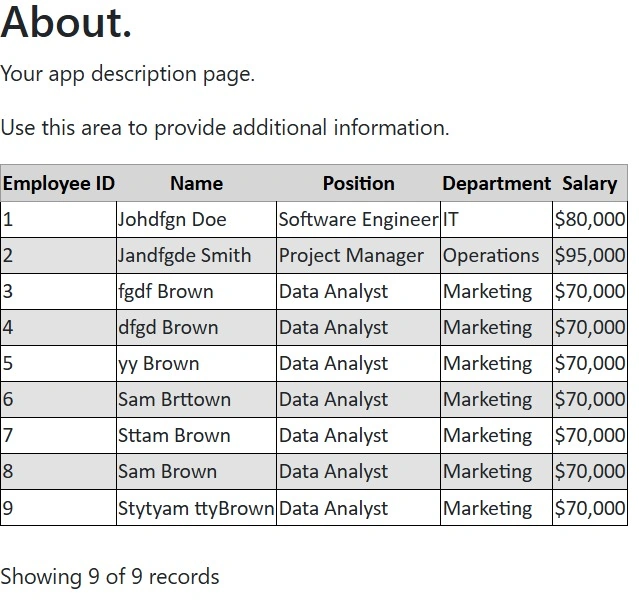
In the DataTable, we can filter two ways: using the DataView class, we can filter the data, and another way is removing data from the DataTable. If selecting data from the database using a stored procedure, row filter, and filter data is possible.
If (dt.Rows.Count > 0) Then
    dt.Rows.RemoveAt(0)
End If

' Bind the DataTable to the GridView
EmployeeGridView.DataSource = dt
EmployeeGridView.DataBind()
Join the conversation! Your thoughts help the community grow.