
Introduction
An imperative part of the user interface in a Windows-based application is the menu.
In this article, I elucidate how to adding menus and menuitem to Windows forms, Replacing, Cloning, Merging of menus and about Context menus (Popupmenus).
Note
In .NET 4.0 or later versions, MenuStrip control has replaced MainMenu. Please visit MenuStrip in C#.
A menu on a form is created with a MainMenu object, which is a collection of MenuItem objects. You can add menus to Windows Forms at design time by adding the MainMenu control and then adding menu items to it using the Menu Designer. Menus can also be added programmatically by adding one or more MainMenu controls to a form and adding MenuItem objects to the collection.
Now we perceive the following information regarding menus with instances.
- Adding Menu,Menu Items to a Menu.
- Adding Menu Enhancements to Windows Forms Menus.
- Replacing, Cloning, Merging of Menus.
- Context menus (Popupmenus).
Adding Menu, Menu Items to a Menu
First add a MainMenu control to the form. Then to add menu items to it add MenuItem objects to the collection. By default, a MainMenu object contains no menu items, so that the first menu item added becomes the menu heading. Menu items can also be dynamically added when they are created, such that properties are set at the time of their creation and addition.
The following program shows how to create a simple menu
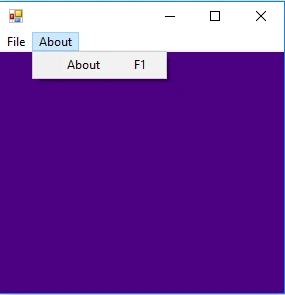
The Class MenuTest1 creates a simple menu on a form. The form has a top-level File menu with menu items New,Open and Exit .The menu also includes a About menu.
- using System;
- using System.Collections.Generic;
- using System.ComponentModel;
- using System.Data;
- using System.Drawing;
- using System.Linq;
- using System.Text;
- using System.Threading.Tasks;
- using System.Windows.Forms;
- namespace MenuTest
- {
- public partial class MenuTest1 : Form
- {
- private MainMenu mainMenu;
- public MenuTest1()
- {
- InitializeComponent();
- mainMenu = new MainMenu();
- MenuItem File = mainMenu.MenuItems.Add("&File");
- File.MenuItems.Add(new MenuItem("&New"));
- File.MenuItems.Add(new MenuItem("&Open"));
- File.MenuItems.Add(new MenuItem("&Exit"));
- this.Menu = mainMenu;
- MenuItem About = mainMenu.MenuItems.Add("&About");
- About.MenuItems.Add(new MenuItem("&About"));
- this.Menu = mainMenu;
- mainMenu.GetForm().BackColor = Color.Indigo;
- }
- }
- }
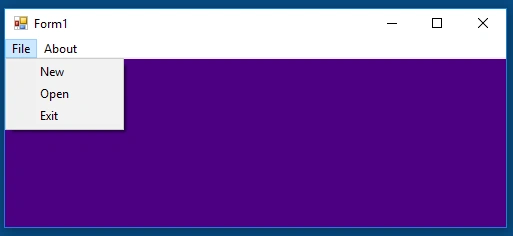
Now in this point let us see some of the Members, properties of the Menu type.
- CloneMenu () -- Sets this menu to be a similar copy of another menu.
- MergeMenu () -- Merges an additional menus items with this one.
There are two properties named mergeType and mergeOrder
- mergeType -- Determine how individual menu items are handled during a menu merge and the relative location of each Menu Item in the newly merged menu.
- mergeOrder -- Determine the menu items' presence and location within a menu merge.
- GetMainMenu () -- Returns the Main Menu item that holds this menu.
- MdiListItem -- This property returns the MenuItem that contains the list of MDI child windows.
Some properties
- Index -- Gets or sets the menu items position in its parent menu.
- Checked -- Gets or sets a value representing whether a check mark appears nearby the text of the menu item.
- Text -- Gets or sets the text of the menu item.
- Shortcut -- Gets or sets the shortcut key connected with the menu item.
- Enabled -- Gets or sets a value representing whether the menu item is enabled.
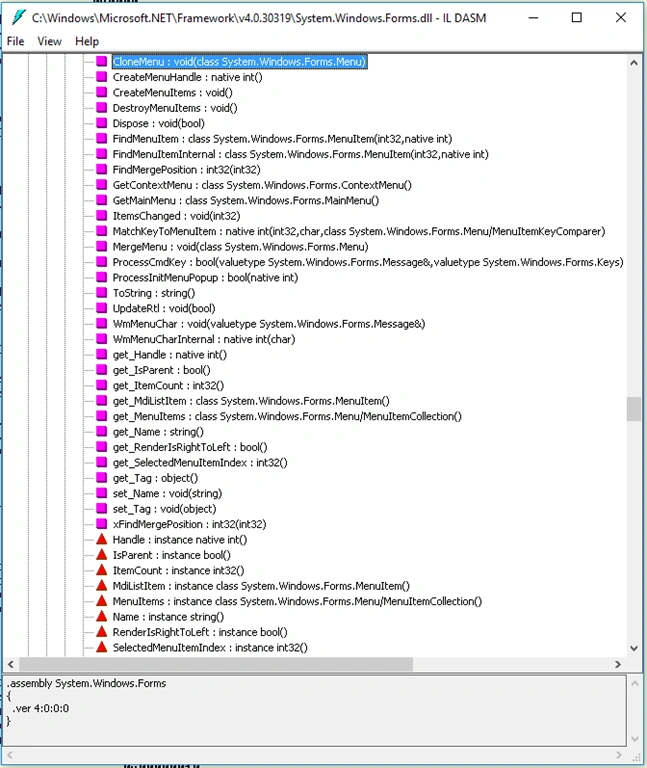
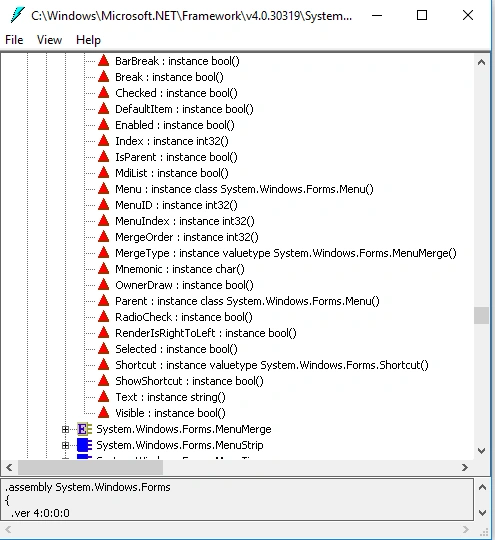
To get information about other members and properties open the System.WinForms.dll with the help of ILDASM.exe as shown in the figures below.
Adding Menu Enhancements to Windows Forms Menus
There are four enhancements that can be added to menus to convey information to users.
- Check marks can be used to designate whether a feature is turned on or off.
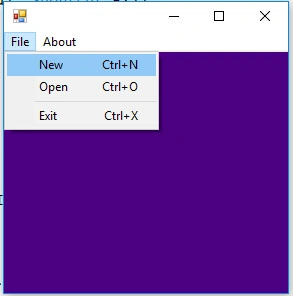
- Shortcut keys are keyboard commands to access menu items within an application.
- To add an access key to a menu item.
- Separator bars are used to group related commands within a menu and make menus easier to read.
Now let us observe those things in details. I enlighten the usage of check marks in specify in Context menus. Shortcut keys are widely used to access menu items.
For Example
About.MenuItems.Add(new MenuItem("&About",new EventHandler this.About_clicked),Shortcut.F1));
So by pressing the function key F1 we can access the menu Item function.
To add an access key to a menu item just simply put ampersand (&) prior to the letter you want to be underlined as the access key. Make the text property of menu item a dash (-) to make that menu item a separator bar. In the following program I also included the Event handlers to all the menu items.
The following program shows how to create a menu with the enhancements,
- using System;
- using System.Collections.Generic;
- using System.ComponentModel;
- using System.Data;
- using System.Drawing;
- using System.Linq;
- using System.Text;
- using System.Threading.Tasks;
- using System.Windows.Forms;
- namespace MenuTest
- {
- public partial class MenuTest : Form
- {
- private MainMenu mainMenu;
- private ContextMenu popUpMenu;
- public MenuTest()
- {
- mainMenu = new MainMenu();
- popUpMenu = new ContextMenu();
- popUpMenu.MenuItems.Add("Hello", new EventHandler(pop_Clicked));
- this.ContextMenu = popUpMenu;
- MenuItem File = mainMenu.MenuItems.Add("&File");
- File.MenuItems.Add(new MenuItem("&New", new EventHandler(this.FileNew_clicked), Shortcut.CtrlN));
- File.MenuItems.Add(new MenuItem("&Open", new EventHandler(this.FileOpen_clicked), Shortcut.CtrlO));
- File.MenuItems.Add(new MenuItem("-"));
- File.MenuItems.Add(new MenuItem("&Exit", new EventHandler(this.FileExit_clicked), Shortcut.CtrlX));
- this.Menu = mainMenu;
- MenuItem About = mainMenu.MenuItems.Add("&About");
- About.MenuItems.Add(new MenuItem("&About", new EventHandler(this.About_clicked), Shortcut.F1));
- this.Menu = mainMenu;
- mainMenu.GetForm().BackColor = Color.Indigo;
- }
- private void FileExit_clicked(object sender, EventArgs e)
- {
- this.Close();
- }
- private void FileNew_clicked(object sender, EventArgs e)
- {
- MessageBox.Show("New", "MENU_CREATION", MessageBoxButtons.OK, MessageBoxIcon.Information);
- }
- private void FileOpen_clicked(object sender, EventArgs e)
- {
- MessageBox.Show("Open", "MENU_CREATION", MessageBoxButtons.OK, MessageBoxIcon.Information);
- }
- private void pop_Clicked(object sender, EventArgs e)
- {
- MessageBox.Show("Popupmenu", "MENU_CREATION", MessageBoxButtons.OK, MessageBoxIcon.Information);
- }
- private void About_clicked(object sender, EventArgs e)
- {
- MessageBox.Show("G.GNANA ARUN GANESH", "[email protected]");
- }
- }
- }
 |  |

Ma WinPosted Feb 11, 2019, 2:55 AM
Thanks https://www.winpickup.com/
Munesh ChauhanPosted Oct 6, 2018, 1:56 AM
InitializeComponent() is giving error as this name is unrecognized. Any clue?
SubashPosted Sep 21, 2016, 12:53 AM
Thank you sir useful one
ARZ ARZAREPosted Jul 25, 2015, 3:25 PM
Hello. How can I do right to left text for context menue and all menue itemes? I do "cm.RightToLeft = RightToLeft.Yes;", but when I do "menuSubItem.Enabled = false;", all text strings becomes left to right. why?
amrit palPosted May 14, 2011, 2:26 PM
http://worldofprogram.blogspot.com/2011/05/menu-with-hover-display-and-auto-hide.html
krishna gPosted Jul 29, 2010, 2:25 PM
Thanks.
charif hiderPosted Oct 14, 2008, 8:59 PM
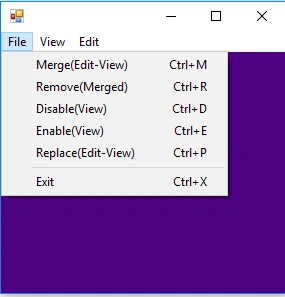
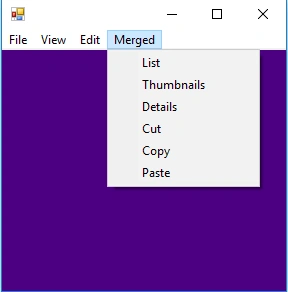
Hi frirst of all thanks for the very useful article, I just want to add some notes about code in order to become runnable on C# 2005: the line using System.WinForms; must be replaced by using System.Winwos.Forms; in addition this line (and all similiars) File.MenuItems.Add(new MenuItem("&Merge(Edit-View)",new EventHandler this.Merge_clicked),Shortcut.CtrlM )); have to be modified by adding a "(" after "EventHandler" so it becomes: File.MenuItems.Add(new MenuItem("&Merge(Edit-View)",new EventHandler(this.Merge_clicked),Shortcut.CtrlM ));