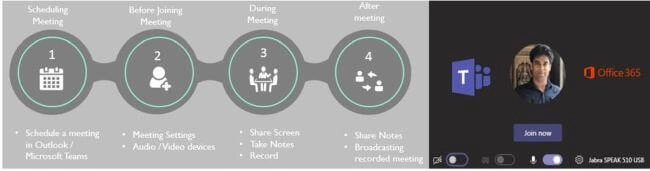
Team Meeting 1 2 3…4
Team’s collaboration features are simplified, well-integrated, and capable of delivering end to end capabilities. I’m focusing on the meeting space in Team in this blog. I will try to cover other features in upcoming articles.
Scheduling Meetings
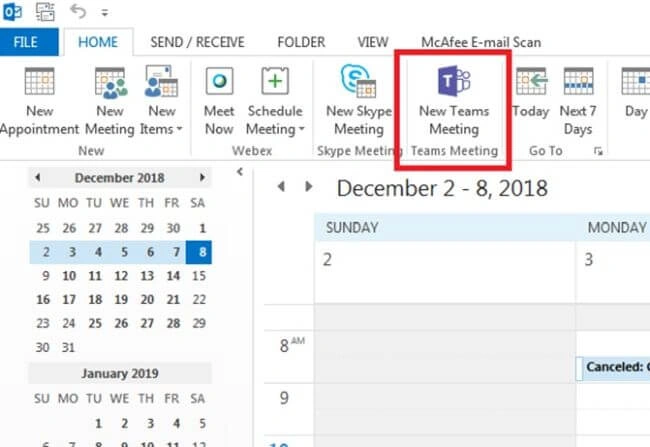
Teams meetings can be scheduled from Microsoft Outlook as well as from Microsoft Teams.
Through Outlook
There is a Teams Meeting add-in that gets installed when you open Teams for the first time either in the web app or a desktop app, provided you have the Teams subscription and you are able to log in successfully.
Once you log into your Teams desktop app, your Windows will prompt you to install the Outlook add-in for the Teams meeting.
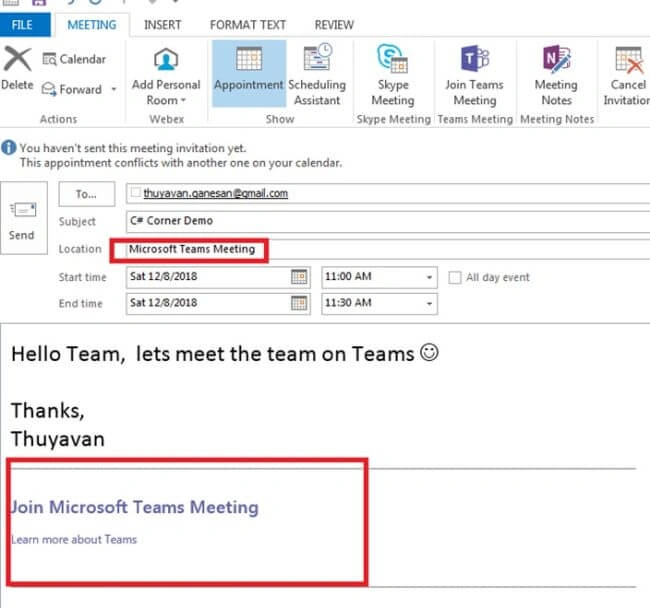
Your location and the body of the email will be added automatically,
Through MS Teams App
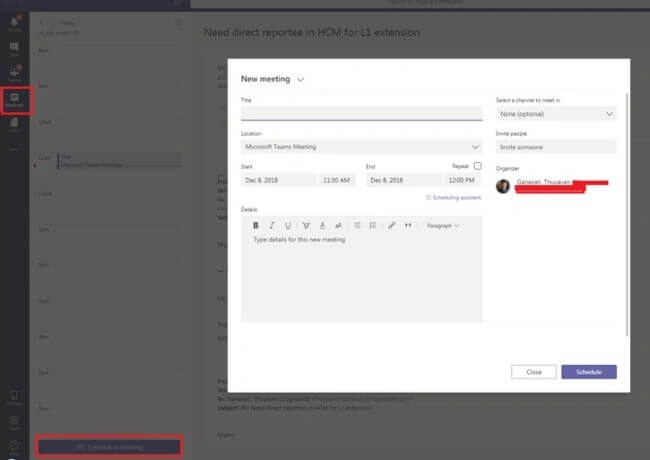
You can schedule a meeting by clicking Meeting > Schedule a meeting.
Before Joining Meeting
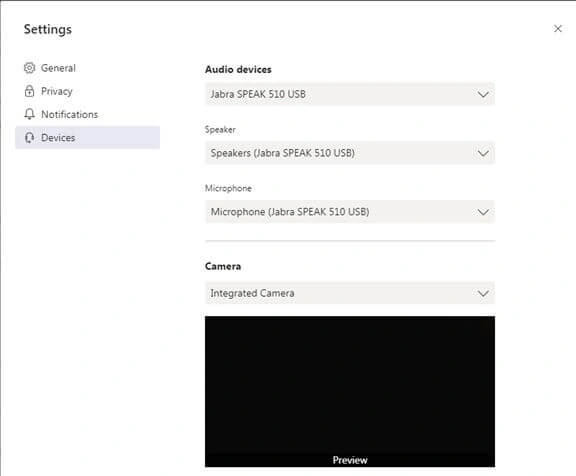
You need to make sure your Teams setting for Audio/Video are working properly.
- Select your audio devices.
- Select Speaker and Microphone.
- Test your camera by viewing your preview.
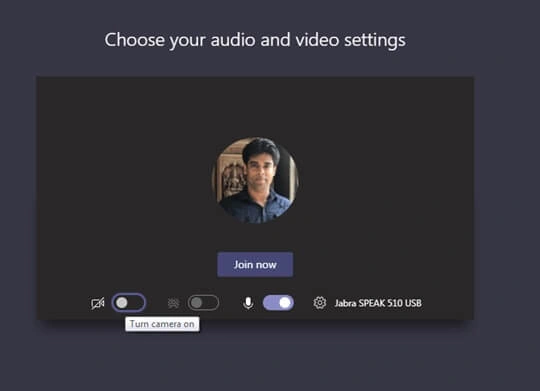
Now, you are all set to join the meeting.
During the Meeting
Once you join the meeting, you have the option to turn the camera ON or OFF.
There are many other cool features you can take advantage of.
Share Content
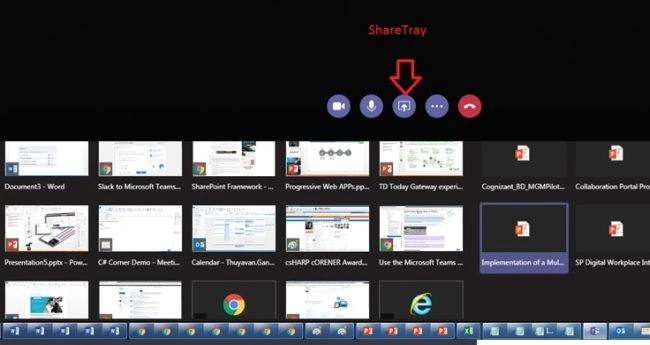
Share Tray - It shows a preview of all opened files in your system. You may choose to share your entire screen or a specific file.
Take notes
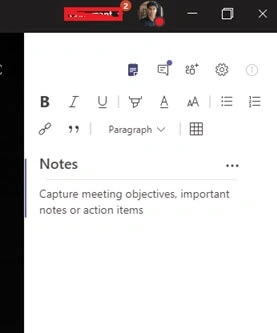
Meeting Notes is another handy feature. With Teams, you will be able to take notes during the meeting and it is automatically saved in your chat space and ready to be sent once the meeting is finished. Unfortunately, it is not integrated with OneNote. Other nice features are Chat during a meeting and the ability to invite others.
Meeting notes panel.
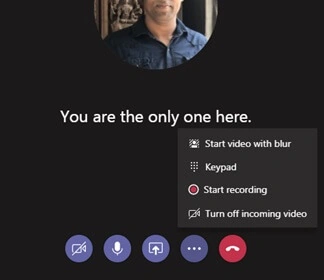
Record meeting
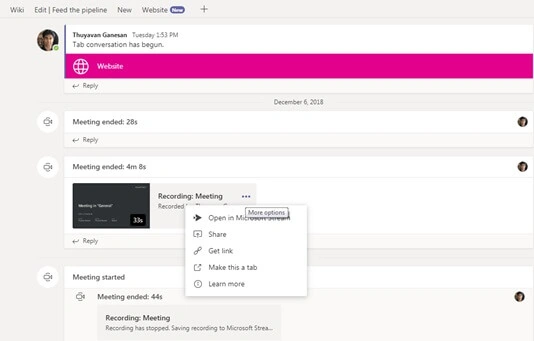
The best Meeting Recording experience ever… you can start recording your meeting and it automatically saves the meeting recording.
After the meeting
Once your meeting ends, the recording will be automatically pinned to your chat window and available for you to share, send a link in the chat, or you can save as a new tab where your channel members can view it later.
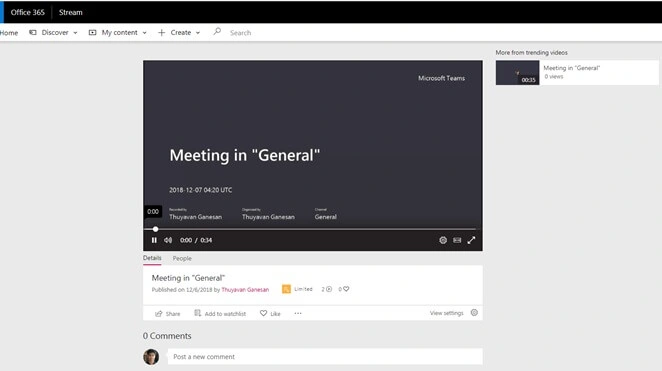
Microsoft Stream integration is another useful feature.
You teams meeting videos will be uploaded and broadcast here and have a plethora of social features integrated like comments and share, adding watch lists, likes, etc.
Summary
Microsoft Teams is one of the best collaboration apps under O365 which delivers end-to-end meeting experience among other features. Microsoft has truly taken into account all the pain points of meeting tools like Skype, WebEx, Slack etc. that we have been facing for quite some time and addressed them in Teams – it’s a neat solution, robust and yet easy to use.



Rushi MehtaPosted Dec 13, 2018, 10:02 PM
Great Article.. Very Interesting
Elavarasan RPosted Dec 11, 2018, 10:51 PM
thank you for your post , it's useful to me..
Mahesh ChandPosted Dec 11, 2018, 8:59 PM
Thank you, Thuyavan. Great article. Best
Lakshmanan Sethu SankaranarayanPosted Dec 11, 2018, 12:24 PM
Nice article Thuyavan