

Introduction
This article is intended to illustrate how to use Parameter Fields in Crystal Reports. Parameter fields enable the creation of reports that could be used in a variety of ways, prompting the user for all kinds of information specifically for record selection and report titles. These parameters can be used in several ways such as to display some text on the report as well as in formulas.
Creating a Parameter Field
In order to illustrate the creation and use of Parameter Fields in Crystal Reports, let's create a Windows application. The go to Project | Add New Item and add a Crystal Report item to your application (see Figure 1).
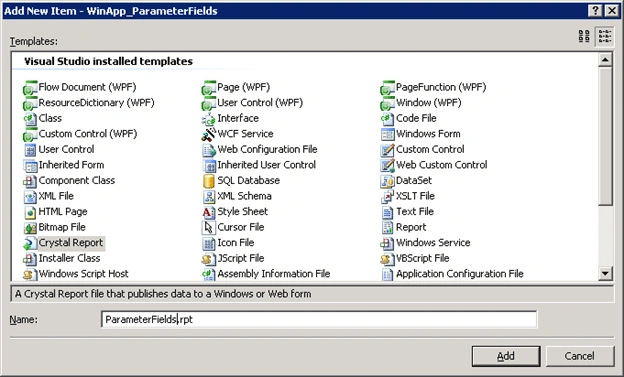
Figure 1
Now drag and drop a CrystalReportViewer control onto the form design surface and leave room at the top for some additional parameter fields that we're going to add later. Bind the report item to this CrystalReportViewer control by selecting Choose a Crystal Report operation on the CrystalReportViewer control's property windows.
Now let's add parameters to our report. But first of all, let's talk about parameter fields. There are three types of parameters:
- Discrete. Accept single and discrete values.
- Ranged. Accept a lower and upper value in order to select everything in this range.
- Discrete and Ranged. Support the combination of the former two types.
By default, the parameters are of the following data types:
- String. For entering alphanumeric text.
- Currency. For entering a number with two decimal places.
- Date. For entering a date in the format Month/Day/Year.
- DateTime. For entering a date as well as time in the format Month/Day/Year/ Hour/Minute/Second/AM or PM
- Number. For entering a number with variable decimal places.
- Boolean. For prompting the users for true or false response.
When you create a parameter, you can also define a prompting text that appears whenever the Parameter Field dialog appears. Once you have created a parameter field, then the standard notation for this field is the field name enclosed in curly brackets preceded by the question mark, that is, {?ParameterField}.
In order to create a parameter to used in the report, right-click on the Parameter Fields node in the Field Explorer windows and select New. The Create Parameter Field window will appear. You can type a parameter name, prompting text and choose data type (see Figure 2).
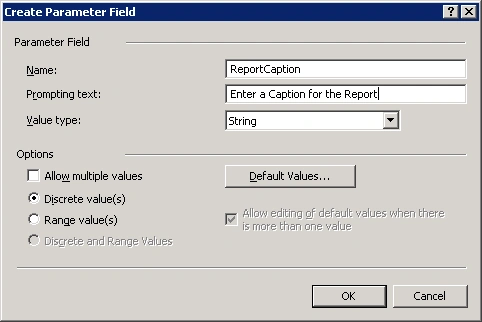
Figure 2
Let's add a range parameter field to introduce a department identifier range (see Figure 3). Now you can drag and drop these two parameter fields onto the report design surface and run the application.
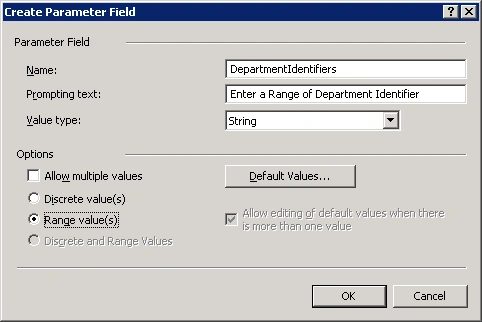
Figure 3
When the application is running, then you're prompted for entering the parameter fields. For the Caption parameter field, we have (see Figure 4).
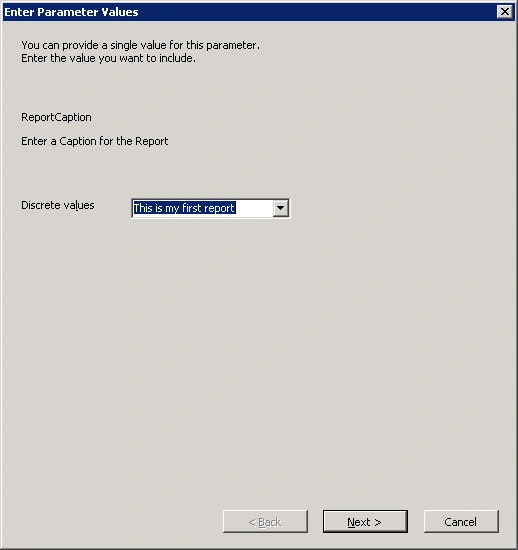
Figure 4
For the Department Identifier range parameter field, we have the following figure (see Figure 5).
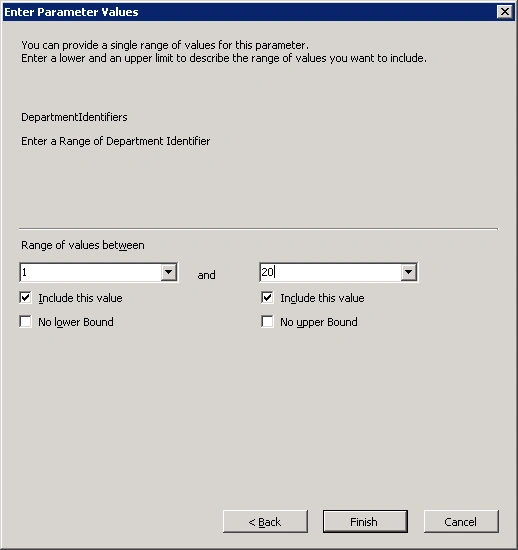
Figure 5
Now we're going to start by looking the implementation of setting value to parameter fields. When you bind the report item with the CrystalReportViewer control, a new object is added to the form design surface. This object represents an instance of the report. Set this object name to m_rptParameterFields. Parameters within a report are contained within the collection named ParameterFields. You can add programmatically new, configure and delete parameters.
In order to set a value to the ReportCaption parameter field, you must use the following code (see Listing 1).
ParameterValues pvValues = new ParameterValues();
ParameterDiscreteValue pdvDiscreteValue = new ParameterDiscreteValue();
pdvDiscreteValue.Value = "This is my first report caption.";
pvValues.Add(pdvDiscreteValue);
ParameterFieldDefinitions pfdDefinitions = this.m_rptParameterFields.DataDefinition.ParameterFields;
ParameterFieldDefinition prdDefinition = pfdDefinitions["ReportCaption"];
prdDefinition.ApplyCurrentValues(pvValues);
this.m_crvCrystalReportViewer.Refresh();
Listing 1
Conclusion
In this article, I covered how to work with ParameterFields in CrystalReports technology. You can apply this technique to your own business case.
hoabkit nguyen dangPosted Jan 4, 2012, 12:19 PM
http://codetutorial.net
Dinindu FernandoeditedPosted May 11, 2011, 6:59 AMEdited May 11, 2011, 7:00 AM
Nice article John It did help me Thx
Pedro CarvalhoPosted Jun 29, 2009, 9:47 AM
I have a program in VS2008 where a report uses a parameter field to show data about some names in a table. When I add a new name to the table and go to the report and ask the new name trough the parameter field this new name does noth show. Why? Tanks for your help Curupira