
Introduction
Ajax (Asynchronous JavaScript and XML) is a new web development technique for interactive websites. AJAX can help develop a web application and retrieve small amounts of data from a web server. AJAX consists of a different type of technology.
- JavaScript
- XML
- Asynchronous Call to the server
PasswordStrength Control
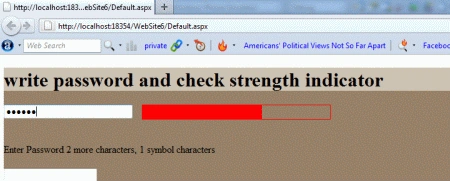
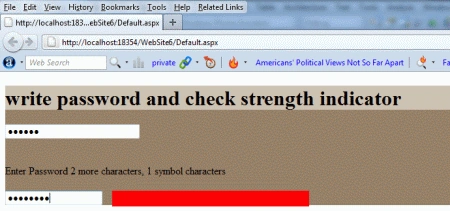
The PasswordStrength extender shows the strength of the password in the TextBox and updates itself as the user types the password. The indicator can display the strength of the password as a text message or with a progress bar indicator. The styling and position of both types of indicators is configurable. The required strength of the password is also configurable, allowing the page author to tailor the password strength requirements to their needs.
Property
- TargetControlID
- DisplayPosition
- StrengthIndicatorType
- BarBorderCssClass
- BarIndicator
- PrefixText
Step 1 : Open Visual Studio 2010.
- Go to File->New->WebSite
- Select ASP.NET Empty WebSite
Step 2 : Go to the Solution Explorer and right-click.
- Select Add->New Item
- Select WebForm
- Default.aspx page open
Step 3 : Go to the Default.aspx page and click on the [Design] option and drag the control from the Toolbox.
- Drag ScriptManager control, UpdatePanel control, Label,TextBox
Define Content Template for UpdatePanel
Step 4 : Go to Default.aspx [Source] option and define <ContentTemplate>.
<ContentTemplate>
<h1 style="background-color: #CEC2B3">write password and check strength indicator</h1>
<asp:TextBox ID="TextBox1" runat="server" Width="200px" TextMode="Password"></asp:TextBox>
<br />
<br />
<br />
Enter Password
<asp:Label ID="Label1" runat="server" Text="Label"></asp:Label>
<br />
<br />
<asp:TextBox ID="TextBox2" runat="server" TextMode="Password"></asp:TextBox>
<asp:Label ID="Label2" runat="server" Text="Label"></asp:Label>
<asp:PasswordStrength ID="PasswordStrength1" runat="server" TargetControlID="TextBox1" DisplayPosition="RightSide" StrengthIndicatorType="BarIndicator" BarBorderCssClass="barBorder" BarIndicatorCssClass="barInternal" PrefixText="Strength:" HelpStatusLabelID="Label1" PreferredPasswordLength="8" MinimumNumericCharacters="1" MinimumSymbolCharacters="1" >
</asp:PasswordStrength>
Step 5 : We have two Textboxes inside the Update Panel. For the one that will perform a successful Ajax postback, define the textbox property "TextMode="Password".
Code
<asp:TextBox ID="TextBox1" runat="server" Width="200px" TextMode="Password"></asp:TextBox>
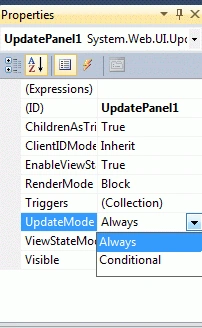
Step 6 : Go to the Default.aspx page [Design] option and click on the UpdatePanel Control.
- Select the Properties option and define UpdateMode
Step 7 : We will define CSS for the Password Strength.
Code
<style type="text/css">
.barBorder
{
border: solid 1px red;
width: 300px;
}
.barInternal
{
background: Red;
}
.barInternalGreen
{
background: green;
}
</style>
Step 8 : Go to the Toolbox option and drag Password Strength Extender control.
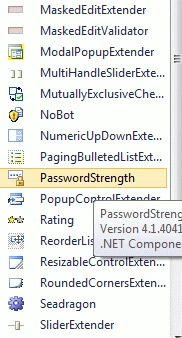
Step 9 : Go to the Default.aspx[Source] page option and define all Password Strength property.
Code
<asp:PasswordStrength ID="PasswordStrength1" runat="server" TargetControlID="TextBox1" DisplayPosition="RightSide" StrengthIndicatorType="BarIndicator"
BarBorderCssClass="barBorder" BarIndicatorCssClass="barInternal" PrefixText="Strength:" HelpStatusLabelID="Label1" PreferredPasswordLength="8"
MinimumNumericCharacters="1" MinimumSymbolCharacters="1" >
</asp:PasswordStrength>
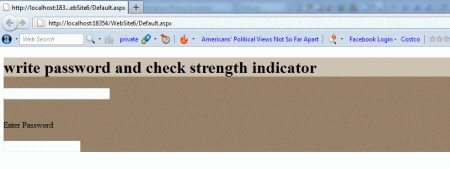
Step 10 : Go to the Default.aspx page and write the following code:
Abhi KumarPosted Jan 30, 2012, 11:29 PM
Very useful article.