

Introduction
While working with SharePoint in Power Automate, filtering is something that comes up in almost every flow. But in real data, small things like apostrophes in names or actual file field names can cause issues.
Here, we will see 2 simple cases.
Prerequisites
Basic understanding of creating flows in Power Automate.
Basic knowledge of SharePoint.
Case 1: Filtering Records with Apostrophe (') in Name Field
Scenario
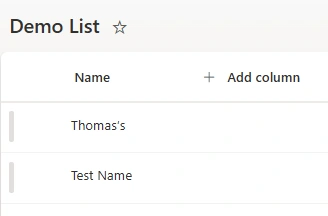
I have a SharePoint list named "Demo List" as per above image, and I needed to filter records based on the Name field where the value is something like Thomas's.
When I tried to use this dynamic value directly in the filter query, it started failing because the single quote ( ' )breaks the query format. So instead of passing the value directly, I stored that value in a variable first (as shown in the below image) and then used that variable inside the Get Items filter query.
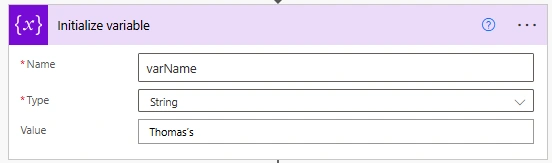
After storing the value, add filter query in get items action:
Name eq 'replace(variables('varName'), '''', '''''')'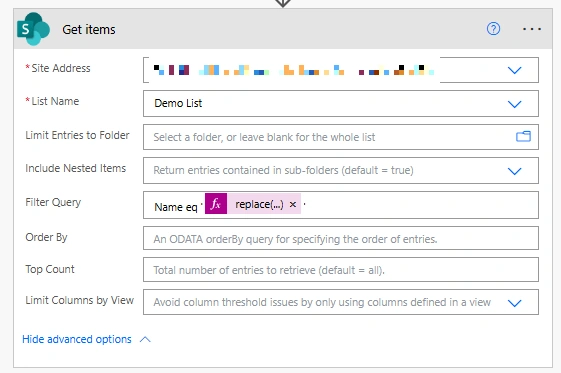
The reason for using replace() here is important. In filter queries, single quote (') is treated as the start or end of a string. So when a name like Thomas's comes, SharePoint reads it incorrectly and the query fails.
To handle this, we replace every single quote (') with two single quotes (''). This is the correct way to escape apostrophes in OData queries. Because of this, the value is treated as a proper string, and the filter query works without any error even when the data contains 's.
Test the flow with both normal names and names containing 's, and verify that the filter query works correctly in both cases.
Case 2: Filtering Files by File Name from Document Library
In this case, I have a document library, and I needed to filter a file based on its file name, which is "ExcelTemplate.xlsx", as shown in the below image.
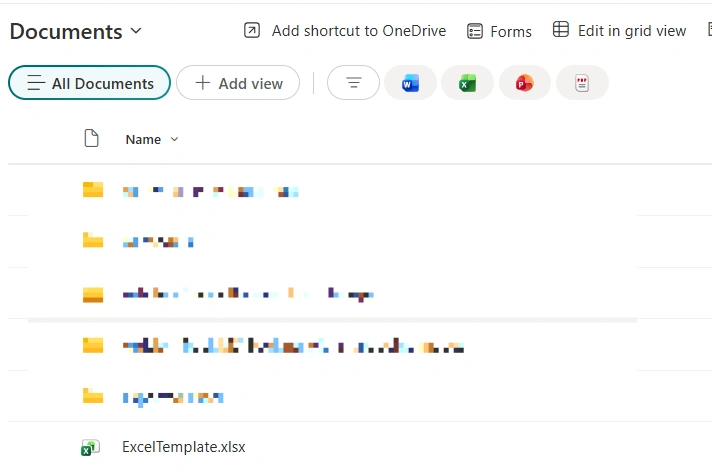
For this article, I am using the file name manually. In a real scenario, you can pass this value dynamically from a trigger or any previous step in your flow.
To filter the file by name, in Get Files (Properties Only), add the below filter query:
FileLeafRef eq 'ExcelTemplate.xlsx'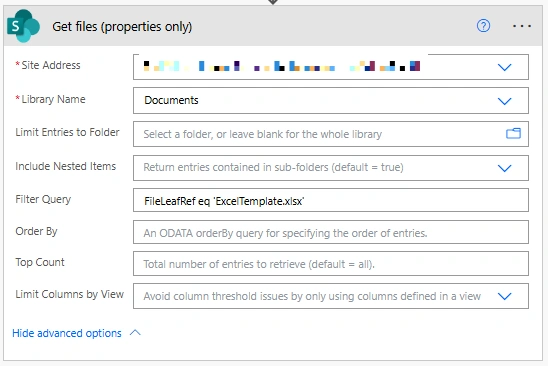
Here, FileLeafRef is used because it is the internal column name in SharePoint that represents the file name (including extension). Even though we see the file name as “Name” in the document library, internally SharePoint stores it as FileLeafRef, and that’s why we use it in the filter query.
Test the flow by running it and verify that the specific file is returned based on the given file name.
Conclusion
These two scenarios show how small things like special characters and internal field names can affect filtering in Power Automate.
Once you handle them correctly, your flow works smoothly without unexpected errors.
Join the conversation! Your thoughts help the community grow.