

Tablet PC SDK provides two very powerful but easy to use Ink controls for Ink recognition. These two controls are - InkEdit and InkPicture. This article discusses how to work with InkEdit and InkPicture controls.
Adding Tablet PC Ink Controls
Ink recognition controls are controls that recognizes Tablet PC Ink and provides functionality to work with Ink.
You can add Ink Controls to the Toolbox by right clicking on the Components tab of Toolbox and select Add/Remove Items, which launches Customize Toolbox dialog. Select InkEdit and InkPicture check boxes and click OK. ( See Figure 1).
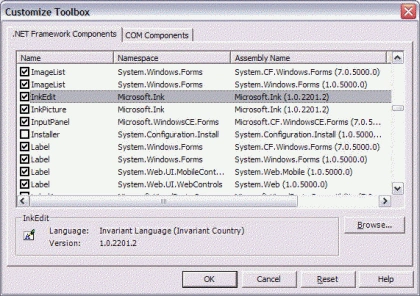
Figure 1. Adding Ink Controls to Toolbox.
Once these controls are added to Toolbox, you can simply drag and drop them to the Form and work with them. See Figure 2.
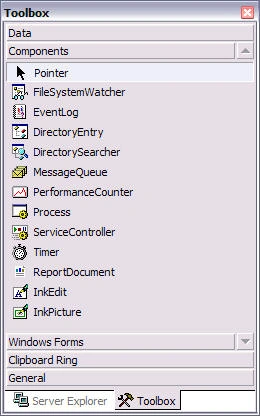
Figure 2. InkEdit and InkPicture controls.
InkEdit Control
InkEdit control is an extended version of Windows Forms RichTextBox control. Besides the standard TextBox functionality, this control is Ink enabled, which means if you draw in the control using Tablet PC Ink Pen, the control recognizes the text written in it.
To test the InkEdit control, I create a Windows Forms application and drags InkEdit control to the Form. Download InkEdit Source code here. See Figure 3.
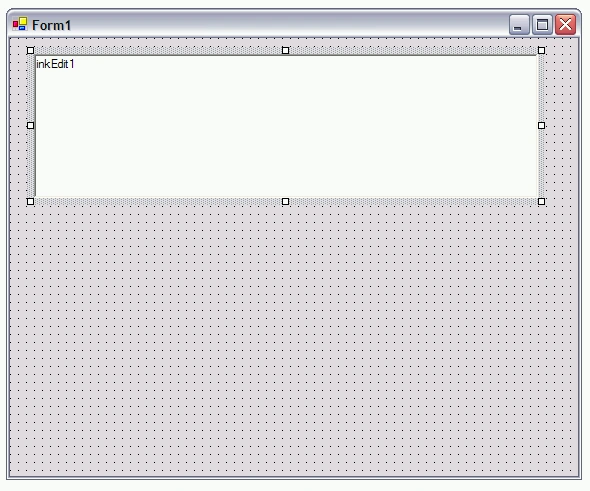
Figure 3. InkEdit sample.
That's it. We are all done. There is no need to write any code. Now if you run the application and use pen to write on the InkEdit control as shown in Figure 4.
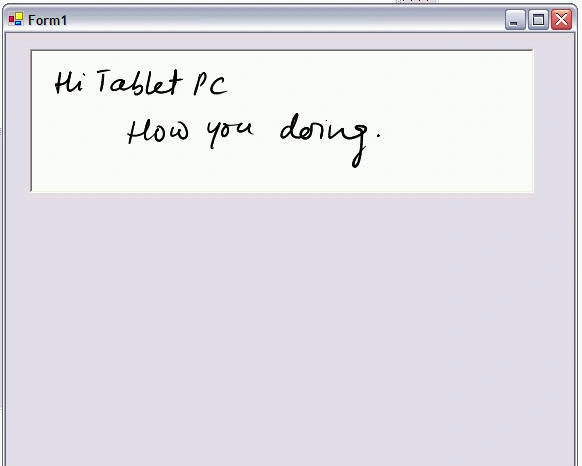
Figure 4. InkEdit control with ink.
The next second you will notice the InkEdit control and changes ink to text as shown in Figure 5. If you don't have your recognizer load, you may see some spelling mistakes as you can see our control has converted "Hi" to "this". So no more sloppy writing.
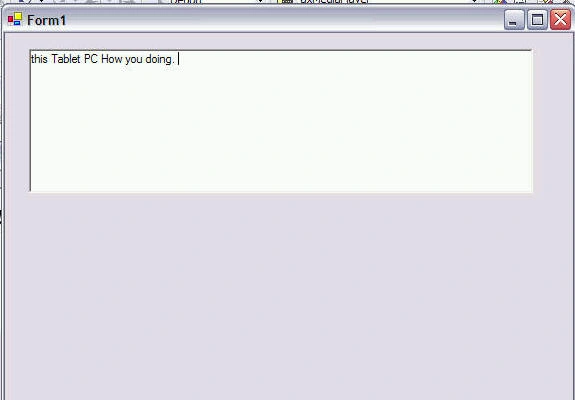
Figure 5. Converted ink to text.
The InkEdit control provides properties, methods, and events to work with the control and manage control on other levels. For example, the Text property of InkEdit returns the text of the control.
Pretty simple. Huh?
The InkMode Property
The InkMode property is used to set whether InkEdit control accepts ink and gesture. If you do not want InkEdit control to accept ink, you can disable InkMode by using InkMode enumerations.
inkEdit1.InkMode = InkMode.Disabled;
talal aslamPosted Dec 10, 2011, 8:05 AM
How can I add custom handwritten gesture and their meaning in Ink API ink Recognizer I want to create an Tablet PC Application where the user can write a gesture and its text data The gesture and its corresponding text is added in recognizer I used the ink API but the drawback is that it only suggest the dictionary words but the words that is not in the dictionary are Not be suggested How can I add them Plz plz plz plz reply urgently At [email protected] if the work on that problem is already done that plz give me the reference web address so I can further move on Thanks and Best Regards
sanPosted Feb 16, 2011, 1:34 AM
Hi . Thanks for article, but first of all i am not able to write to InkEdit control using mouse,it can be only written bby keyboard...any suggestion?