
Windows PowerShell variables are quite different compared to the Cmd.exe variables. In Command Prompt, all the variables are environment variables and they can only store a string of text. But in Windows PowerShell, variables can store more than just text; they store objects.These variables help you to create reliable scripts.
Creating a Variable
It is easy to create a variable in PowerShell - you just need to validate a variable name with $ character as prefix.
Example
PS C:\ > $myName

Note - Variable names start with $ character.
Assigning a value
To assign a value to a variable, use assignment ( = ) operator.
Example
PS C:\> $myName = “Rakesh Vemulawada”

Find the Type of a Variable
To identify the type of a variable, use GetType( ) method.
Example
PS C:\ > $myName.GetType( )

List Information about the Content of a Variable
To display information about the content of a variable, use Get-Member
Example
PS C:\ > $myName | Get-Member

ToUpper ( )
To Convert a String variable to its Upper case, use ToUpper( ) method
Example
PS C:\> $myName.ToUpper()

Automatic and Preference variables ( Variable)
PowerShell provides us the Variable : drive using which we can access all the automatic and preference variables in Windows PowerShell. Use the below syntax to view these variables.
Syntax
PS C:\> Get-ChildItem Variable,
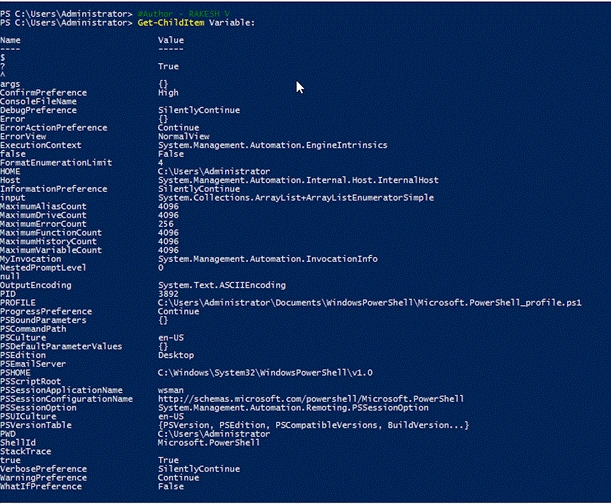
Image
List of Automatic and Preference variables
Automatica Variables
These variables tell you something about the Windows PowerShell’s current state.
Example
PS C:\> $PWD.Path --> Gives you Current path.
Preference Variables
These variables allow us to change a user preference.
Example
PS C:\> $ErrorActionPreference =”Stop”
Environment Variables ( Env)
You can access all the Environment variables using Env: drive. These variables contain important information about the computer system.
Syntax
PS C:\> Get-ChildItem Env:
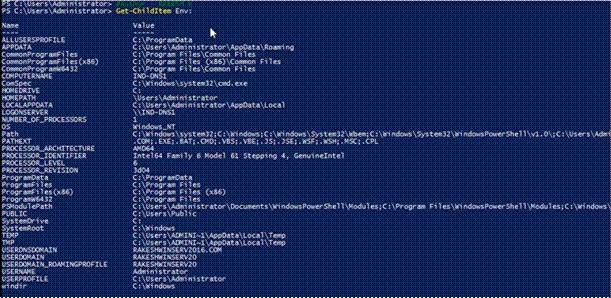
Image
List of Environment Variables in Windows PowerShell
To Display Computer Name
Example
PS C:\> $Env:ComputerName

Join the conversation! Your thoughts help the community grow.