

WPF applications are good but they sometimes have poor and simple controls and not-so-attractive UIs. Well, it might reduce your application’s value in front of your potential clients. So today, I decided to write this article in order to help developers create an application with an attractive UI. Okay, we will start from the simplest things.
- To start our simple application we need to install Visual Studio 2017 and make a new WPF application.
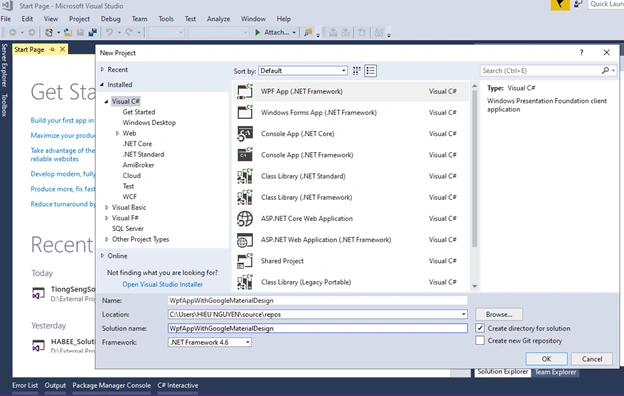
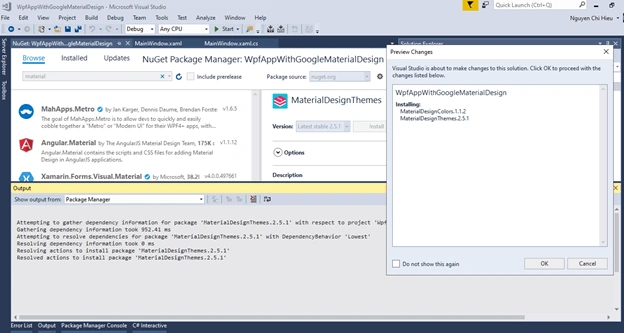
- Add Material Design Themes via Nuget Packages manager after your app was created successfully. You can do that by right clicking into References folder and selecting manager Nuget packages, entering “Material Design Themes” into the search box and installing the library (could get version 2.5.0.xx)
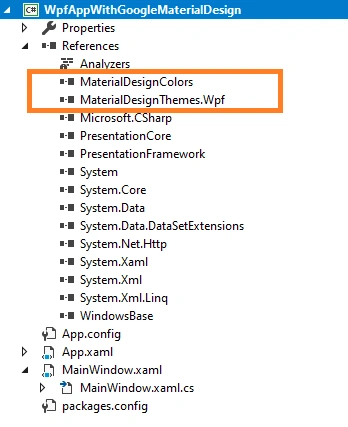
- If you see 2 dlls were added into your references folder like the image below, you have completed 50% your journey towards an interesting application with an attractive UI.
- Add some lines of code under <ResourceDictionary> tag for setting up the default template into App.xaml
- // Copy codes for setup template
- <ResourceDictionary.MergedDictionaries>
- <ResourceDictionary Source="pack://application:,,,/MaterialDesignThemes.Wpf;component/Themes/MaterialDesignTheme.Light.xaml" />
- <ResourceDictionary Source="pack://application:,,,/MaterialDesignThemes.Wpf;component/Themes/MaterialDesignTheme.Defaults.xaml" />
- <ResourceDictionary Source="pack://application:,,,/MaterialDesignColors;component/Themes/Recommended/Primary/MaterialDesignColor.BlueGrey.xaml" />
- </ResourceDictionary.MergedDictionaries>
- // Copy codes for setup template -- end
- Back your app and open MainWindow.xaml to insert some new material controls.
- // Setting namespace
- xmlns:materialDesign="http://materialdesigninxaml.net/winfx/xaml/themes"
- // End – setting namespace
- // Header style custom
- <Style x:Key="headerStyle">
- <Setter Property="TextBlock.TextWrapping" Value="Wrap" />
- <Setter Property="TextBlock.TextAlignment" Value="Center" />
- <Setter Property="TextBlock.FontWeight" Value="Bold" />
- <Setter Property="TextBlock.FontSize" Value="27" />
- <Setter Property="TextBlock.FontFamily" Value="Microsoft YaHei UI" />
- <Setter Property="TextBlock.Foreground" Value="#666666" />
- </Style>
- // End – header style custom
- // Main controls
- <TextBlock Text="Demo Material Aplication" Style="{StaticResource headerStyle}" />
- <TextBox Name="txtUserName" FontSize="24" HorizontalContentAlignment="Center" Style="{StaticResource MaterialDesignFloatingHintTextBox}" MaxLength="28" materialDesign:HintAssist.Hint="Enter your username" />
- <TextBox Name="txtYourPassword" FontSize="24" HorizontalContentAlignment="Center" Style="{StaticResource MaterialDesignFloatingHintTextBox}" MaxLength="28" materialDesign:HintAssist.Hint="Enter your password" />
- <Button Margin="0 20" Style="{StaticResource MaterialDesignRaisedLightButton}">
- LOGIN INTO SYSTEM
- </Button>
- // End - Main controls
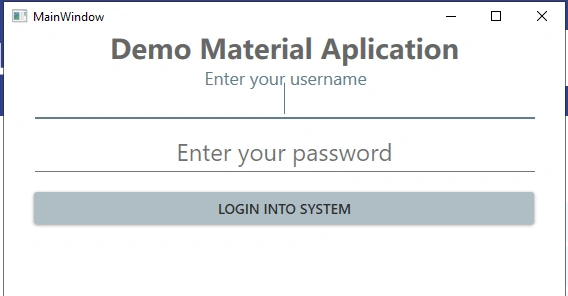
- Save everything that you did and build your application now, you will be surprised with the new UI of your demo.
To get more information about the Material design and study a lot of controls included in this library, please go to this link.
I have included my demo application just in case you need to download it.
Contact me for further discussion on the latest techniques.
Hope you will enjoy it. Good luck.
Amit MohantyPosted Jun 26, 2019, 2:11 AM
Nice article !!!