

WPF DropDownButton Control
If you have written any Windows Forms or WPF applications, I
am sure you are familiar with a Button, ComboBox and DropDown controls. How
about a Button acts as a DropDown control when you click on t? That is what the
WPF team has added in the WPF Toolkit, a new control called DropDownButton.
When you click on this button, you can load any content control you want when
the button is clicked.
This article demonstrates how to use the DropDownButton control
in a WPF application
using C#
and XAML.
Adding Reference to WPF Toolkit
Extended Assembly
The DropDownButton control is a part of the WPF Toolkit Extended and does not come with Visual Studio 2010. To use the Calculator control in your application, you must add reference to the WPFToolkit.Extended.dll assembly. You can download Extended WPF Tookit from the CodePlex or you can use the WPFToolkit.Extended.dll available with this download. All you need is the DLL. See Downloads section of this article. You can find more details in my blog Adding Reference to WPF Toolkit Extended.
Creating a DropDownButton
The DropDownButton element represents a WPF DropDownButton control in XAML. The DropDownButton control is defined in the System.Windows.Controls namespace. The following code snippet creates a simple DropDownButton control.
<wpfx:DropDownButton Width="200" Height="32" Content="DropDownButton:
ClickMe" />
Open and Close Events
Besides the standard Click event handler, the DropDownButton control has Opened and Closed event. These events are fired when the button is opened or closed respectively. The following code snippet adds these event handlers for the control.
<wpfx:DropDownButton Width="200" Height="32" Content="DropDownButton: ClickMe" Click="DropDownButton_Click" Closed="DropDownButton_Closed" Opened="DropDownButton_Opened">
private void
DropDownButton_Click(object sender, RoutedEventArgs e)
{
MessageBox.Show("Clicked");
}
private void
DropDownButton_Closed(object sender, RoutedEventArgs e)
{
MessageBox.Show("Closed");
}
private void
DropDownButton_Opened(object sender, RoutedEventArgs e)
{
MessageBox.Show("Dropped");
}
IsOpen and DropDownContent
The IsOpen property represents weather the drop down is opened or closed. The DropDownContent property represents the content that will be displayed when a DropDownButton is opened.
The following code snippet creates a DropDownButton control
and sets its DropDownContent property to a ColorCanvas
control. You can set any other child control event a Window when this button is
opened.
<wpfx:DropDownButton Width="200" Height="32" Content="DropDownButton:
ClickMe"
Click="DropDownButton_Click" Closed="DropDownButton_Closed" Opened="DropDownButton_Opened">
<wpfx:DropDownButton.DropDownContent>
<wpfx:ColorCanvas />
</wpfx:DropDownButton.DropDownContent>
</wpfx:DropDownButton>
The output looks like Figure 1.
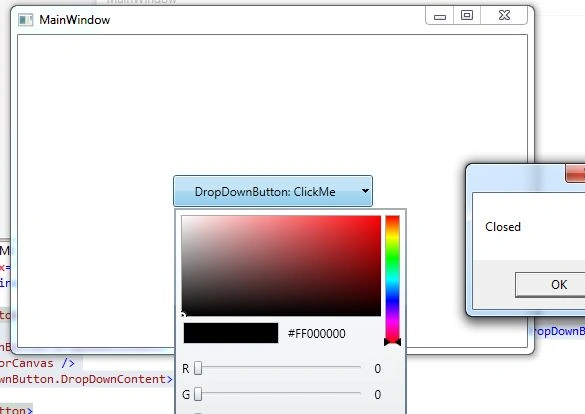
Figure 1
Summary
In this article, we discussed how to use the DropDownButton
control in a WPF
application using C# and XAML.
Mayur GujrathiPosted Nov 24, 2011, 1:33 AM
Nice introduction sir many many thanks