

Proper layout and positioning are a vital part of interactive, high-performance and user-friendly Windows applications. This series of articles explains the layout process in WPF. The series starts with an understanding of the WPF layout process. The next part of this series will cover the basics of layout and positioning, such as size, margin, padding and alignment of elements. Later in this series, I will cover various panels and related parent controls available in WPF.
Table of Contents
- WPF Layout System: An Introduction
- WPF Layout: Size, Width and Height
- WPF Layout: Margins
- WPF Layout: Horizontal and Vertical Alignment
- WPF Layout: Content Alignments
- WPF Layout: Dealing with Percentage Size in WPF
- WPF Layout: Panels
- WPF Layout: Canvas
- WPF Layout: DockPanel
- WPF Layout: Grid
- WPF Layout: StackPanel
- WPF Layout: WrapPanel
- WPF Layout: Border
- WPF Layout: VirtualizingStackPanel
Introduction
In the previous article, WPF Layout: DockPanel, I discussed the DockPanel. This article focuses on the Grid panel in details.
Grid Panel
The Grid Panel is the most complicated but versatile panel among all panels. A Grid panel can be used to design complicated user interfaces where we need to place multiple elements in a tabular format of rows and columns.
The Grid element in XAML represents a Grid panel. The following code snippet creates a Grid element and sets its background, width, height, vertical and horizontal alignment properties.
- <Grid Name="GridPanel" Background="Blue" Width="280" Height="220" VerticalAlignment="Top" HorizontalAlignment="Center" >
- </Grid>
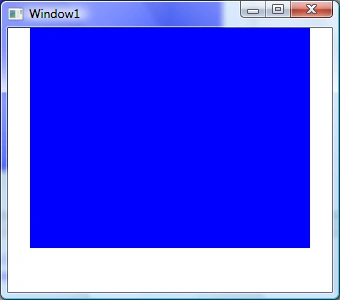
Figure 1
Grid Properties
A Grid has the three major properties, RowDefinitions, ColumnDefinitions and ShowGridLines. The RowDefinitions property is a collection of RowDefintions. The ColumnDefinitions property represents a collection of ColumnDefinition. The ShowGridLines property determines whether grid lines of a Grid panel are visible or not.
Create Grid
The Grid element in XAML represents a WPF Grid control. The following code snippet creates a Grid control, sets it width and foreground color and ensures the grid lines are visible.
- <Grid Name="MCGrid" Width="400" Background="LightSteelBlue" ShowGridLines="True" \>
- <Grid.ColumnDefinitions>
- <ColumnDefinition />
- <ColumnDefinition />
- <ColumnDefinition />
- </Grid.ColumnDefinitions>
- <Grid.RowDefinitions>
- <RowDefinition Height="45" />
- <RowDefinition Height="45" />
- <RowDefinition Height="45" />
- </Grid.RowDefinitions>
- <TextBlock Grid.Row="1" Grid.Column="2" Foreground="Green" Text="Age" Height="20" VerticalAlignment="Top" />
- <Window x:Class="GridSample.Window1"
- xmlns="http://schemas.microsoft.com/winfx/2006/xaml/presentation"
- xmlns:x="http://schemas.microsoft.com/winfx/2006/xaml"
- Title="Window1" Height="300" Width="450" WindowStyle="ThreeDBorderWindow">
- <Grid Name="MCGrid" Width="400" Background="LightSteelBlue" ShowGridLines="True">
- <Grid.ColumnDefinitions>
- <ColumnDefinition />
- <ColumnDefinition />
- <ColumnDefinition />
- </Grid.ColumnDefinitions>
- <Grid.RowDefinitions>
- <RowDefinition Height="45" />
- <RowDefinition Height="45" />
- <RowDefinition Height="45" />
- </Grid.RowDefinitions>
- <TextBlock FontSize="14" FontWeight="Bold" Grid.Row="0" Grid.Column="0" Foreground="Green"
- Text="Author Name" Height="20" VerticalAlignment="Top" />
- <TextBlock FontSize="14" FontWeight="Bold" Grid.Row="0" Grid.Column="1" Foreground="Green"
- Text="Age" Height="20" VerticalAlignment="Top" />
- <TextBlock FontSize="14" FontWeight="Bold" Grid.Row="0" Grid.Column="2" Foreground="Green"
- Text="Book" Height="20" VerticalAlignment="Top"/>
- <TextBlock FontSize="12" Grid.Row="1" Grid.Column="0">Mahesh Chand</TextBlock>
- <TextBlock FontSize="12" Grid.Row="1" Grid.Column="1">33</TextBlock>
- <TextBlock FontSize="12" Grid.Row="1" Grid.Column="2">GDI+ Programming</TextBlock>
- <TextBlock FontSize="12" Grid.Row="2" Grid.Column="0">Mike Gold</TextBlock>
- <TextBlock FontSize="12" Grid.Row="2" Grid.Column="1">35</TextBlock>
- <TextBlock FontSize="12" Grid.Row="2" Grid.Column="2">Programming C#</TextBlock>
- </Grid>
- </Window>
Listing 1
The output looks as in this Figure 2.
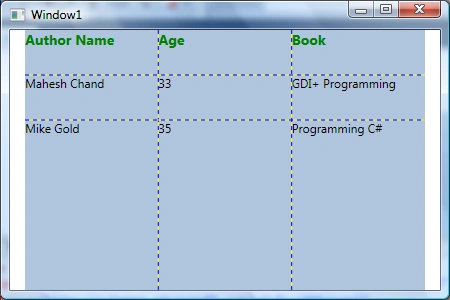
Figure 2
Create a Grid Dynamically
The Grid class in WPF represents a Grid control. The following code snippet in Listing 2 creates a Grid control, sets its width, horizontal alignment, vertical alignment and shows grid lines and sets a background color.
- Grid DynamicGrid = new Grid();
- DynamicGrid.Width = 400;
- DynamicGrid.HorizontalAlignment = HorizontalAlignment.Left;
- DynamicGrid.VerticalAlignment = VerticalAlignment.Top;
- DynamicGrid.ShowGridLines = true;
- DynamicGrid.Background = new SolidColorBrush(Colors.LightSteelBlue);
Listing 2
The following code snippet in Listing 3 adds three columns and three rows to a Grid.
- // Create Columns
- ColumnDefinition gridCol1 = new ColumnDefinition();
- ColumnDefinition gridCol2 = new ColumnDefinition();
- ColumnDefinition gridCol3 = new ColumnDefinition();
- DynamicGrid.ColumnDefinitions.Add(gridCol1);
- DynamicGrid.ColumnDefinitions.Add(gridCol2);
- DynamicGrid.ColumnDefinitions.Add(gridCol3);
- // Create Rows
- RowDefinition gridRow1 = new RowDefinition();
- gridRow1.Height = new GridLength(45);
- RowDefinition gridRow2 = new RowDefinition();
- gridRow2.Height = new GridLength(45);
- RowDefinition gridRow3 = new RowDefinition();
- gridRow3.Height = new GridLength(45);
- DynamicGrid.RowDefinitions.Add(gridRow1);
- DynamicGrid.RowDefinitions.Add(gridRow2);
- DynamicGrid.RowDefinitions.Add(gridRow3);
Listing 3
Once rows and columns are added to a Grid, you can add any contents to the Grid cells using SetRow and SetColumn methods. The SetRow and SetColumn methods take the first parameter as the control name and second parameter as row number and column number respectively. The following code snippet in Listing 4 creates a TextBlock control and displays it in Cell(0,0) that represents the first row and first column of Grid.
- // Add first column header
- TextBlock txtBlock1 = new TextBlock();
- txtBlock1.Text = "Author Name";
- txtBlock1.FontSize = 14;
- txtBlock1.FontWeight = FontWeights.Bold;
- txtBlock1.Foreground = new SolidColorBrush(Colors.Green);
- txtBlock1.VerticalAlignment = VerticalAlignment.Top;
- Grid.SetRow(txtBlock1, 0);
- Grid.SetColumn(txtBlock1, 0);
Listing 4
Once a control is created and its position within the Grid is set, the next step is to add the control to a Grid using the Grid.Children.Add method. The code snippet in Listing 5 adds a TextBlock to a Grid.
- DynamicGrid.Children.Add(txtBlock1);
Listing 5
The complete code is listed in Listing 6.
- private void CreateDynamicWPFGrid()
- {
- // Create the Grid
- Grid DynamicGrid = new Grid();
- DynamicGrid.Width = 400;
- DynamicGrid.HorizontalAlignment = HorizontalAlignment.Left;
- DynamicGrid.VerticalAlignment = VerticalAlignment.Top;
- DynamicGrid.ShowGridLines = true;
- DynamicGrid.Background = new SolidColorBrush(Colors.LightSteelBlue);
- // Create Columns
- ColumnDefinition gridCol1 = new ColumnDefinition();
- ColumnDefinition gridCol2 = new ColumnDefinition();
- ColumnDefinition gridCol3 = new ColumnDefinition();
- DynamicGrid.ColumnDefinitions.Add(gridCol1);
- DynamicGrid.ColumnDefinitions.Add(gridCol2);
- DynamicGrid.ColumnDefinitions.Add(gridCol3);
- // Create Rows
- RowDefinition gridRow1 = new RowDefinition();
- gridRow1.Height = new GridLength(45);
- RowDefinition gridRow2 = new RowDefinition();
- gridRow2.Height = new GridLength(45);
- RowDefinition gridRow3 = new RowDefinition();
- gridRow3.Height = new GridLength(45);
- DynamicGrid.RowDefinitions.Add(gridRow1);
- DynamicGrid.RowDefinitions.Add(gridRow2);
- DynamicGrid.RowDefinitions.Add(gridRow3);
- // Add first column header
- TextBlock txtBlock1 = new TextBlock();
- txtBlock1.Text = "Author Name";
- txtBlock1.FontSize = 14;
- txtBlock1.FontWeight = FontWeights.Bold;
- txtBlock1.Foreground = new SolidColorBrush(Colors.Green);
- txtBlock1.VerticalAlignment = VerticalAlignment.Top;
- Grid.SetRow(txtBlock1, 0);
- Grid.SetColumn(txtBlock1, 0);
- // Add second column header
- TextBlock txtBlock2 = new TextBlock();
- txtBlock2.Text = "Age";
- txtBlock2.FontSize = 14;
- txtBlock2.FontWeight = FontWeights.Bold;
- txtBlock2.Foreground = new SolidColorBrush(Colors.Green);
- txtBlock2.VerticalAlignment = VerticalAlignment.Top;
- Grid.SetRow(txtBlock2, 0);
- Grid.SetColumn(txtBlock2, 1);
- // Add third column header
- TextBlock txtBlock3 = new TextBlock();
- txtBlock3.Text = "Book";
- txtBlock3.FontSize = 14;
- txtBlock3.FontWeight = FontWeights.Bold;
- txtBlock3.Foreground = new SolidColorBrush(Colors.Green);
- txtBlock3.VerticalAlignment = VerticalAlignment.Top;
- Grid.SetRow(txtBlock3, 0);
- Grid.SetColumn(txtBlock3, 2);
- //// Add column headers to the Grid
- DynamicGrid.Children.Add(txtBlock1);
- DynamicGrid.Children.Add(txtBlock2);
- DynamicGrid.Children.Add(txtBlock3);
- // Create first Row
- TextBlock authorText = new TextBlock();
- authorText.Text = "Mahesh Chand";
- authorText.FontSize = 12;
- authorText.FontWeight = FontWeights.Bold;
- Grid.SetRow(authorText, 1);
- Grid.SetColumn(authorText, 0);
- TextBlock ageText = new TextBlock();
- ageText.Text = "33";
- ageText.FontSize = 12;
- ageText.FontWeight = FontWeights.Bold;
- Grid.SetRow(ageText, 1);
- Grid.SetColumn(ageText, 1);
- TextBlock bookText = new TextBlock();
- bookText.Text = "GDI+ Programming";
- bookText.FontSize = 12;
- bookText.FontWeight = FontWeights.Bold;
- Grid.SetRow(bookText, 1);
- Grid.SetColumn(bookText, 2);
- // Add first row to Grid
- DynamicGrid.Children.Add(authorText);
- DynamicGrid.Children.Add(ageText);
- DynamicGrid.Children.Add(bookText);
- // Create second row
- authorText = new TextBlock();
- authorText.Text = "Mike Gold";
- authorText.FontSize = 12;
- authorText.FontWeight = FontWeights.Bold;
- Grid.SetRow(authorText, 2);
- Grid.SetColumn(authorText, 0);
- ageText = new TextBlock();
- ageText.Text = "35";
- ageText.FontSize = 12;
- ageText.FontWeight = FontWeights.Bold;
- Grid.SetRow(ageText, 2);
- Grid.SetColumn(ageText, 1);
- bookText = new TextBlock();
- bookText.Text = "Programming C#";
- bookText.FontSize = 12;
- bookText.FontWeight = FontWeights.Bold;
- Grid.SetRow(bookText, 2);
- Grid.SetColumn(bookText, 2);
- // Add second row to Grid
- DynamicGrid.Children.Add(authorText);
- DynamicGrid.Children.Add(ageText);
- DynamicGrid.Children.Add(bookText);
- // Display grid into a Window
- RootWindow.Content = DynamicGrid;
- }
Listing 6
Managing Column Width and Row Height
The ColumnDefinition has three properties that are used to manage the width of a column in a Grid. These properties are Width, MaxWidth and MinWidth. The Width property represents the width of a column. The MaxWidth and MinWidth are used to set maximum and minimum width of a column.
The RowDefinition has three properties that are used to manage the height of a row in a Grid. These properties are Height, MaxHeight and MinHeight. The Height property represents the height of a row. The MaxHeight and MinHeight are used to set maximum and minimum height of a row.
The code listed in Listing 7 sets the width of columns and height of rows in a Grid panel at design-time using XAML.
- <Grid Name="MCGrid" VerticalAlignment="Top"
- HorizontalAlignment="Left" Background="LightSteelBlue" ShowGridLines="False">
- <Grid.ColumnDefinitions>
- <ColumnDefinition Width="120"/>
- <ColumnDefinition Width="50" />
- <ColumnDefinition Width="250"/>
- </Grid.ColumnDefinitions>
- <Grid.RowDefinitions>
- <RowDefinition Height="25" />
- <RowDefinition Height="22" />
- <RowDefinition Height="22" />
- <RowDefinition Height="22" />
- <RowDefinition Height="22" />
- <RowDefinition Height="22" />
- </Grid.RowDefinitions>
- <TextBlock FontSize="14" FontWeight="Bold" Grid.Row="0" Grid.Column="0"
- Text=" Author Name" Height="25"
- VerticalAlignment="Top"
- Background="DarkBlue" Foreground="WhiteSmoke" />
- <TextBlock FontSize="14" FontWeight="Bold" Grid.Row="0" Grid.Column="1"
- Text=" Age" Height="25" VerticalAlignment="Top"
- Background="DarkBlue" Foreground="WhiteSmoke" />
- <TextBlock FontSize="14" FontWeight="Bold" Grid.Row="0" Grid.Column="2"
- Text=" Book" Height="25" VerticalAlignment="Top"
- Background="DarkBlue" Foreground="WhiteSmoke" />
- <TextBlock Grid.Row="1" Grid.Column="0">Mahesh Chand</TextBlock>
- <TextBlock Grid.Row="1" Grid.Column="1">33</TextBlock>
- <TextBlock Grid.Row="1" Grid.Column="2">GDI+ Programming</TextBlock>
- <TextBlock Grid.Row="2" Grid.Column="0">John Trotter</TextBlock>
- <TextBlock Grid.Row="2" Grid.Column="1">42</TextBlock>
- <TextBlock Grid.Row="2" Grid.Column="2">ADO.NET Programming Cookbook</TextBlock>
- <TextBlock Grid.Row="3" Grid.Column="0">Mike Gold</TextBlock>
- <TextBlock Grid.Row="3" Grid.Column="1">35</TextBlock>
- <TextBlock Grid.Row="3" Grid.Column="2">Programming C#</TextBlock>
- <TextBlock Grid.Row="4" Grid.Column="0">Raj Kumar</TextBlock>
- <TextBlock Grid.Row="4" Grid.Column="1">22</TextBlock>
- <TextBlock Grid.Row="4" Grid.Column="2">XAML Development with C#</TextBlock>
- <TextBlock Grid.Row="5" Grid.Column="0">Praveen Kumar</TextBlock>
- <TextBlock Grid.Row="5" Grid.Column="1">28</TextBlock>
- <TextBlock Grid.Row="5" Grid.Column="2">WPF and Visual Studio 2010</TextBlock>
- </Grid>
Listing 7
The output of Listing 7 looks as in Figure 3.
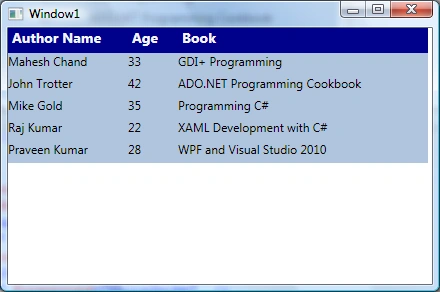
Figure 3
Add and Remove Columns
The Add method of Grid.ColumnDefinitions adds a new column to a Grid.
- DynamicGrid.ColumnDefinitions.Add(new ColumnDefinition());
- DynamicGrid.ColumnDefinitions.Insert(3, new ColumnDefinition());
- DynamicGrid.ColumnDefinitions.RemoveAt(3);
- DynamicGrid.ColumnDefinitions.Clear();
The Add method of Grid.RowDefinitions adds a new row to a Grid.
- DynamicGrid.RowDefinitions.Add(new RowDefinition());
- DynamicGrid.RowDefinitions.Insert(3, new RowDefinition ());
- DynamicGrid.RowDefinitions.RemoveAt(3);
- DynamicGrid.RowDefinitions.Clear();
The following code snippet in Listing 8 adds a Grid splitter to a Grid that you can use to resize a Grid row.
- <Grid Name="DynamicGrid" Width="466" Background="LightSteelBlue" ShowGridLines="True"
- Canvas.Top="119" Canvas.Left="8" Height="200">
- <Grid.ColumnDefinitions>
- <ColumnDefinition />
- <ColumnDefinition />
- <ColumnDefinition />
- </Grid.ColumnDefinitions>
- <Grid.RowDefinitions>
- <RowDefinition Height="50*" />
- <RowDefinition Height="Auto" />
- <RowDefinition Height="50*" />
- </Grid.RowDefinitions>
- <GridSplitter
- ResizeDirection="Rows"
- Grid.Column="0"
- Grid.ColumnSpan="10"
- Grid.Row="1"
- Width="Auto"
- Height="3"
- HorizontalAlignment="Stretch"
- VerticalAlignment="Stretch"
- Margin="0"
- Background="Green"/>
- </Grid>
Listing 8
Formatting Grid
The Background property of a Grid sets the background colors of a Grid. The following code snippet uses linear gradient brushes to draw the background of a Grid.
- <Grid.Background>
- <LinearGradientBrush StartPoint="0,0" EndPoint="1,1" >
- <GradientStop Color="Blue" Offset="0.1" />
- <GradientStop Color="Orange" Offset="0.25" />
- <GradientStop Color="Green" Offset="0.75" />
- <GradientStop Color="Red" Offset="1.0" />
- </LinearGradientBrush>
- </Grid.Background>
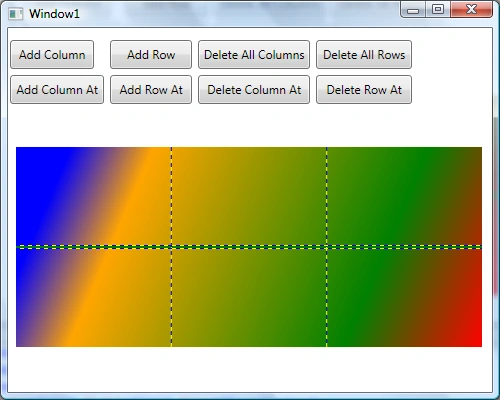
Figure 4
Setting Image as Background of a Grid
To set an image as the background of a Grid, we can set an image as the Background of the Grid. The following code snippet sets the background of a Grid to an image. The code also sets the opacity of the image.
- <Grid.Background>
- <ImageBrush ImageSource="Flower.jpg" Opacity="0.3"/>
- </Grid.Background>
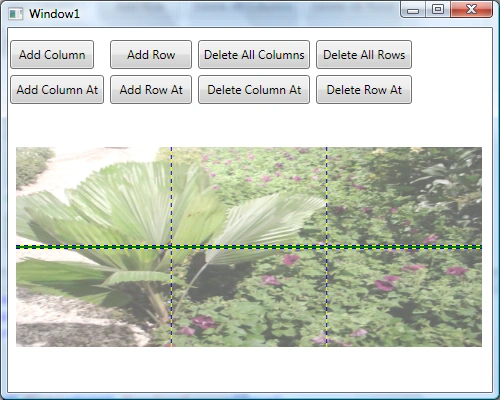
Figure 5
Summary
This article explained the Grid panel in WPF. In the next article of this series, I will focus on the Stack panel in details.
Former memberPosted Mar 26, 2015, 4:08 AM
Nice one sir