

Introduction
The abbreviation W.P.F simply refers to Microsoft’s Windows Presentation Foundation, and WinForms is a simple concatenation of Windows Forms Applications. These are both Microsoft’s Windows Applications Graphical User Interfaces that developers may use to develop Windows desktop applications. This article focuses on describing the major differences between the two approaches towards developing Windows desktop Applications that can serve a better purpose in modern-day systems development.
Windows Forms
WinForms was introduced in February 2002 as a GUI based approach to the .Net Framework. Largely, WinForms allows the developer to drag and drop controls on a Windows Form and allows the developer to manipulate these controls with a code-behind file that can have C#, VB.NET, or any other .NET language. Each WinForms control is an instance of a class because WinForms exists as a wrapper that has a set of C++ classes. Microsoft's Visual Studio allows easier workaround with WinForms as developers can easily drag and drop controls from a Toolbox.
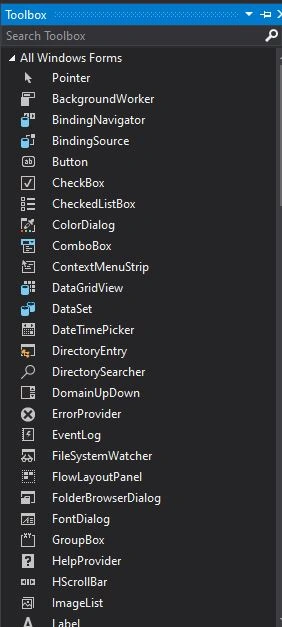
In a WinForms desktop application, the developer may only access the code-behind file where they can manipulate control events. WinForms desktop applications have their limits in terms of their controls' capabilities and application behavior as revealed in the next section.
WPF Desktop Applications
Unlike WinForms, WPF has an architecture that has three major components: a presentation framework, presentation core, and mallcore. WPF does not entirely rely on Standard Windows Controls and therefore comes as a stand-alone approach. In 2007, Microsoft introduced the Windows Presentation Foundation (WPF) to succeed WinForms for .Net Framework desktop application development. This succession brought about a lot of changes in desktop application development. To start with, WPF separates the designer and the programmer where the UI can be designed separately using Visual Studio or Blend while the developer can use the code-behind file to manipulate control events.
WPF uses XAML to create controls and its file structure is more like ASP.NET where you have the liberty to use a Designer or write the XAML code to create controls. Using the Canvas Panel designers still have the power to drag and drop controls on the windows page just like in WinForms. The major difference that WPF brings is the XAML file and the access to a visible designer that comes alongside the XAML file.
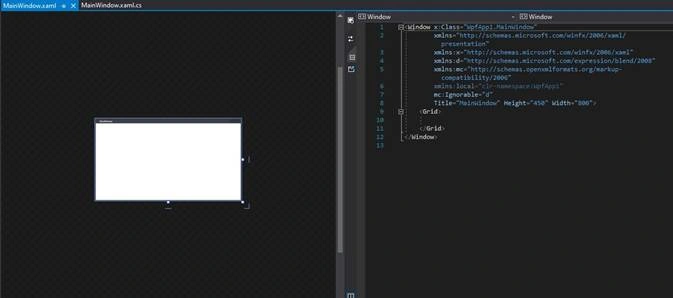
The above image shows the layout of a WPF application showing the XAML file alongside the Designer.
WPF project file structure is as follows:
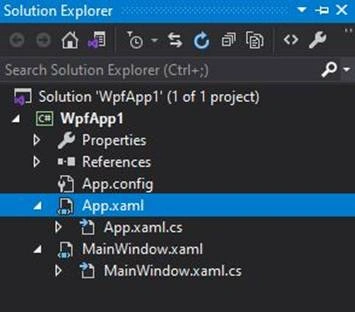
- Each Window or Page has a .xaml file for adding controls and a .cs, .vb, e.t.c file which is the code-behind file more like an ASP.NET approach.
- Unlike with WinForms, WPF generates an initial MainWindow that starts the application and to change the start Window you can do this in the App.xaml file.
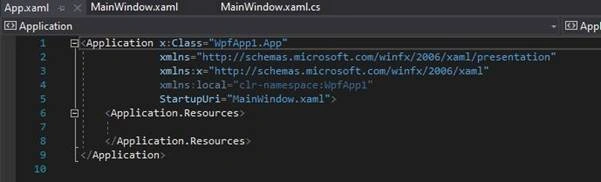
- This file acts as the entry to the application.
Other notable WPF differences from WinForms are the controls. To add a control you simply have to write simple XAML code. For instance, to add a Textbox in a WPF window you write:
- <Window x:Class="WpfApp1.MainWindow"
- xmlns="http://schemas.microsoft.com/winfx/2006/xaml/presentation"
- xmlns:x="http://schemas.microsoft.com/winfx/2006/xaml"
- xmlns:d="http://schemas.microsoft.com/expression/blend/2008"
- xmlns:mc="http://schemas.openxmlformats.org/markup-compatibility/2006"
- xmlns:local="clr-namespace:WpfApp1"
- mc:Ignorable="d"
- Title="MainWindow" Height="450" Width="800">
- <StackPanel>
- <TextBox></TextBox>
- </StackPanel>
- </Window>


Dinesh KudalePosted Mar 15, 2021, 5:17 AM
Thanks for sharing this knowledgeable information with us!