Let’s start.
In this article, you will create Android Circle ProgressBar..
Step 1
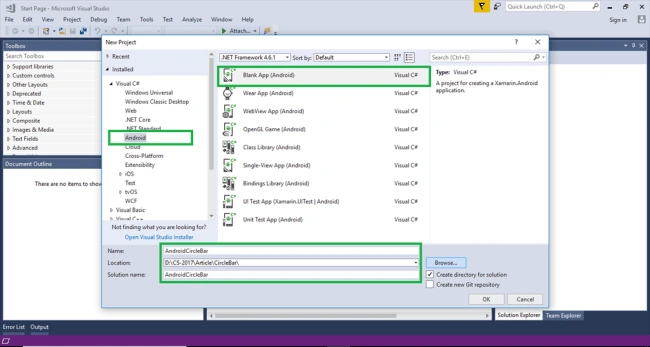
Open Visual Studio->New Project->Templates->Visual C#->Android->Blank App
Select Blank App. Then give Project Name and Project Location.
Step 2
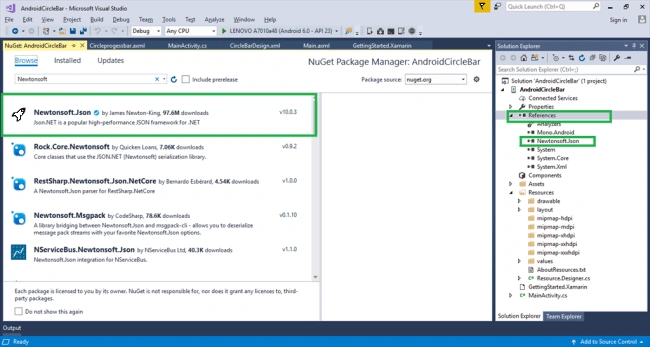
Go to Solution Explorer-> Project Name-> References then Right Click to Manage Nuget Packages then open new Dialog box. This dialog box is to search Json then Install the Newtonsoft.Json Packages.
Step 3
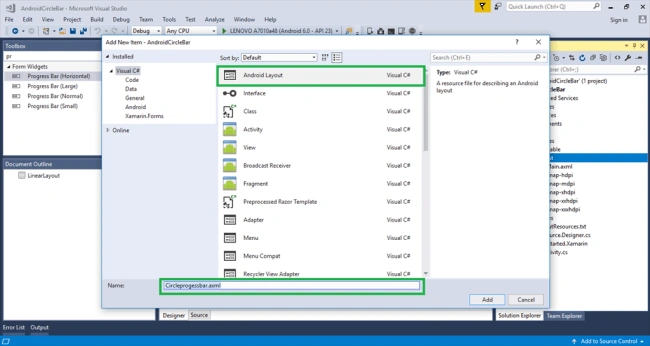
Next create New Layout for Design Page, go to Solution Explorer-> Project Name->Resources->layout then Right Click to Add->New Item then open new Dialog box. Then select Android Layout then give name for circularProgressbar.axml
Step 4
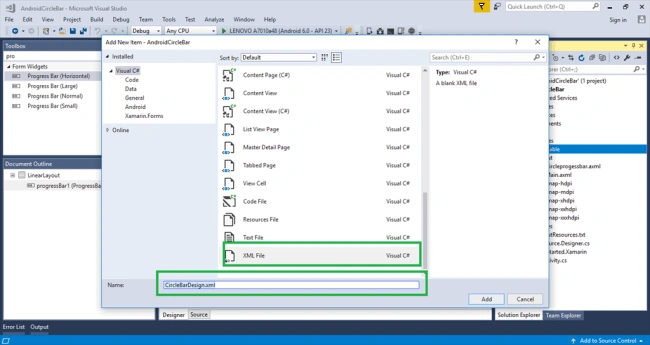
Next to create New XML for Circle Progressbar Design, go to Solution Explorer-> Project Name->Resources->Drawable then Right Click to Add->New Item then open new Dialog box. Then select Android Layout then give name for CircleBarDesign.xml
XML Code
- <?xml version="1.0" encoding="utf-8" ?>
- <layer-list xmlns:android="http://schemas.android.com/apk/res/android">
- <item android:id="@android:id/secondaryProgress">
- <shape android:innerRadiusRatio="6" android:shape="ring" android:thicknessRatio="20.0" android:useLevel="true">
- <gradient android:centerColor="#999999" android:endColor="#999999" android:startColor="#999999" android:type="sweep" /> </shape>
- </item>
- <item android:id="@android:id/progress">
- <rotate android:fromDegrees="270" android:pivotX="50%" android:pivotY="50%" android:toDegrees="270">
- <shape android:innerRadiusRatio="6" android:shape="ring" android:thicknessRatio="20.0" android:useLevel="true">
- <rotate android:fromDegrees="0" android:pivotX="50%" android:pivotY="50%" android:toDegrees="360" />
- <gradient android:centerColor="#00A859" android:endColor="#00A859" android:startColor="#00A859" android:type="sweep" /> </shape>
- </rotate>
- </item>
- </layer-list>
Step 5
Then open Solution Explorer-> Project Name->Resources->Layout-> circularProgressbar.axml click to open Design View then give the following code, here we create one ProgressBar and one Button for starting progressbar .
 AXML Code
- <?xml version="1.0" encoding="utf-8"?>
- <RelativeLayout xmlns:android="http://schemas.android.com/apk/res/android" xmlns:tools="http://schemas.android.com/tools" android:layout_width="match_parent" android:layout_height="match_parent" android:background="#fff" tools:context="com.example.parsaniahardik.progressanimation.MainActivity">
- <ProgressBar android:id="@+id/circularProgressbar" style="?android:attr/progressBarStyleHorizontal" android:layout_width="250dp" android:layout_height="250dp" android:indeterminate="false" android:max="100" android:progress="50" android:layout_centerInParent="true" android:progressDrawable="@drawable/circlebardesign" android:secondaryProgress="100" />
- <TextView android:id="@+id/tv" android:layout_width="250dp" android:layout_height="250dp" android:gravity="center" android:text="25%" android:layout_centerInParent="true" android:textSize="20sp" android:visibility="gone" />
- <RelativeLayout android:minWidth="25px" android:minHeight="25px" android:layout_width="wrap_content" android:layout_height="wrap_content" android:id="@+id/relativeLayout1" android:layout_alignParentBottom="true" android:layout_centerHorizontal="true">
- <Button android:text="Start" android:layout_width="wrap_content" android:layout_height="wrap_content" android:id="@+id/button1" /> </RelativeLayout>
- </RelativeLayout>
Step 6
Next to Open Solution Explorer-> Project Name->MainAtivity.cs,Open Oncreate()then implement following code,
- using Android.App;
- using Android.Widget;
- using Android.OS;
- using System.Threading;
- namespace AndroidCircleBar {
- [Activity(Label = "AndroidCircleBar", MainLauncher = true)]
- public class MainActivity: Activity {
- private static ProgressBar circularbar;
- private static Button BtnStart;
- private int progressStatus = 0, progressStatus1 = 100;
- protected override void OnCreate(Bundle savedInstanceState) {
- base.OnCreate(savedInstanceState);
- SetContentView(Resource.Layout.Circleprogessbar);
- circularbar = FindViewById < ProgressBar > (Resource.Id.circularProgressbar);
- BtnStart = FindViewById < Button > (Resource.Id.button1);
- BtnStart.Click += BtnStart_Click;
- circularbar.Max = 100;
- circularbar.Progress = 100;
- circularbar.SecondaryProgress = 100;
- }
- private void BtnStart_Click(object sender, System.EventArgs e) {
- new System.Threading.Thread(new ThreadStart(delegate {
- while (progressStatus < 100) {
- progressStatus += 1;
- progressStatus1 -= 1;
- circularbar.Progress = progressStatus1;
- System.Threading.Thread.Sleep(100);
- }
- })).Start();
- }
- }
- }
Step 7
Press F5 or Build and Run the Application.

Finally, we have successfully Created Xamarin Android Circle Progressbar.


divya sPosted Oct 19, 2020, 9:15 AM
Can you please help me for creating round corner progressbar
Logesh PalaniPosted Jan 11, 2018, 6:49 AM
Nice one..., Keep it up :)
Anbu ManiPosted Jan 10, 2018, 11:56 PM
Very Nice one..Keep it up :-)
Sagar Pandurang KapPosted Jan 10, 2018, 11:30 PM
Nice Article.What is AXML??
Rafnas T PPosted Jan 10, 2018, 11:08 PM
Nice one, keep sharing...