

Introduction
This application is to create and maintain Session Values in Xamarin Android.
Let’s start
Step 1
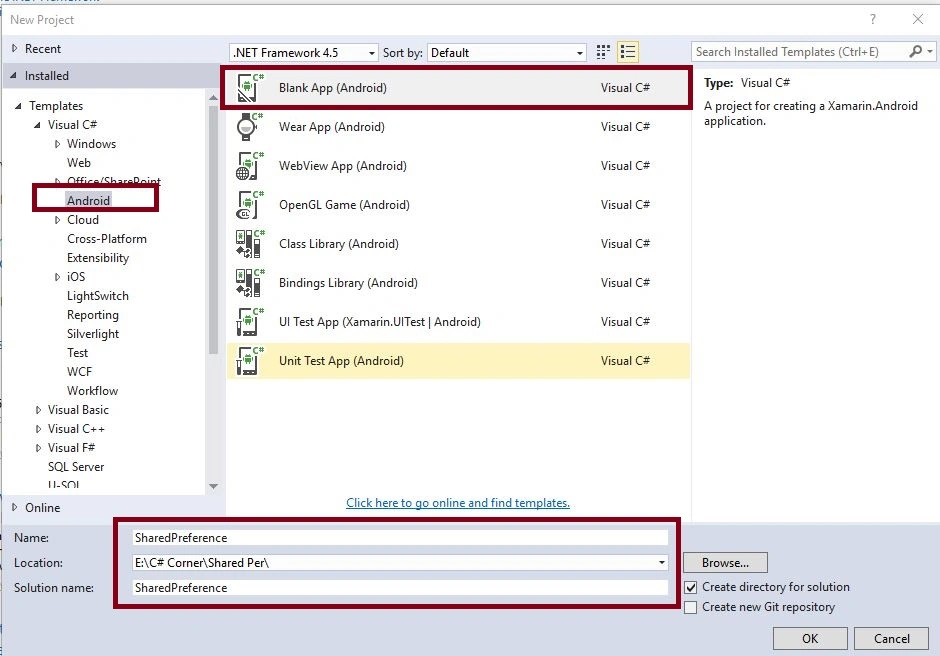
Open Visual Studio, New Project, Templates, Visual C#, Android, Blank App, Select Blank App (Android). Then give Project Name and Project Location.
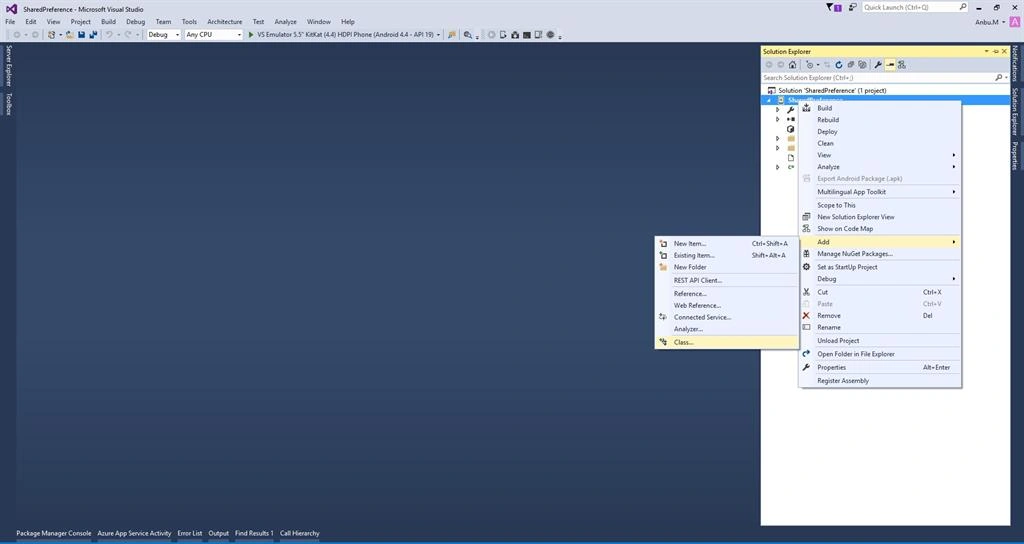
Step 2 - Next go to Solution Explorer-> Project Name then Right Click to Add->Class and open new Dialog box.
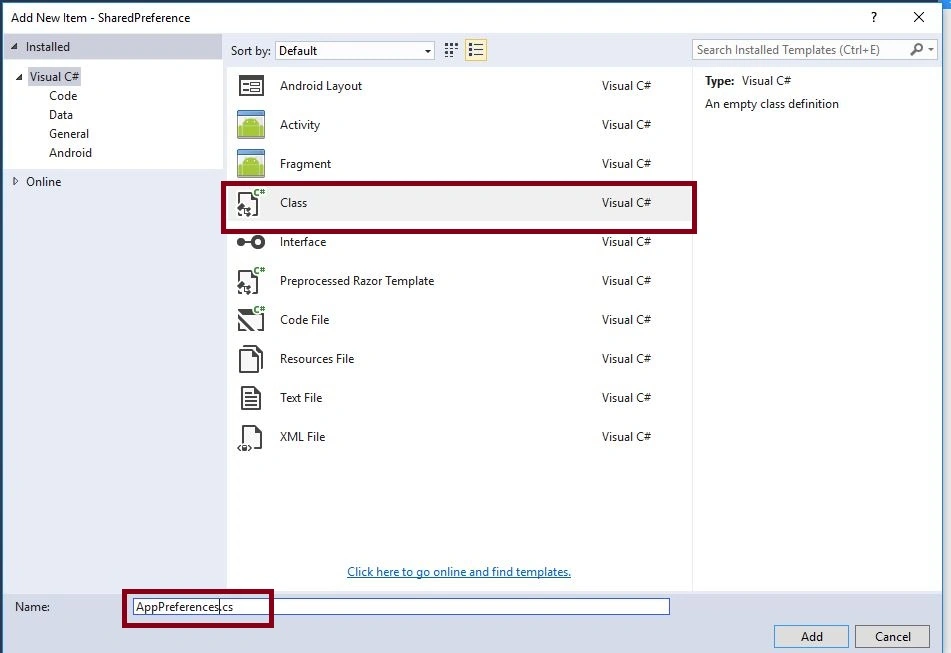
Step 3 - Dialog box to select Class and give the Name AppPreferences.cs,
Step 4 - Next, Open Solution Explorer, Project Name, Resources, AppPreferences.cs. Click to open the following code.
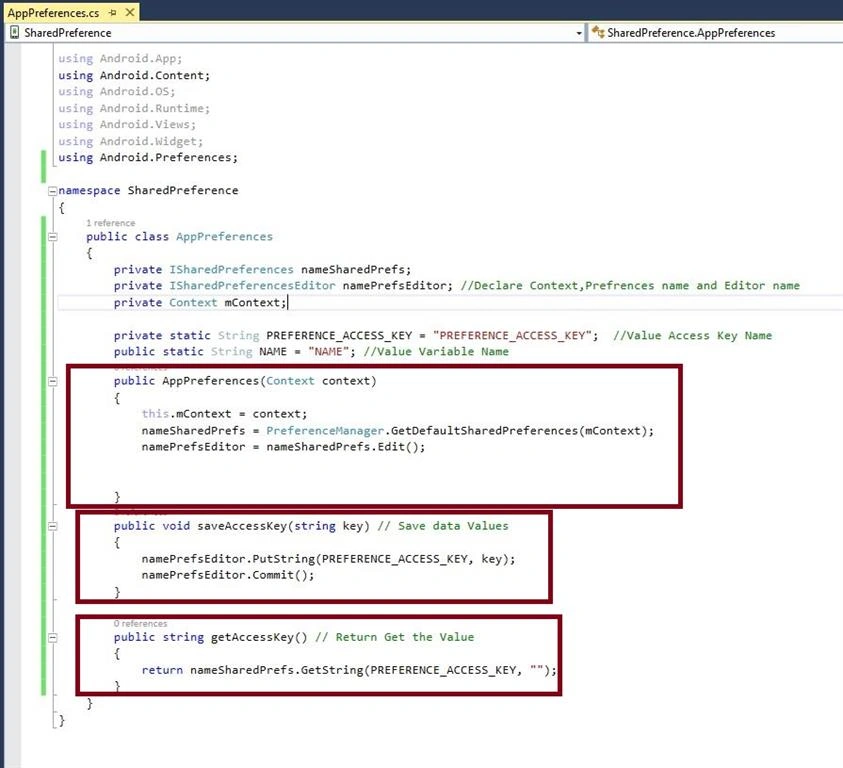
C# Code
- using System;
- using System.Collections.Generic;
- using System.Linq;
- using System.Text;
- using Android.App;
- using Android.Content;
- using Android.OS;
- using Android.Runtime;
- using Android.Views;
- using Android.Widget;
- using Android.Preferences; //Add New NameSpace
- namespace SharedPreference
- {
- public class AppPreferences
- {
- private ISharedPreferences nameSharedPrefs;
- private ISharedPreferencesEditor namePrefsEditor; //Declare Context,Prefrences name and Editor name
- private Context mContext;
- private static String PREFERENCE_ACCESS_KEY = "PREFERENCE_ACCESS_KEY"; //Value Access Key Name
- public static String NAME = "NAME"; //Value Variable Name
- public AppPreferences(Context context)
- {
- this.mContext = context;
- nameSharedPrefs = PreferenceManager.GetDefaultSharedPreferences(mContext);
- namePrefsEditor = nameSharedPrefs.Edit();
- }
- public void saveAccessKey(string key) // Save data Values
- {
- namePrefsEditor.PutString(PREFERENCE_ACCESS_KEY, key);
- namePrefsEditor.Commit();
- }
- public string getAccessKey() // Return Get the Value
- {
- return nameSharedPrefs.GetString(PREFERENCE_ACCESS_KEY, "");
- }
- }
- }
Step 5
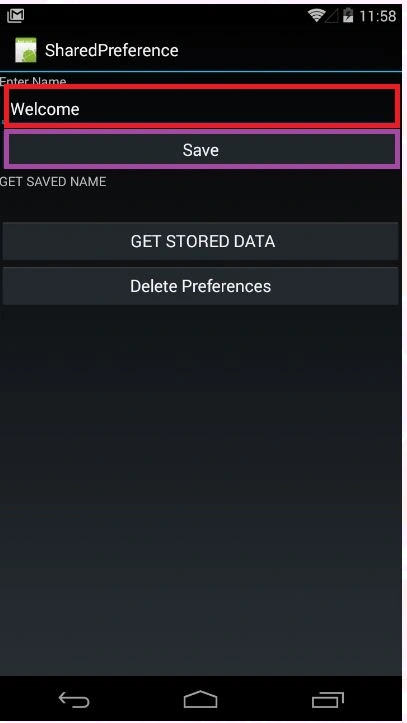
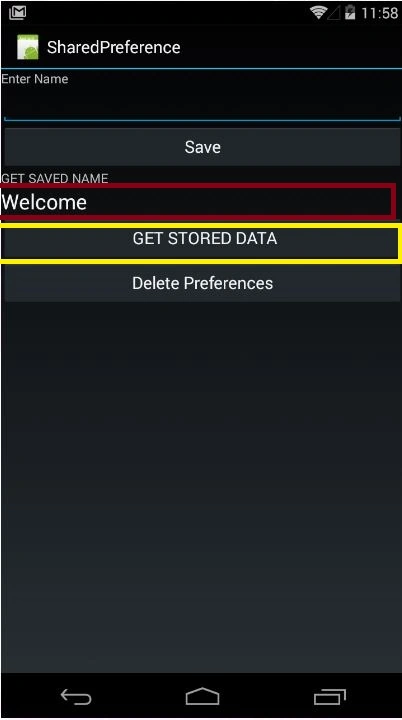
Then Open Solution Explorer, Project Name, Resources, layout, Main.axml, then click open Design View. Select Toolbar, then Drag and Drop design of Buttons, TextView, PlainText.
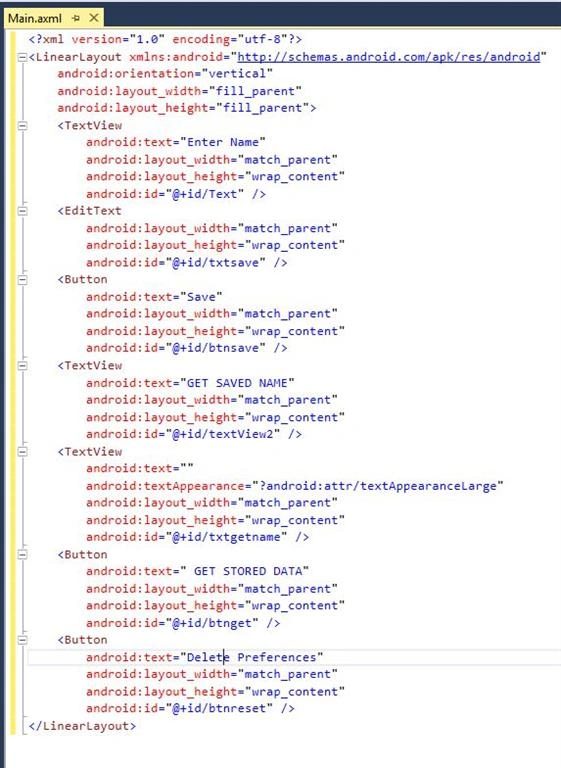
XML Code
- <?xml version="1.0" encoding="utf-8"?>
- <LinearLayout xmlns:android="http://schemas.android.com/apk/res/android"
- android:orientation="vertical"
- android:layout_width="fill_parent"
- android:layout_height="fill_parent">
- <TextView
- android:text="Enter Name"
- android:layout_width="match_parent"
- android:layout_height="wrap_content"
- android:id="@+id/Text" />
- <EditText
- android:layout_width="match_parent"
- android:layout_height="wrap_content"
- android:id="@+id/txtsave" />
- <Button
- android:text="Save"
- android:layout_width="match_parent"
- android:layout_height="wrap_content"
- android:id="@+id/btnsave" />
- <TextView
- android:text="GET SAVED NAME"
- android:layout_width="match_parent"
- android:layout_height="wrap_content"
- android:id="@+id/textView2" />
- <TextView
- android:text=""
- android:textAppearance="?android:attr/textAppearanceLarge"
- android:layout_width="match_parent"
- android:layout_height="wrap_content"
- android:id="@+id/txtgetname" />
- <Button
- android:text=" GET STORED DATA"
- android:layout_width="match_parent"
- android:layout_height="wrap_content"
- android:id="@+id/btnget" />
- <Button
- android:text="Delete Preferences"
- android:layout_width="match_parent"
- android:layout_height="wrap_content"
- android:id="@+id/btnreset" />
- </LinearLayout>

Rupesh KahanePosted Nov 25, 2016, 5:20 AM
Anbu Mani Thanks for sharing great article... I have one question for you. Is it possible to give Session Timeout so after login session will automatically log out ?
Prasanna MuraliPosted May 20, 2016, 9:32 PM
Nice one...
Neeraj KumarPosted May 7, 2016, 11:41 AM
Nice Article...
Vignesh ManiPosted May 6, 2016, 5:01 PM
good one
Kuppurasu NagarajPosted May 6, 2016, 9:10 AM
Nice Sharing..
Sr KarthigaPosted May 6, 2016, 3:36 AM
good one