

Introduction
This article demonstrates GridView using Image Navigation in Xamarin.Forms application. Xamarin is a platform that allows us to create a multi-platform mobile application for platforms, like Android, Windows, and IOS through a single integrated development environment (IDE).
Let's start.
Step 1
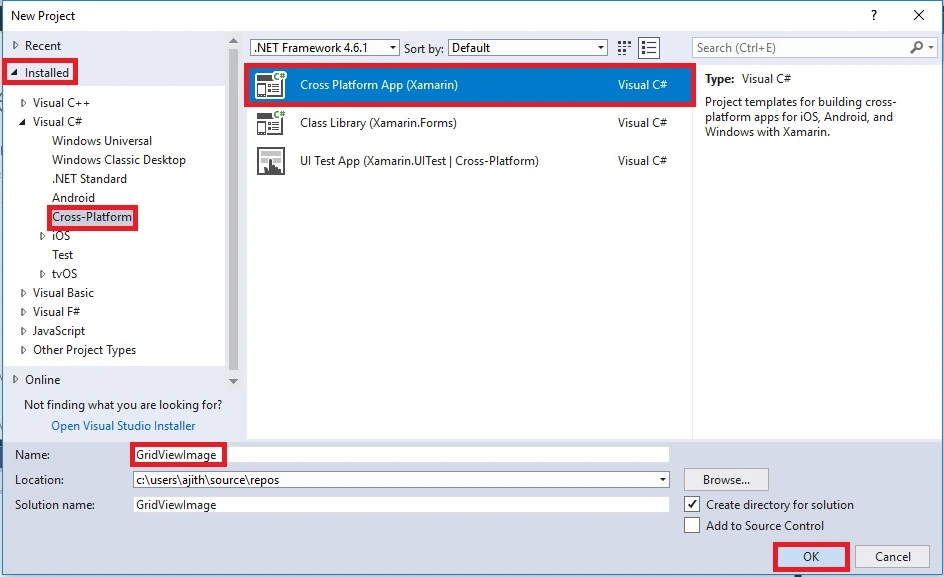
Open Visual Studio and go to New Project >> Installed >> Visual C# >> Cross-Platform.
Select Cross-Platform app, then give your project a name and location and click "OK" button.
Step 2
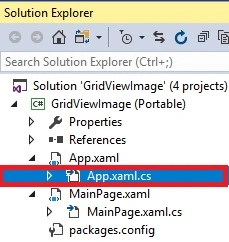
Open Solution Explorer >> Project Name (Portable) >> App.xaml.cs. Double Click in open the design view of this page.
The Code is given below.
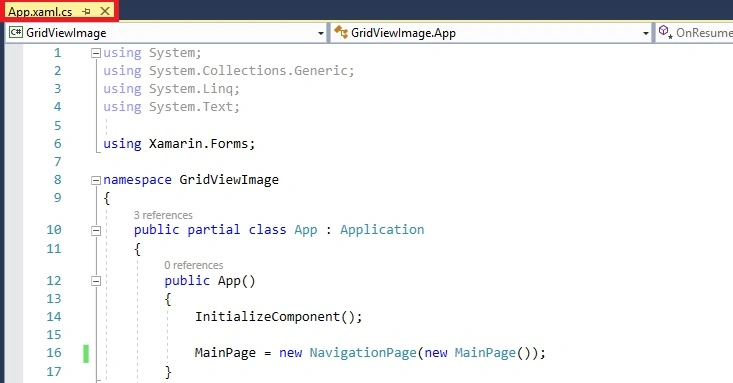
C# Code
- using System;
- using System.Collections.Generic;
- using System.Linq;
- using System.Text;
- using Xamarin.Forms;
- namespace GridViewImage
- {
- public partial class App : Application
- {
- public App()
- {
- InitializeComponent();
- MainPage = new NavigationPage(new MainPage());
- }
- protected override void OnStart()
- {
- // Handle when your app starts
- }
- protected override void OnSleep()
- {
- // Handle when your app sleeps
- }
- protected override void OnResume()
- {
- // Handle when your app resumes
- }
- }
- }
Step 3
Next, add an image to solution Explorer >> Project Name.Android >> Resources >> Right-Click drawable >> Add >> Existing Item.
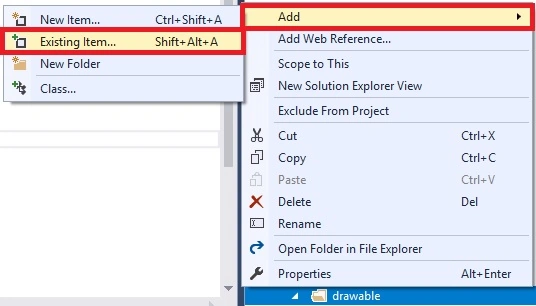
Next, a dialogue box will open. Choose image location and add images.
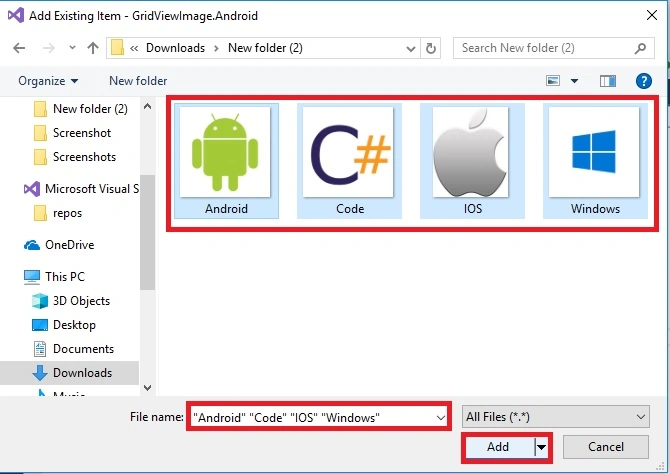
The Images are added successfully.
Step 4
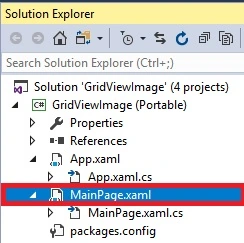
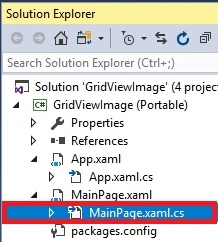
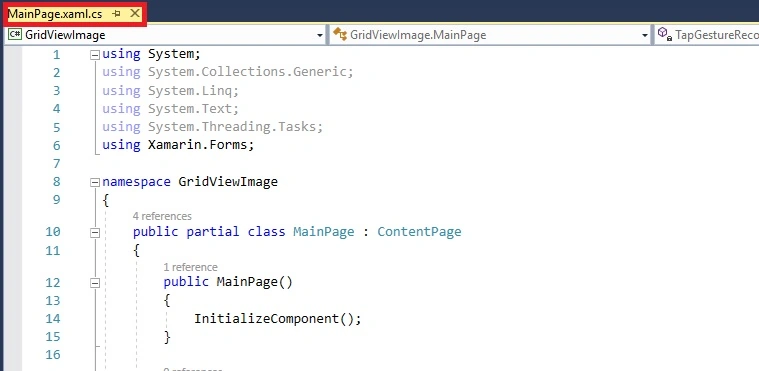
Open Solution Explorer >> Project Name (Portable) >> MainPage.xaml. Double Click in open the design view of this page.
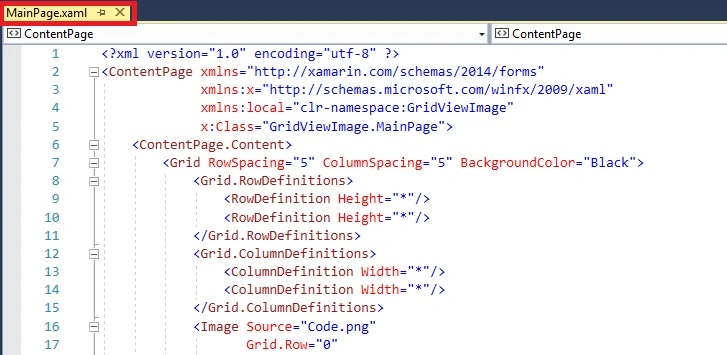
The Code is given below.
Xaml Code
We added four images inside the StackLayout. The images are named "Code", "Android", "Windows", "IOS".
- <?xml version="1.0" encoding="utf-8" ?>
- <ContentPage xmlns="http://xamarin.com/schemas/2014/forms"
- xmlns:x="http://schemas.microsoft.com/winfx/2009/xaml"
- xmlns:local="clr-namespace:GridViewImage"
- x:Class="GridViewImage.MainPage">
- <ContentPage.Content>
- <Grid RowSpacing="5" ColumnSpacing="5" BackgroundColor="Black">
- <Grid.RowDefinitions>
- <RowDefinition Height="*"/>
- <RowDefinition Height="*"/>
- </Grid.RowDefinitions>
- <Grid.ColumnDefinitions>
- <ColumnDefinition Width="*"/>
- <ColumnDefinition Width="*"/>
- </Grid.ColumnDefinitions>
- <Image Source="Code.png"
- Grid.Row="0"
- Grid.Column="0"
- BackgroundColor="White"
- HorizontalOptions="FillAndExpand"
- VerticalOptions="FillAndExpand">
- <Image.GestureRecognizers>
- <TapGestureRecognizer Tapped="TapGestureRecognizer_Tapped"/>
- </Image.GestureRecognizers>
- </Image>
- <Image Source="Android.png"
- Grid.Row="0"
- Grid.Column="1"
- BackgroundColor="White"
- HorizontalOptions="FillAndExpand"
- VerticalOptions="FillAndExpand">
- <Image.GestureRecognizers>
- <TapGestureRecognizer Tapped="TapGestureRecognizer_Tapped_1"/>
- </Image.GestureRecognizers>
- </Image>
- <Image Source="Windows.png"
- Grid.Row="1"
- Grid.Column="0"
- BackgroundColor="White"
- HorizontalOptions="FillAndExpand"
- VerticalOptions="FillAndExpand">
- <Image.GestureRecognizers>
- <TapGestureRecognizer Tapped="TapGestureRecognizer_Tapped_2"/>
- </Image.GestureRecognizers>
- </Image>
- <Image Source="IOS.png"
- Grid.Row="1"
- Grid.Column="1"
- BackgroundColor="White"
- HorizontalOptions="FillAndExpand"
- VerticalOptions="FillAndExpand">
- <Image.GestureRecognizers>
- <TapGestureRecognizer Tapped="TapGestureRecognizer_Tapped_3"/>
- </Image.GestureRecognizers>
- </Image>
- </Grid>
- </ContentPage.Content>
- </ContentPage>
Step 5
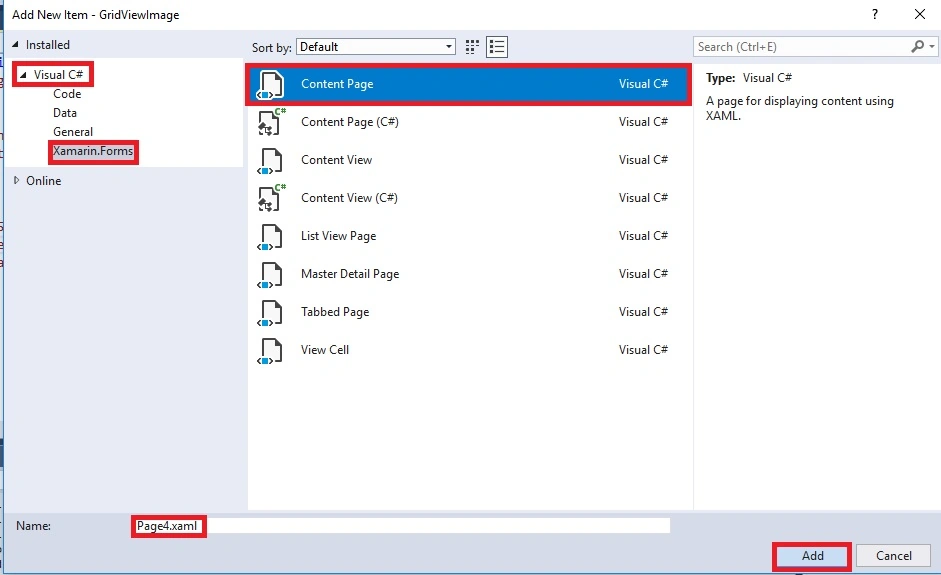
Next, Open the Solution Explorer >> Project Name (Portable) >> Right-Click >> Add >> New Item or Ctrl+Shift+A.
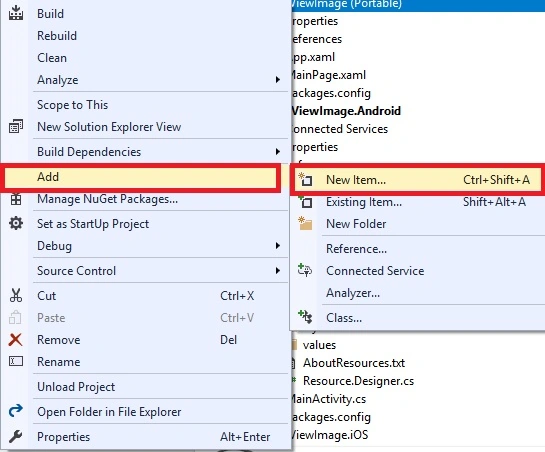
A new dialogue box will open. Now, add the XAML page and give it a name. Click the "Add" button and give your name "Page 1".
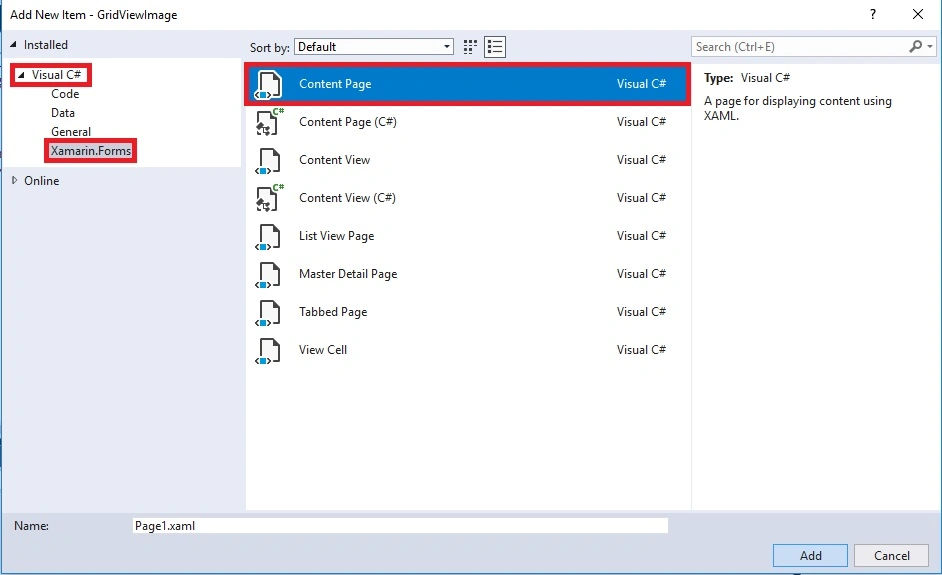
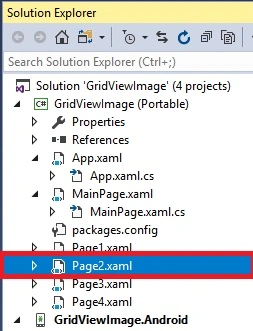
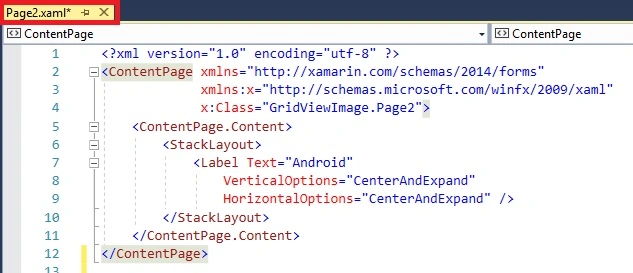
Similarly, add the XAML page and give your name "Page 2".
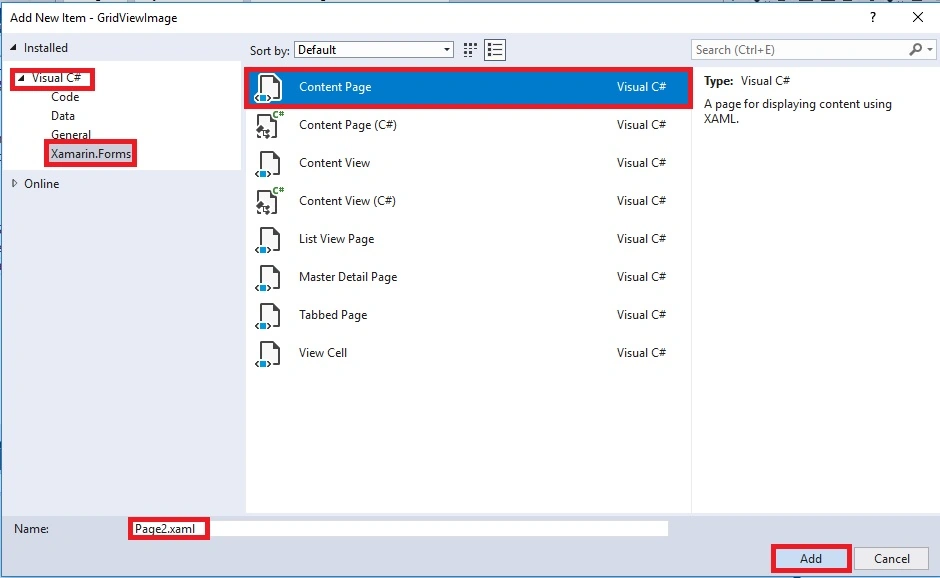
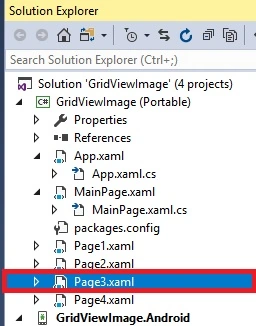
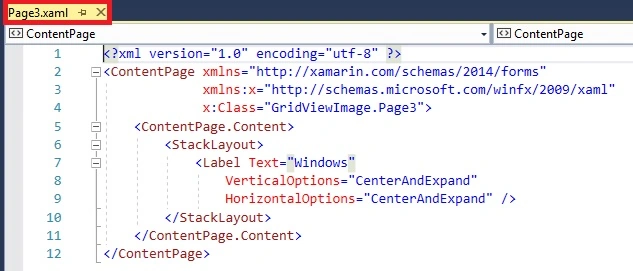
Similarly, add the XAML page and give your name "Page 3".
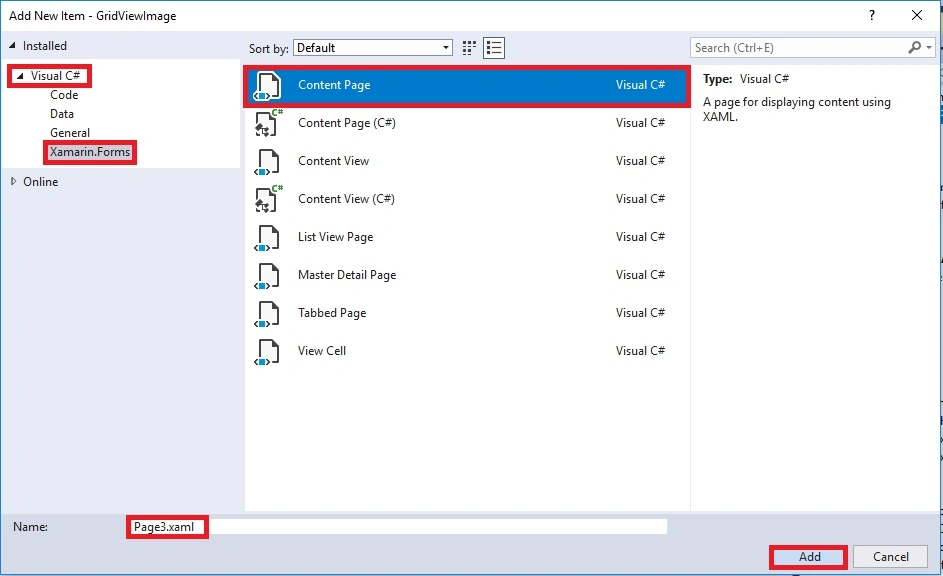
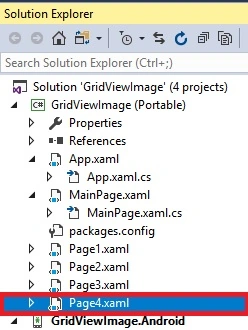
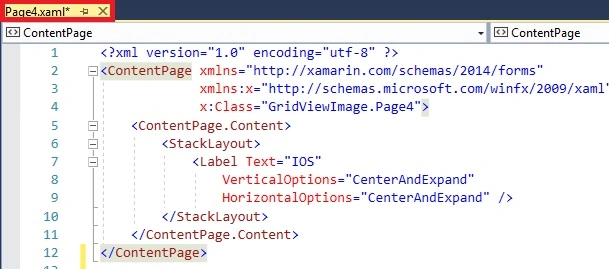
Similarly, add the XAML page and give your name "Page 4".
Step 6
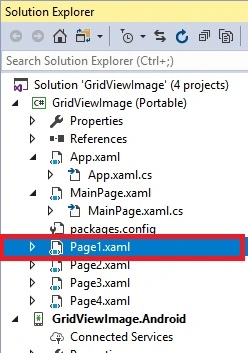
Open Solution Explorer >> Project Name >> Page1.xaml. Open the design view of this page.
The code is given below.
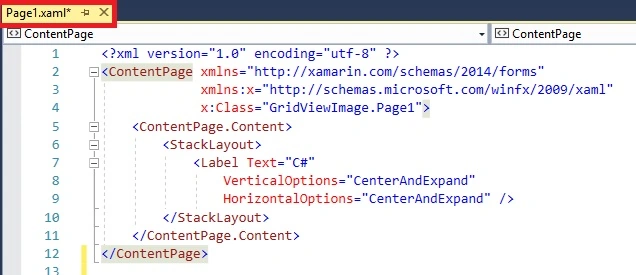
Xaml Code
- <?xml version="1.0" encoding="utf-8" ?>
- <ContentPage xmlns="http://xamarin.com/schemas/2014/forms"
- xmlns:x="http://schemas.microsoft.com/winfx/2009/xaml"
- x:Class="GridViewImage.Page1">
- <ContentPage.Content>
- <StackLayout>
- <Label Text="C#"
- VerticalOptions="CenterAndExpand"
- HorizontalOptions="CenterAndExpand" />
- </StackLayout>
- </ContentPage.Content>
- </ContentPage>

Hiten PandyaPosted Apr 26, 2018, 10:14 AM
Good Article sir. Thanks for sharing..
Kartik PawarPosted Apr 26, 2018, 7:42 AM
Nice article... Keep it up...