

Introduction

Xamarin.Forms code runs on multiple platforms - each one has its own filesystem. This means that reading and writing files are most easily done using the native file APIs on each platform. Alternatively, embedded resources are a simpler solution to distribute data files with an app.
Xamarin.UITest
Xamarin.UITest is a C# testing framework using NUnit for UI Acceptance Tests on iOS and Android apps. It integrates tightly with Xamarin.iOS and Xamarin.Android projects, Xamarin.UITest is the Automation Library that allows the NUnit tests to execute on Android and iOS devices. The tests interact with the user interface as a user would - entering text, tapping buttons, and gestures - such as swipes.
Like Appium and Robot Framework, Xamarin.UITest is among the best open-source, cross-platform UI testing framework. It is a more straightforward choice when it comes to automating Android and iOS apps built with Xamarin.Forms.
Follow the Arrange-Act-Assert pattern
Arrange - The test will set up conditions and initialize things so that the test can be actioned.
Act - The test will interact with the application, enter text, pushing buttons, and so on.
Assert - The test examines the results of the actions run in the Act step to determine correctness. For example, the application may verify that a particular error message is displayed.
Prerequisites
- Visual Studio 2017 or later (Windows or Mac)
Setting up a Xamarin.Forms Project
Start by creating a new Xamarin.Forms project. You wíll learn more by going through the steps yourself.
Create a new or existing Xamarin forms(.Net standard) Project. With Android and iOS Platform.
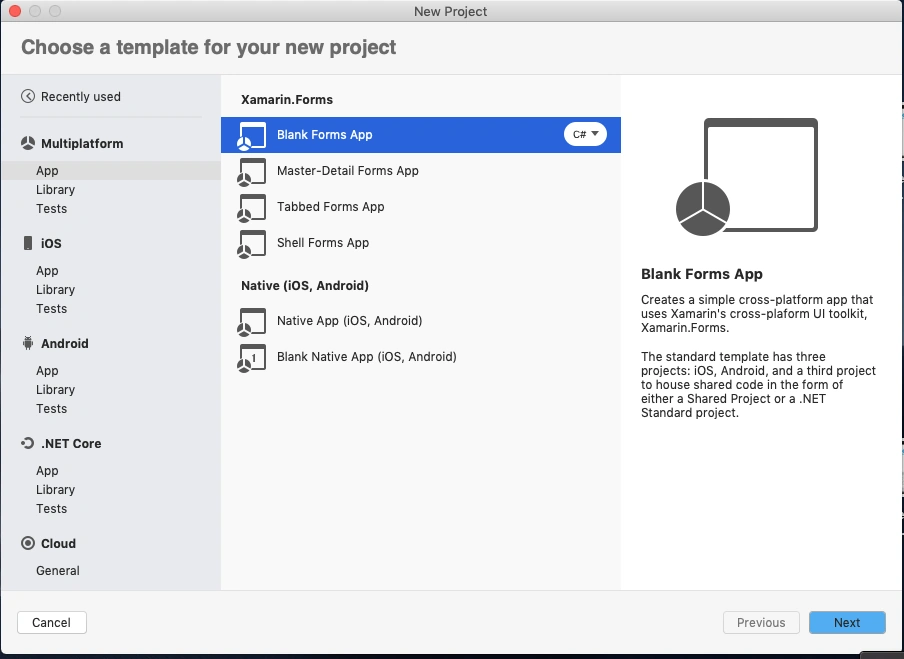
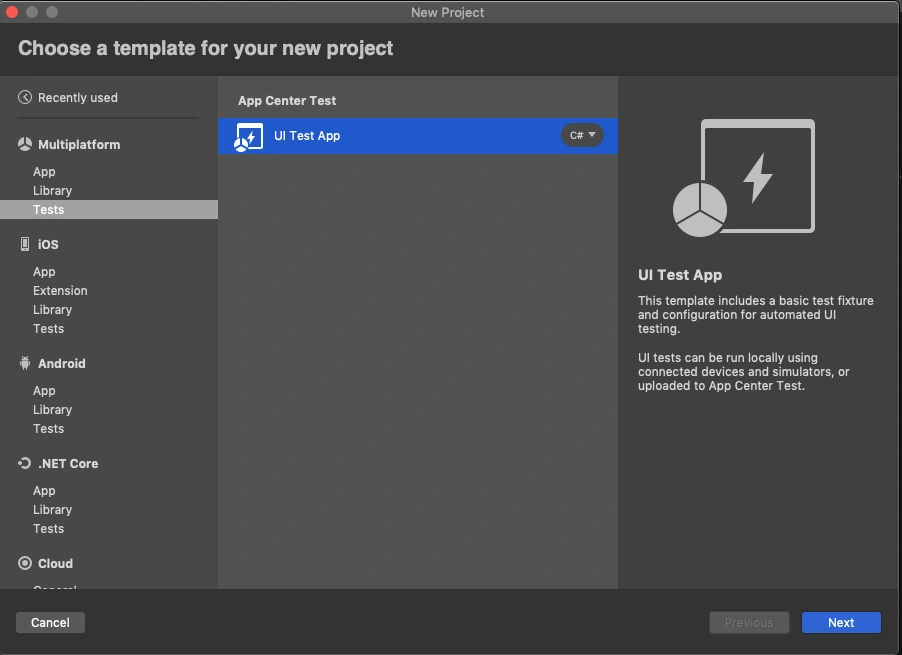
Add UI Test Project
Now, add the UI Test project to your existing Xamarin.forms project. Go to your solution add a new project select Xamarin UI Project refer to the following screenshot.
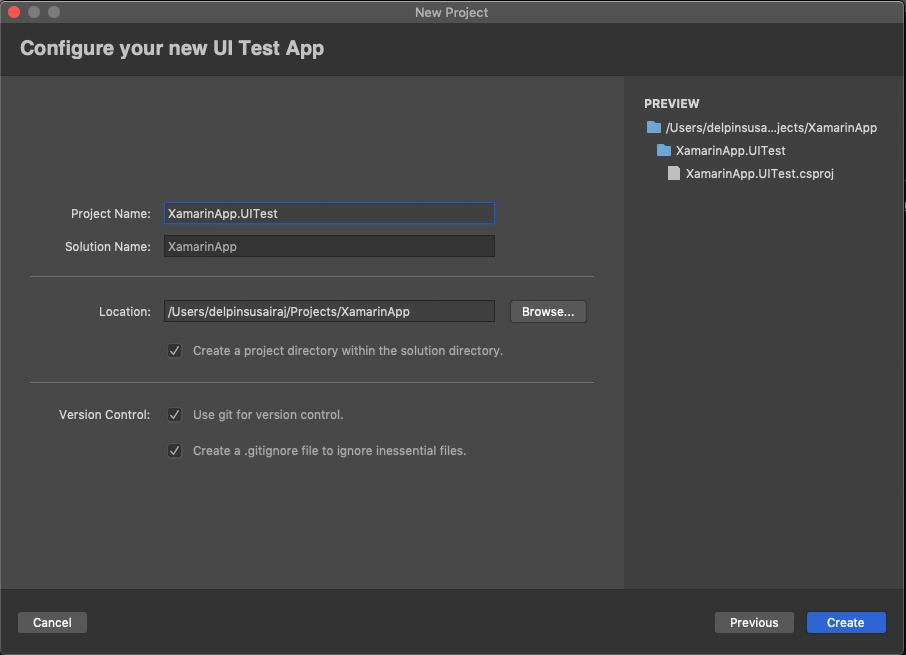
Name your UI Test project then click on create to add.
Use AutomationId
- AutomationId should be added to all UI controls that are required for UI testing.
- AutomationId is a Dependency Property that can also be set with a binding expression.
- InvalidOperationException will be thrown if an attempt is made to set the AutomationId property of an element more than once.
- AutomationId and X:Name are different. You must set AutomationId for all controls.
Ex: AutomationId="EntryPhoneNumber"
Create a UI
Here, I'm going to create a simple UI for UI Testing.
MainPage.XAML
<?xml version="1.0" encoding="utf-8"?>
<ContentPage xmlns="http://xamarin.com/schemas/2014/forms"
             xmlns:x="http://schemas.microsoft.com/winfx/2009/xaml"
             xmlns:d="http://xamarin.com/schemas/2014/forms/design"
             xmlns:mc="http://schemas.openxmlformats.org/markup-compatibility/2006"
             xmlns:TitleView="clr-namespace:XamarinApp.CustomView"
             mc:Ignorable="d" x:Class="XamarinApp.MainPage">

    <NavigationPage.TitleView>
      <TitleView:TitleView/>
    </NavigationPage.TitleView>

    <StackLayout Margin="0,50,0,0" VerticalOptions="StartAndExpand">
        <Image VerticalOptions="Center" Source="xamarinmonkeysbanner.png"/>


        <Entry AutomationId="EntryPhoneNumber" Placeholder="Enter Phone Number" x:Name="entryPhoneNumber"/>
        <Button AutomationId="ValidateButton" Text="Validate" Clicked="PhoneNumberValidate"/>
        <Label AutomationId="ResultLabel" x:Name="lblResult"/>

    </StackLayout>
</ContentPage>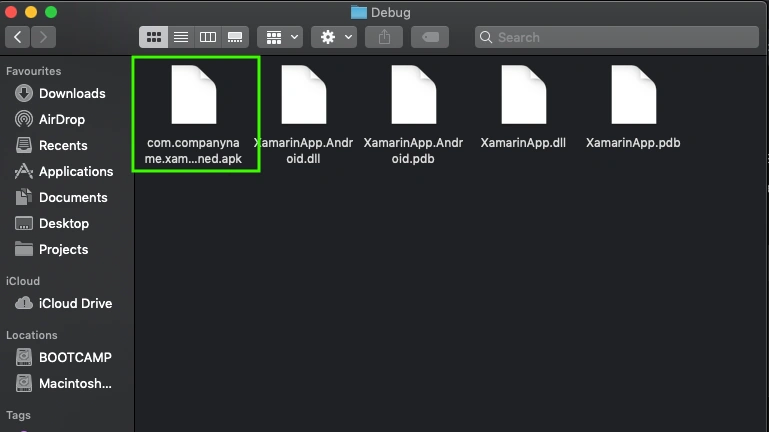
mohamed benabdiPosted Nov 30, 2022, 9:32 AM
Hello, thank you for the exemple, i have a little problem on visual studio mac 2022 i havent the test part on multiplatform app, there is a way to add it?