

Introduction
Xamarin.Forms code runs on multiple platforms, each of which has its own filesystem. This means that reading and writing files is most easily done using the native file APIs on each platform. Alternatively, embedded resources are a simpler solution to distribute data files with an app.
RefreshView (Pull to Refresh)
RefreshView is a container control that provides a pull to refresh functionality for scrollable content. Therefore, the child of a RefreshView must be a scrollable control, such as ScrollView, CollectionView, or ListView.
Prerequisites
- Visual Studio 2017 or later (Windows or Mac)
Setting up a Xamarin.Forms Project
Start by creating a new Xamarin.Forms project. You wíll learn more by going through the steps yourself.
Create a new or existing Xamarin forms(.Net standard) Project. With Android and iOS Platform.
Use RefreshView
Make sure your controls should be within ScrollView.
- <RefreshView IsRefreshing="{Binding IsRefreshing}" RefreshColor="Red"
- Command="{Binding RefreshViewCommand}">
- <ScrollView>
- // Your Controls
- </ScrollView>
- </RefreshView>
Setting up the User Interface
Here, Add RefreshView in your View. Make sure your content should be within ScrollView.
MainPage.Xaml
- <?xml version="1.0" encoding="UTF-8"?>
- <Pages:XMonkeyBasePage xmlns="http://xamarin.com/schemas/2014/forms"
- xmlns:x="http://schemas.microsoft.com/winfx/2009/xaml"
- xmlns:Behavior="clr-namespace:Prism.Behaviors;assembly=Prism.Forms"
- xmlns:Pages="clr-namespace:XMonkey.Common.Pages"
- xmlns:CustomViews="clr-namespace:XMonkey.Common.CustomViews"
- x:Class="XMonkey.Views.BlogFeedPage">
- <NavigationPage.TitleView>
- <CustomViews:XMonkeyTitleView />
- </NavigationPage.TitleView>
- <Pages:XMonkeyBasePage.Behaviors>
- <Behavior:EventToCommandBehavior EventName="Appearing" Command="{Binding RefreshCommand}"/>
- <Behavior:EventToCommandBehavior EventName="Disappearing" Command="{Binding CleanUpCommand}"/>
- </Pages:XMonkeyBasePage.Behaviors>
- <Pages:XMonkeyBasePage.PageContent>
- <RefreshView IsRefreshing="{Binding IsRefreshing}"
- Command="{Binding RefreshViewCommand}">
- <ScrollView>
- <FlexLayout Direction="Column" Margin="0,100,0,0"
- AlignItems="Center">
- <Label FontSize="Large" Text="{Binding Name}"/>
- </FlexLayout>
- </ScrollView>
- </RefreshView>
- </Pages:XMonkeyBasePage.PageContent>
- </Pages:XMonkeyBasePage>
Add RefreshCommand
Now, Add RefreshCommand for your RefreshView. This Command will perform while pull to refresh. After Refresh your data don't forget set IsRefreshing=false;
MainPageViewModel.cs
- namespace XMonkey.ViewModels
- {
- public class BlogFeedPageViewModel:BaseViewModel
- {
- #region Fields
- private string _name;
- private bool _isRefreshing;
- private Command _refreshViewCommand;
- #endregion
- #region Constructor
- public BlogFeedPageViewModel()
- {
- }
- #endregion
- #region Properties
- public string Name
- {
- get => _name;
- set => SetProperty(ref _name, value);
- }
- public bool IsRefreshing
- {
- get => _isRefreshing;
- set => SetProperty(ref _isRefreshing, value);
- }
- public Command RefreshViewCommand
- {
- get
- {
- return _refreshViewCommand ?? (_refreshViewCommand = new Command(() =>
- {
- this.RefreshData();
- }));
- }
- }
- #endregion
- #region Methods
- private void RefreshData()
- {
- //Do your stuff
- this.Name = "Delpin";
- this.IsRefreshing = false;
- }
- #endregion
- }
- }
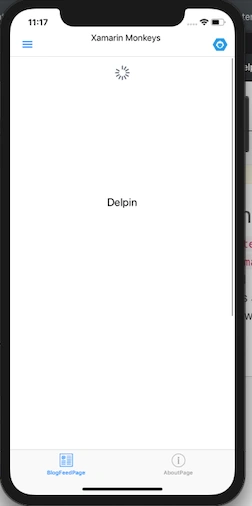
Click the "Play" button to try it out.
Change Refresh ActivityIndicator Color
Now, Change Refresh ActivityIndicator Color. Set RefreshColor="Color". Check the below code:
MainPage.xaml
- <RefreshView IsRefreshing="{Binding IsRefreshing}" RefreshColor="Red"
- Command="{Binding RefreshViewCommand}">
- <ScrollView>
- <FlexLayout Direction="Column" Margin="0,100,0,0"
- AlignItems="Center">
- <Label FontSize="Large" Text="{Binding Name}"/>
- </FlexLayout>
- </ScrollView>
- </RefreshView>
Click the "Play" button to try it out.
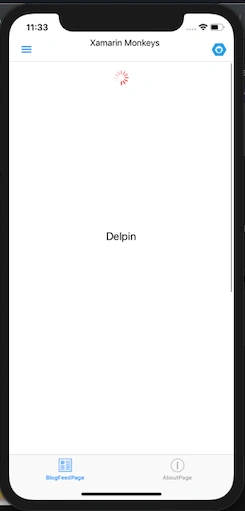
Wow, it's working.
I hope you have understood how to use implement Pull to Refresh the Entire Page using RefreshView in Xamarin.Forms.
Thanks for reading. Please share your comments and feedback. Happy Coding 
varunvir JaiswalPosted May 16, 2022, 11:44 AM
It is not working in UWP even after applying RefreshPullDirection
MD IdiakePosted Apr 27, 2022, 1:27 PM
How can I use the IsGrouped property in CollectionView to implement a strategy of sub-Items tied to one or more items in the main listview so that when you tap on any of these items, they display their associated sub-items?
Fabio MarianoPosted Feb 10, 2020, 3:40 PM
Great article. How can be used the same technique with a WebView control inside, to call .reload() method ?
Logesh PalaniPosted Jan 27, 2020, 2:24 PM
Great :) Thanks for sharing Delpin