

This article discusses the construction of a simple utility that may be used to locate and evaluate paths within an XML document, and to test queries against those paths. The application allows the user to open an XML document into a TreeView control for easy viewing of the structure; the user may right click on any node within the TreeView to expose a context menu that will allow the user to copy the current path to that node. The user may then open a test window up and paste the copied path into an expression text box. Once the path has been pasted into the text box, the user may test the path directly, or may edit the path and test the edit.
The project includes a collection of sample XML documents which may be used to try out the application.
To use the application, open the main form and use the file menu to open an xml document. The document will be displayed in the main form using a TreeView control. The user may click on any node in the TreeView and the path to that node as well as the node type will be displayed in the status bar at the bottom of the window. The user may right click on any selected node and select from one of three options:
- Copy only the text contained in the current node,
- Copy the path to the node formatted as a query for that attribute value, and
- Copy the full path exactly as it is.
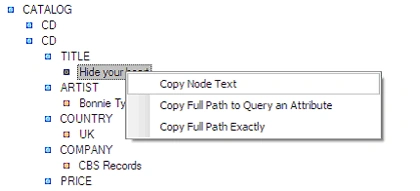
Figure 1: Context Menu
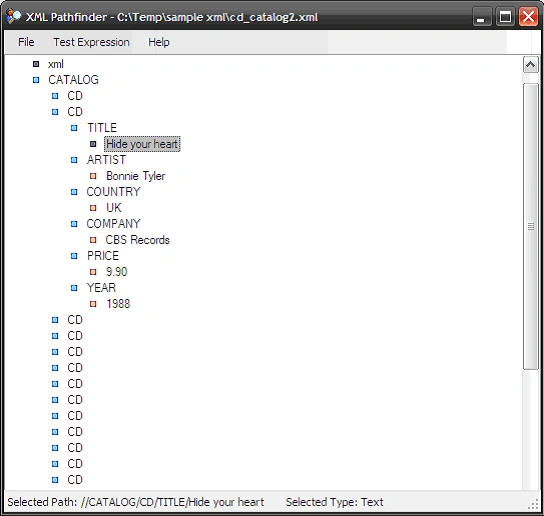
Figure 2: The Main Form
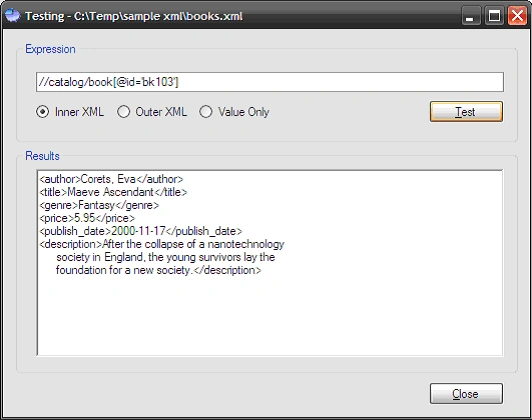
Figure 3: The Test Form (Example shows use of the "Copy Full Path to Query an
Attribute" context menu option)
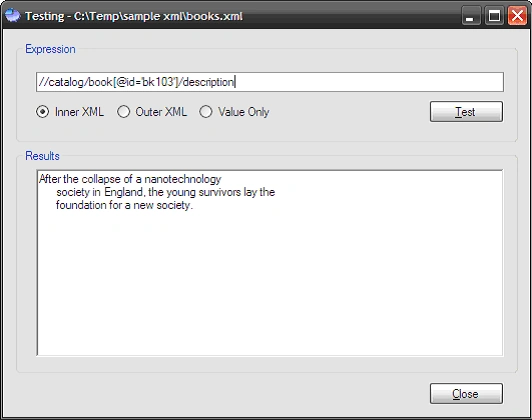
Figure 4: Editing a path manually to test alternative paths
("/description" added to path shown in Figure 3)
The intent of the application was to provide a simple tool that may be
used to test paths for XPath based queries; it is intended to simplify viewing
the XML and to make it easier to identify specific paths within an XML document.
Getting Started:
In order to get started, unzip the included project and open the solution in the
Visual Studio 2005 environment. In the solution explorer, you should note these
files:
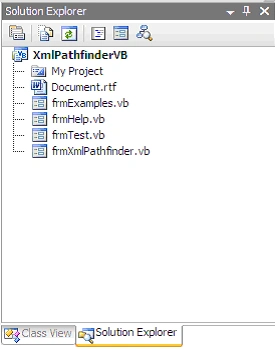
Figure 5: Solution Explorer
The Main Form (frmXmlPathfinder.vb).
The main form is used to open XML documents and to display them in TreeView
format; form also provides the interface necessary to copy node paths and to
open a test window which may be used to test XPath based queries against the XML
document's content. The code is annotated and should be easy enough to follow
from the descriptions provided:
If you'd care to open the code view up in the IDE you will see that the code
file begins as follows:
Imports
System.Xml
Imports
System.Xml.XPath
Note that the additions of the System.Xml
and System.Xml.XPath libraries are the only departure from the default.
Following the imports, class is defined and a constructor added. A local string
variable it declared and used to hold the path to the XML document.
Public
Class frmXmlPathfinder
' Member variables
Private mFilePath
As String
'''
<summary>
''' Constructor
'''
</summary>
'''
<remarks></remarks>
Public Sub
New()
' This call is required by the Windows Form Designer.
InitializeComponent()
' Add any initialization after the InitializeComponent() call.
' init the file path as empty
mFilePath = String.Empty
End Sub
Next up is the method used to exit
the application.
''' <summary>
''' Exit the Application
''' </summary>
''' <param name="sender"></param>
''' <param name="e"></param>
''' <remarks></remarks>
Private Sub tspExit_Click(ByVal sender As System.Object, ByVal e As System.EventArgs) Handles tspExit.Click
Application.Exit()
End Sub
The next section of the code is used
to load the XML document into the TreeView control.
''' <summary>
''' Write the xml document into a treeview to make
''' easier to read and navigate, starting with the top
''' of the document, the method uses recursion to
''' populate the treeview with all the child nodes
''' </summary>
''' <param name="currentNode"></param>
''' <param name="nodCollection"></param>
''' <remarks></remarks>
Private Sub PushToTreeView(ByVal currentNode As XmlNode, _ ByVal nodCollection As TreeNodeCollection)
Try
Dim insertNode As TreeNode = nodCollection.Add(currentNode.Name)
Select Case (currentNode.NodeType)
Case XmlNodeType.Element
insertNode.Text = currentNode.Name
insertNode.Tag = "Element"
insertNode.ImageIndex = 1
Case XmlNodeType.Attribute
insertNode.Text = "@" + currentNode.Name
insertNode.Tag = "Attribute"
insertNode.ImageIndex = 2
Case XmlNodeType.Text
insertNode.Text = currentNode.Value
insertNode.Tag = "Text"
insertNode.ImageIndex = 3
Case XmlNodeType.CDATA
insertNode.Text = currentNode.Value
insertNode.Tag = "CDATA"
insertNode.ImageIndex = 4
Case XmlNodeType.Comment
insertNode.Text = currentNode.Value
insertNode.Tag = "Comment"
insertNode.ImageIndex = 5
Case XmlNodeType.Entity
insertNode.Text = currentNode.Value
insertNode.Tag = "Entity"
insertNode.ImageIndex = 6
Case XmlNodeType.Notation
insertNode.Text = currentNode.Value
insertNode.Tag = "Notation"
insertNode.ImageIndex = 7
Case Else
' do nothing
End Select
' Recursive stuff
' check the current node for attributes
If Not currentNode.Attributes Is Nothing Then
' write out the attributes to the treeview
Dim attribute As XmlAttribute
For Each attribute In currentNode.Attributes
PushToTreeView(attribute, insertNode.Nodes)
Next
End If
' check the current node for child nodes
If Not currentNode Is Nothing And currentNode.HasChildNodes Then
' write out the child nodes to the treeview
Dim childNode As XmlNode
For Each childNode In currentNode.ChildNodes
PushToTreeView(childNode, insertNode.Nodes)
Next
End If
Catch ex As Exception
MessageBox.Show(ex.Message, "Error Reading XML Document")
End Try
End Sub
The next method is used to load up a new XML document into the form.
''' <summary>
''' Open an xml document into the treeview
''' </summary>
''' <param name="sender"></param>
''' <param name="e"></param>
''' <remarks></remarks>
Private Sub tspOpen_Click(ByVal sender As System.Object, ByVal e As System.EventArgs) Handles tspOpen.Click
Try
openFileDialog1.Title = "Open XML File"
openFileDialog1.Filter = "XML Files|*.xml"
openFileDialog1.DefaultExt = "XML"
openFileDialog1.FileName = ""
openFileDialog1.ShowDialog()
If openFileDialog1.FileName = "" Then
Return
End If
' set the file path member var
mFilePath = openFileDialog1.FileName
' Clear the treeview.
treeXml.Nodes.Clear()
' set the wait cursor
Me.Cursor = Cursors.WaitCursor
' create a new xml doc
Dim doc As New XmlDocument()
Try
' load the xml doc
doc.Load(mFilePath)
' set the form text to include
' the file name
Me.Text = "XML Pathfinder - " + mFilePath
' return the cursor
Me.Cursor = Cursors.Default
Catch ex1 As Exception
' return the cursor
Me.Cursor = Cursors.Default
' tell a story
MessageBox.Show(ex1.Message, "Error Opening XML File")
Return
End Try
' open the doc into the treeview for
' inspection
PushToTreeView(doc, treeXml.Nodes)
' restore the cursor
Me.Cursor = Cursors.Default
Catch ex2 As Exception
' snitch
MessageBox.Show(ex2.Message, "Unable to Open Document")
End Try
End Sub
The next bit of code is used display the selected node's path within the context
of the XML document; the path shown is a cleaned up version of what appears in
the TreeView. This code will display both the path as well as the selected
node's type (e.g., Element, or Attribute).
''' <summary>
''' Update the status bar when a new node is selected
''' </summary>
''' <param name="sender"></param>
''' <param name="e"></param>
''' <remarks></remarks>
Private Sub treeXml_AfterSelect(ByVal sender As System.Object, ByVal e As System.Windows.Forms.TreeViewEventArgs) Handles treeXml.AfterSelect
Try
Dim tmp As String = treeXml.SelectedNode.FullPath
tmp = tmp.Replace("#document", "/")
' show the path in the status bar
statusPath.Text = "Selected Path: " + tmp
' show the selected node type in the status bar
statusType.Text = "Selected Type: " + treeXml.SelectedNode.Tag
Catch
' skip this update
End Try
End Sub
The next three methods are used to format the path and to copy it into the
clipboard making it possible to then paste the selected path directly into the
expression test text box on the test form.
''' <summary>
''' Update the status bar when a new node is selected
''' </summary>
''' <param name="sender"></param>
''' <param name="e"></param>
''' <remarks></remarks>
Private Sub treeXml_AfterSelect(ByVal sender As System.Object, ByVal e As
System.Windows.Forms.TreeViewEventArgs) Handles treeXml.AfterSelect
Try
Dim tmp As String = treeXml.SelectedNode.FullPath
tmp = tmp.Replace("#document", "/")
' show the path in the status bar
statusPath.Text = "Selected Path: " + tmp
' show the selected node type in the status bar
statusType.Text = " Selected Type: " +
treeXml.SelectedNode.Tag
Catch
' skip this update
End Try
End Sub
The last two methods in the main form are used to either open a help window or
to open a test window.
''' <summary>
''' Open the test file if there is an active
''' xml file open in the main form
''' </summary>
''' <param name="sender"></param>
''' <param name="e"></param>
''' <remarks></remarks>
Private Sub tspOpenTest_Click(ByVal sender As System.Object, ByVal e As System.EventArgs) Handles tspOpenTest.Click
If mFilePath <> String.Empty Then
Dim f As New frmTest(mFilePath)
f.Show()
Else
MessageBox.Show("Open an xml document prior to starting a test.",
"Invalid File")
End If
End Sub
''' <summary>
''' Open the help file
''' </summary>
''' <param name="sender"></param>
''' <param name="e"></param>
''' <remarks></remarks>
Private Sub tspOpenHelp_Click(ByVal sender As System.Object, ByVal e As System.EventArgs) Handles tspOpenHelp.Click
Dim f As New frmHelp()
f.Show()
End Sub
End
Class
The Test Form (frmTest.vb).
The test form is used to test paths within open XML documents and to display of
any XPath type queries executed against the XML document.
If you'd care to open the code view up in the IDE you will see that the code
file begins as follows:
Imports System.IO
Imports System.Text
Imports System.Xml
Imports System.Xml.XPath
The imports are primarily per the default configuration
for a Windows application; the System.Xml and System.Xml.XPath library import
are the only departure from the default.
Following the imports, the class is declared and a constructor added. A local
string variable it declared and used to hold the path to the XML document.
Public Class frmTest
' the document opened for examination
Dim doc As New XmlDocument()
''' <summary>
''' Constructor
'''
''' Uses the same xml document as is opened
''' in the main form of the application; this
''' is passed upon creating a new instance
''' of this test form
'''
''' </summary>
''' <param name="filePath"></param>
''' <remarks></remarks>
Public Sub New(ByVal filePath As String)
InitializeComponent()
' Load the xml document for use in
' this form
Try
doc.Load(filePath)
Me.Text = "Testing - " & filePath
Catch ex As Exception
MessageBox.Show(ex.Message, "Error Loading XML document")
End Try
End Sub
The next bit of code is the button click event handler for the test itself. This
code uses the expression text box content as path; whatever is captured from the
resulting query is displayed in the result section of the form. This is
accomplished by creating an XPathNavigator and using the XML document's
CreateNavigator method. Once the navigator is declared, we can send the
expression search term directly to the navigator's select method to test it.
''' <summary>
''' Tests the statement entered into the expression
''' test box and display the results in the
''' results panel
''' </summary>
''' <param name="sender"></param>
''' <param name="e"></param>
''' <remarks></remarks>
Private Sub btnTest_Click(ByVal sender As System.Object, ByVal e As System.EventArgs) Handles btnTest.Click
rtbResults.Text = String.Empty
' get an xpath navigator
Dim navigator As XPathNavigator
navigator = doc.CreateNavigator
' contain the results in a stringbuilder
Dim sb As New StringBuilder()
Try
' look for the path and use an iterator to capture the results
Dim nodes As XPathNodeIterator =
navigator.Select(txtTestExpression.Text)
While (nodes.MoveNext())
Dim node As XPathNavigator = nodes.Current
' depending upon which radio button is checked,
' write the results to the string builder
If optInnerXml.Checked = True Then
sb.Append(node.InnerXml & Environment.NewLine)
ElseIf optOuterXml.Checked = True Then
sb.Append(node.OuterXml & Environment.NewLine)
Else
sb.Append(node.Value & Environment.NewLine)
End If
End While
Catch ex As Exception
MessageBox.Show(ex.Message, "XPath Error")
End Try
' post any results to the results box
rtbResults.Text = sb.ToString()
End Sub
The last bit of the class is used to
close the form.
''' <summary>
''' Close this form
''' </summary>
''' <param name="sender"></param>
''' <param name="e"></param>
''' <remarks></remarks>
Private Sub btnClose_Click(ByVal sender As System.Object, ByVal e As System.EventArgs) Handles btnClose.Click
Me.Dispose()
End Sub
The only remaining forms are used to display the help. The help file contains
access to an RTF document which contains instructions and samples showing a few
ways in which it is possible to use the utility.
Summary.
This application was provided as a starter utility application that may be used
to evaluate paths when writing XPath based queries against an existing XML
document. There are a lot of other things that one could add to the application
to make it more useful; a better interface for defining and testing more
elaborate queries would be a good enhancement.
Join the conversation! Your thoughts help the community grow.