

This blog will help you to understand how to add a site collection administrator using SharePoint Online Management Shell.
Just consider, you have created one site collection in the SharePoint Online and it started provisioning. After a few minutes, you realized that the site provisioning doesn't happen properly and it says "Access Denied" like the below image.
Just consider, you have created one site collection in the SharePoint Online and it started provisioning. After a few minutes, you realized that the site provisioning doesn't happen properly and it says "Access Denied" like the below image.
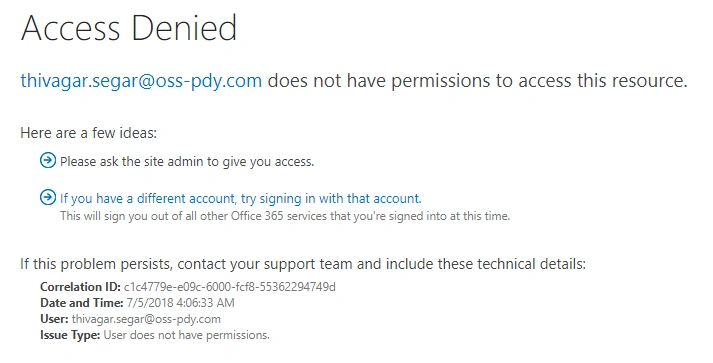
As a SharePoint Administrator, first, we will look into the logs to find the root cause of why it has not added any user on the site. Then, we will try to add the user in the Site collection administrator using Admin Center but sometimes, when we add a user using GUI mode, it will not reflect properly and the user may get "Access Denied" repeatedly.

So, our next step would be to open the SharePoint Online Management Shell to add the user as a Site Collection Administrator.
- # To connect your shell to the SharePoint Online
- Connect-SPOService -URL https://tenant-admin.sharepoint.com
Here, I always prefer to enter the credentials in the browser mode because in some cases, the organization may enable the Multi-Factor Authentication (MFA). This method will help you to resolve your MFA.

- Set-SPOUser -Site https://tenant.sharepoint.com/sites/sitename -LoginName [email protected] -IsSiteCollectionAdmin $true

This command will set the user as a Site Collection Administrator in the respective site collection and once you try to access that site collection, it will allow you to access it and then go to site setting -> site permission and check the user permission,

You may get "None", which means you are not a member of the site collection. You are a site collection administrator with high privilege.
sandip kumarPosted Sep 6, 2018, 6:31 AM
Hi Sir, Can you give a demo example using powershell/C# windows application. I will oblique for it. Thanks,
sandip kumarPosted Sep 6, 2018, 12:23 AM
Hi Sir, In my share point portal taking data of SSRS reports from server name "A" and DB Name is "B" and dasboard taking the data from server name C and db name E and and one page of cube where cube server name is F and cube DB name is G and other some reports are coming from PDW server where PDW server name H and PDW db name is I. I want to see all connections where are available in share point portal using powershell script or C#. Is it possible?
sandip kumarPosted Sep 5, 2018, 12:59 PM
Can we get all connections using power shell in share point portal?