

Introduction
In this blog, we are going to discuss how to convert the List/Library to the classic version on the Communication site. We can convert it manually or programmatically using PowerShell.
First, we are converting the Modern list/library to the classic experience of a site collection and then we will see how to covert the classic list/library of modern experiences. We can do this through the manual method as well as in the coding (PowerShell) method.
Convert A list/library of a site collection to Classic or New experiences
By using the below code, you can convert a modern list/library to classic experiences,
- Add - Type - Path "C:\Program Files\Common Files\Microsoft Shared\Web Server Extensions\16\ISAPI\Microsoft.SharePoint.Client.dll"
- Add - Type - Path "C:\Program Files\Common Files\Microsoft Shared\Web Server Extensions\16\ISAPI\Microsoft.SharePoint.Client.Runtime.dll"
- $siteURL = Read - Host "Enter site Url"
- $listName = Read - Host "Enter List Name"
- $userId = Read - Host "Enter UserName"
- $password = Read - Host "Enter password"
- $credentials = New - Object Microsoft.SharePoint.Client.SharePointOnlineCredentials($userId, (ConvertTo - SecureString $password - AsPlainText - Force))
- try {
- $context = New - Object Microsoft.SharePoint.Client.ClientContext($siteURL)
- $context.Credentials = $credentials
- $oWeb = $Context.web
- $context.Load($oWeb)
- $list = $oWeb.Lists.GetByTitle($listName)
- $list.ListExperienceOptions = "ClassicExperience"
- $list.Update()
- $context.ExecuteQuery()
- } catch {}
By the below code, you can convert a classic list/library to new experiences (modern experience),
- try {
- $context = New - Object Microsoft.SharePoint.Client.ClientContext($siteURL)
- $context.Credentials = $credentials
- $oWeb = $Context.web
- $context.Load($oWeb)
- $list = $oWeb.Lists.GetByTitle($listName)
- $list.ListExperienceOptions = "NewExperience"
- $list.Update()
- $context.ExecuteQuery()
- } catch {}
Note
You also can do it manually by following the below steps to convert a library to classic experiences,
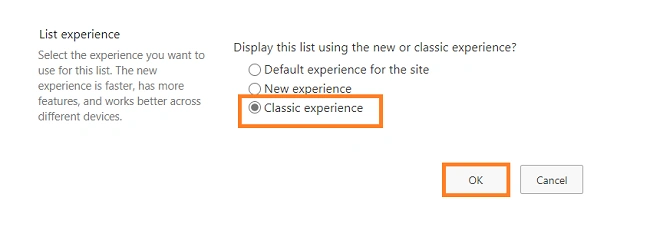
- Go to List/Library Settings by clicking the gear menu of that, SharePoint page>> Click on “Advanced Settings”.
- Scroll down, then from the “ListExperience” section, select “Classic Experience.
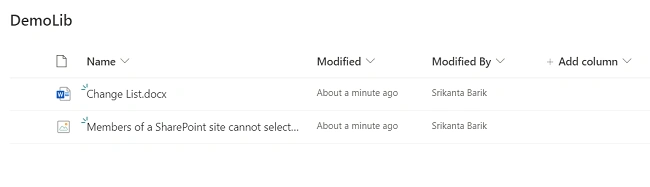
Library in Modern Mode
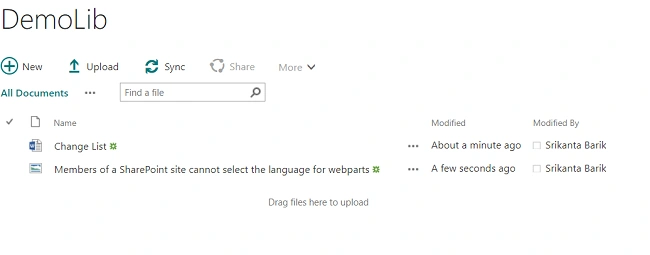
Library in Classic Mode
Note
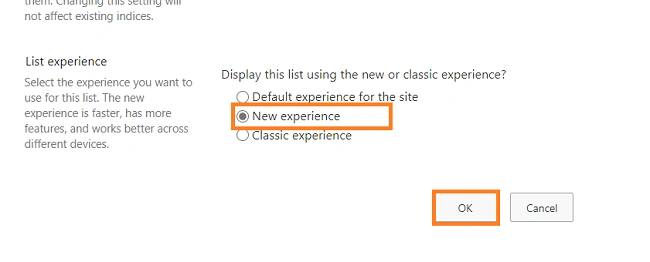
If you want to convert a classic list/library to Modern then choose “New Experience “in the “List Experience” Section.
Convert All list/library of a site collection to Classic or New experiences
Follow the below code to convert all the Modern list/library of a site collection to classic experiences.
- $siteURL = Read - Host "Enter site Url"
- $listName = Read - Host "Enter List Name"
- $userId = Read - Host "Enter UserName"
- $password = Read - Host "Enter password"
- $credentials = New - Object Microsoft.SharePoint.Client.SharePointOnlineCredentials($userId, (ConvertTo - SecureString $password - AsPlainText - Force))
- try {
- $context = New - Object Microsoft.SharePoint.Client.ClientContext($siteURL)
- $context.Credentials = $credentials
- $oWeb = $Context.web
- $context.Load($oWeb)
- $context.ExecuteQuery()
- $lists = $oWeb.Lists
- $context.Load($lists)
- $context.ExecuteQuery()
- foreach($list in $lists) {
- if ($list.ListExperienceOptions - eq "NewExperience" - and($list.Hidden - eq $false)) {
- $list.ListExperienceOptions = "ClassicExperience"
- $list.ListExperienceOptions = "ClassicExperience"
- $list.Update()
- $context.ExecuteQuery()
- }
- }
- } catch {
- sleep 5
- }
Note
If you want to convert a classic list/library to Modern, then in the coding of “$list. ListExperienceOptions ="ClassicExperience"” change the ListExperienceOptions “ClaasicExperience” to “NewExperience”.
Join the conversation! Your thoughts help the community grow.