

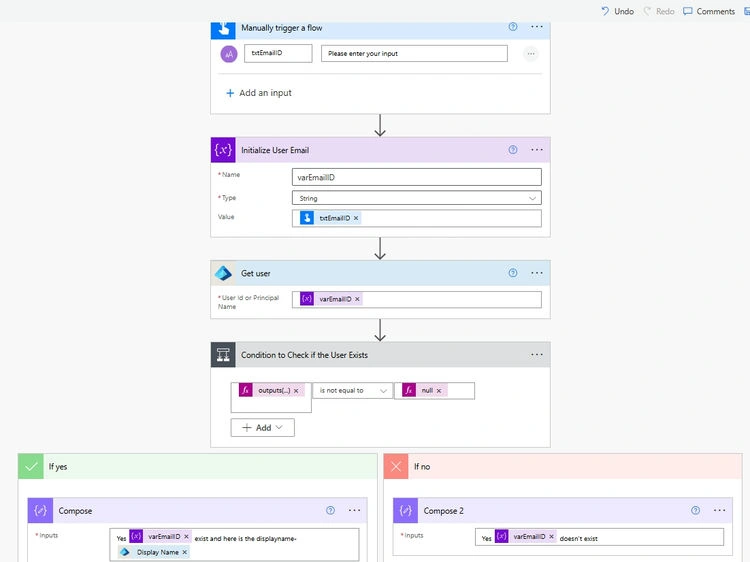
The flow consists of the following steps
-
Trigger the Flow
- The flow begins with a manual trigger, where the user provides an email address as input (txtEmailID).
-
Initialize a Variable
- The input email address is stored in a string variable (varEmailId) for reuse in subsequent actions.
-
Get User Details
- The Get user action of Microsoft Entra is used to fetch user details based on the provided email address, which is used as the User ID or Principal Name.
-
Check if the User Exists
- A condition checks whether the output from the Get user action is empty. This determines if the user exists in the tenant.
-
Compose Actions for Both Outcomes
- If Yes (User Exists): A Compose action is used to display user details like ID and Display Name.
- If No (User Does Not Exist): Another Compose action handles scenarios where the user is not found, providing a structured response.
Condition Logic
The condition leverages the empty expression to determine whether the user exists. Here's the key expression used in the condition:
Expression: outputs('Get_user')?['body'] is not equal to null
- True: The user exists (details are returned).
- False: The user does not exist (empty response).
Use Case Scenarios
This flow can be adapted for various use cases:
- Automating user verification in onboarding processes.
- Validating user existence before assigning tasks or licenses.
- Generating reports on user existence for IT governance.
Tips for Implementation
- Input Validation: Ensure the input email address matches the user principal name format for your tenant.
- Error Handling: Add error-handling steps to manage cases where the flow fails due to invalid inputs or permissions.
- Extensibility: Enhance the flow by adding actions to send notifications or update logs based on the condition outcome.
Note. The Microsoft Entra connector in Power Automate is a premium connector, which requires a premium license. Ensure you have the appropriate Power Automate plan to use this connector.
Conclusion
This flow demonstrates the simplicity and efficiency of combining Power Automate with Microsoft Entra to check user existence. With minimal configuration, you can leverage this solution to automate identity management tasks in your organization.
Happy automating!
Join the conversation! Your thoughts help the community grow.